We're here for you
Search Samsung Support

related search
Topics

Best Customer Service 2023 Award


Gold Award Winner


IDC Future Enterprise Awards


Ranked #1
American Customer Satisfaction Index Survey has ranked Samsung #1 for: Home Appliances in Overall Service Experience1 and TV in Overall Quality2.
Gold Award Winner


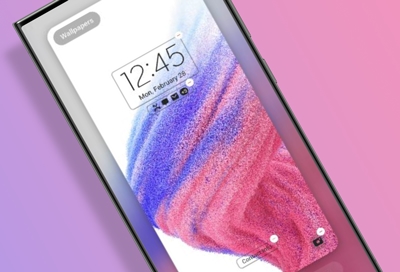


How to find model code
- Category
- Type
Contact Samsung Support




-
Mobile 8 AM - 12 AM EST 7 days a week
-
Home Electronics & Appliance 8 AM - 12 AM EST 7 days a week
-
IT/Computing 8 AM - 12 AM EST 7 days a week
-
Text Support 24 hours a day 7 days a week
**Price is reflective of purchasing the lowest price Certified Re-Newed phone with a cracked screen trade in. See Terms & Conditions
1Samsung tied with one other Appliances brand for Service Ease and two other brands for Service Time.
2Samsung tied with three other TV brands for Overall Quality and Product Quality.
∆Samsung Account required for network-based smart services, including streaming apps and other smart features. Separate [connected] computer, mobile or other device may be necessary to create/log in to Samsung Account. Without Account log in, only external device connections (e.g., via HDMI) and terrestrial/over-the-air TV (only for TVs with tuners) available. If you do not have a Samsung Account, you can easily create one here: https://account.samsung.com/membership/intro it’s free to sign up; terms apply.
3Out-of-warranty transparent pricing is only available on samsung.com/support for Home Appliances.
*Based on the 2023 American Customer Satisfaction Index (ACSI ®) survey of customers rating their own appliances. Samsung achieved #1 ratings in Overall Service Experience, Service Time, Service Help, Service Ease, and Service Outcome. Samsung tied with one other appliance brand for Service Ease and two other brands for Service Time. The ACSI is a registered trademark of the American Customer Satisfaction Index LLC. The ACSI is a national measure of customer satisfaction since 1994, trusted by the US government and reflecting annual feedback from more than 250K US consumers.
‡Coverage includes 99.9% of delivery zip codes (excluding P.O. box, APO/FPO/DPO) by our largest retailer; in-warranty service only.


You Are About To Be Redirected To Investor Relations Information for U.S.
Thank you for visiting Samsung U.S. Investor Relations. You will be redirected via a new browser window to the Samsung Global website for U.S. investor relations information.Redirect Notification
As of Nov. 1, 2017, the Samsung Electronics Co., Ltd. printer business and its related affiliates were transferred to HP Inc.For more information, please visit HP's website: http://www.hp.com/go/samsung
- * For Samsung Supplies information go to: www.hp.com/go/samsungsupplies
- * For S.T.A.R. Program cartridge return & recycling go to: www.hp.com/go/suppliesrecycling
- * For Samsung printer support or service go to: www.hp.com/support/samsung
Select CONTINUE to visit HP's website.