How to Customize the Side Button on Galaxy Devices
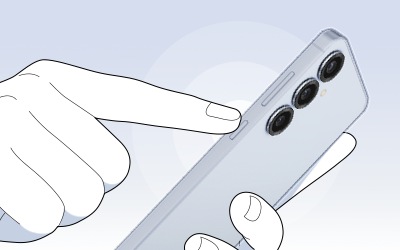
How to Customize the Side Button on Samsung Galaxy Phones and Tablets
Customizing the Side button on your Samsung Galaxy phone or tablet allows you to quickly access your favorite apps and features, such as Gemini, the selfie camera, or Samsung Wallet. With options to assign shortcuts to Double press and Long press gestures, you can streamline your daily tasks and improve productivity.
1. What Are the Default Side Button Actions?
The Side button on your Samsung Galaxy device performs several default actions:
- Single press: Wake or lock the screen.
- Double press: Launch a selected app or feature.
- Long press: Launch Gemini (or Google Assistant in regions where Gemini is unavailable).
- Side button + Volume Down:
- Short press: Take a screenshot.
- Long press: Power-off or Emergency SOS.
-Note: Available features may vary by device model and region.
2. How to Customize the Double Press Action
You can customize the Double press action to launch specific tasks within apps, such as opening the selfie camera or starting a voice recording. Supported options include:
- Camera > Open Camera
- Samsung Wallet
- Flashlight
- Magnifier
- Voice Recorder > Start recording
- Samsung Notes > Record voice note
- Samsung Capture > AI select
- Modes and Routines > Sleep
- Apps
-Note: Supported options may vary by region, software version, and carrier.
-If an app in the list shows the Settings (Gear icon) next to it, that means the app supports in-app shortcut options. Select the Settings (Gear icon) to choose the specific function you want to launch.
3. How to Customize the Long Press Action
The Long press gesture defaults to launching Gemini, Google's AI-powered assistant. You can switch this to the power menu or other digital assistant options anytime.
-If you set Long press to launch a digital assistant app or Bixby, you will not be able to access the power off menu using the Side button.
To turn off your phone, refer to the How to power off your phone section at the bottom of the Side button settings screen, which provides three alternative methods:
- Use the Quick panel.
- Press and hold Side + Volume Down.
- Using Bixby: Say "Turn off the phone".
-Note: Device screenshots and menus may vary depending on the device model and software version.
-Some AI-related features require you to sign in with a Google account.
4. Supported Samsung Galaxy Devices
The Side button customization features are compatible with the following Samsung Galaxy devices:
Galaxy S24, Galaxy S25, Galaxy S26, Galaxy Z Fold, Galaxy Z Flip, and Galaxy A series.
5. Related Samsung Support Topics
Thank you for your feedback!
Please answer all questions.