How to fix the “No SIM Card Detected” error on Samsung Galaxy devices
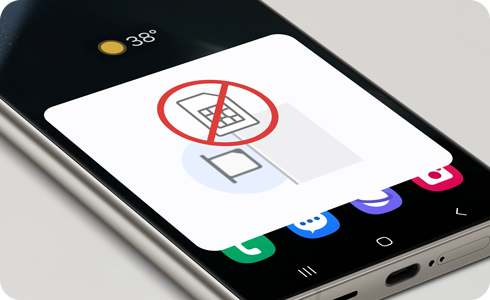
How to Fix the "No SIM Card Detected" Error on Samsung Galaxy Devices
If your Samsung Galaxy device shows a "No SIM Card Detected" error despite having a SIM card installed, follow these steps to troubleshoot and fix the issue effectively.
1. Why Is My Samsung Galaxy Showing "No SIM Card Detected"?
This error typically occurs due to:
- Loose or improperly seated SIM card
- Damaged or corrupted SIM card
- Software glitches or network configuration issues
- Faulty SIM card tray or hardware malfunction
2. How Do I Restart My Samsung Galaxy Phone?
- Press and hold the Power button for 10 seconds until the device powers off.
- Wait 30 seconds, then press the Power button again to turn it back on.
- Check if the "No SIM Card Detected" error persists.
3. How Do I Inspect and Reinsert the SIM Card?
- Turn off your phone completely.
- Remove the SIM card tray using the provided eject tool or a small pin.
- Take out the SIM card and inspect it for visible damage such as scratches, bends, or moisture.
- Clean both the SIM card and tray gently with a dry, lint-free cloth.
- Reinsert the SIM card into the tray, ensuring proper alignment with the gold contacts facing down.
- Securely reinsert the tray into your phone and power it on.
Note: Handle the SIM card tray carefully to avoid bending or breaking it.
4. How Do I Reset Mobile Network Settings on My Samsung Galaxy?
- Go to Settings > Connections > Mobile Networks.
- Tap "Reset Settings" or "Reset Network Settings."
- Confirm the reset when prompted.
- Reconfigure your mobile network settings if necessary.
Note: Resetting network settings will erase saved Wi-Fi passwords, Bluetooth pairings, and mobile network configurations.
5. What Else Should I Check?
- Test the SIM card in another compatible phone to confirm it's functional.
- Ensure your phone supports your current SIM card type (Nano-SIM, eSIM, etc.).
- Check for software updates under Settings > Software Update.
6. Supported Samsung Galaxy Devices
This guide applies to:
- Galaxy S24, S25, S26 series
- Galaxy Z Fold and Z Flip series
- Galaxy A series (A15, A25, etc.)
7. When Might Updates Not Appear?
Updates may not appear if:
- The device is connected to an unstable or restricted network.
- The device storage is insufficient for the update.
- The device is operating in Safe Mode or has conflicting apps.
Related Samsung Support Topics
Thank you for your feedback!
Please answer all questions.