How to transfer data from a Galaxy with a broken screen
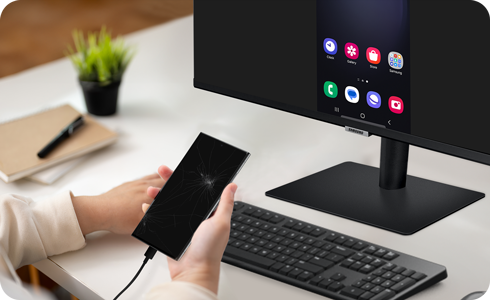
If your Samsung Galaxy phone has a broken screen and you cannot interact with the display, you can still transfer your data by connecting your device to an external display using screen mirroring. This method allows you to operate your phone with a mouse and keyboard, enabling you to use the Smart Switch app for data transfer.
1. What You'll Need to Transfer Data from a Broken-Screen Galaxy Phone
To successfully transfer data from a Samsung Galaxy phone with a broken screen, ensure you have the following items:
- A Samsung Galaxy phone running Android 12 or later with DisplayPort support
- A new Samsung Galaxy phone to transfer data to
- A USB-C to HDMI hub adapter with a USB-A port
- An external display (such as a monitor or TV) with HDMI input
- An HDMI cable
- A wired USB mouse
- A wired USB keyboard
Note: These accessories are not included with your Galaxy phone purchase and must be purchased separately.
2. How to Set Up Screen Mirroring for a Broken-Screen Galaxy Phone
Follow these steps to connect your phone to an external display and transfer your data:
- Connect the external display, mouse, and keyboard to the USB-C to HDMI hub adapter.
- Hold down both the volume up and volume down buttons on your phone while connecting it to the HDMI hub adapter. Release the buttons once the connection is established.
- Your phone's screen will either mirror on the external display or show the Samsung DeX interface. Unlock your phone or exit DeX mode to proceed.
- Use the mouse and keyboard to navigate to the Smart Switch app and initiate the data transfer process to your new phone.
3. Why This Method Works for Broken-Screen Galaxy Phones
- Screen mirroring allows you to bypass the broken display by projecting your phone's interface onto an external screen.
- A mouse and keyboard provide full control over your phone, enabling you to access apps like Smart Switch for data transfer.
- Android 12 and DisplayPort support ensure compatibility with modern screen mirroring technologies.
4. Additional Things to Check Before Starting
Ensure the following before attempting the transfer:
- Your phone's battery is sufficiently charged to avoid interruptions during the process.
- The external display is properly connected and configured to receive the HDMI signal.
- The Smart Switch app is installed on both your old and new Galaxy phones.
5. Supported Samsung Galaxy Devices
This method works for most Samsung Galaxy devices running Android 12 or later, including:
- Galaxy S24, S25, and S26 series
- Galaxy Z Fold and Z Flip series
- Galaxy A series (models with Android 12 or later)
6. When You May Need Professional Assistance
If your phone won't turn on or you're unable to gather the necessary accessories, contact a Samsung Service Center for help. Technicians can assist with data recovery and transfer using specialized tools.
Related Samsung Support Topics
Thank you for your feedback!
Please answer all questions.