How to use the Circle to Search feature on Galaxy devices
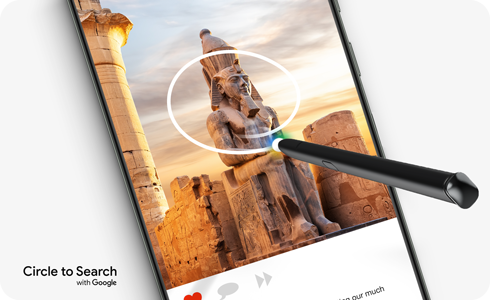
The Circle to Search feature on Samsung Galaxy devices lets you quickly search for information about anything on your screen—images, text, or objects—by simply circling them with your finger or S Pen. This Google-powered tool works across apps like Gallery, web browsers, and social media platforms, making it easier to find details without switching apps or typing queries.
1. What is Circle to Search and how does it work?
Circle to Search is a built-in feature on select Samsung Galaxy devices that uses Google's AI technology to identify and search for objects, text, or images directly from your screen. By drawing a circle around the item of interest, the feature automatically performs a web search, providing instant results.
- It works across various apps, including Gallery, Chrome, and social media platforms.
- You can use either your finger or the S Pen for precise selection.
- Results may vary depending on the search algorithm and the clarity of the selected item.
2. How to enable Circle to Search on your Samsung Galaxy device
Before using Circle to Search, ensure the feature is enabled on your device:
- Open the Settings app on your Samsung Galaxy device.
- Navigate to Apps > Choose default apps.
- Select Digital assistant app.
- Enable the toggle for Analyze on-screen images.
- Note: Circle to Search requires an active internet connection to function properly.
3. How to use Circle to Search on your Samsung Galaxy device
Follow these steps to search for information using Circle to Search:
- Ensure your device is connected to the internet.
- Open an app containing the image, text, or object you want to search (e.g., Gallery, Chrome, or social media).
- Press and hold your finger or the S Pen on the screen.
- Draw a circle around the item of interest.
- Release your finger or S Pen to initiate the search.
- View the search results displayed on your screen.
- Tip: For better accuracy, ensure the selected item is clear and visible on the screen.
4. Supported Samsung Galaxy devices for Circle to Search
The Circle to Search feature is available on select Samsung Galaxy devices, including:
Galaxy S24, Galaxy S25, Galaxy S26, Galaxy Z Fold, Galaxy Z Flip, and other compatible models with Google integration.
5. Additional things to check
If Circle to Search isn't working as expected, consider these troubleshooting steps:
- Verify that your device has an active internet connection.
- Ensure the "Analyze on-screen images" setting is enabled in your device's settings.
- Restart your device if the feature doesn't respond after enabling it.
6. Related Samsung support topics


Step 1. Open Settings > Tap Display.


Step 2. Tap Navigation bar.


Step 3. Enable Circle to Search to On.
Thank you for your feedback!
Please answer all questions.