How to save power with Light performance mode on Galaxy
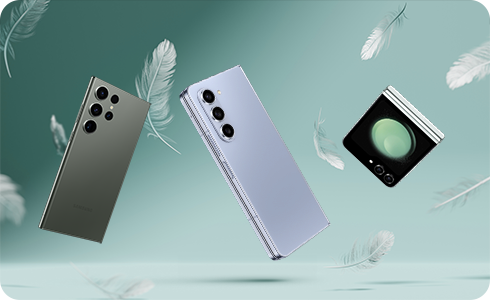
How to Reduce Power Consumption with Light Performance Mode on Samsung Galaxy Devices
Light Performance Mode is a built-in feature designed to reduce power consumption by lowering your device's processing speed, which helps extend battery life. This mode is particularly useful for everyday tasks such as web browsing, social media, and video playback, but it automatically disables during gaming sessions to ensure optimal performance.
1. What Is Light Performance Mode?
Light Performance Mode is a battery-saving feature available on select Samsung Galaxy devices. It reduces power consumption by adjusting the processor's performance, which minimizes heat generation and extends battery life. The mode is ideal for routine tasks but automatically turns off when resource-intensive activities like gaming are detected.
2. How to Enable Light Performance Mode
You can activate Light Performance Mode through the Settings menu or the Quick Settings panel for quick access.
- Using Settings:
- Open the Settings app on your Samsung Galaxy device.
- Scroll down and tap on Battery and Device Care.
- Select Battery.
- Tap on Light Performance Mode and toggle it on.
- Using Quick Settings:
- Swipe down from the top of your screen to open the Quick Settings panel.
- Look for the Light Performance Mode tile and tap it to enable or disable the mode.
3. Supported Samsung Galaxy Devices
Light Performance Mode is compatible with the following Samsung Galaxy devices:
- Galaxy Z Flip4 and later models
- Galaxy Z Fold4 and later models
- Galaxy S23 and later models
4. Additional Battery-Saving Tips
In addition to using Light Performance Mode, you can further optimize your device's battery life with these tips:
- Adjust screen brightness or enable auto-brightness.
- Turn off Wi-Fi, Bluetooth, and GPS when not in use.
- Enable Power Saving Mode for additional battery optimization.
- Manage notifications to minimize screen wake-ups.
- Reduce screen timeout duration.
- Disable unnecessary features like NFC and Always-On Display.
- Close unused apps running in the background.
5. Related Samsung Support Topics


Step 1. Open the Settings menu, and then tap Battery and device care.


Step 2. Tap Battery.


Step 3. Scroll down to and tap More battery settings.


Step 4. Tap Performance profile.
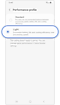

Step 5. Tap Light.
Thank you for your feedback!
Please answer all questions.