2025 Samsung TV SolarCell Remote Guide
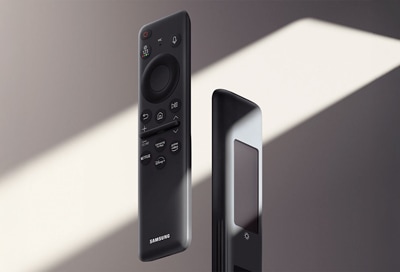
How to Charge and Use Samsung SolarCell Remote Control
The Samsung SolarCell Remote can be charged using the USB-C port or by exposing the solar panel to indoor and outdoor light. To optimize performance, ensure the solar panel faces upward for maximum light exposure. You can also monitor battery levels and adjust settings via your Samsung TV's Remote Control menu.
1. How to Charge the Samsung SolarCell Remote
The Samsung SolarCell Remote supports dual charging methods: USB-C cable and solar power. Follow these steps to charge your remote:
- Connect the USB-C cable to the charging port on the remote and a power source.
- The red LED indicator will light up during charging and turn off once fully charged.
- For solar charging, place the remote with the solar panel facing upward in a well-lit area, either indoors or outdoors.
2. How to Check Battery Level
To check the remaining battery life of your Samsung SolarCell Remote:
- Open the Settings menu on your Samsung TV.
- Navigate to the Remote Control section.
- Select Battery Level to view the current charge status.
3. How to Enable or Disable Remote Grip Sensor
The Remote Grip Sensor alerts you when the remote is held improperly. To toggle this feature:
- Go to the Settings menu on your Samsung TV.
- Select Remote Control and then Remote Grip Sensor.
- Enable or disable the feature as needed.
- Note: The Remote Control menu is only accessible when the remote is paired with the TV.
4. What to Do If the Remote Is Not Working Properly
If your Samsung SolarCell Remote experiences issues, follow these troubleshooting steps:
- Reboot the remote by pressing and holding the Return and Enter buttons simultaneously for 10 seconds.
- If the remote uses batteries, remove and reinsert them to reset the device.
- Reset and re-pair the remote with your TV by following the pairing instructions in the TV's settings menu.
5. Additional Things to Check
- Ensure the remote is fully charged using either USB-C or solar power.
- Verify that the remote is properly paired with your Samsung TV.
- Check for software updates on your TV, as they may resolve remote-related issues.
6. Supported Samsung TV Models
The Samsung SolarCell Remote is compatible with select Samsung TV models, including the latest QLED, Neo QLED, and MicroLED series. For specific model compatibility, refer to your TV's user manual or the official Samsung website.
7. Related Samsung Support Topics
Thank you for your feedback!
Please answer all questions.