How to resize photos in the Gallery app on your Galaxy phone

How to Resize Photos in the Gallery App on Your Samsung Galaxy Phone
Resizing photos on your Samsung Galaxy phone helps reduce file size for easier sharing and storage. Use the built-in Gallery app to adjust image dimensions quickly and efficiently.
1. How to Resize Photos in the Gallery App
Follow these steps to resize a photo using the Gallery app on your Samsung Galaxy device:
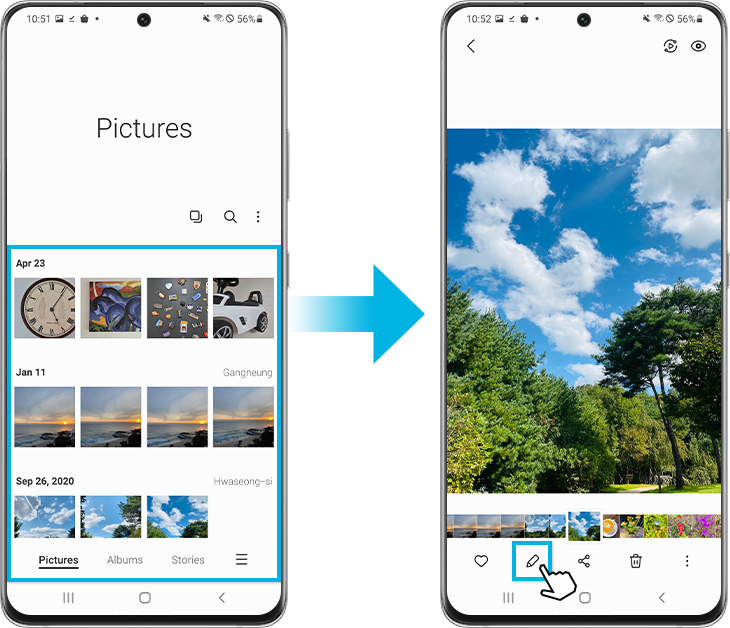
- Open the Gallery app and select the photo you want to resize.
- Tap the Edit icon at the bottom of the screen.
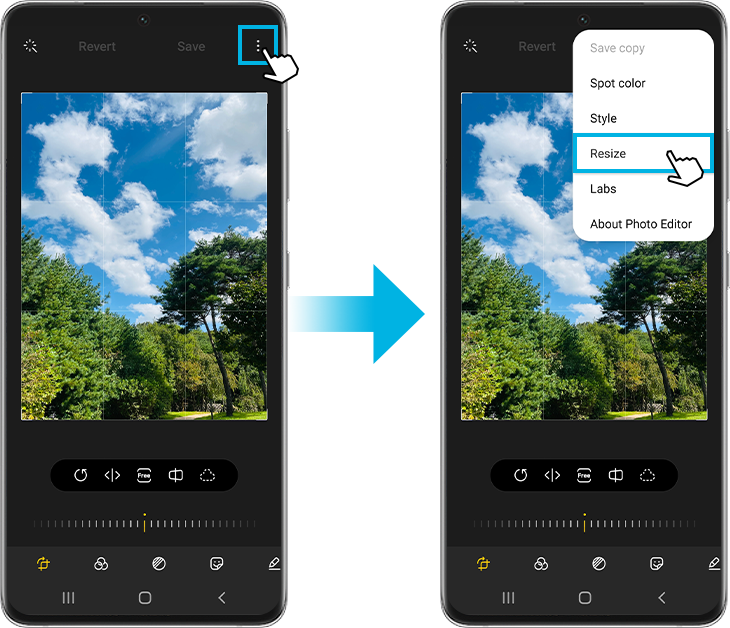
- Tap More options (the three vertical dots) at the top right.
- Select Resize from the menu.
- Choose your preferred resized image percentage and tap Done to apply changes.
- Tap Save to finalize the edits.
Note: On Android 11, saving the edited photo overwrites the original. To save a copy instead, tap More options > Save copy before finalizing.
2. Why Resize Photos?
Resizing photos is useful for several reasons:
- Reducing file size for faster uploading to social media platforms.
- Saving storage space on your device.
- Optimizing images for email attachments or messaging apps.
3. Supported Samsung Galaxy Devices
The resize feature is available on most Samsung Galaxy devices, including:
- Galaxy S24, S25, S26 series
- Galaxy Z Fold and Galaxy Z Flip series
- Galaxy A series devices
4. Additional Things to Check
Before resizing photos, ensure your device is updated:
- Go to Settings > Software update.
- Tap Download and install.
- Follow the on-screen instructions to update your device.
Also, note that resizing options may vary depending on your device model and software version.
5. Related Samsung Support Topics


Thank you for your feedback!
Please answer all questions.