How to fix a Galaxy phone that won't connect to Wi-Fi?
Why won't my Samsung Galaxy phone connect to Wi-Fi?
If your Samsung Galaxy phone isn't connecting to Wi-Fi, it could be due to router issues, incorrect network settings, app interference, or outdated software. Follow this guide to diagnose and resolve the problem effectively.
1. Why is my Samsung Galaxy phone not detecting Wi-Fi networks?
When your Galaxy phone fails to detect Wi-Fi networks, it's often due to router malfunctions, signal interference, or incorrect phone settings. Here's how to troubleshoot:
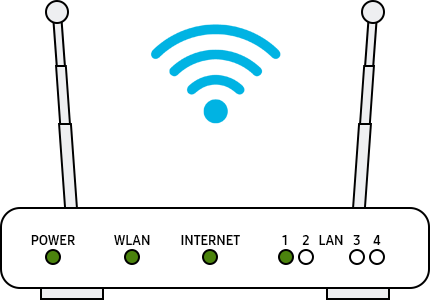
- Ensure your router is powered on, connected to the internet, and within range of your phone.
- Too many devices connected to the same router can cause detection issues.
- Your phone's Wi-Fi settings may need resetting.
2. How to restart your Galaxy phone, router, and modem
- Restart your phone: Open the Quick Panel, tap the Power icon, and select Restart.
- Turn off your router and modem: Unplug the power cords, wait 30 seconds, then plug them back in.
- After restarting all devices, check if the Wi-Fi issue is resolved.
3. How to reset network settings on your Samsung Galaxy
- Go to Settings > General Management.
- Select Reset > Reset Network Settings.
- Tap Reset Settings, then confirm with Reset.
- Note: This will erase saved Wi-Fi networks, mobile data settings, and Bluetooth pairings.
4. How to test Wi-Fi in Safe Mode
- Open Quick Settings and tap the Power icon.
- Hold Power Off until Safe Mode appears, then tap Safe Mode.
- If Wi-Fi works in Safe Mode, a third-party app may be causing the issue. Uninstall recently installed apps to identify the culprit.
5. What to do if the Wi-Fi network is password-protected
If you see a lock icon next to the Wi-Fi network, it requires a password. Enter the password carefully, as it is case-sensitive.
6. How to perform a factory reset (last resort)
- Go to Settings > General Management > Reset > Factory Data Reset.
- Scroll down and tap Reset, then confirm with Delete All.
- Note: Factory resetting erases all data and cannot be undone. Back up your data first.
7. Additional things to check
- Test the Wi-Fi network on another device. If it fails, contact your internet provider.
- Ensure your phone's software is up-to-date (Settings > Software Update > Download and Install).
- Check for router firmware updates through your provider's app or website.
Supported Samsung Galaxy devices
This guide applies to Galaxy S24, S25, S26, Z Fold, Z Flip, and A series devices.
Related Samsung support topics

Thank you for your feedback!
Please answer all questions.