Galaxy audio settings: Separate app sound and more

Enhance your Samsung Galaxy device's audio experience with advanced settings like Separate App Sound, Dual Audio, and personalized sound profiles. These features allow you to customize how audio plays across apps and devices, ensuring optimal sound quality for every scenario.
1. How to Use Separate App Sound on Samsung Galaxy Devices
Separate App Sound lets you route audio from specific apps to different devices, such as a Bluetooth speaker or headset, while other apps continue playing through your device's default audio output.
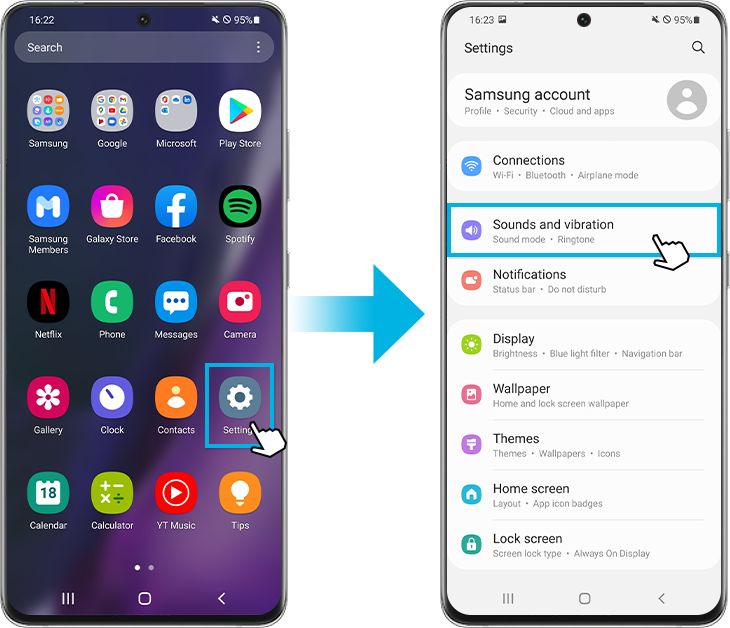
- Open the Settings app on your Samsung Galaxy device.
- Select Sounds and vibration.
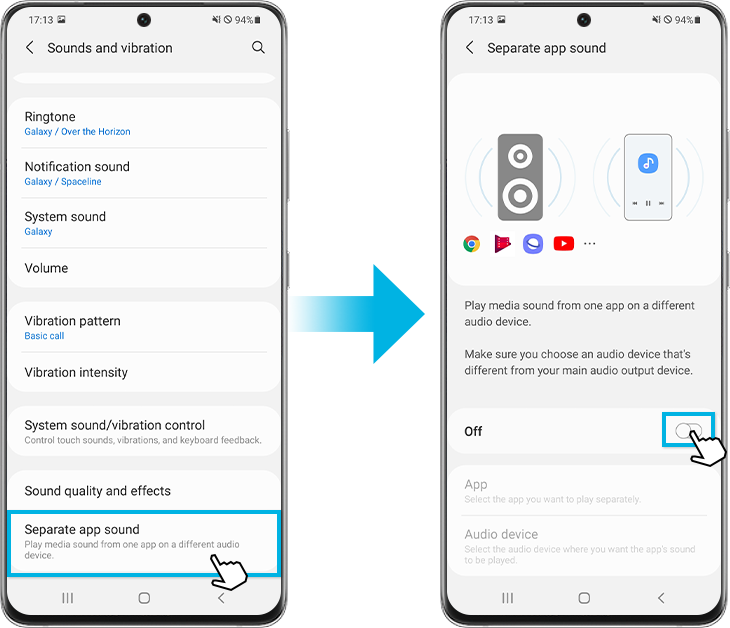
- Tap on Separate app sound.
- Toggle the switch to enable the feature.
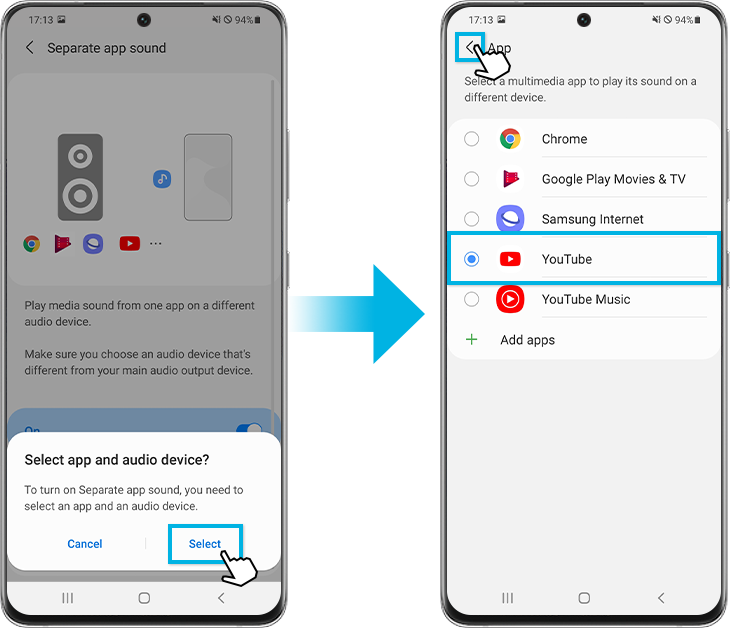
- Tap Select and choose the app you want to route audio from.
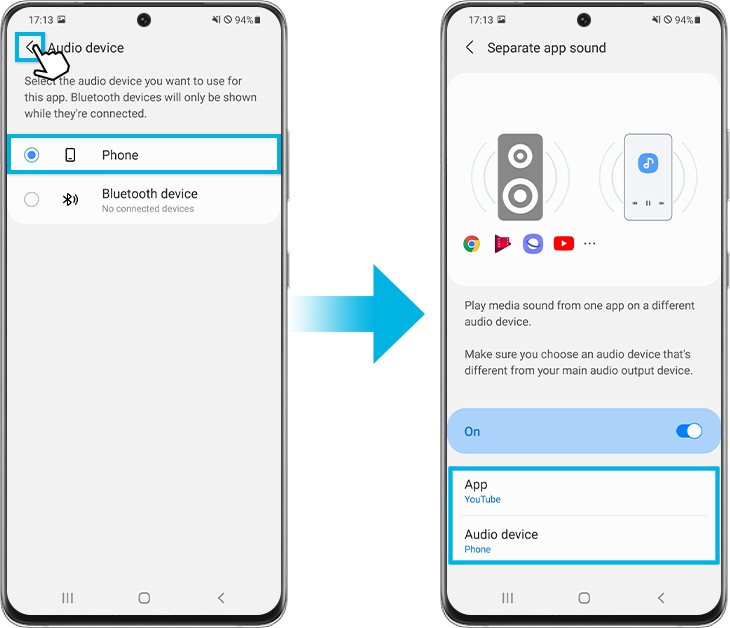
- Choose the audio device for the selected app. Note that Bluetooth devices will only appear if they're currently connected.
- Note: Separate App Sound only works when the selected audio device differs from your device's default output device.
2. Personalize Sound Quality and Effects
Customize your audio experience with features like Dolby Atmos, Equalizer, and UHQ Upscaler to enhance sound quality for music, movies, and gaming.
- Open the Settings app.
- Select Sounds and vibration.
- Tap on Sound quality and effects.
Dolby Atmos: Experience immersive surround sound for movies, music, and gaming.
- Select Dolby Atmos.
- Enable the feature and choose your preferred audio mode.
Dolby Atmos for Gaming: Optimize audio for gaming sessions.
- Enable Dolby Atmos for gaming.
Equalizer: Adjust sound settings for specific music genres.
- Select Equalizer.
- Choose a preset or manually adjust frequencies.
UHQ Upscaler: Enhance audio resolution with wired earphones.
- Enable UHQ upscaler when using wired earphones.
Adapt Sound: Create a personalized sound profile tailored to your hearing preferences.
- Select Adapt sound.
- Follow the on-screen instructions to set your age group and preview options.
- Tap Personalize your sound to take a hearing test and create a custom profile.
3. Connect Multiple Bluetooth Devices with Dual Audio
Dual Audio allows you to connect and play audio on multiple Bluetooth devices simultaneously, perfect for sharing media with friends or enhancing your listening experience.
- Swipe down on your screen to access the Quick Panel.
- Tap on Media.
- Check the boxes next to the connected Bluetooth devices you want to use.
- Adjust the volume for each device as needed.
- Note: Some features may not be available on all Samsung Galaxy devices due to hardware limitations. Check your device settings to confirm availability.
4. Supported Samsung Galaxy Devices
Features like Separate App Sound, Dual Audio, and Dolby Atmos are available on select Samsung Galaxy devices, including the Galaxy S24, Galaxy S25, Galaxy S26, Galaxy Z Fold, Galaxy Z Flip, and Galaxy A series. Availability may vary based on model and software version.
Related Samsung Support Topics

Thank you for your feedback!
Please answer all questions.