如何取消啟用「尋找我的手機」服務?
最後更新日期 : 2026年1月8日
重要提醒:此頁面的資訊只適用於香港產品。產品型號、畫面序列或設定會根據您所在地區及/或購買產品的地區而不同。請按此跳轉至您所在地區的服務支援頁面。
只需要更變裝置的設定或登出Samsung帳戶,便可以取消啟用裝置中的「尋找我的手機」服務。
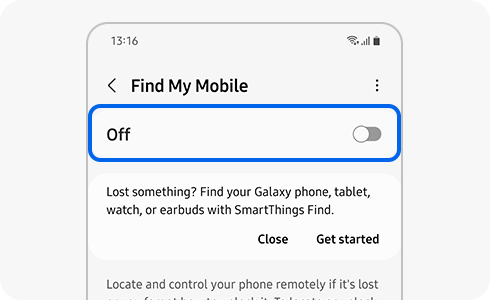
若用家想取消啟用裝置上的「尋找我的手機」服務,可以透過以下兩種方法:更改裝置的設定內容或登出Samsung帳戶。
請注意:如果在裝置上取消啟用「尋找我的手機」服務,裝置便會在「尋找我的手機」官方網頁您的帳戶裝置列表中消失。即使用家在網頁中重新啟用功能,亦無法在裝置中使用該功能。
請按照以下步驟在裝置上取消啟用「尋找我的手機」服務:
- 更改裝置設定:
設定 > 生物特徵及安全性 > 按「尋找我的手機」欄右方按鍵 > 輸入Samsung帳戶密碼以確定取消啟用功能
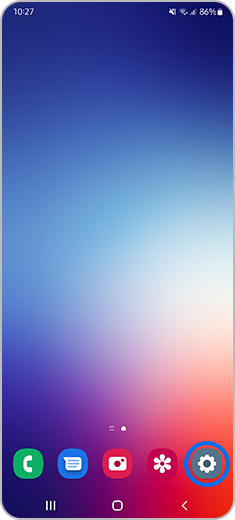
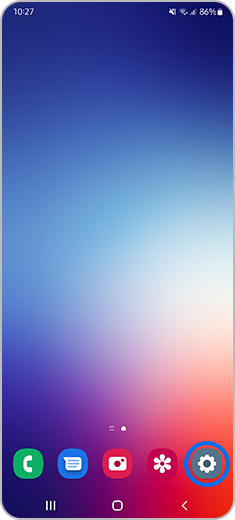
步驟1. 前往裝置「設定」。
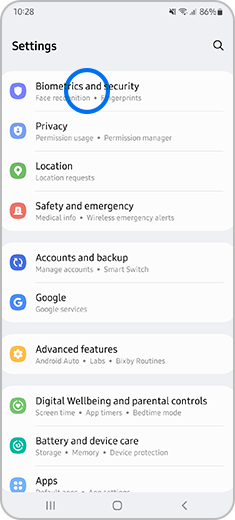
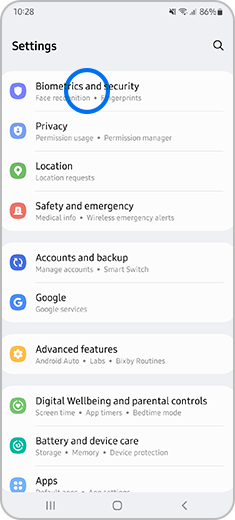
步驟2. 按「生物特徵及安全性」(Biometrics and security)。
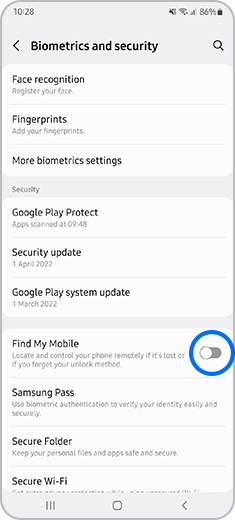
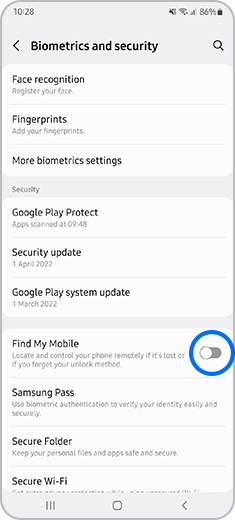
步驟3. 關閉「尋找我的手機」(Find My Mobile) 選項。
- 在裝置中登出Samsung帳戶:
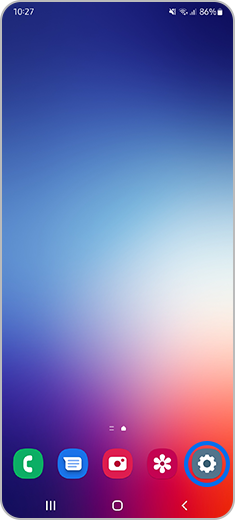
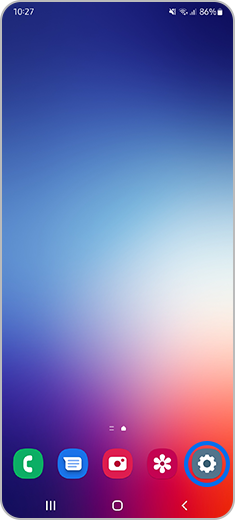
步驟1. 前往裝置「設定」。
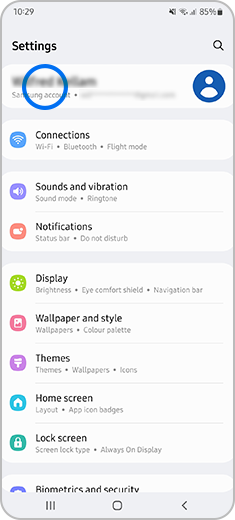
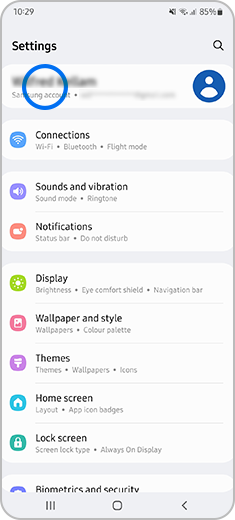
步驟2. 前往「三星帳戶」(Samsung account) 功能表。
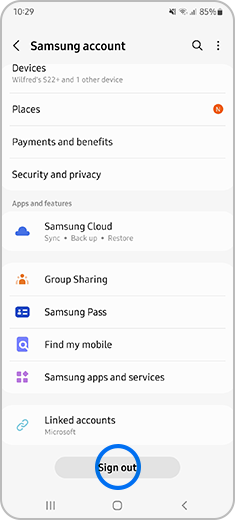
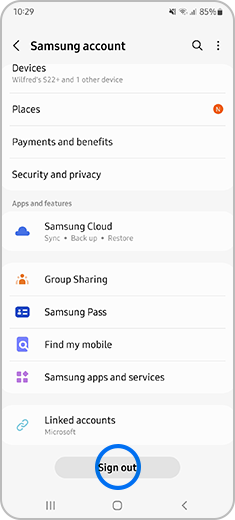
步驟3. 點選畫面最下方的「登出」 (Sign out)。
請注意:登出Samsung帳戶後,用家將無法在裝置中使用其他Samsung服務。
為了提升服務滿意度,誠摯的邀請您在看完本則常見問答後,可以在文章下方給予我們滿意度鼓勵,以便日後提供更優質的服務,謝謝。
提醒您,裝置螢幕以及選單畫面的示意圖或指示步驟,可能會因裝置型號和軟體版本而有所不同。
感謝您提供意見讓我們了解您的需要
請回答所有問題。
RC01_Static Content : This text is only displayed on the editor page