如何在 Samsung 智能電視連接外置儲存裝置及切換輸入源

最後更新日期 : 2026年1月12日

重要提醒:此頁面的資訊只適用於香港產品。產品型號、畫面序列或設定會根據您所在地區及/或購買產品的地區而不同。請按此跳轉至您所在地區的服務支援頁面。
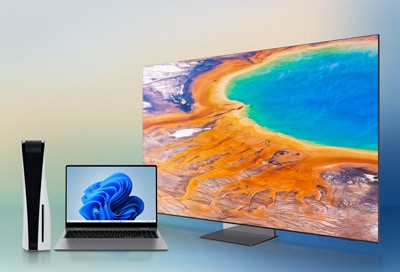
A home entertainment setup with a Samsung Smart TV showing a vibrant landscape, accompanied by a laptop and gaming console.

您可以將遊戲機、衛星電視接收器及電腦等外置輸入裝置連接至 Samsung 智能電視。完成連接後,即可在電視上切換輸入源,在已連接的裝置中選擇您想要的視訊輸入裝置。

注意:One Connect Box 用家請將傳輸線連接至相關端口。
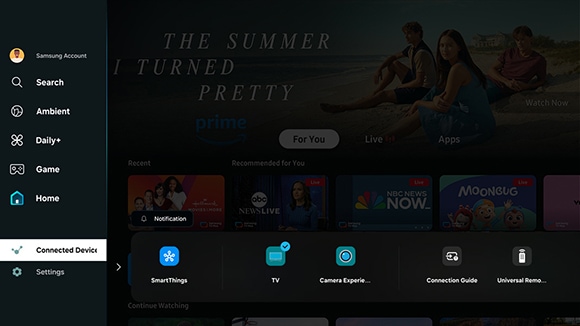
Screenshot of a Samsung Smart TV interface highlighting the 'Connected Devices' menu.

您可以在「已連接的裝置」功能表中查看已連接至電視的外置儲存裝置,並透過切換輸入源來變更視訊畫面。

在電視 Smart Hub 主頁中,開啟左側的功能表並選擇已連接的裝置,透過遙控上的右方向鍵即可選擇不同的輸入源。

您亦可以開啟已連接的裝置並選擇連接指南,查看連接不同外置儲存裝置的方法及步驟。
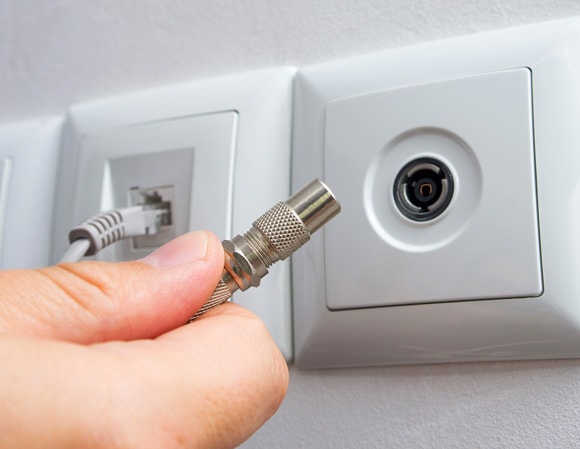
Close-up of a hand holding a coaxial cable plug about to connect it to a wall socket.

連接天線後即可在自動調頻功能表中進行頻道設定。

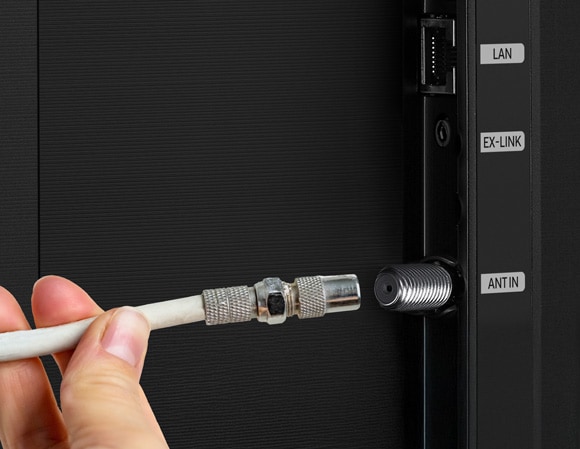
1 將同軸電纜連接至電視。
A person's hand holding a coaxial cable near the antenna input on the back of a Samsung Smart TV.
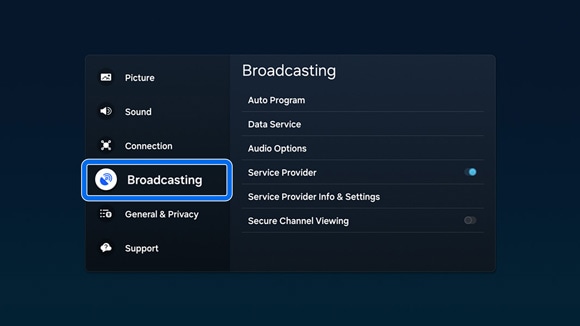
2 開啟「設定」(Settings),然後選擇「所有設定」(All Settings),再選擇「廣播」(Broadcasting)
Screenshot of a Samsung Smart TV's menu highlighting the 'Broadcasting' option within the settings menu.
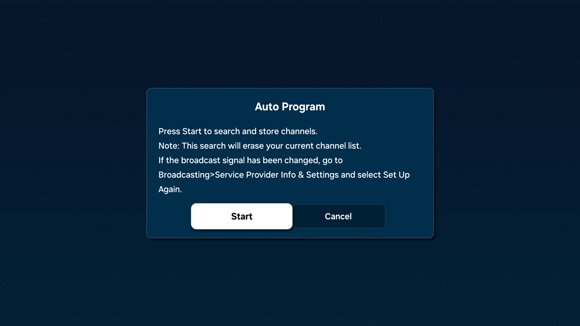
3 跟隨螢幕上的指示,進行「自動調頻」(Auto Program)
Dialog box on a Samsung Smart TV screen displaying the 'Auto Program' feature, with options to 'Start' or 'Cancel'.
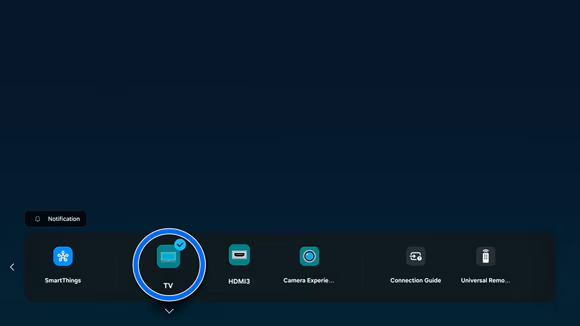
4 您亦可以在「已連接的裝置」(Connected Devices)中選擇電視。
User interface of a Samsung Smart TV displaying the 'Connected Devices' section, with the 'TV'  option selected.

注意:

  • 選單畫面及功能名稱或因地區及型號而有所不同。
  • 相關功能在選單上的位置可能會因型號而有所不同,您或需要先開啟設定 > 一般與私隱 > 廣播
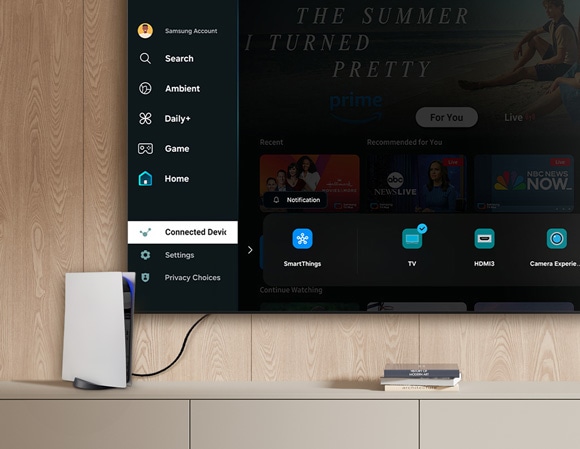
A Samsung Smart TV mounted on a wooden wall displaying the input menu onscreen, with various devices like a game console and a router placed on the media stand below.

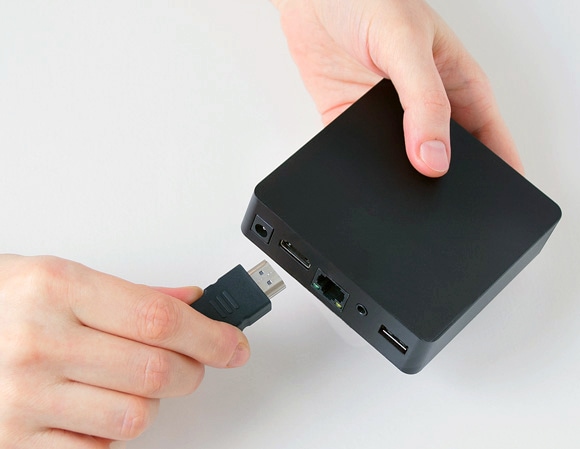
您可以用 HDMI 傳輸線連接衛星電視接收器、機頂盒或遊戲機。

1 將 HDMI 傳輸線連接至裝置。
A person holding an HDMI cable near the port of a black OTT box, preparing to connect it.
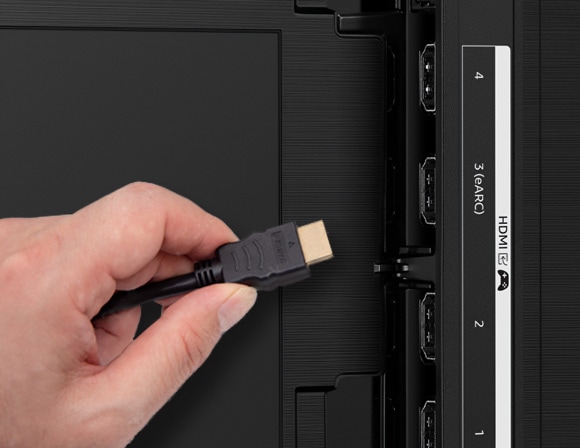
2 將傳輸線的另一端連接至電視的 HDMI IN 端口。
A person's hand inserting an HDMI cable into the HDMI IN port labeled '2' on the back panel of a Samsung Smart TV.
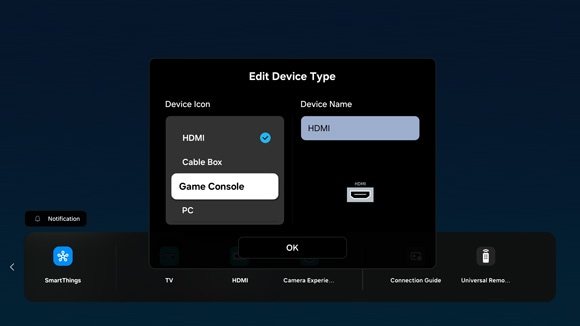
3 如電視未能辨別裝置類別,則會自動被歸類為 HDMI。 您可以進行編輯及更改名稱,妥善管理所連接的裝置。
On-screen display of the 'Edit Device Type' menu on a Samsung Smart TV, showing options to select different device icons.
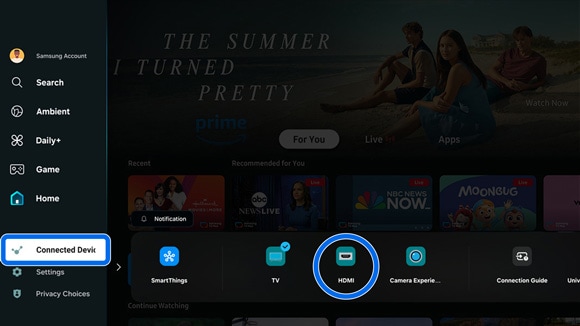
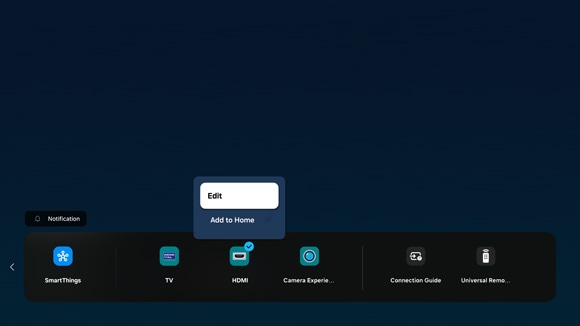
4 要進行編輯,先開啟「已連接的裝置」(Connected Devices),然後選擇欲編輯的裝置。
Interface of a Samsung Smart TV displaying the 'Connected Devices' menu highlighted, with the HDMI option selected.
5 在遙控器的方向鍵上按來選擇以下功能:

注意:根據型號,您或需要長按遙控器上的選擇按鈕。

A Samsung Smart TV menu screen displaying a popup with options 'Edit' and 'Add to Home', above the HDMI selection.
  • 編輯輸入源名稱或變更裝置圖示
  • 查看裝置詳細資訊
  • 在主頁添加裝置快捷鍵
A modern office setup featuring a laptop connected to a Samsung Smart TV, displaying a vibrant Windows wallpaper.

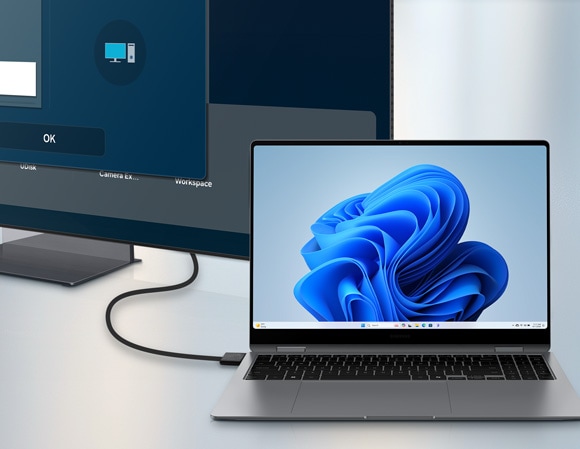
您可以透過 HDMI 傳輸線連接電腦。

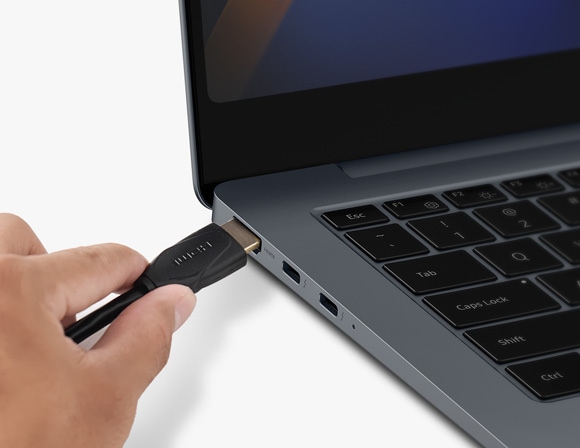
1 將 HDMI 傳輸線連接至電腦。
A person connecting an HDMI cable to the HDMI port of a modern laptop, preparing to link it to an external display.
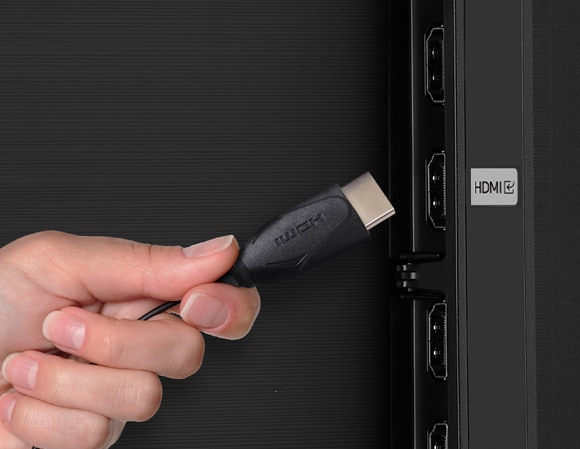
2 將傳輸線的另一端連接至電視的 HDMI IN 端口。
Close-up of a hand plugging an HDMI cable into the HDMI IN port on the back panel of a Samsung Smart TV.
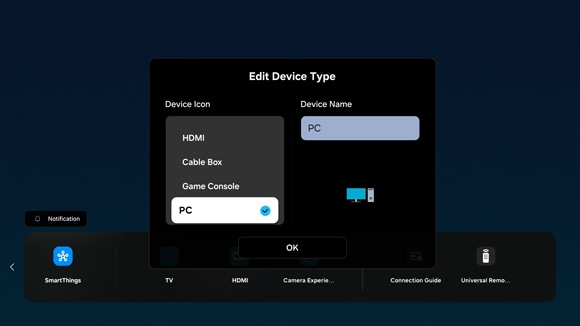
3 如電視未能辨別裝置類別,則會自動被歸類為 HDMI。 您可以進行編輯及更改名稱,妥善管理所連接的裝置。
A menu on a Samsung Smart TV displaying the 'Edit Device Type' interface, with the 'PC' option highlighted.
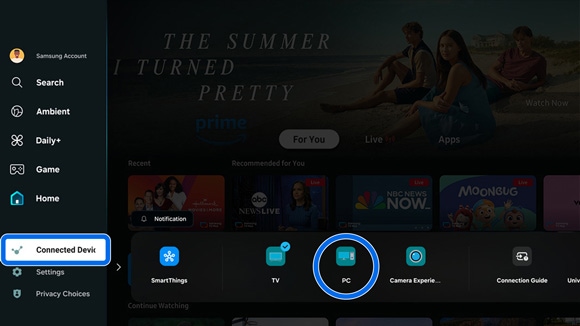
4 要進行編輯,先開啟「已連接的裝置」(Connected Devices),然後選擇欲編輯的裝置。
Samsung Smart TV's home screen interface displaying the 'Connected Devices' menu, with the 'PC' icon highlighted.
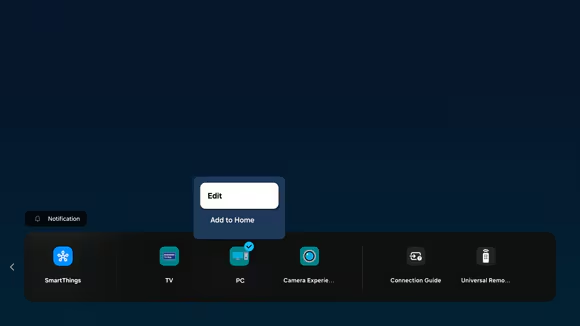
5 在遙控器的方向鍵上按來選擇以下功能:

注意:根據型號,您或需要長按遙控器上的選擇按鈕。

Popup menu on a Samsung Smart TV screen displaying options 'Edit' and 'Add to Home' above the 'PC' icon.
  • 編輯輸入源名稱或變更裝置圖示
  • 查看裝置詳細資訊
  • 在主頁添加裝置快捷鍵

您可以觀看儲存在 USB 裝置內的視訊內容及其他各種媒體。
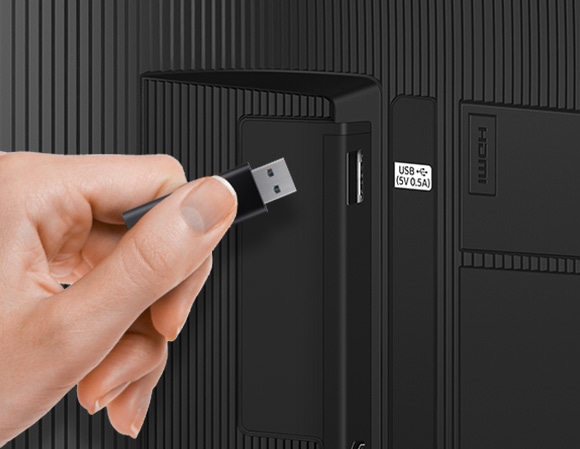
1 將 USB 裝置連接至電視的 USB 端口後,螢幕畫面即會自動切換。
A person inserting a USB drive into the USB port labeled 'USB 5V 0.5A' on the side panel of a Samsung Smart TV.
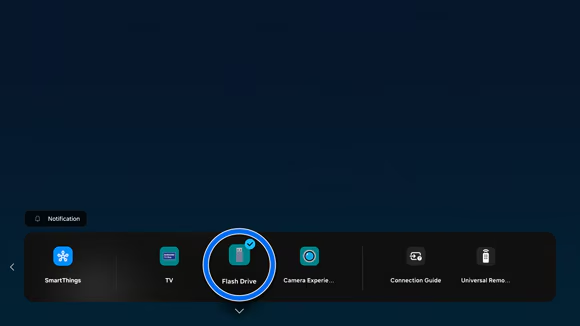
2 您亦可以開啟「已連接的裝置」(Connected Devices),然後選擇 USB 裝置。
Samsung Smart TV interface showing the 'Connected Devices' menu with the 'Flash Drive' option highlighted.

注意:

  • USB 裝置只支援 USB MSC (大容量儲存裝置 Mass Storage Class)。
  • 請直接將 USB 連接至電視的 USB 端口。請勿使用延長線,或同一時間連接逾兩個外置儲存裝置,以免電視無法辨認裝置或讀取檔案。
  • 連接外置儲存裝置時,請確保裝置是連接至電視的 USB (HDD 5V 1A) 端口。如電視型號不支援此端口,則連接至 USB (5V 1.0A/0.5A) 端口。我們建議您在使用外置儲存裝置時,同時連接充電器。
  • 支援的檔案格式包括 FAT、exFAT 及 NTFS。
  • 支援的檔案格式或因裝置型號而有所不同。

只需要先透過 Universal Remote Setup(通用遙控器)功能表進行設定,即可透過 Samsung 遙控器控制所有連接至電視的外置儲存裝置。

開啟「已連接的裝置」(Connected Devices),然後選擇「通用遙控器」(Universal Remote)並根據螢幕上的步驟進行設定。
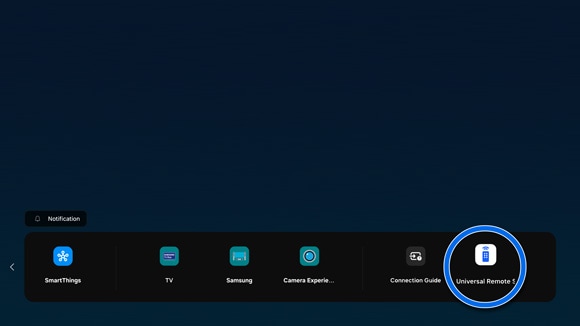
View of the Samsung Smart TV interface showing the 'Connected Devices' menu with the 'Universal Remote' option highlighted.

注意:

  • 支援的功能或因電視型號及所連接的外置儲存裝置而有所不同。
  • 支援通用遙控器(Universal Remote Setup)功能的電視型號或會於連接外置儲存裝置(例如 Blu-ray 藍光播放器或遊戲機)至 HDMI 端口時自動切換至裝置畫面或自動設定通用遙控器。
  • 請勿在電視或外置儲存裝置的前方放置任何物品,以免防礙遙控器的訊號傳遞。
Close-up of a hand holding a Samsung remote control, pointing at a Samsung Smart TV displaying the home screen with various content options.

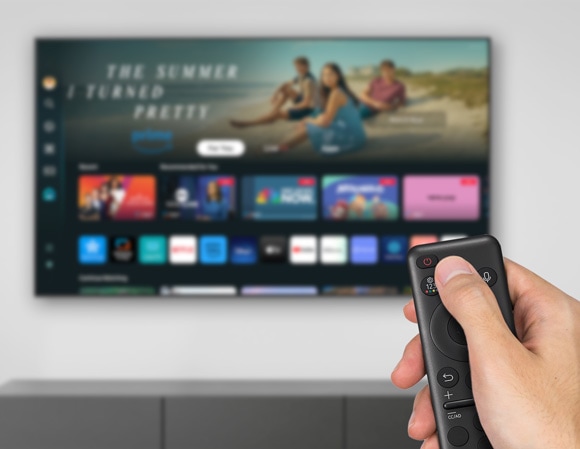
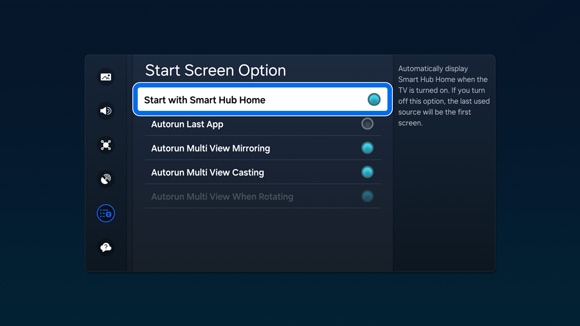
開啟 Samsung 電視時,螢幕預設顯示 Smart Hub 主頁畫面。如已關閉此功能,則顯示上一次使用的輸入源。
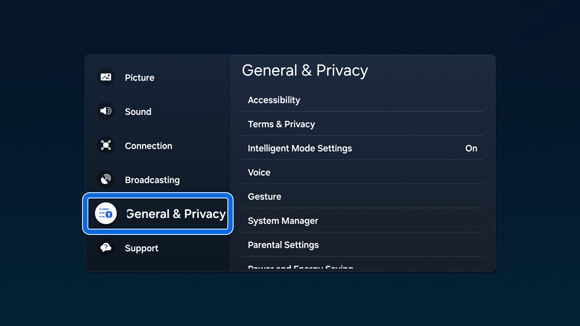
1 要進行設定,開啟「設定」(Settings),然後開啟「所有設定」(All Settings),接著選擇「一般與私隱」(General & Privacy)
Screenshot of the Samsung Smart TV settings menu with 'General & Privacy' highlighted.
2 選擇「開機畫面選項」(Start Screen Option),再選擇「使用Smart Hub作為開機畫面」(Start with Smart Hub Home)
Interface of the Samsung Smart TV's settings menu displaying the 'Start Screen Option' with various choices, including 'Start with Smart Hub Home' highlighted.

注意:功能表路徑及位置或因電視型號而異。您或需要先選擇進階功能,才可設定開機畫面。

注意:

  • 如您在使用智能電視時遇上任何問題,請檢查是否有新的軟件版本,更新電視軟件或可解決相關問題。
  • 以上截圖及選單畫面或因裝置型號及軟件版本而有所不同。

如果以上資訊與您產品展示的畫面不符,可按此查看相應產品的使用者指南。如果您的問題仍然無法解決,請聯絡我們以獲取進一步的支援。

感謝您提供意見讓我們了解您的需要

RC01_Static Content : This text is only displayed on the editor page