三星電視在 SmartThings 應用程式中顯示為離線

最後更新日期 : 2026年1月12日

重要提醒:此頁面的資訊只適用於香港產品。產品型號、畫面序列或設定會根據您所在地區及/或購買產品的地區而不同。請按此跳轉至您所在地區的服務支援頁面。
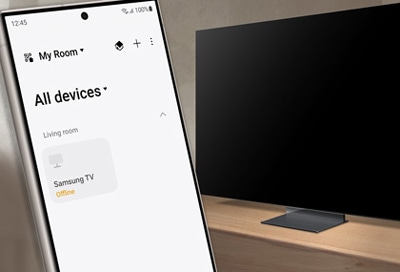
A Galaxy phone displaying the SmartThings app with the status of a Samsung TV marked as 'offline' next to an actual Samsung TV on a wooden stand in a modern living room.

如果在 SmartThings 應用程式加入三星電視後顯示為離線,您可以根據以下指南進行疑難排解。

注意:連接網絡的方式可能會使 2019 年或之前的電視型號在關機狀態時顯示為離線。如遇上相關問題,請以遙控器開啟電視。

如果電視未有連接至電源插座,或有已註冊在 SmartThings 上的電視超過一個月未曾使用,可能會使其在 SmartThings 應用程式上顯示為離線。
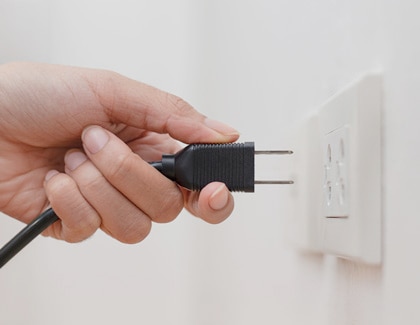
1 拔除電線,再重新連接。
A person's hand holding an unplugged electrical plug near a wall socket.
2 重新開啟電視。
3 打開 SmartThings 應用程式檢查裝置狀態。先到電視的位置,再查看顯示卡上的電視狀態。

您可以透過電視的設定來檢查網絡連接狀態。如果電視未連接網絡,則可能會在 SmartThings 應用程式中顯示為離線。
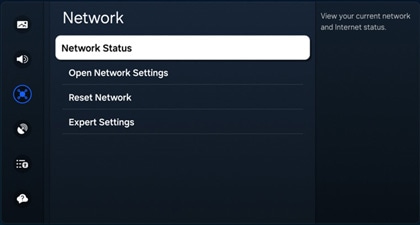
1 在電視上選擇「設定」(Settings),再選擇「所有設定」 (All Settings),然後點擊「連線」(Connection)
2 選擇「網絡」(Network),然後選擇「網絡狀態」(Network Status)
A screenshot of the network settings menu on a Samsung TV, highlighting the 'Network' option.

注意:不同電視型號可能會使畫面有異。您或需要前往設定,然後選擇一般,再選擇網絡進行設定。

3 如果您的電視未有連接網絡,請重設網絡設定。返回「網絡」(Network),選擇「重設網絡」(Reset Network),然後選擇「重設」(Reset)

請注意:如果沒有看到網絡重設列表,請重新設定您的網絡設定。

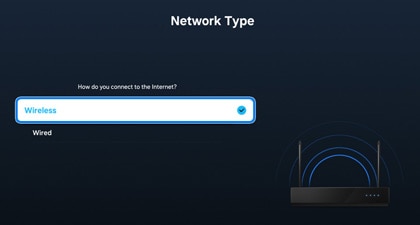
4 再嘗試連接網絡。到「網絡」(Network),然後選擇「開啟網絡設定」(Open Network Settings),再選擇「無線」(Wireless)
A screenshot displaying the 'Network Type' selection menu on a Samsung TV, with 'Wireless' option selected and illustrated with a Wi-Fi signal graphic.
5 選擇您的 Wi-Fi 網絡,然後輸入密碼。

注意:確保您的電視和手機連接至同一個網絡。

6 如果重設後問題仍然持續,請關閉您的 Wi-Fi 路由器,然後重新開啟。

您必須先開啟「透過行動裝置開機」,才可使用 SmartThings 應用程式開啟電視。
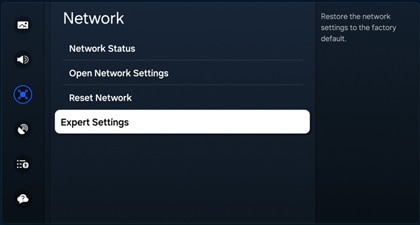
1 在電視上打開「設定」(Settings),選擇「所有設定」(All Settings),然後選擇「連接」(Connection)
2 選擇「網絡」(Network),然後選擇「專家設定」(Expert Settings)
A screenshot showing the network options menu on a Samsung TV, with 'Expert Settings' highlighted.

注意:不同電視型號可能會使支援的功能有異。您或需要前往設定,然後選擇一般,再選擇網絡進行設定。
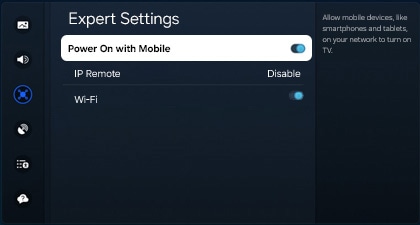
3 開啟「透過行動裝置開機」(Power On with Mobile)功能。
A screenshot of the 'Expert Settings' menu on a Samsung TV, showing the 'Power On with Mobile' option enabled, with other settings like 'IP Remote' and 'Wi-Fi' also visible.

您可以透過 SmartThings 應用程式為電視進行離線診斷,排解問題。請確保您的手機和電視連接至同一個 Wi-Fi 網絡。
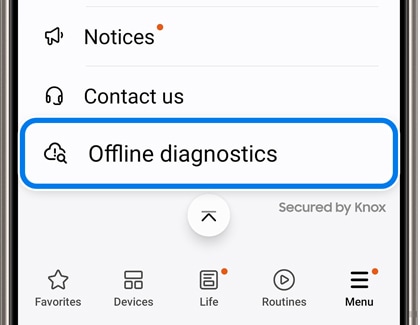
1 在手機上打開 SmartThings 應用程式,點擊最下方的「功能表」(Menu),然後選擇「離線診斷」(Offline diagnostics)
A close-up view of the SmartThings app on a Galaxy phone showing the 'Offline diagnostics' option highlighted in the menu.
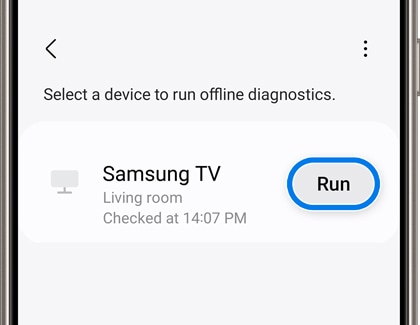
2 點擊 「執行」(Run) 進行診斷。
A screen in the SmartThings app on a Galaxy phone displaying an option to run offline diagnostics on a Samsung TV listed as located in the living room.
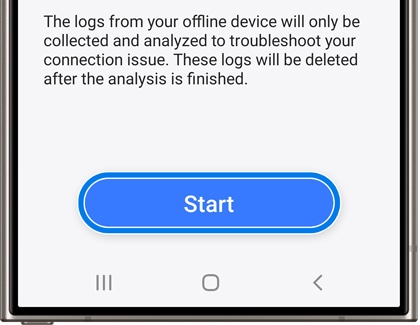
3 選擇「開始」(Start)
A message on a Galaxy phone in the SmartThings app explaining that logs from an offline device will be collected and analyzed for troubleshooting, with a 'Start' button displayed below the text.
4 跟隨螢幕上的指示,完成診斷。您可能需要在手機上輸入密碼,或執行其他動作指示。
5 查看結果,執行必要步驟。

如果離線診斷無法解決問題,請在 SmartThings 中刪除電視,再重新註冊。
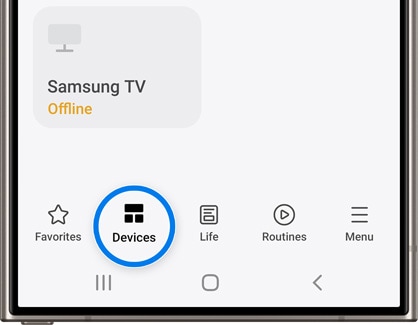
1 打開電話 SmartThings 應用程式,點選「裝置」(Device),再選擇電視的所在位置。
A Galaxy phone screen showing the SmartThings app with the 'Devices' tab highlighted. A Samsung TV listed as 'Offline' is displayed above the navigation menu.
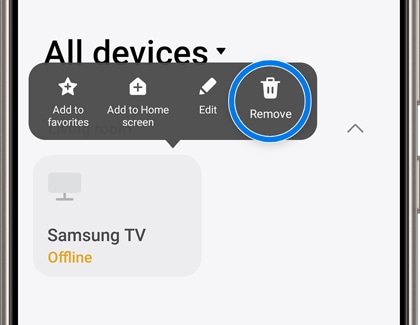
2 長按電視顯示卡,然後點擊「刪除」(Remove)
A view of the SmartThings app on a Galaxy phone, displaying an options menu for 'All devices' with 'Remove' highlighted, above the listing of a Samsung TV marked as offline.
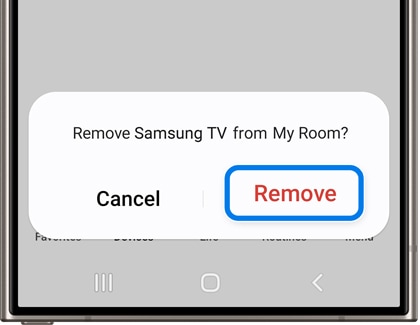
3 再次點選「刪除」(Remove) 來刪除電視。
A confirmation dialog on a Galaxy phone in the SmartThings app asking to remove the Samsung TV from 'My Room', with options to 'Cancel' or 'Remove'.
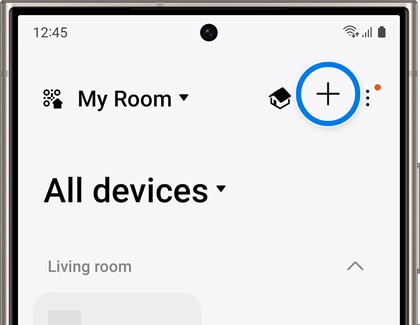
4 回到裝置列表,然後點擊 加號(+)增加電視。
Screen display of the SmartThings app on a Galaxy phone, showing the 'My Room' section with an option to add a device indicated by a plus icon.
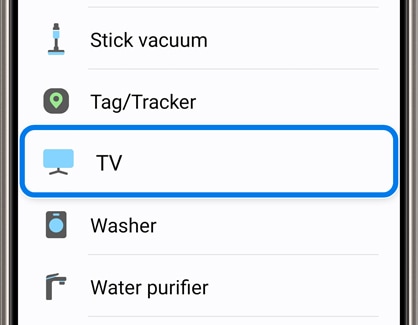
5 在「三星裝置」下選擇電視。確保您已經開啟電視機。
A device selection screen on a Galaxy phone within the SmartThings app, with 'TV' highlighted as the chosen option among other devices like 'Stick vacuum' and 'Washer'.
6 SmartThings 應用程式會開始進行搜索,完成後點擊您的電視。
7 跟隨螢幕上的指示完成註冊。

如有任何問題,可以使用 SmartThings 應用程式內的「錯誤報告」功能向我們回報。

注意: 以 2019 年或更舊的電視型號傳送錯誤報告時,電視 ID 和型號必須手動輸入,自動填寫資料功能無法使用。
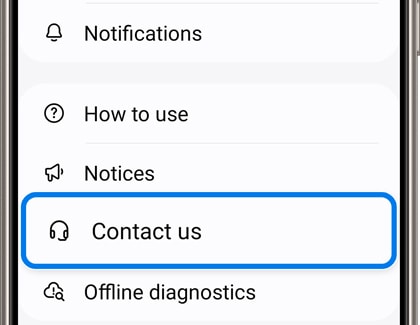
1 打開 SmartThings 應用程式,然後選擇「功能表」(Menu),再選擇「聯絡我們」(Contact us)
The SmartThings app on a Galaxy phone displaying the menu option 'Contact us' highlighted for user assistance.
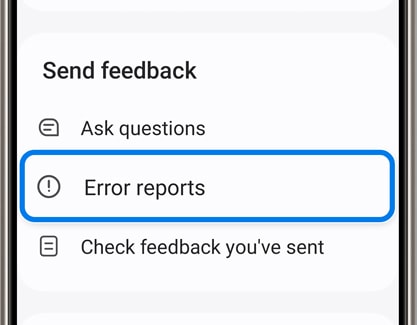
2 在「發送意見回饋」(Send feeback) 下點擊「錯誤報告」(Error reports)
A menu within the Samsung Members app on a Galaxy phone with 'Error reports' selected as the active option for sending feedback.
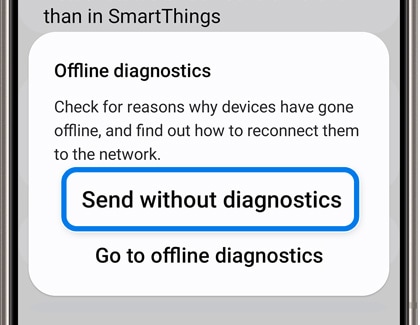
3 點選「裝置離線」(Offline diagnostics),然後點擊「在不診斷的情況下發送」(Send without diagnostics)
Screen on a Galaxy phone displaying options for 'Offline diagnostics' in the Samsung Members app, with 'Send without diagnostics' button highlighted.
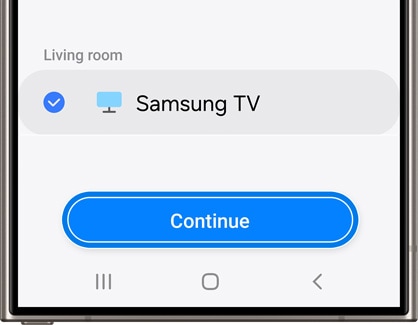
4 選擇電視,然後按「繼續」(Continue)
A 'Continue' button prominently displayed on a Galaxy phone screen within the Samsung Members app.
5 填寫錯誤報告,輸入您的意見及想法,並附上相關螢幕截圖或影片(如有)。
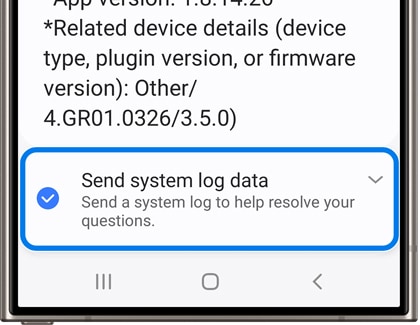
6 選擇「發送系統記錄數據」(Send system log data),然後按下右上角的傳送符號發送報告。
Option selected on a Galaxy phone in the Samsung Members app to 'Send system log data' to assist with resolving technical issues.
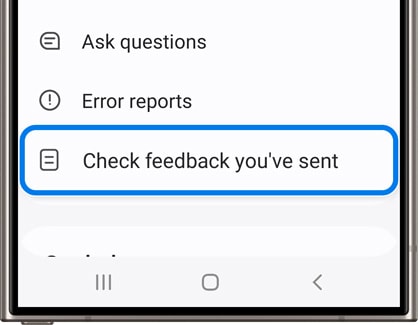
7 「查看您發送的意見回饋」(Check feedback you've sent)中可以看到您曾經發送的錯報告及其回覆。
Menu in the Samsung Members app on a Galaxy phone showing the option 'Check feedback you've sent' highlighted for review of previous submissions.

如果以上資訊與您產品展示的畫面不符,可按此查看相應產品的使用者指南。如果您的問題仍然無法解決,請聯絡我們以獲取進一步的支援。

感謝您提供意見讓我們了解您的需要

RC01_Static Content : This text is only displayed on the editor page