Samsung Wallet

A smart wallet is already in your Galaxy
Get quick, safe access to your essentials with Samsung Wallet. Store credit cards, ID cards, digital keys, boarding passes tickets and more in one app1,2,3,4.


No more headaches.
Everything you have all in one screen.
Say goodbye to bulky wallets. Securely store and access your compatible debit and credit cards, loyalty and membership accounts, boarding passes and more right from your phone. 1,4 Checkout the Samsung Wallet app in your phone to learn more about all the features available and start using today.


Open your wallet with a single swipe or a tap
Samsung Wallet provides you with quick access to your essentials. Just swipe up on your screen to open your Wallet.


Open your wallet with a single swipe or a tap
Samsung Wallet provides you with quick access to your essentials. Just swipe up on your screen to open your Wallet.


Zip through registration
Add your card1 to Samsung Wallet in just a few simple steps. Capture your card information either with the camera or tap to the back of the phone and follow the steps to authenticate with your bank. It’s ready to use at checkout.


Tap it. Your smart wallet is ready to use.
Getting started is quick and simple. Tap your card to your device to add it to your Samsung Wallet using NFC — typically under a minute. Then you're ready to make secure payments.1


Tap. Pay. Go
Just tap and go. Samsung Pay1 is the quick, secure and easy way to pay while you’re out. Just swipe up on your phone or Galaxy watch5, verify and tap.


You are your password.
Save your passwords, usernames and login details to the Samsung Wallet app with Samsung Pass.10 Access it all and log into your apps and services with your fingerprint or PIN.


Your ID in your phone
With Digital ID in Samsung Wallet, you can keep your select Student ID, Driver’s License, or Company ID conveniently and securely in your phone.2


*Phone case sold separately, lanyard not included.
The Wallet that includes your keys
Samsung Wallet supports digital keys for most major car brands, so you have everything you need for the day right on one mobile device. Add your compatible digital car keys3 to Samsung Wallet or link a key through SmartThings.


Welcome home, with Wallet
Add your compatible digital keys3 to home security systems and you'll be able to unlock your front door with just your device, or link a key through SmartThings. Then, all it takes is a simple tap.


Unlock your car just by walking up
If your mobile device and vehicle support UWB, simply approaching your vehicle with your device unlocks it. UWB connectivity also lets you unlock your vehicle and start up the air conditioning when nearby.7


Unlock your car with an easy tap
For vehicles with NFC functionality, simply holding your smartphone to the door handle unlocks it. Now you have a key that is safe, secure and always around when you need it.7


*Phone case sold separately.
Swipe. Scan. Board.
Store your boarding passes4 easily in your Samsung Wallet. Just open your airline app and tap Add to Samsung Wallet. It will be kept up to date with the latest flight details including gate information, seat assignment and boarding time. You can also get push notification when a change is made, and you will always be able to access it from your phone or watch.5


All your memberships, on your phone
Don’t miss out on earing a discount or credit at your favorite stores. Add compatible memberships it to Samsung Wallet and store in the Quick access view to use on the go. Samsung Wallet even lets you manual enter or add a photo of your local membership to wallet – including your library card.


Or use your wallet on your watch
Whether it's your credit cards, memberships ID cards, and more you can register them on your Samsung Wallet and use them on your Galaxy Watch6 or higher, too. Now you can tap and go, and not have to dig for your phone.


Securely pay with peace of mind
Have peace of mind knowing your purchases are verified by you with your fingerprint or PIN. As well, Wallet is protected by Samsung Knox, adding an extra layer of security, including on-device data storage and encryption of your debit or credit cards.10,1


Discover more with Galaxy


Frequently Asked Questions
-
What's the difference between Samsung Pay and Samsung Wallet?Samsung Pay has been integrated under Samsung Wallet. Samsung Wallet operates as the umbrella brand, with Samsung Pay serving as a sub-brand.
· Samsung Wallet : A container app and platform that stores various items.
· Samsung Pay : A mobile payment system primarily used at merchants where only payment functionality is required. -
What are the main features of Samsung Wallet?Samsung Wallet is a secure app that lets you store and use your cards, passes, and digital keys in one place.
It brings together Samsung Pay and Samsung Pass, and supports tickets and boarding passes for everyday use. -
How do I get Samsung Pay?1. Check device compatibility to ensure your Samsung device supports Samsung Pay.
2. Download the Samsung Wallet or Samsung Pay app from the Galaxy Store or Google Play Store.
3. Sign in using your Samsung account to begin setting up your payment options. -
Where can I use Samsung Pay?You can use Samsung Pay anywhere contactless payments are accepted.
It also works in supported apps and websites that show the Samsung Pay button. -
What is the Transit Card feature in Samsung Wallet?The Transit Card feature lets you add and use transit tickets or passes from supported transit agencies directly in Samsung Wallet.
-
How do I use a membership card?Open Samsung Wallet on your phone and go to the Quick Access tab.
Tap Membership, then select the card you want to use.
The card number and barcode will appear on the screen for the cashier to scan and apply to your purchase. -
How can I use my digital car key?Samsung Wallet supports two types of digital car keys: NFC and UWB (Ultra-Wideband).
1. NFC type:
Touch the NFC antenna area of your smartphone to the car door to lock or unlock it.
Place your phone on the car's wireless charging pad.
Once the digital key is authenticated, you can start the car using the start button.
2. UWB type:
The car unlocks automatically as you approach with your smartphone.
After the digital key is authenticated inside the car, you can start the car using the start button. -
How can I add an airplane boarding pass to Samsung Wallet?First, complete check-in through the airline's mobile app or website and generate a mobile boarding pass.
If the airline supports Samsung Wallet, you will see an option to add the boarding pass directly to Samsung Wallet. -
What is Samsung Pass?Samsung Pass is a biometric authentication service available in Samsung Wallet. It lets you securely access supported services using fingerprint or iris verification.
1Requires a compatible NFC card from a participating bank. See Samsung.com Wallet FAQ for more information.
2Digital ID only for select corporate, government and educational institution partners. Student ID only for selection education institution partner. Mobile Driver's License only for TSA ID purposes, only for Arizona and Iowa residents at select Arizona and Iowa airports and TSA checkpoints; Mobile Driver's License for TSA ID only and does not replace physical license. Visit the Samsung Wallet FAQ for more information.
3Digital keys are available for select SmartThings-compatible smart door locks and automobiles. Exact feature availability may vary by model and is subject to change.
4Boarding Pass must be added using the Add to Samsung Wallet button through the Airlines website or App. See Samsung Wallet FAQ for more information.
5Only available on Galaxy Watch6 devices or higher with select features. See Samsung Wallet FAQ for more information.
6Installment service provided by Splitit (NMLS# 2630622). Samsung is a technology provider and is not providing lending services. Service subject to eligibility check and only available in certain states. Minimum purchase $50. For licenses and disclosures, see splitit.com/legals/licensing.
7Only compatible with select Visa and Mastercard credit cards from participating banks. Credit Cards issued by JPMorgan Chase Bank, N.A. among others are not currently supported for Installment Payments. Requires first payment and installment plan selection within 24 hours. Credit card eligibility subject to change. Your credit card terms and fees apply.
8Requires a contactless enabled Mastercard debit card from a participating U.S. bank. Fees and limits apply.
9Actual funds availability varies depending on receiving financial institution.
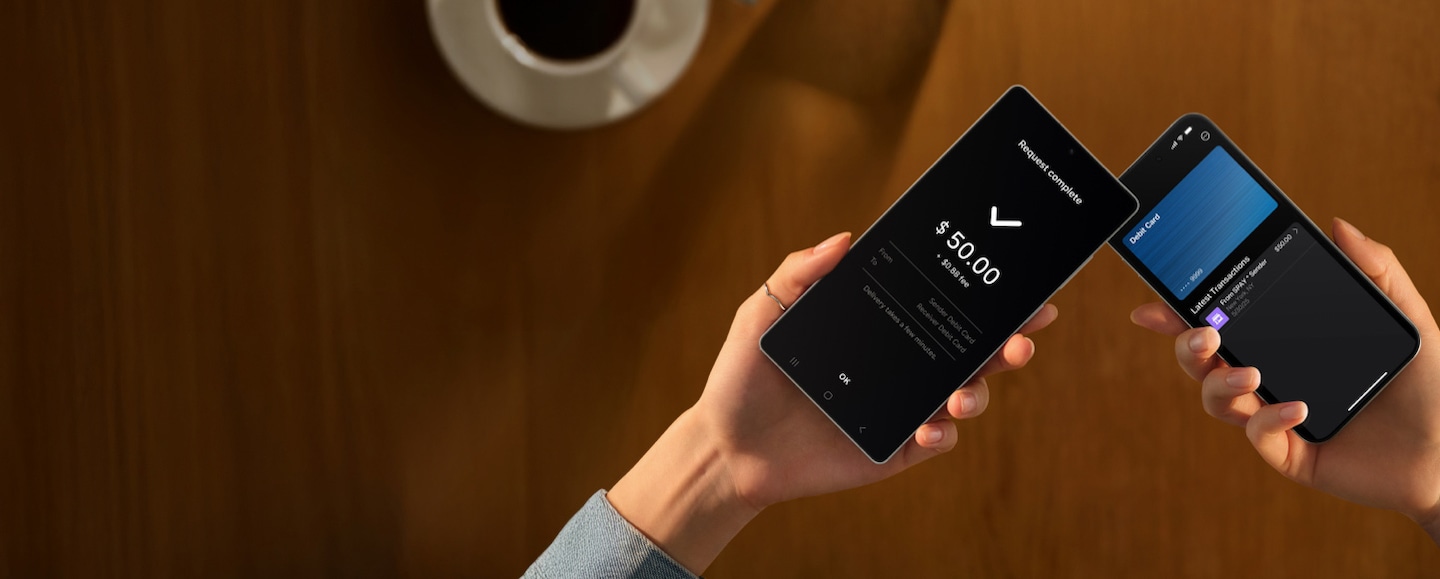
Message and data rates may apply. Please check with your mobile service provider. Additional transaction fees may apply. Please confirm with your financial institution. Tap to Transfer is only available within the U.S. See Samsung.com Wallet page for details.
Service provided by Green Dot® ©2025 Green Dot Corporation. All rights reserved. Green Dot Corporation NMLS #914924; Green Dot Bank NMLS #908739.
Visa® is a registered trademark of Visa International Service Association.
Mastercard® is a registered trademark of Mastercard International, Inc.
10The functions, features, and compatible applications available with Samsung Pass may vary according to the partner's policy. The data stored inside the Samsung Pass app is safeguarded by Samsung Knox to prevent any leakage of valuable information. See samsung.com Wallet FAQ for more information.
*Wallet Privacy Notice: https://www.samsung.com/us/samsung-wallet/privacy-notice/
*Wallet Terms of Service: https://www.samsung.com/us/samsung-wallet/terms-of-service/
