如何在您的2025 Samsung Smart Monitor或TV使用「多重控制」功能
重要提醒:此頁面的資訊只適用於香港產品。產品型號、畫面序列或設定會根據您所在地區及/或購買產品的地區而不同。請按此跳轉至您所在地區的服務支援頁面。
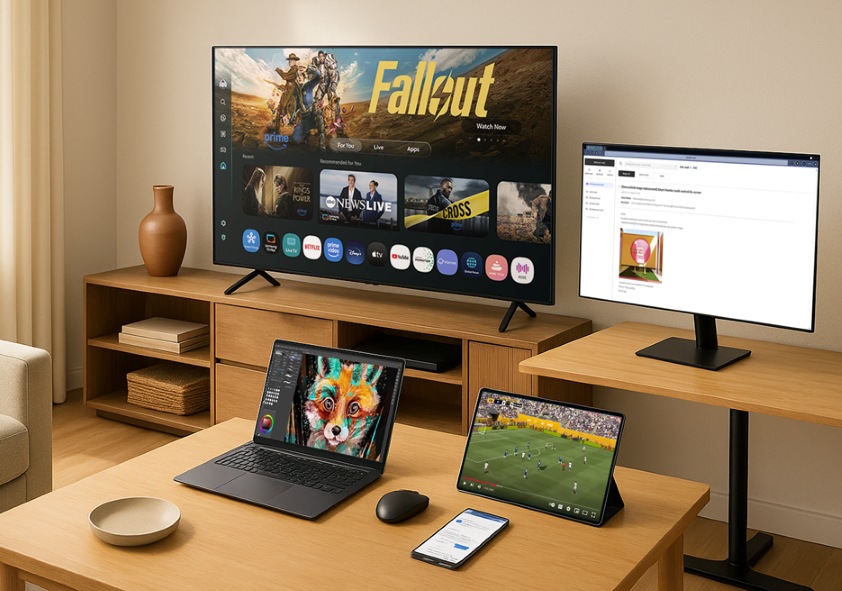
多重控制功能讓您可以使用滑鼠與鍵盤控制多部 Samsung 裝置。您可以在 Samsung Smart Monitor、Smart TV、Galaxy 手機、Galaxy 平板電腦及 Galaxy Book 電腦之間複製與貼上,或拖放內容。您可以從 Smart Monitor 或 Galaxy Book 開始建立連線,並在支援的裝置之間使用多重控制功能。
支援的型號及需求
若要使用多重控制功能,請確保您的裝置支援此功能並符合設定條件。
支援的 Samsung 型號:
- 2025 Smart Monitor:M90SF、M80F、M70F 2025
- Smart TV:U8000F 或以上
- Galaxy 手機與平板電腦:需要安裝 One UI 5.1.1 或更高版本的 Galaxy 手機與平板電腦
- Galaxy Book 系列裝置:2021 年或以後推出,需安裝 Samsung Settings v1.5(Intel)或 Samsung Settings v3.3(ARM)
連接需求:
- 所有裝置均須使用相同的 Samsung 帳號登入
- 所有裝置均須連接至相同的 Wi-Fi 網絡
- 所有裝置均須開啟藍牙功能
- 所有裝置均須開啟多重控制功能
- 至少一部裝置須連接滑鼠與鍵盤
注意:
- 部分功能,例如「複製與貼上」(Copy & Paste) 或「拖放」(Drag & Drop) ,可能因裝置型號或應用程式而無法使用。
- Internet 應用程式支援 Samsung Smart TV 與 Smart Monitor 的多重控制,但部分網頁可能因限制或功能限制而無法相容。
- 功能可用性可能因地區而異,且不提供給中國地區。
- 對於2023 年及 2024 年發行的型號,其可用性與推行時間可能依照 OS 升級政策有所不同。
在您的2025 Samsung Smart TV或Smart Monitor上啟用多重控制
透過 Smart Monitor、Smart TV、Galaxy 手機、平板電腦或 Galaxy Book 開啟多重控制功能。
在 2025 年款 Samsung Smart TV 或 Smart Monitor 上:
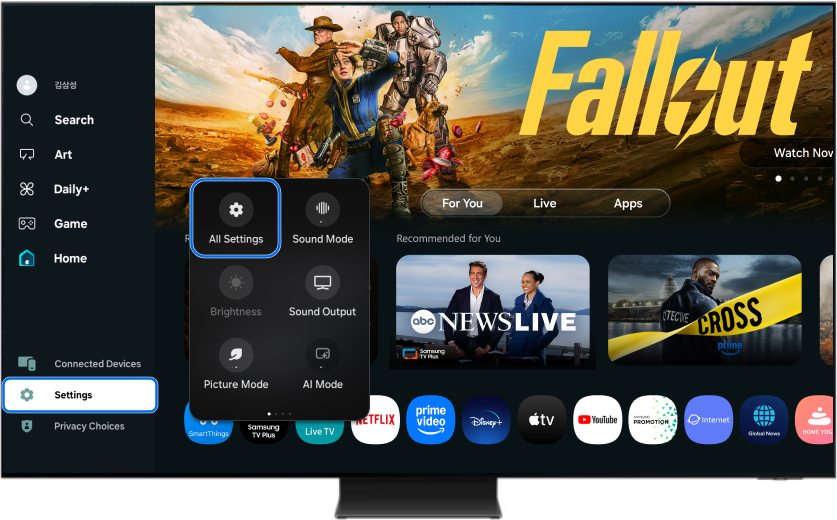
步驟 1. 按下電視遙控器的「首頁」(Home) 按鈕,移至「設定」(Settings) 並選取,然後選擇「所有設定」(All Settings) 。
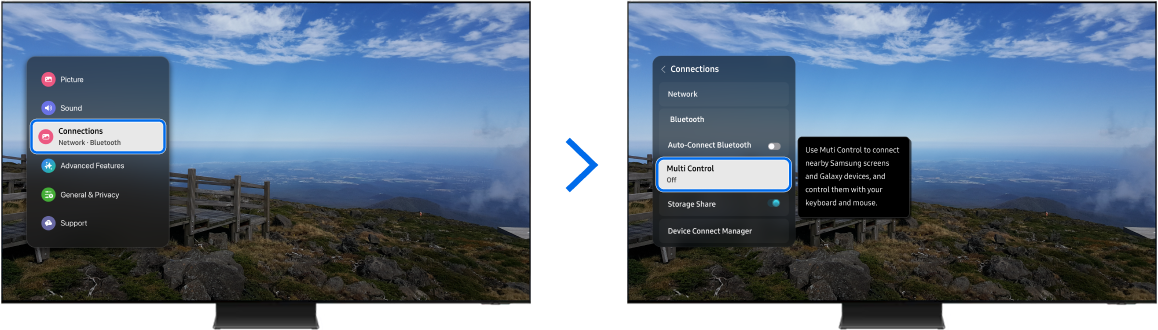
步驟 2. 選擇 連線 (Connections) > 多重控制 (Multi Control)。
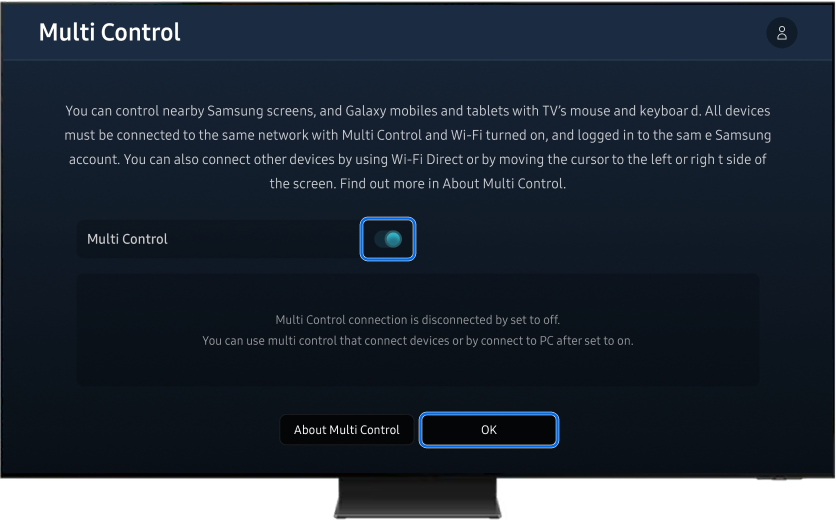
步驟 3. 再次選取「多重控制」(Multi Control) 以開啟功能。開關啟用後將變為藍色。然後選取「確定」(OK) 。
在Galaxy手機及平板上:
步驟 1. 開啟「設定」(Settings) >「已連接的裝置」(Connected Devices) 。
步驟 2. 開啟「多重控制」(Multi Control)。
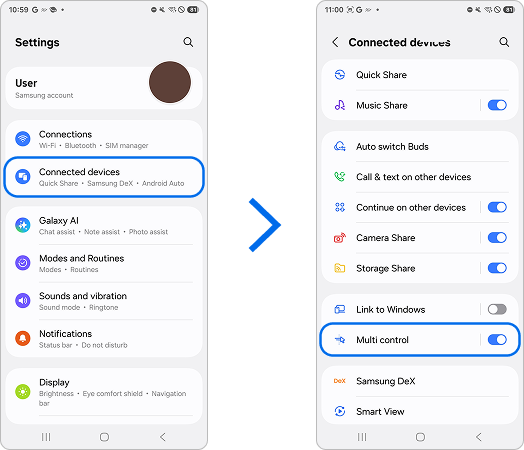
現在,您可以從 Galaxy Book 連接 Samsung Smart TV、Smart Monitor、Galaxy 手機及 Galaxy 平板電腦。開啟 Galaxy Book 上的Samsung 「設定」(Settings) ,選取「已連接的裝置」(Connected Devices),然後選取您要連接的裝置。如果您想從 Smart Monitor 開始連接,請參閱下一節的指引。
注意:畫面圖像可能會根據您的軟體版本、型號及地區有所不同。
從您的Samsung Smart Monitor上連接及控制
您也可以將 Smart Monitor 用作主要控制點來連接及管理其他 Samsung 裝置。
步驟 1. 按下電視遙控器的「首頁」(Home) 按鈕,移至「設定」(Settings) 並選取,然後選擇「所有設定」(All Settings) 。
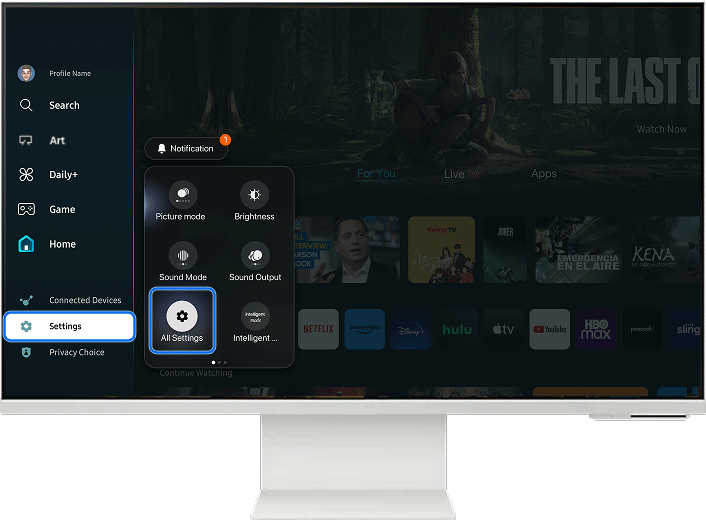
步驟 2. 選擇「連線」 (Connections) > 「多重控制」(Multi Control)

注意:您也可以直接前往「設定」(Settings) 並選取「多重控制」(Multi Control) 以開啟功能。

步驟 3. 選取要連接的裝置,然後選取「確定」(OK) 。完成連接後,裝置將顯示為「已連接」(Connected) 。如果未偵測到,請確認裝置是否支援且符合本文第一節所列的需求。
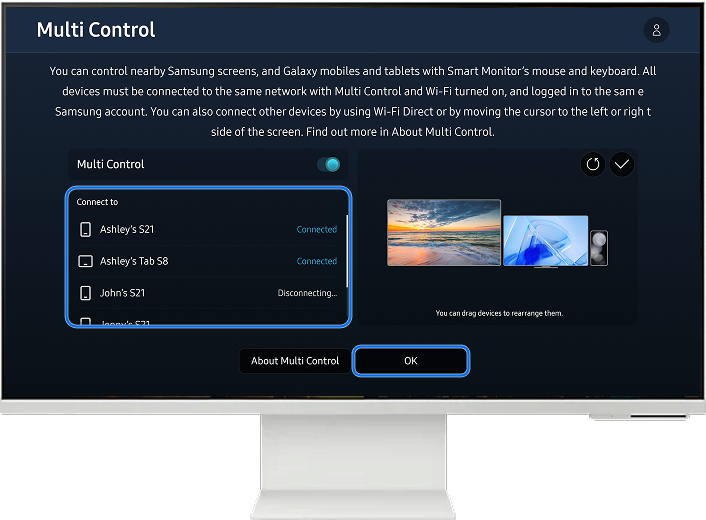
步驟 4. 若要調整版面,請使用滑鼠拖曳螢幕上的裝置。
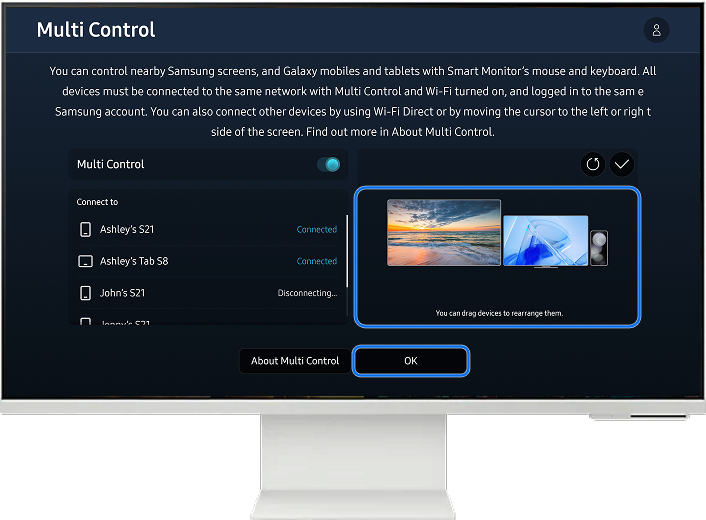
現在,您可以使用 Smart Monitor 的鍵盤與滑鼠控制連接的 Galaxy 手機、Galaxy 平板電腦及 Smart TV。此外,您也可以從 Galaxy Book 登記並連接這些裝置,方法是開啟 Samsung 「設定」(Settings) ,選取「已連接的裝置」(Connected Devices) ,然後選擇您要控制的裝置。
注意:
- 您最多可以將三部多重控制裝置連接至 Smart Monitor。
- 若要連接 Galaxy Book,請前往 Samsung 「設定」(Settings) > 「已連接的裝置」(Connected Devices) 並選取 Smart Monitor。如果已從電腦螢幕端連接裝置,請先解除連結,再從 Galaxy Book 配對。
多重控制功能讓您在 Samsung 裝置之間的多工處理更高效率。
無須切換輸入裝置或手動在裝置之間複製檔案,您可以直接在你的生態系統中導覽、複製及與內容互動。無論是編輯文件或分享內容,多重控制功能都能幫助您在裝置之間更高效地工作。
注意:
- 如果您的 Samsung Smart TV 出現問題,請檢查是否有可用的軟體更新。
- 螢幕截圖可能會根據您的電視型號和軟體版本有所不同。
感謝您提供意見讓我們了解您的需要
請回答所有問題。
RC01_Static Content : This text is only displayed on the editor page