在您的三星智能電視上使用 Relumino Mode
最後更新日期 : 2026年1月9日
重要提醒:此頁面的資訊只適用於香港產品。產品型號、畫面序列或設定會根據您所在地區及/或購買產品的地區而不同。請按此跳轉至您所在地區的服務支援頁面。
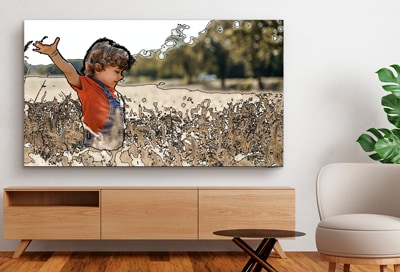
如果您是視障人士,或在觀看電視節目及其他 HDMI 視訊時遇到困難, 您可以在您的 2023 三星智能電視上使用 Relumino Mode。此功能可提升螢幕對比度及亮度,強化圖像及形狀線條,讓您可以觀看更清晰的畫面。
請注意:2023 三星 Neo QLED TVs 及 QLED TVs(Q80C或以上型號)均設有 Relumino Mode。
開啟 Relumino Mode
![A Samsung Smart TV is placed on a TV stand, and displaying an image using the Relumino Mode]()
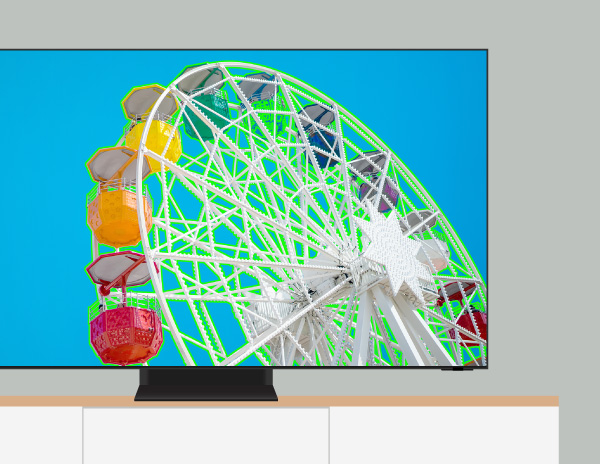
您可以根據以下步驟開啟 Relumino Mode,並調校設定。
1
按下電視搖控上的主頁鍵,選擇設定 (Settings),然後按下所有設定 (All Settings)。
![The Settings screen from a Samsung Smart TV is displayed]()

2
點選一般與私隱 (General & Privacy),然後選擇協助工具 (Accessbility),再選擇 Relumino Mode設定 (Relumino Mode Settings)。
![The Accessibility screen menu from a Samsung Smart TV is displayed]()

3
點選並開啟 Relumino Mode。
![The Relumino Mode Settings screen from a Samsung Smart TV is displayed]()
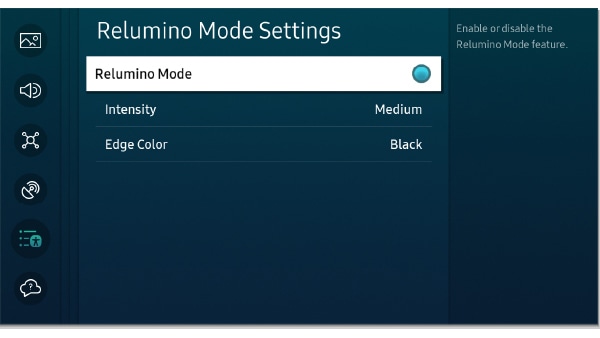
注意:再次點選 Relumino Mode來關閉功能。
4
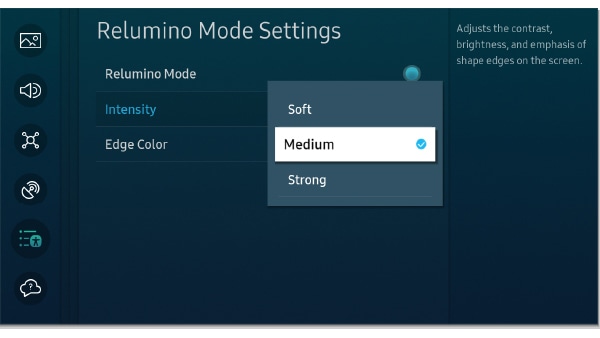
選擇 強度 (Intensity) ,然後調校至弱 (Soft)、中 (Medium)或強 (Strong)。這些設定可調校螢幕對比度及亮度,以及強化影像的輪廓。
![The Relumino Mode Settings screen from a Samsung Smart TV is displayed with the option Intensity highlighted]()
5
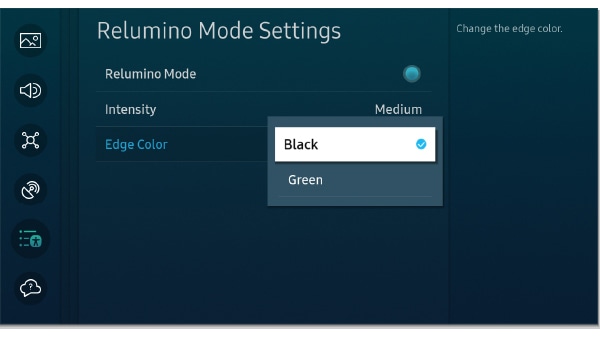
選擇 邊緣色彩 (Edge Color),然後選擇黑色 (Black)或綠色 (Green)。所選顏色將會用以強化影像輪廓。
![The Relumino Mode Settings screen from a Samsung Smart TV is displayed with the option Edge Color highlighted]()
請注意:
- Relumino Mode只適用於電視或 HDMI 視訊輸入。
- 使用跨裝置觀看功能、畫中畫、Game Bar、Mini-Map、The Sero 旋轉模式等部分功能時,將無法使用 Relumino Mode。
- 使用 Relumino Mode時,將關閉灰階及顏色反轉功能。
- 您可以透過長按搖控器上的音量鍵來打開協助工具捷徑。
感謝您提供意見讓我們了解您的需要
請回答所有問題。
RC01_Static Content : This text is only displayed on the editor page