What to do when your Galaxy device is unable to make or receive calls?
If you’re unable to make a call from your Galaxy device, it may be due to a faulty SIM card, an issue with your account or carrier, or a device setting. Check the guide below to find a solution.
Before you try the recommendations below, be sure to check if your device's software and related apps are updated to the latest version. To update your mobile device's software, follow these steps:
Step 1. Go to Settings > Software update.
Step 2. Tap on Download and install.
Step 3. Follow the on-screen instructions.
Check your cell coverage and service status.
- If you have poor cell reception, there will be a few to no network bars on the upper right corner of your screen. If that’s the case, move to a spot with stronger signal.




With weak signal, there’s only a few, if not any, network bars
- Verify that your account is in good standing.
- Your device may be experiencing temporary issues with receiving signals from a cell tower. Try rebooting your device.
Check your device settings.
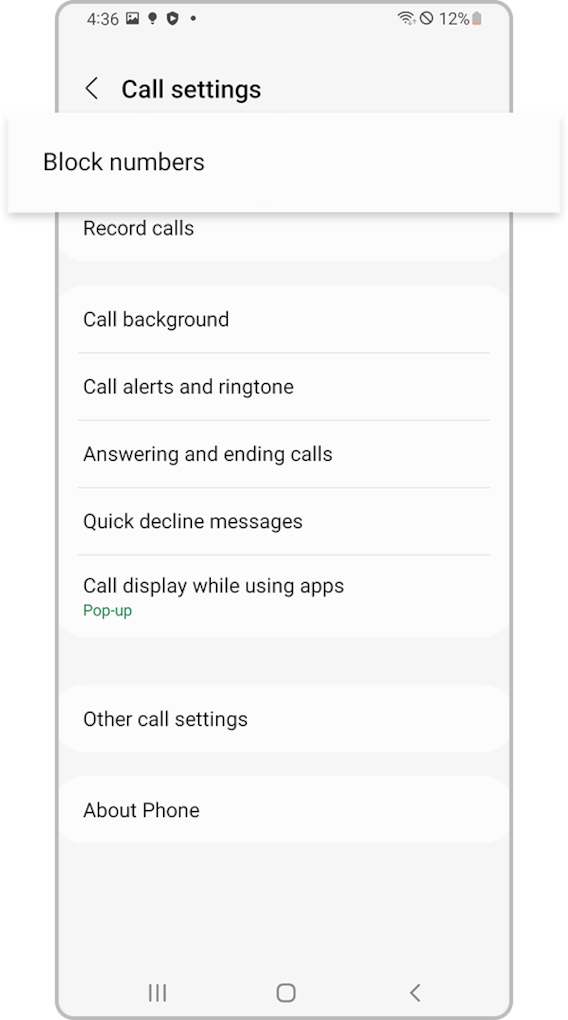
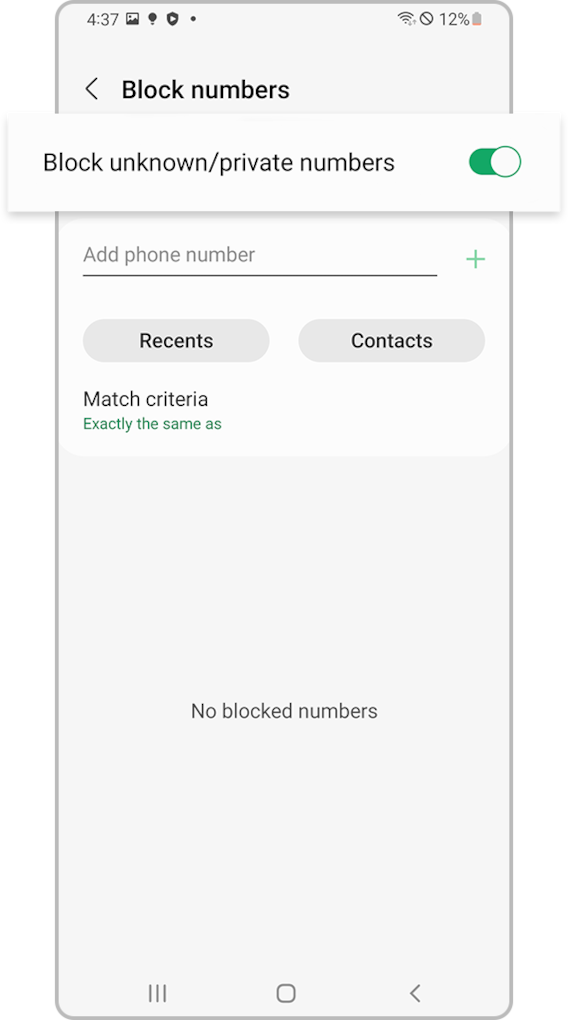
Device settings may be hindering your ability to make or receive calls. Check if Airplane mode is enabled or if your device is blocking calls from unknown or private numbers.
Turn off Airplane mode
Step 1. Open Settings and tap Connections.
Step 2. If Airplane mode is on, turn it off and check if your connection stabilizes.
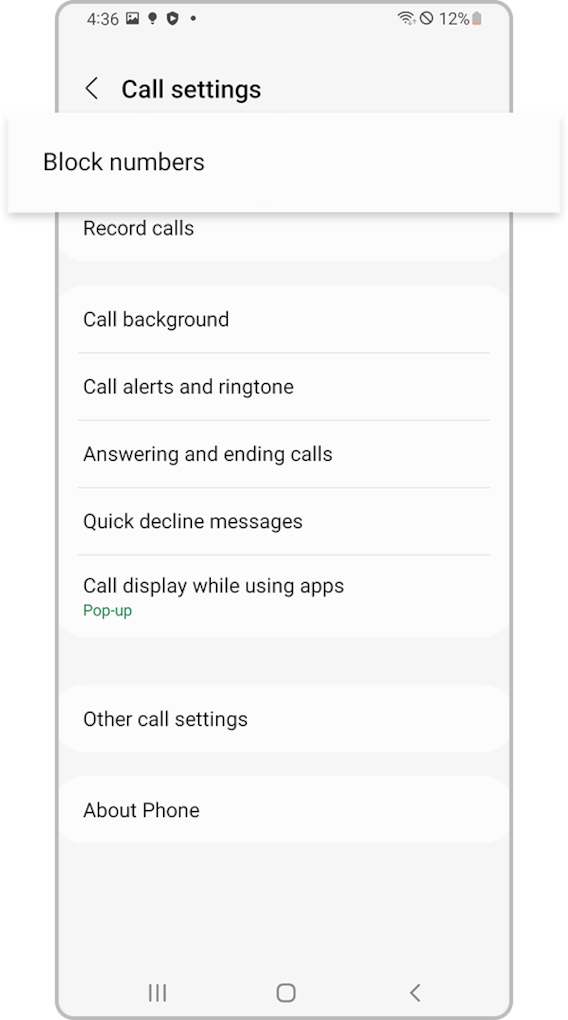
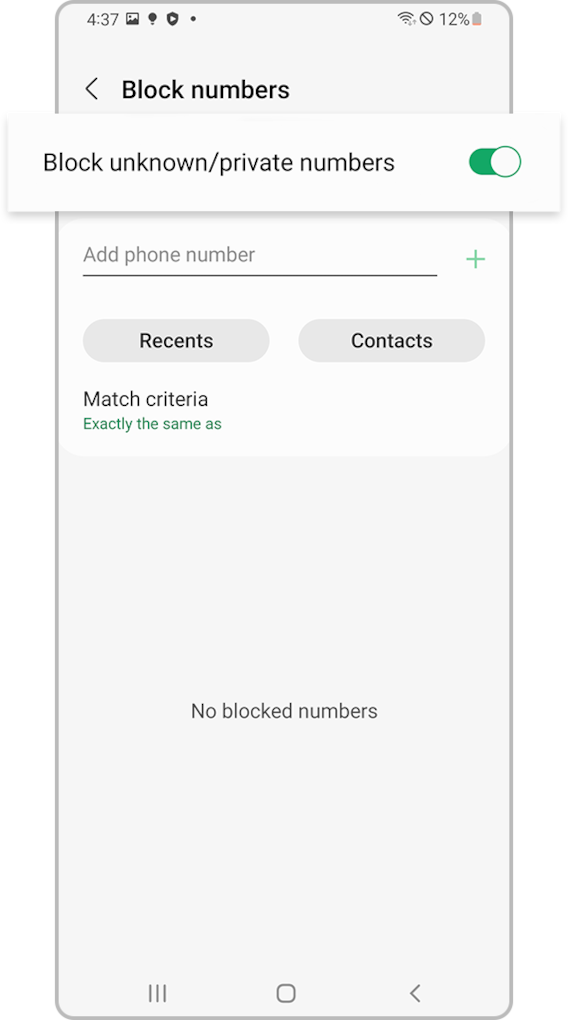
Check if your device is blocking any unknown or private numbers
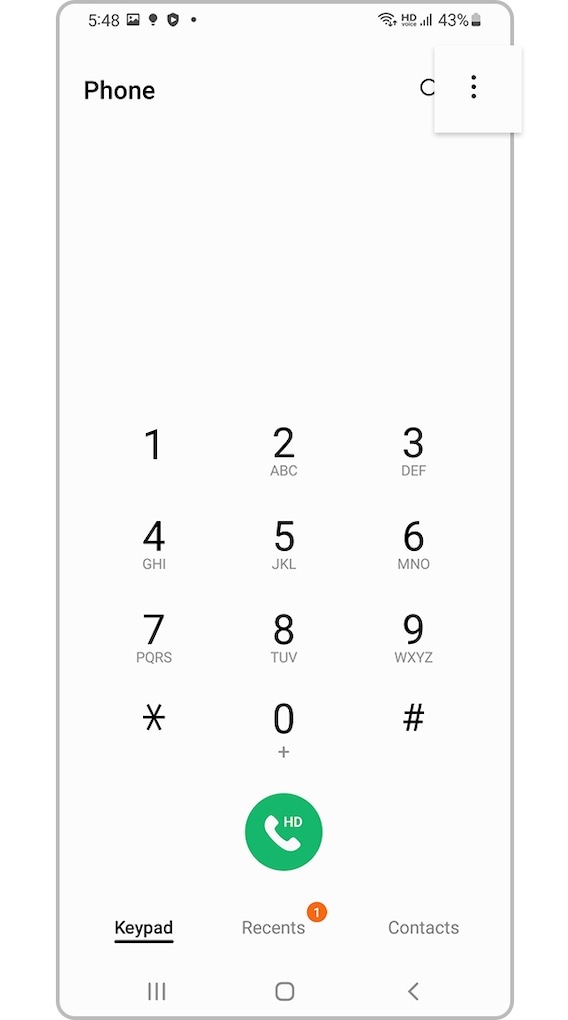
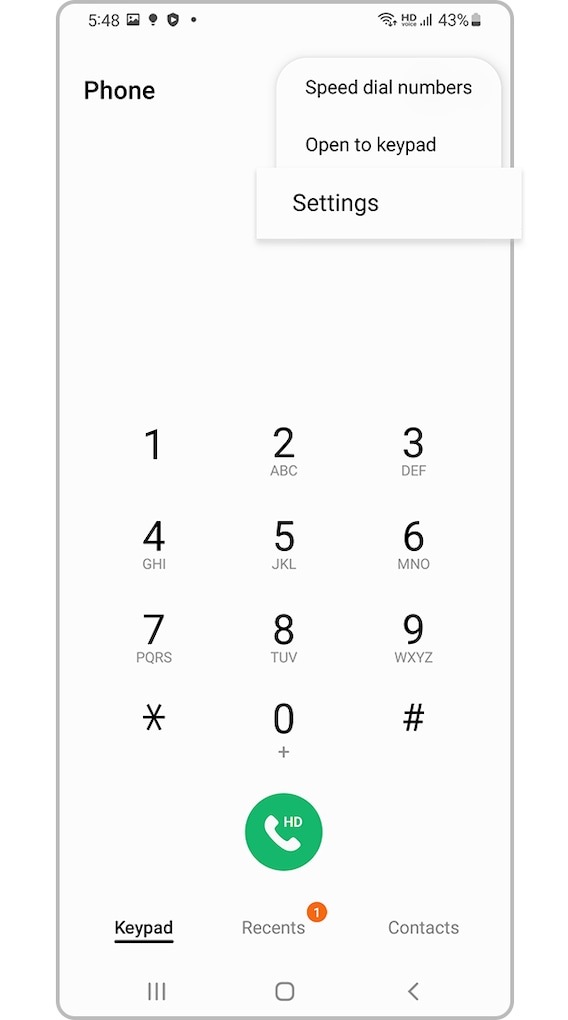
Verify and inspect the SIM card.
Verify that the SIM card is correctly installed and not damaged. Contact the carrier for assistance testing the SIM or for a replacement. If you have another active phone on the same network, you may be able to exchange SIM cards between the phones to test them.


Contact your carrier.
If you recently changed carriers but kept the same phone, you may need to contact the current carrier to reprogram your device. Contact your service provider for assistance.
Note:
- After each step, try making a call to see if your issue is resolved.
- Warranty may not cover physical damage, but you can still make an appointment for repairs. Please check the Support Center for more information.
- Device screenshots and menus may vary depending on the device model and software version.


Service Centers


Locate the nearest Samsung service center to have your product checked.
Thank you for your feedback!
Please answer all questions.
Contact Info
LiveChat
![LiveChat]()
![LiveChat]()


Monday to Sunday
8:00 a.m. a 12:00 a.m.