How to troubleshoot apps that are not working on the Samsung Smart TV
If your Samsung Smart TV has an app that isn’t working properly, perform the following steps.
Method 1. Soft reset the TV
If you're experiencing issues with your Samsung TV, such as slow operation or inability to launch apps, you can perform a reset using the TV's remote control.
This feature performs a software reset (reboot) rather than a factory reset.
Before proceeding, please check that you have the correct remote control paired with the TV.
Turn Off the TV
Press and hold the Power button on the remote control for more than 3 seconds until the TV screen turns off.

Restart the TV
Continue holding the Power button on the remote control until the Samsung logo reappears on the screen.

Complete the Restart
- Release the Power button once the Samsung logo reappears.
- Allow the TV to boot up automatically.

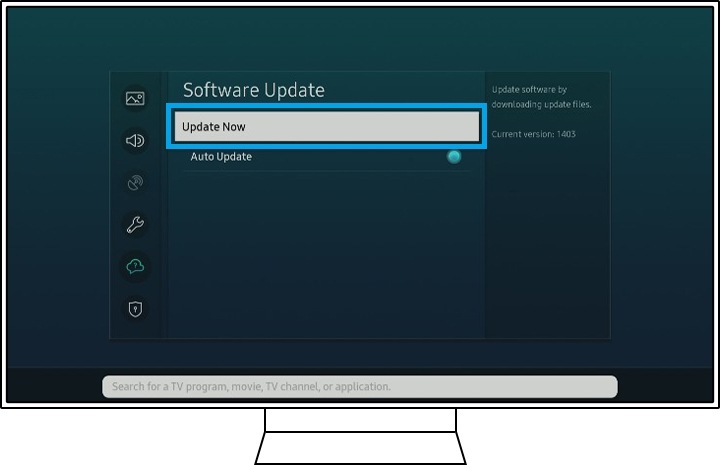
Software updates provide bug and security fixes for your device. Keep your TV’s software up to date to prevent errors.
Step 1. Press the Home button and navigate to the Settings.

Step 2. Go to Support, and then select Software Update.
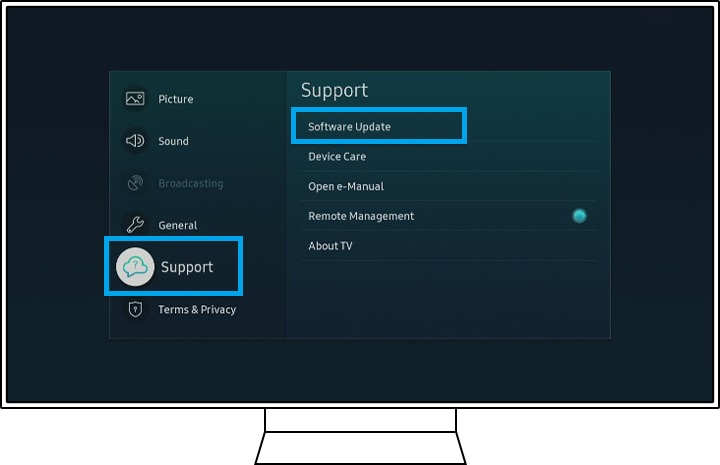
Step 3. Click Update Now to start updating your TV.
This process removes old and useless data that causes problems and replaces it with fresh data.
Step 1. Press the Home button and navigate to Apps.

Step 2. Go to Settings.

Step 3. Navigate to the app, and then select Delete.

Step 4. Press the return button on your remote and select the Search icon and enter the name of the app and install it.

Note:
- If Delete is grayed out, this is a recommended app. Select Reinstall instead.
- Make sure that you have your login information before deleting or reinstalling an app. These steps will sign you out, and so you will need to sign back in.
Step 1. Press the Home button and navigate to Menu.

Step 2. Press on Settings.

Step 3. Press on Support.

Step 4. Select Device Care.

Step 5. Tap Self Diagnosis.

Step 6. Select Reset Smart Hub.

Step 7. Enter your PIN. The initial PIN is 0000.

The reset is complete.

Note:
- The default PIN is 0000.
- You may need to download the app again after the reset.
Note: Device screenshots and the menu are only a sample in English - they are also available in the language of your country.


Service Centers


Locate the nearest Samsung service center to have your product checked.

Thank you for your feedback!
Please answer all questions.
Contact Info
LiveChat
![LiveChat]()
![LiveChat]()


Monday to Sunday
8:00 a.m. a 12:00 a.m.