How to troubleshoot internet connectivity for samsung tv
Step 1. Click the HOME button on your TV remote.
Step 2. Navigate to Settings and select it using your remote.
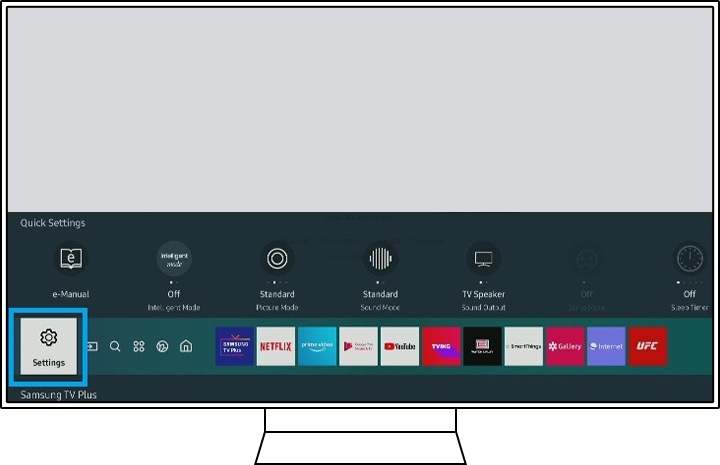
Step 3. Select Network in the General menu.
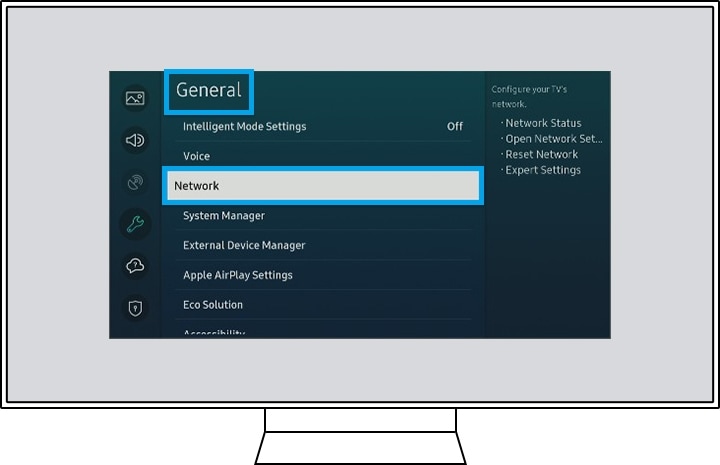
Step 4. Select Network Status.

Step 5. On this screen, it is possible to see the status of the network. In addition, you can check your IP settings and try to reconnect.
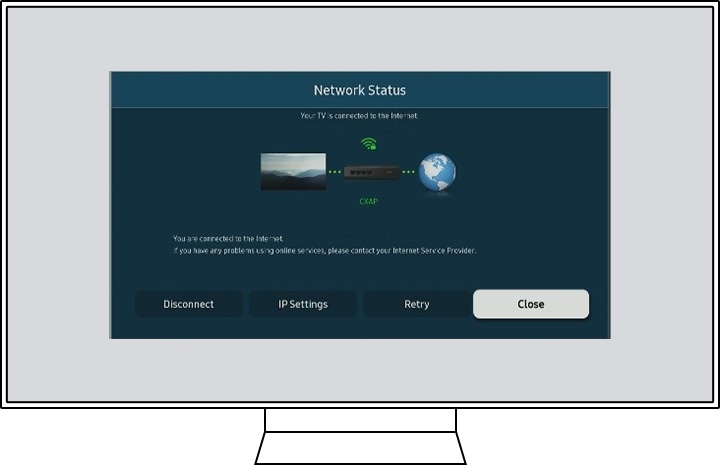
When you have a problem with the Internet connection, there are a number of other ways you can try to fix it besides looking into the Network Status. We recommend the below ways.
- If you are using a wireless connection, the distance between the modem or router and the TV must be within 15.2 m, and there should be no obstacle between them. If there is any obstacle in the middle of them or the distance is more than 15.2 m, a wireless booster is required.
- Check the IP settings. You can see these at Settings > Network > Network Settings > IP Settings.
- Check for a Software Update. You can see this at Settings > Support > Software update > Update Now.
- Try the self-diagnosis feature of the TV. You can see this at Settings > Support > Self Diagnosis.
- If there is still a connection issue, you need to do a factory reset.
- The router or modem should be at a height of 1 m or 1.5 m.
After a factory reset, you need to connect again to the Internet. There are two ways to connect your Smart TV to the Internet, which are wireless and wired connections. The connection method is as follows.
Step 1. Click the HOME button on your TV remote.
Step 2. Navigate to Settings and select it using your remote.
Step 3. Select Network (General is the first for some TVs).
Step 4. Select Open Network Settings.
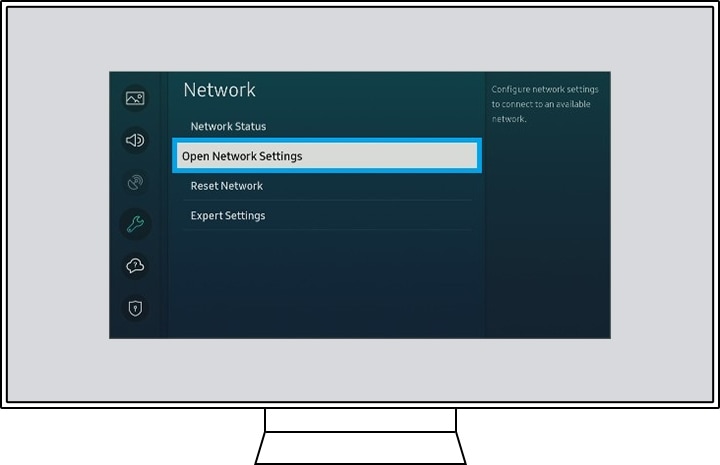
Step 5. Choose between a wireless or wired connection. If you choose a wired connection, it will be connected to the Internet. If it is wireless, select the network that you want to connect to.
Note: Make sure that the network cable is well connected to the back of your TV when trying to connect through a wired connection.
Note: The device screenshots and menu are only sample in English - they are also available in the language of your country.


Service Centers


Locate the nearest Samsung service center to have your product checked.
Thank you for your feedback!
Please answer all questions.
Contact Info
WhatsApp
![WhatsApp]()
![WhatsApp]()


Monday to Sunday
8:00 a.m. a 12:00 a.m.
LiveChat
![LiveChat]()
![LiveChat]()


Monday to Sunday
8:00 a.m. a 12:00 a.m.
Online
Call
Costa Rica: 00-800-1-726-7864
Ecuador: 1-800-72-6786
El Salvador: 800-0726-7864
Guatemala: 1-800-299-0033
Call
Honduras: 800-2791-9111
Jamaica: 1-800-726-7864
Nicaragua: 001-800-5077267
Panama: 800-0101
Call
Puerto Rico: 1-800-682-3180
Trinidad and Tobago: 1-800-726-7864
Venezuela: 0-800-100-5303
Dominican Republic: 1-800-751-2676