How to use the Quick Settings feature
You can quickly change your TV Settings by pressing the Settings/Number/Color button or the Settings/Number/Option button on your Smart Remote. Quick Settings can be used to quickly configure frequently used functions.
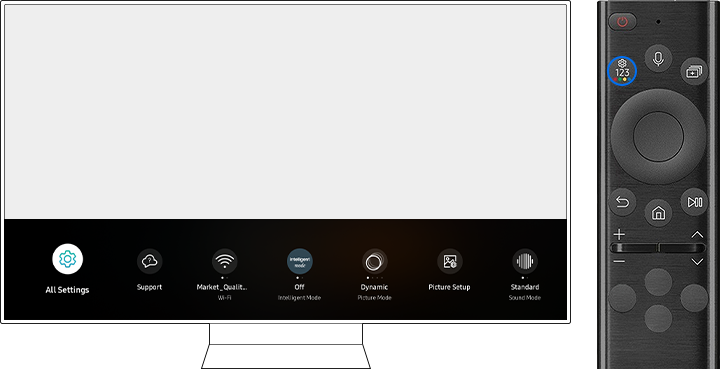
Step 1. Press the Settings/Number/Color(Option) button on your Smart Remote.
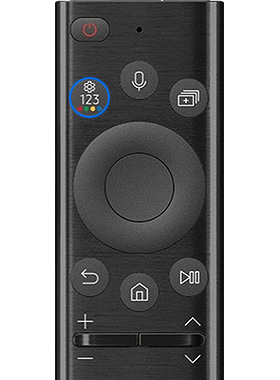
Step 2. Press the up(down) directional button or the Settings/Number/Color(Option) button on your Smart Remote again. Every time you press this button, the Settings menu/Virtual number pad/Color(Option) pad are displayed alternately.
- Settings menu: From the Settings menu, you can quickly set the options of your frequently used functions. For advanced settings, select All Settings.
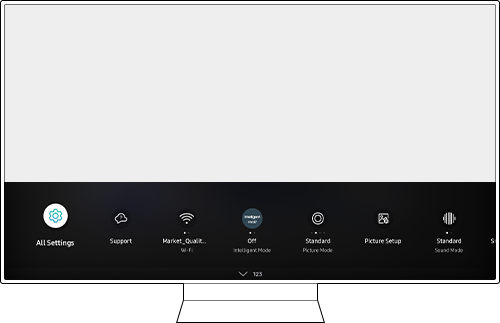
- Virtual numeric pad: You can use the virtual numeric pad to change the channel or to enter numeric values.

- Option pad with Color: Select the displayed Color button to set options that are specific to the feature in use.

Note: The displayed TV screen may differ depending on the model or geographical area.
Starting with newer Samsung Galaxy phones and tablets running One UI 7.0, the Quick settings panel has changed so that Notifications and Quick settings are accessed separately. On earlier Galaxy devices running One UI 6.1.1 or lower, Notifications and Quick settings are still accessed using the same swipe gesture.
Access Notifications and Quick settings on newer Galaxy devices
Access the Notification panel
Swipe down from the top left of the screen to open the Notification panel.


Access the Quick settings panel
Swipe down from the top right of the screen to open the Quick settings panel.


Access Notifications and Quick settings on older Galaxy devices
Swipe down from the top of the screen to open the Notifications panel. Swipe down again to fully expand the Quick settings panel.

Alternatively, swipe down from the top of the screen using two fingers, slightly apart, to open the Quick settings panel directly.
How to check your current software version
You can quickly view the current software version running on your Galaxy device, including key details like the One UI version, Android version and build number.


Step 1. Open the Settings menu. Then, navigate to and tap About phone or About tablet.


Step 2. Tap Software information.


Step 3. You’ll see detailed information about your device’s software, including the One UI version, Android version, build number and more.
Note:
- If you are having trouble with your Samsung Smart TV, you should always check to see if there are any software updates available as these may contain a fix for your problem.
- Device screenshots and menus may vary depending on the device model and software version.
Thank you for your feedback!
Please answer all questions.
Contact Info
WhatsApp
![WhatsApp]()
![WhatsApp]()


Monday to Sunday
8:00 a.m. a 12:00 a.m.
LiveChat
![LiveChat]()
![LiveChat]()


Monday to Sunday
8:00 a.m. a 12:00 a.m.
Online
Call
Costa Rica: 00-800-1-726-7864
Ecuador: 1-800-72-6786
El Salvador: 800-0726-7864
Guatemala: 1-800-299-0033
Call
Honduras: 800-2791-9111
Jamaica: 1-800-726-7864
Nicaragua: 001-800-5077267
Panama: 800-0101
Call
Puerto Rico: 1-800-682-3180
Trinidad and Tobago: 1-800-726-7864
Venezuela: 0-800-100-5303
Dominican Republic: 1-800-751-2676