Mirror your PC’s screen to your Samsung Smart TV with Screen Sharing
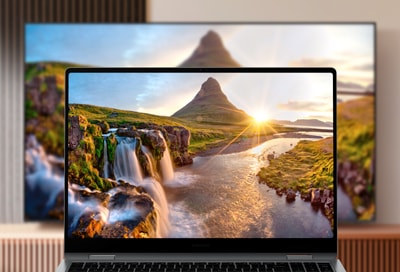
You can use the Screen Sharing feature to mirror your Windows PC or Mac to your Samsung Smart TV. This allows you to wirelessly share your PC’s content with your TV.
Note: Your PC and Samsung TV must be connected to the same Wi-Fi network to use Screen Sharing.
Requirements
Before everyone can enjoy the show, make sure your PC and TV have the correct requirements. Most PCs that run Windows 10 or Windows 11 will support this feature, but to check if your PC is compatible, press the Windows key + P key on the keyboard. A Project action bar will open. To be compatible, this action bar must contain the link "Connect to a wireless display." If it is not there, your device is not compatible.
Most Samsung Smart TVs will support screen mirroring and casting. Make sure that both the TV and PC are operating on the same Wi-Fi network.
Mirror your screen
Step 1. On your PC, select Start, then begin typing Bluetooth and other device settings and select it when it appears.
Step 2. Select Add device or Add Bluetooth or other device. Then, select Wireless display or dock.

Step 3. Select your TV once its name is displayed. If prompted, select Allow on your TV.
Step 4. Now your PC’s screen will be mirrored to the TV.
To begin using Screen Sharing with your Windows PC, you can follow the steps below.
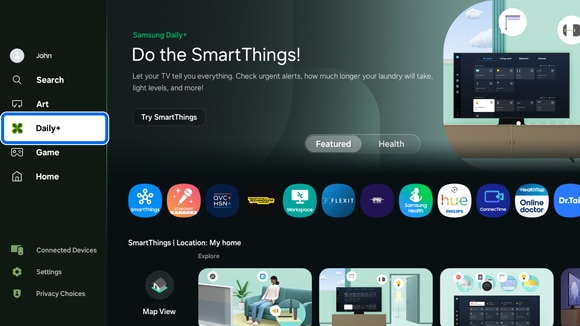
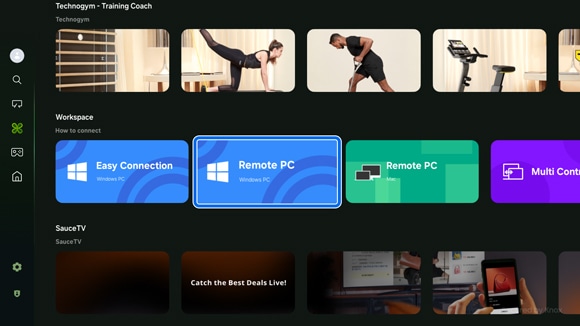
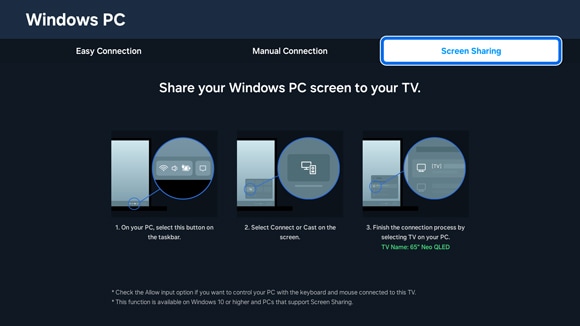
Note: You can also select the Manual Connection tab if desired.
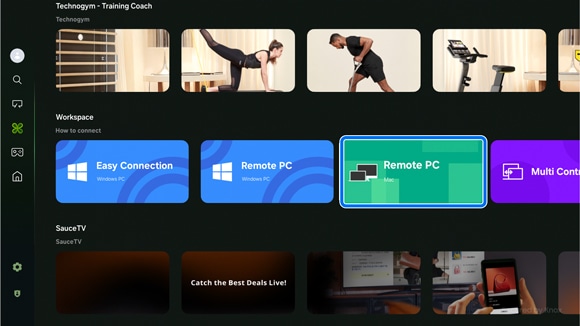
To begin using Screen Sharing with your MAC, you can follow the steps below.

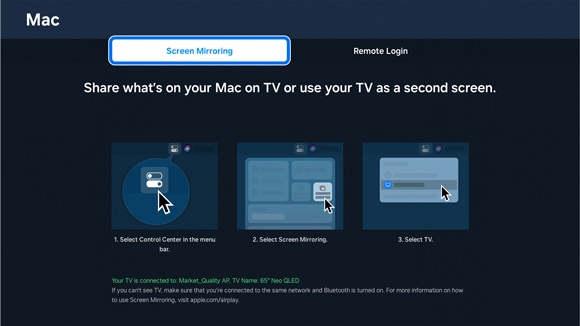
Note: You can also select the Remote Login tab if desired.


Service Centers


Locate the nearest Samsung service center to have your product checked.
Thank you for your feedback!
Please answer all questions.
Contact Info
LiveChat
![LiveChat]()
![LiveChat]()


Monday to Sunday
8:00 a.m. a 12:00 a.m.