Set or change the PIN code on your Samsung Smart TV

A PIN (Personal Identification Number) is a specific password to access your TV and is used for various functions such as installing and using apps. You can change the PIN number or reset it if you have forgotten it.
The default PIN is set to 0000. You can change or reset the PIN accordingly
Do you want to restrict your child’s access to the Samsung Smart TV? To change the PIN, follow the steps below:
Step 1. On the remote control, press the Home button and use the directional pad to scroll to the Settings menu.
Step 2. Select General > System Manager > Change PIN.

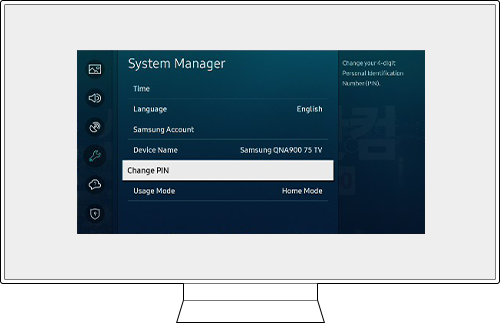
Step 3. Enter the Current PIN
- When prompted, use the Number button on the remote control to input the current PIN.
Note: The default PIN is set to 0000. You can change or reset the PIN accordingly
Step 4. Enter a 4-digit PIN: Use the directional pad to input your desired 4-digit PIN.
- Confirm your PIN number and press the Select button.
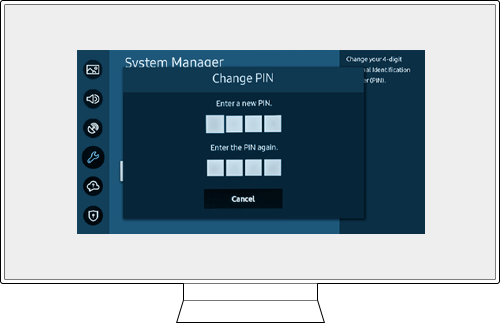
- Your new PIN is now set.
Did you forget your PIN? If so, follow this guide to reset your PIN.
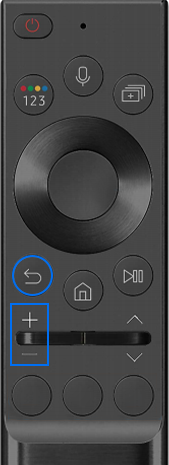
Option 1. With a Samsung Smart Remote or Remote Control
Step 1. Turn on the TV, then press the Volume button.
Step 2. Press the + button to increase the volume, then press the Return button.
Step 3. Press the – button to decrease the volume, then press the Return button.
Step 4. Press the + button again, then press the Return button, and the PIN should be reset to 0000.
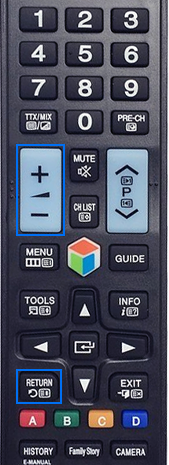
Option 2. With a standard Remote Control
Step 1. Turn on the TV, then press the Mute button.
Step 2. Press the + button, then press the Return button.
Step 3. Press the - button, then press the Return button.
Step 4. Press the + button again, then press the Return button, and the PIN should be reset to 0000.
Your TV’s default PIN should be set to 0000 once again.
Note:
- If you are having trouble with your Samsung Smart TV, you should always check to see if there are any software updates available as these may contain a fix for your problem.
- Device screenshots and menus may vary depending on the device model and software version.
You maybe interested in


Service Centers


Locate the nearest Samsung service center to have your product checked.
Thank you for your feedback!
Please answer all questions.
Contact Info
LiveChat
![LiveChat]()
![LiveChat]()


Monday to Sunday
8:00 a.m. a 12:00 a.m.