How to fix the “No SIM Card Detected” error on Samsung Galaxy devices
If your Samsung Galaxy device shows “No SIM Card inserted” or “No SIM Card detected” even though a SIM card is installed, the issue could be caused by a loose SIM card, dirty tray, or network settings.
You can fix it by restarting your phone, checking the SIM card, or resetting mobile network settings.
This guide provides step-by-step instructions to resolve the “No SIM Card Detected” error on your Galaxy device.
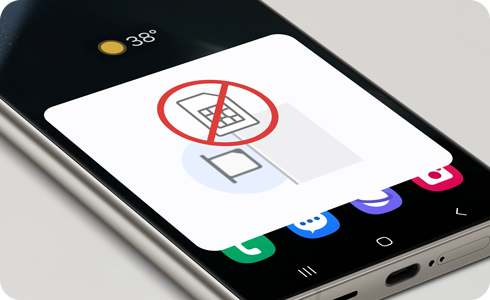
Restart your Samsung Galaxy device
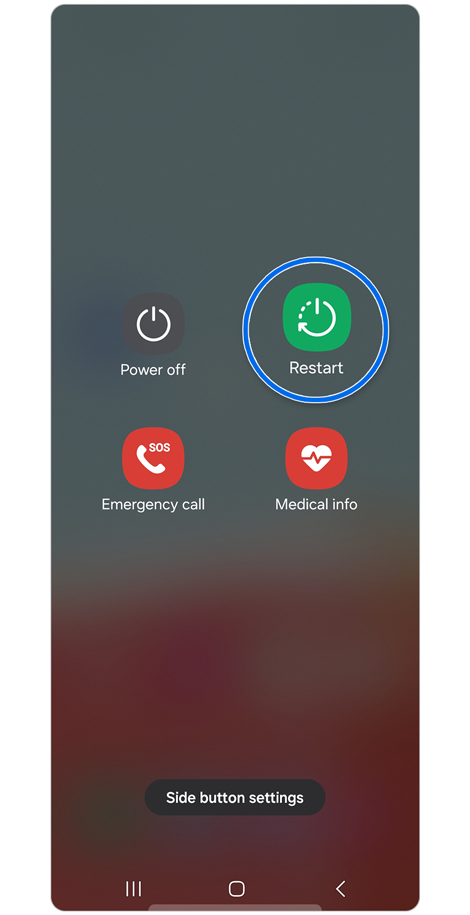
Method 1:
Press and hold Volume down + Power buttons for at least 7 seconds.
Tap Restart, then tap Restart again to confirm.


Method 2:
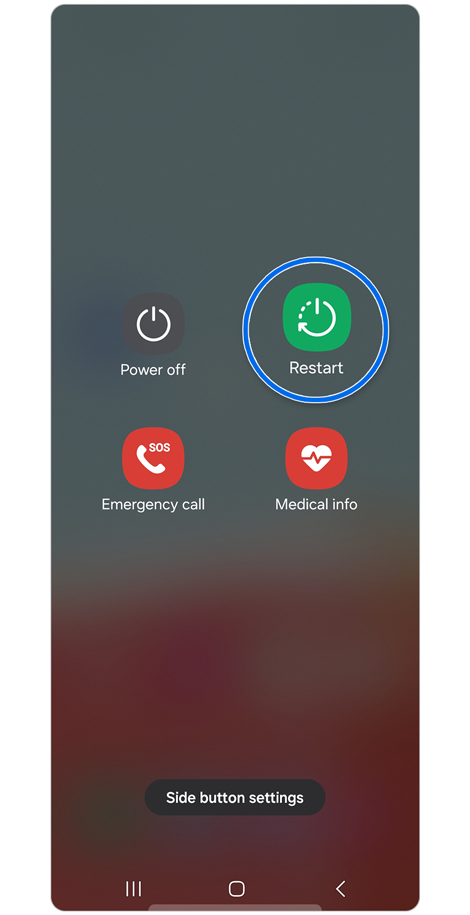
Swipe down from the top of the screen with two fingers to open the Quick panel.
Tap the Power off icon > Tap Restart > Tap Restart again to confirm.
Restarting may resolve temporary SIM detection issues.
Inspect and reinsert the SIM card
- Turn off your device by pressing Volume down + Power, then tap Power off.
- Remove the SIM card from the tray and check for scratches, stains, or damage.
- Clean the SIM card and tray with a soft, dry cloth.
- Reinsert the SIM card, making sure it aligns properly in the tray.
- Turn your device back on and check if the error is resolved.
Note: Handle the SIM card tray carefully to avoid damage or deformation.
Reset mobile network settings
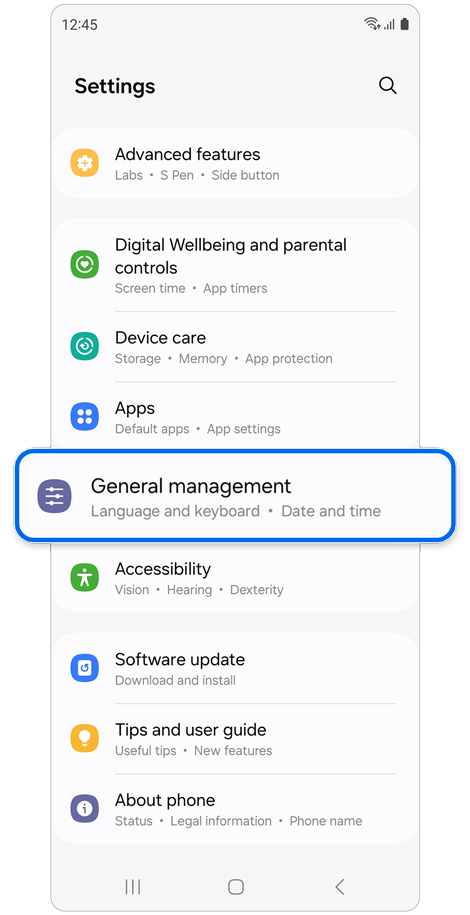
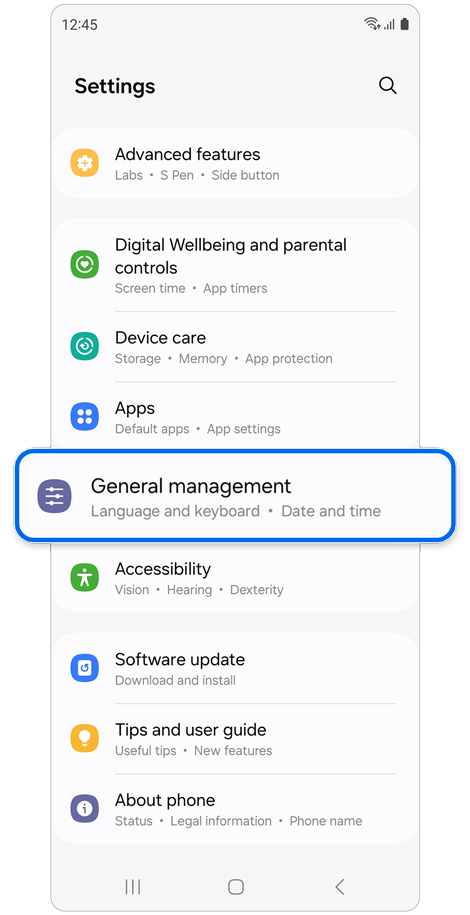
Step 1. Open Settings > General management.
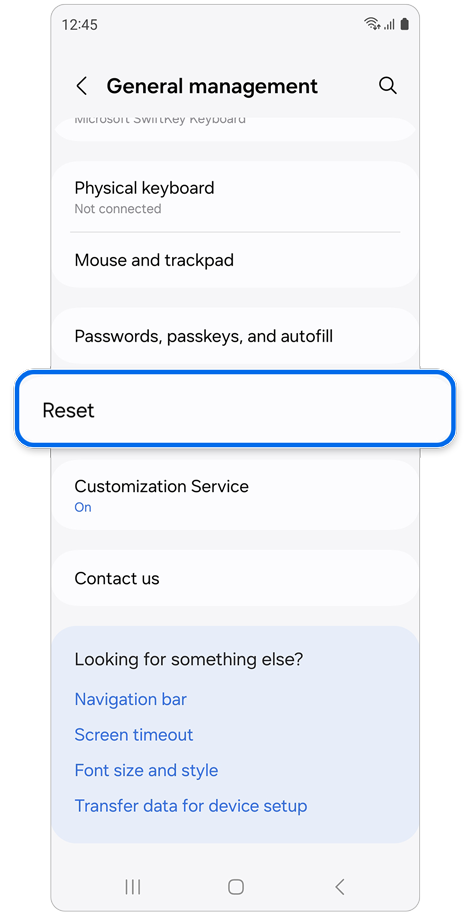
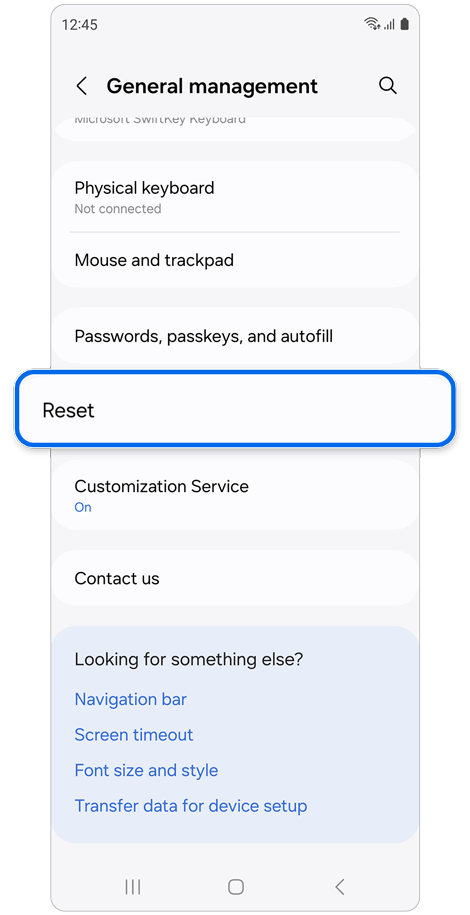
Step 2. Tap Reset.
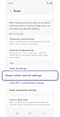

Step 3. Tap Reset mobile network settings.
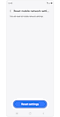

Step 4. Read the onscreen information > Tap Reset settings.
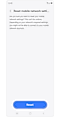

Step 5. Confirm by tapping Reset.
Notes:
- Resetting mobile network settings will erase all network configurations.
- You may need to reconnect to Wi-Fi or re-enter network settings after the reset.
Test your SIM card
- Insert your SIM card into another phone.
- If the SIM card is not detected, it may be damaged.
- Contact your mobile service provider to replace the SIM card if necessary.
This information applies to Samsung customers using Galaxy devices in all supported regions.
Thank you for your feedback!
Please answer all questions.