How to transfer data from an iPhone or iPad to a new Galaxy device with Smart Switch
You can transfer your data from an iPhone or iPad to a Galaxy device using Smart Switch during setup.
This allows you to move contacts, apps, media, and settings quickly using a cable or iCloud.
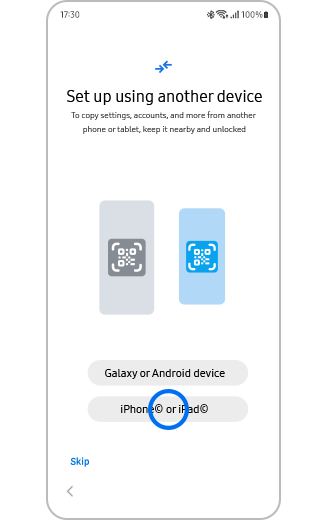
Step 1: Connect
Connect your Galaxy device to your iPhone or iPad using a USB-C to Lightning cable, then tap Trust on your iOS device when prompted.
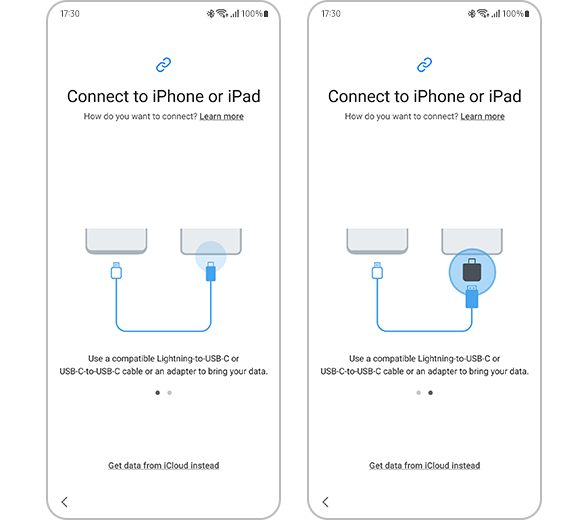
Step 2: Select
Select the data you want to transfer, then tap Transfer.
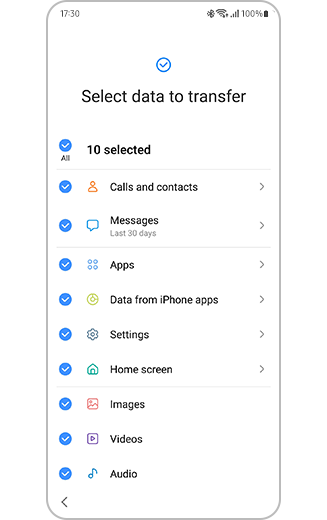
Step 3: Import
Keep the devices connected while Smart Switch imports the data and completes the setup.
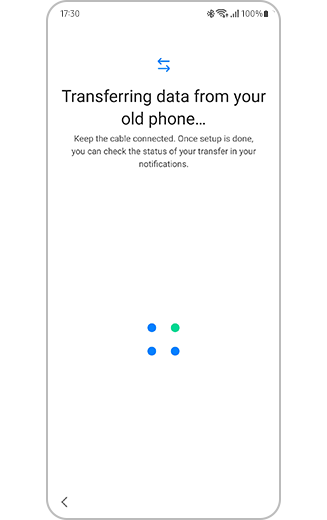
Step 4: Transfer more
To transfer additional data, tap Get your iCloud data, sign in, and tap Import.
Please note:
- You can also transfer data from iCloud by signing into your account and selecting the content to import.
- Some apps will be replaced with Android alternatives if exact matches are not available.
How to transfer display, keyboard, and navigation settings


Step 1. Select the options to organise your phone, then tap Next.


Step 2. Select navigation preferences, then tap Next.


Step 3. Select keyboard settings, then tap Next to complete the setup.
Thank you for your feedback!
Please answer all questions.