What does the green dot mean on my Samsung phone and how do I control it
Last Update date : Apr 23. 2026
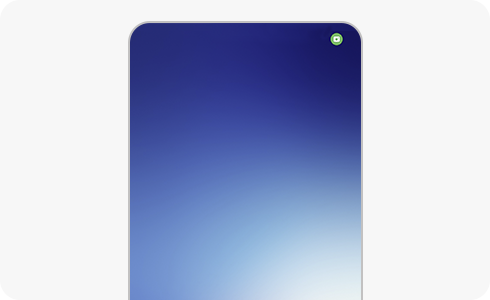
The green dot on your Samsung phone means an app is using your camera or microphone in real time. It appears at the top of the screen to help you monitor privacy activity.
How to know which apps are using your camera or microphone


Step 1. The tool will display the green dot at the top right, showing whether the microphone, camera, or both are in use.


Step 2. A few seconds later, only a green dot will be displayed with the rest of the indicators.


Step 3. Open the notification bar and tap on the green dot.


Step 4. Now you can easily see which application is using the camera or microphone.
Check and modify camera and microphone access permission
How to check the permission list
1
In the Settings menu, tap on the "Privacy" option.
2
In the Privacy menu, tap on the “Permission Manager” option.
3
Review which apps can access the camera or microphone
How to access and manage permission control for the camera or microphone
1
In the Settings menu, tap on the "Privacy" option.
2
In the Privacy menu, tap on “Camera access/Microphone access”.
3
Enable or disable access as needed
Notes:
- This feature is available on Samsung devices running Android 12 or later.
- If you don’t see the green dot, make sure your device software is updated to the latest version.
Thank you for your feedback!
Please answer all questions.