Get the most out of your Galaxy Book Battery
Discover how to prevent your Galaxy Book battery lifespan from decreasing, even after prolonged use with these useful tips.

The technology inside a Samsung Galaxy book battery is designed to prevent the battery lifespan from decreasing even with repeated charging. This keeps the battery lifespan relatively constant, even after prolonged use, allowing you to enjoy your Galaxy book battery for longer.
Battery usage guide
Learn how to use and take care of your battery for safe and efficient usage.
• Use your product within the recommended temperature range (between 10°C and 35°C). Charging the battery constantly or using the product at extreme temperatures can make the battery age faster. Do not place the product near open flames (fireplace, stovetop), inside heated cooking appliances, or near high-pressure vessels (such as pressure cookers).
• Always use an authentic Samsung power adaptor. Using uncertified power adaptors may damage the battery and cause problems.
• Always use the power cable that meets the specifications. Using a power cable that does not meet the specifications can damage the charging terminals.
• Connect the power adaptor a correctly. Incorrectly connecting the power adaptor can damage the product.
• After reaching 100% charge, disconnect the product from the power adaptor. Leaving the power adaptor plugged in for too long may cause the battery to expand (swell).
• Charging while exposed to moisture can cause corrosion of the charging terminals and may damage the product.
• Do not subject the product to strong impacts such as dropping or puncturing. This may shorten the battery life or cause damage and failure.
• Do not disassemble or reuse the battery. This may shorten the battery life or cause damage and failure.


Prolong and protect your Galaxy Book battery
Battery Protection mode is a Galaxy feature that protects your Galaxy Book battery by limiting the level of maximum charge. This helps to protect and maintain battery lifespans when connected to a Power adaptor for prolonged periods, such as in an office.


Step 1. Open Samsung Settings and tap Battery and performance.


Step 2. Tap switch to turn on.


When Battery Protection mode is activated, a heart symbol appears on the battery icon.
※ Supported on Windows 11 and later
How to care for your Galaxy Book when not in use for an extended period
Storing your Galaxy Book with a depleted battery for extended periods can lead to ageing and over-discharging the battery. Learn how to maintain your battery in the best condition during long periods of inactivity.
Keep your Galaxy book battery safe when not in use
If you do not intend to use your Galaxy book for more than 3 months, use the Smart Battery Power off feature to help keep your battery safe and to protect it for future performance.
Step 1. Turn on the product and press the F2 key several times before the logo appears.


Step 2. In the Galaxy Book BIOS Configuration click Advanced.


Step 3. In the Galaxy Book BIOS configuration click Smart Battery Power Off.


Step 4. Click Yes under Enter Smart Battery Power Off mode to activate and shutdown.
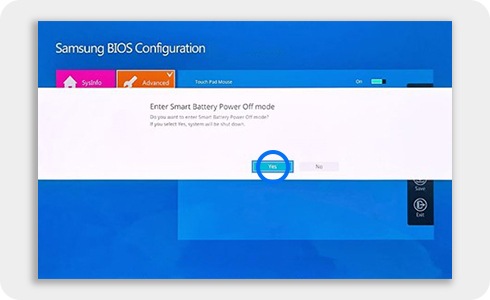
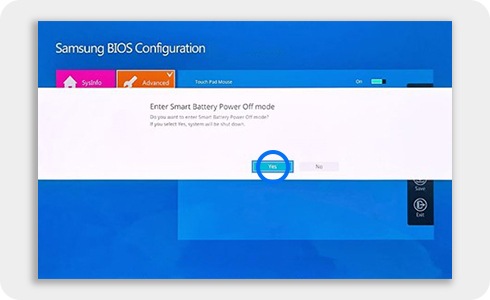
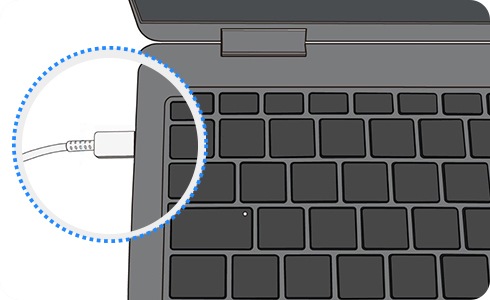
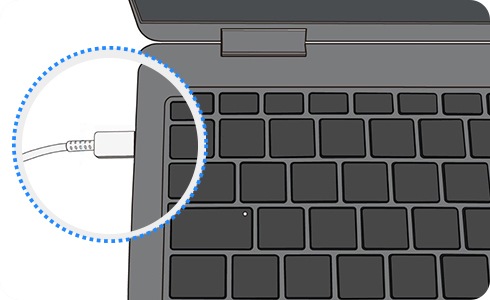
If the Power adaptor is connected a Warning window may be displayed.
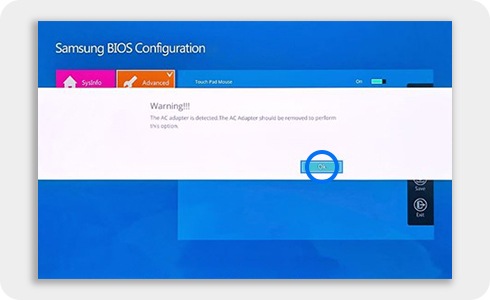
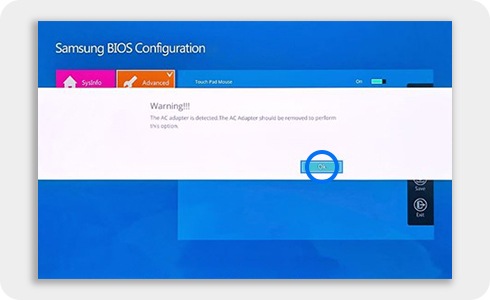
To resume using your Galaxy Book with the Smart Battery Power Off function enabled, connect the Power adaptor to the device before use.
* The device will not power on if the adaptor is disconnected.
※ Applies to Galaxy Book3 and later models.
※ Store your device and battery in a cool, non-humid environment to maintain stable battery performance.
※ Please remove and store the power adaptor.
※ Store the battery at approximately 50-70% charge, and recharge it every 3-6 months.
About battery ageing
Batteries are a consumable item whose remaining life decreases with ageing. If you notice that you need to charge your battery more often than usual after a long period of use and that your usage time is noticeably shorter, have your battery checked by Samsung Service Centre to see if it is time for a replacement as batteries lose life not only with use but also due to storage and environmental conditions.
Symptoms of battery ageing
As your battery ages with use, you may notice a rapid decrease in battery capacity or power loss, even if the screen shows a high battery level. This is a feature of battery chemistry and is common in lithium-ion batteries.
If you are experiencing difficulty using your product due to the battery ageing over time, please have your battery checked by Samsung Service Centre for assistance with a replacement.
Especially in low-temperature environments or during the winter, ageing batteries may experience power outages. This may occur with increasing frequency depending on the level of battery ageing.


Running high-end features like games can age the battery by affecting the instantaneous power supply, which causes the device to feel slower and less responsive.


When to Replace Your Chromebook Battery
If you are frequently experiencing unexpected shutdowns, drastic decreases in battery life, or any other battery-related issues, visit the nearest Samsung Customer Support for technical assistance. You may qualify for a free replacement or get a paid service, depending on your device’s warranty.
Use the guide below to check your Galaxy Book's battery status and charging history.
Step 1. With the launcher open, type Diagnostics, then open the Chrome OS Diagnostics app.
Step 2. In the Diagnostics app, under Battery, check Battery health and Cycle count.

Keep your Chromebook battery safe when not in use
If you do not intend to use your Chromebook for three months or longer, follow the steps below to help keep your battery safe and to protect it for future performance.
Step 1. Plug the adaptor into the USB-C power port on the left of the Chromebook and charge the battery to at least 30%, then turn the Chromebook on.
Step 2. Press and hold Refresh and Power simultaneously.

* The display language and layout of the keyboard may vary by country.
Step 3. While holding down these keys, unplug the power cable from the device and then release the keys.
The device should shut down and stay off.
Step 4. Press the Power button to check that the battery is correctly disconnected. The device should not turn on even if the battery is charged.
※ Before you plug the Chromebook in again, it will not turn on even if you tap the power button or open the lid.
※ Safely maintain battery performance by storing your Chromebook in a cool, dry location after turning it off.
