I can't see the Game Booster when playing a game
The Game Booster may not be visible for several reasons. Here are some of the most common ways to fix this:

Set up Gaming Hub.
Before you get too excited and rush into your game, let´s set up the Gaming Hub.
1.- Navigate to and open the Gaming Hub app. It may be on the Apps screen or in the Samsung folder.
2.- Review the Samsung account information, then tap Continue, and then allow the necessary permissions.
3.- If desired, you can display games "In Gaming Hub only" to hide your gaming apps in the App screen and make them only appear in Gaming Hub. To find this, tap More options (the three verticals dots), then tap Settings, and then tap Show game apps. Select In Gaming Hub only.

4.- Navigate back to the main screen in Gaming Hub. Tap one of your games to start playing, or explore Gaming Hub to see the other options.
The device does not support Game Booster.
Unfortunately, not every device supports Game Booster. Please check your device to make sure it offers the Game Booster function.
Game Booster does not have the proper permissions activated.
To enable the Appear on Top permissions, please follow these steps:
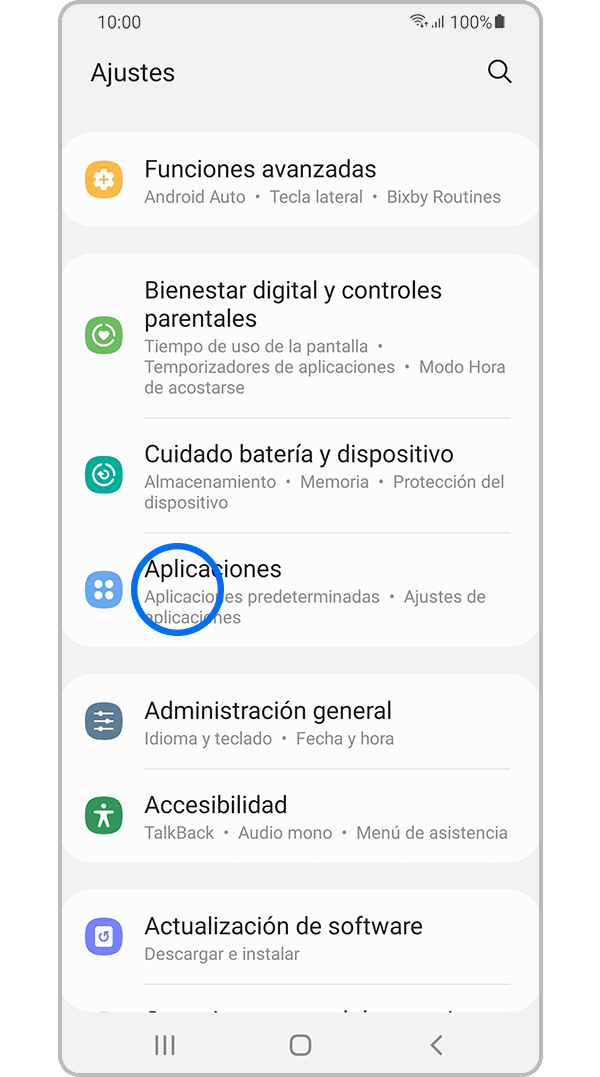
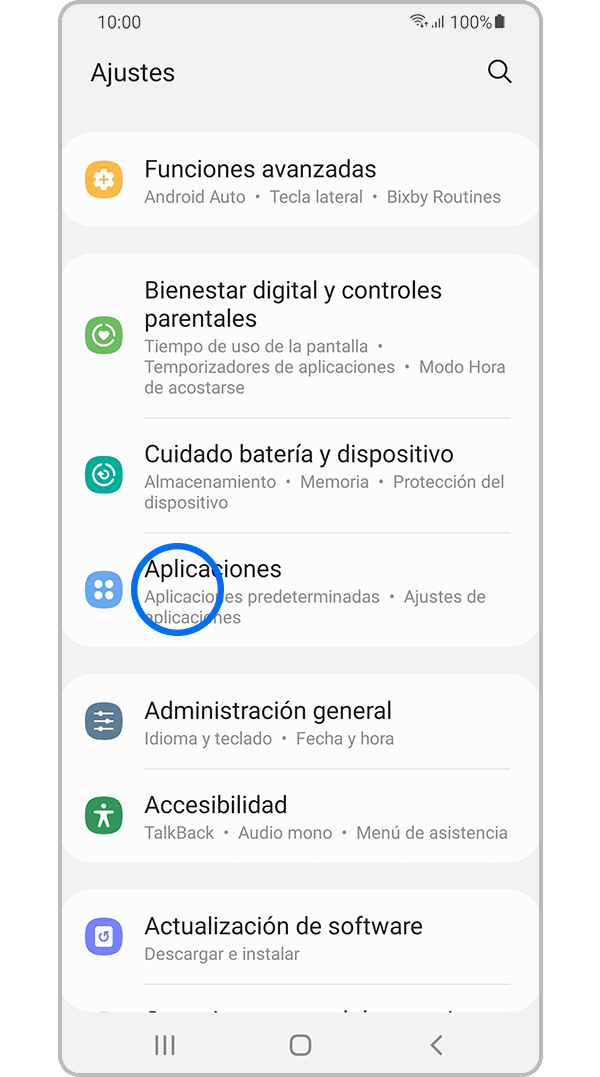
Step 1: Enter Settings and click the Apps menu.
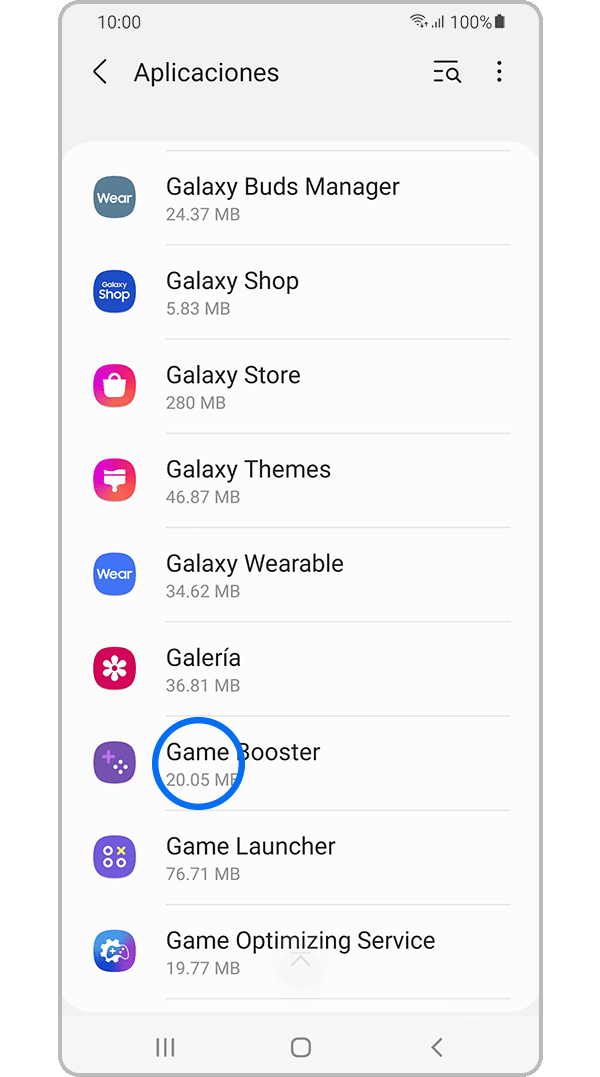
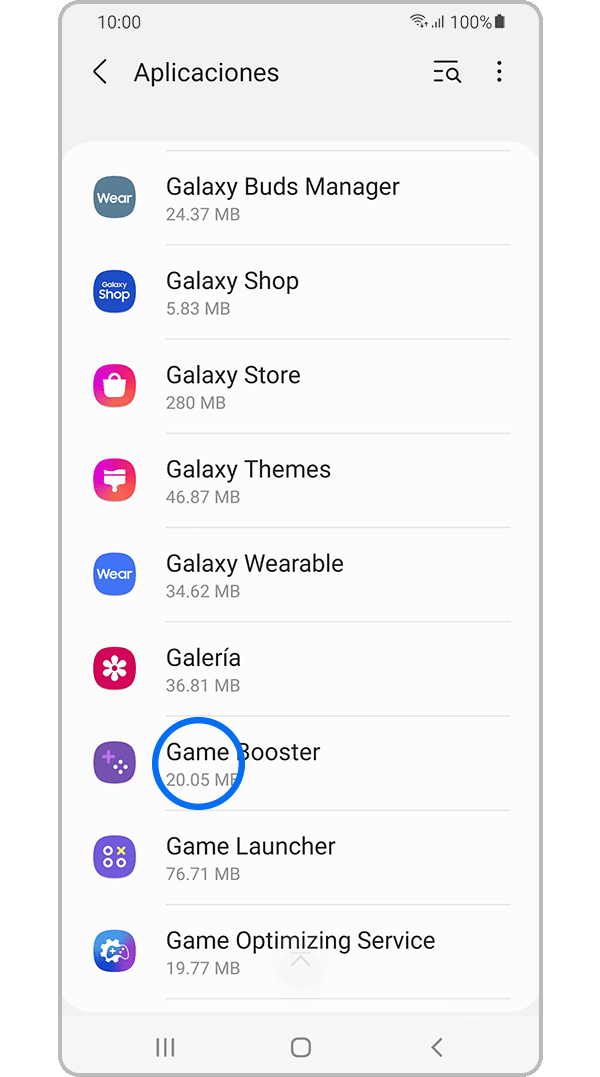
Step 2: Select Game Booster.
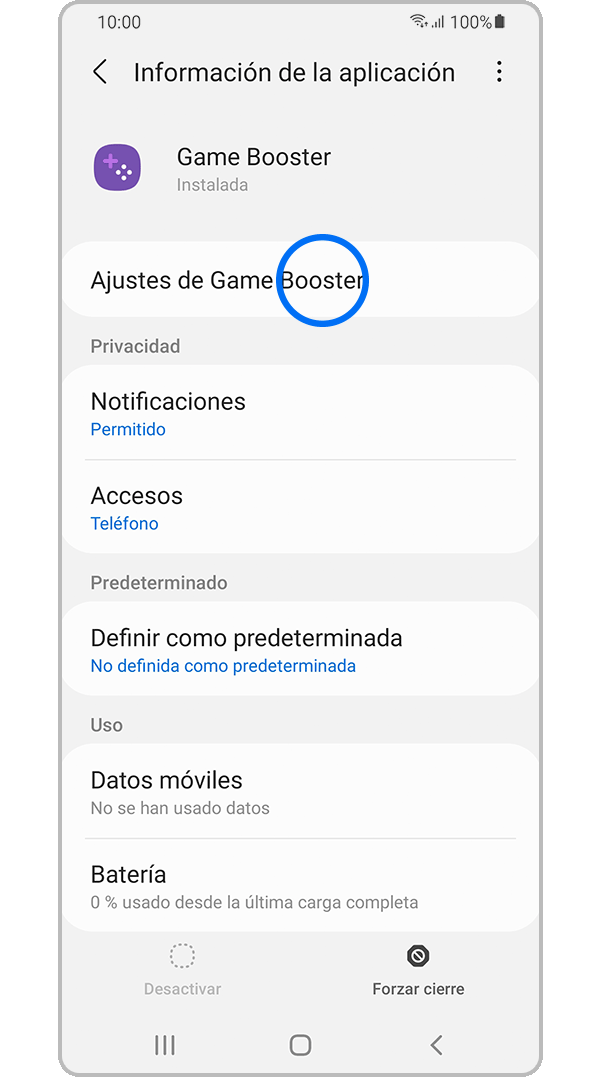
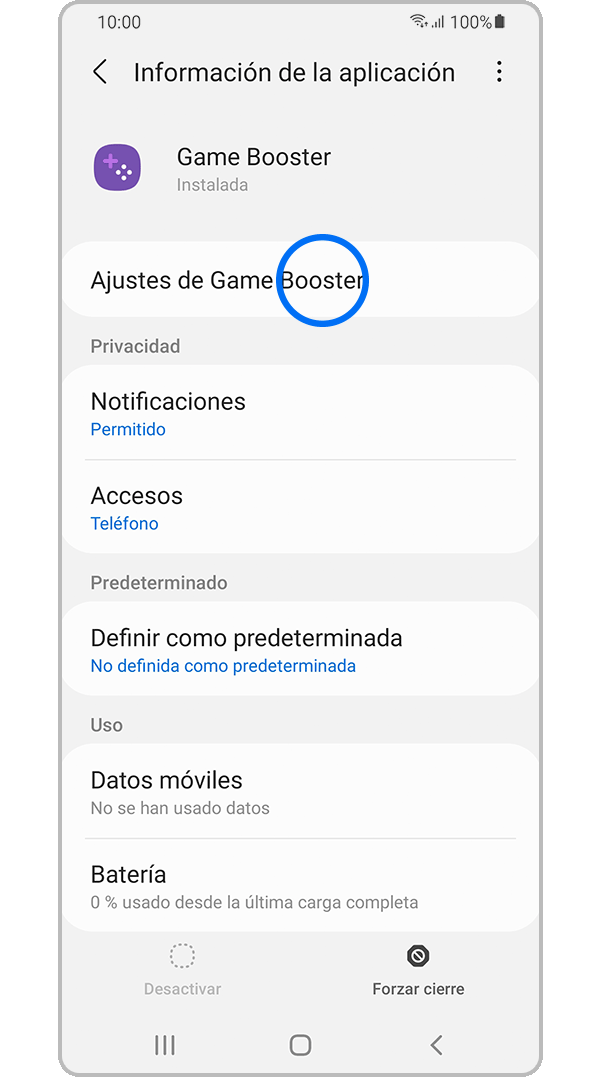
Step 3: Select the Appear on top function.
Note: If Game Booster does not appear on the list - go to Apps, select the Filter and sort button and turn on Show system apps.
The navigation bar style is different from other models.
Depending on the style of the navigation bar, the Game Booster’s “Main screen” or location of the “Settings” menu may vary.
Does not work only in certain games.
Game Booster may not support every game. Review the latest version of Game Booster installed on your device.

Thank you for your feedback!
Please answer all questions.
Contact Info
WhatsApp
![WhatsApp]()
![WhatsApp]()


Monday to Sunday
8:00 a.m. a 12:00 a.m.
LiveChat
![LiveChat]()
![LiveChat]()


Monday to Sunday
8:00 a.m. a 12:00 a.m.
Online
Call
Costa Rica: 00-800-1-726-7864
Ecuador: 1-800-72-6786
El Salvador: 800-0726-7864
Guatemala: 1-800-299-0033
Call
Honduras: 800-2791-9111
Jamaica: 1-800-726-7864
Nicaragua: 001-800-5077267
Panama: 800-0101
Call
Puerto Rico: 1-800-682-3180
Trinidad and Tobago: 1-800-726-7864
Venezuela: 0-800-100-5303
Dominican Republic: 1-800-751-2676