My TV doesn’t detect a device connected via HDMI
Samsung TV HDMI parts are not working
Make sure that the HDMI cable is properly connected to the HDMI port on the back of your TV. If the cable is not connected securely, input signal cannot be transmitted or received properly.
ㆍDisconnect the HDMI cable and reconnect it
Step 1. Disconnect all HDMI cables from the HDMI ports on the TV and the external devices.
Step 2. Disconnect the power cords of the TV and the external devices for at least 10 seconds and then reconnect them.

Step 3. Connect the HDMI cable to the external device first, then connect it to the TV.
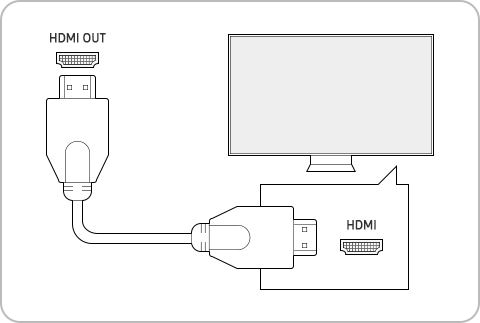
Step 4. If your issue persists, try using another HDMI port. The TV Source settings should also be set to the new HDMI port.
ㆍTry replacing your HDMI cable
If reconnecting the HDMI cable does not resolve your issue, try replacing your HDMI cable with a new one and try again. It is recommended to use a certified HDMI cable that is compatible with the connected device, as it may not work properly if it does not meet the specifications of the connected device.
You can use the HDMI Cable Test function built into your TV to check for abnormalities in the connected HDMI cable.
Step 1. Press the Home button on your remote control and navigate to Settings > Support.
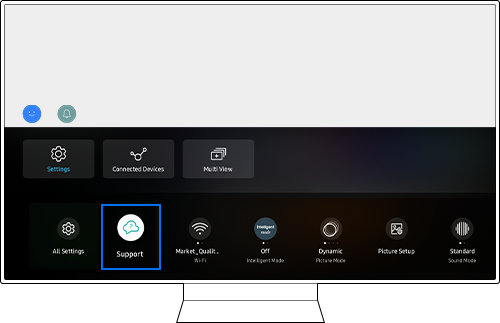
Step 2. Select Device Care.
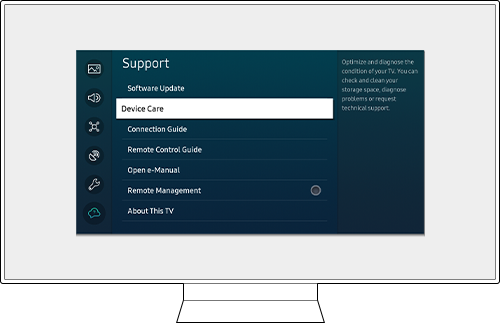
Step 3. Select Self Diagnosis.
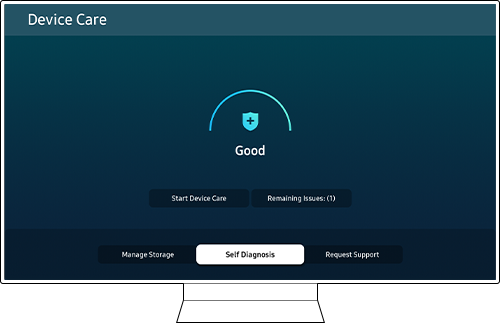
Step 4. Select HDMI Troubleshooting from the menu.
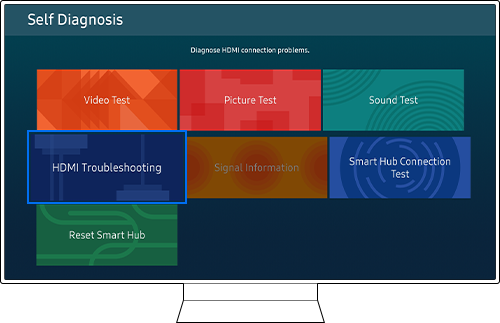
Step 5. Check the connected HDMI ports in sequential order.
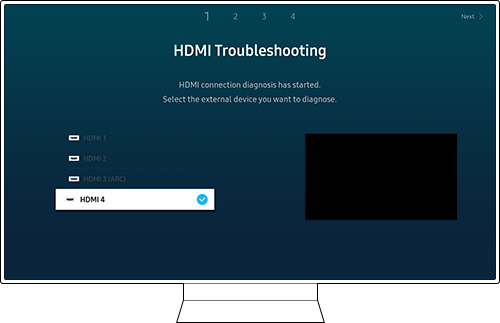
Case 1. If the screen works normally when other external devices are connected, there may be an issue with the device you are trying to connect. Contact the device manufacturer to have your device serviced.
Case 2. If both devices do not work after following the steps above, it is possible that there is an issue with your TV. Please contact the Service Center to get your TV checked.
Check that your game console or Laptop/PC is powered on and properly connected to your Samsung TV. Make sure that your Laptop/PC is not in Sleep or Hibernate mode.
Set the Correct Source for HDMI 1
- Connect your external device (e.g., cable box, home theater system) to the HDMI 1 port on your TV.
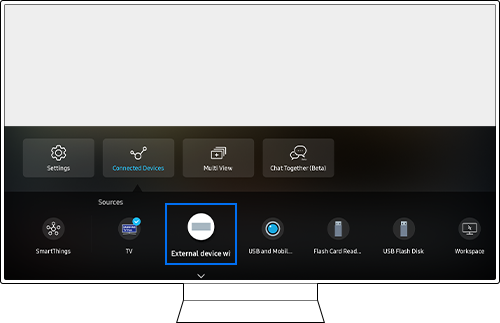
- Ensure the source is set to HDMI 1 in the TV settings for proper display.
- Check the source:
- Go to Connected Device in the TV settings.
- Select Source list to view and adjust the active source.
You can now register your device to the SmartThings Cloud


Service Centers


Locate the nearest Samsung service center to have your product checked.

Thank you for your feedback!
Please answer all questions.
Contact Info
LiveChat
![LiveChat]()
![LiveChat]()


Monday to Sunday
8:00 a.m. a 12:00 a.m.