Solving Wi-Fi connection issues on your Samsung TV
Why is my Samsung TV not connecting to Wi-Fi?
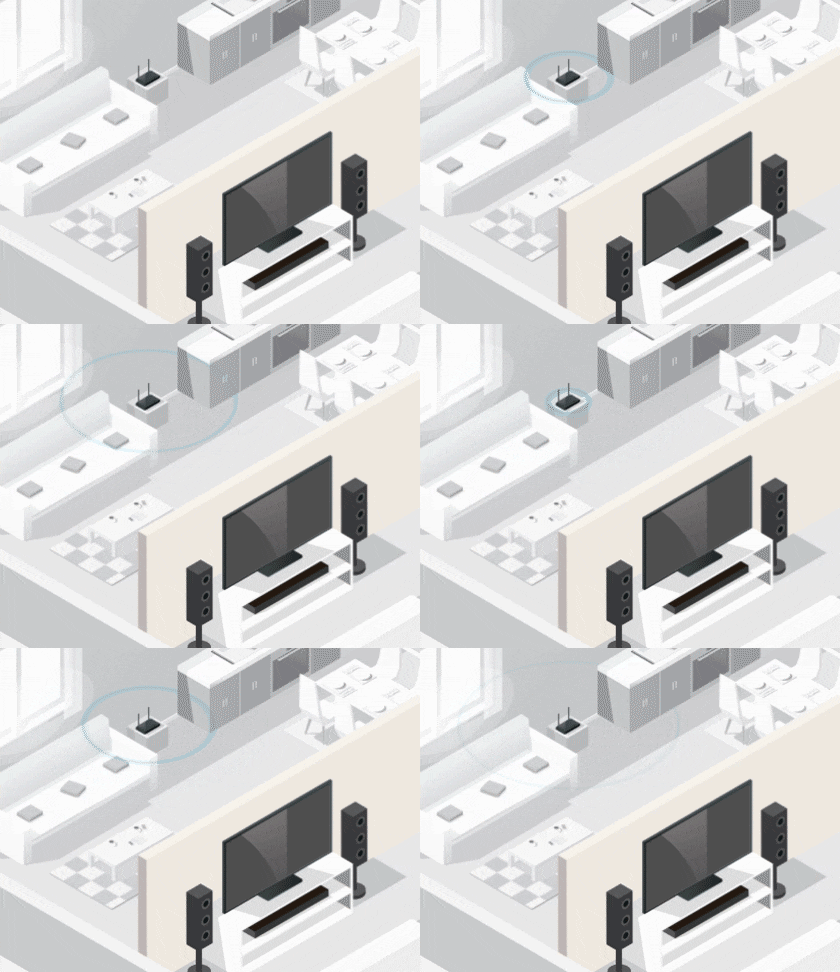
If your Samsung TV is not connecting to Wi-Fi, the issue could stem from router instability, network interference, outdated TV firmware, or physical obstructions between the TV and router. Follow these troubleshooting steps to resolve the problem quickly.
1. Check Basic Connection Requirements
Before troubleshooting, verify the following:
- Ensure your TV is within range of your Wi-Fi router.
- Remove any physical obstructions like walls or large appliances between the TV and router.
- Check if other devices in your home can connect to the same Wi-Fi network.
If other devices cannot connect, the issue is likely with your router or ISP. Contact your Internet Service Provider for assistance.
2. Restart Your TV and Router
Restarting both devices can resolve temporary connectivity issues:
- Turn off your Samsung TV and unplug it from the power outlet.
- Unplug your router from the power source.
- Wait for 30 seconds before plugging both devices back in.
- Allow the router to fully restart (about 2 minutes).
- Power on your TV and attempt to reconnect to Wi-Fi.
3. Use an Ethernet Cable for Stable Connection
For consistent internet access, consider using an Ethernet cable:
- Connect one end of the Ethernet cable to your TV's LAN port.
- Connect the other end to your router.
- Go to Settings > Network > Wired on your TV to enable the connection.
If you must use Wi-Fi, ensure your router supports the latest wireless standards (Wi-Fi 5 or Wi-Fi 6).
4. Test Your Wi-Fi Signal Strength
Weak signal strength can cause intermittent disconnections:
- Move your TV closer to the router.
- Use a Wi-Fi analyzer app on your smartphone to check signal strength.
- Ensure your router is placed in a central location, away from metal objects or electronics.
For Samsung TVs in larger homes, consider using a Wi-Fi extender or mesh network system.
5. Update Your TV's Software
Outdated firmware can cause network compatibility issues:
- Go to Settings > Support > Software Update on your TV.
- Select Update Now to install any available updates.
- Restart your TV after the update completes.
Regularly check for updates to ensure optimal performance.
6. Reset Your TV's Network Settings
If the issue persists, resetting your network settings can help:
- Navigate to Settings > General > Network on your TV.
- Select Reset Network Settings and confirm.
- Reconnect to your Wi-Fi network using the correct password.
Note: This will remove all saved networks, so you'll need to reconnect manually.
7. Perform a Factory Reset (Last Resort)
If all else fails, a factory reset may resolve persistent issues:
- Go to Settings > General > Reset on your TV.
- Enter your PIN (default is 0000) and confirm.
- Follow the on-screen instructions to complete the reset.
- Set up your TV and reconnect to Wi-Fi.
Warning: This will erase all settings, apps, and data on your TV.
Additional Things to Check
- Ensure your Wi-Fi password is entered correctly. Case sensitivity matters.
- Check if your router's firmware is up to date. Visit your router manufacturer's website for instructions.
- Disable VPNs or firewalls temporarily to rule out network restrictions.
Supported Samsung TV Models
These troubleshooting steps apply to most Samsung TV models, including:
Galaxy View series, QLED TVs, Neo QLED TVs, The Frame, The Serif, Crystal UHD, and LED TVs released from 2018 onwards.
Why the Issue Happens
Wi-Fi connection issues on Samsung TVs typically occur due to:
- Router firmware bugs or outdated software.
- Interference from neighboring Wi-Fi networks or electronic devices.
- TV software bugs or compatibility issues with newer Wi-Fi protocols.
Related Samsung Support Topics
Thank you for your feedback!
Please answer all questions.