How to use AI select on your Galaxy phone and tablet
AI select lets you highlight any area on your Galaxy screen and perform smart actions like editing, saving, sharing, or extracting text. It works with images, videos, and text, and can be accessed from the Edge panel, Air command, or Screenshots toolbar.
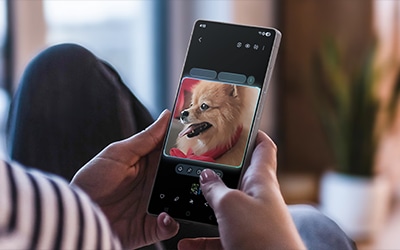
Launching AI select
You can start AI select from these three places:
From Edge panel
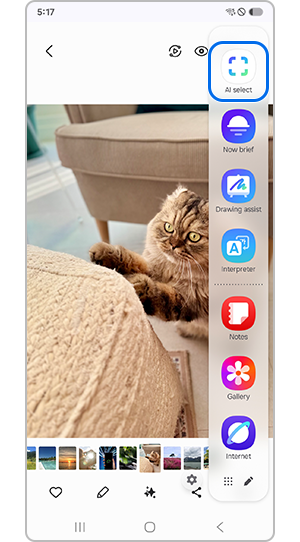
- Swipe the Edge panel handle from the screen edge.
- Select AI select.
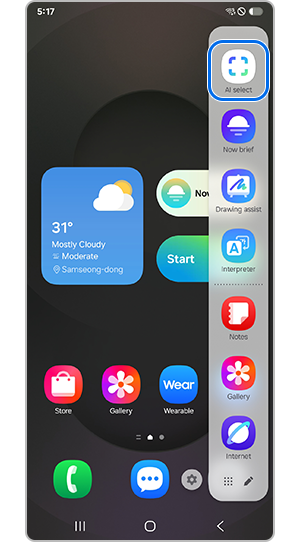
Note: If the Edge panel isn’t visible, go to Settings > Display and enable Edge panels.
From Air command (S Pen required)
- Take out the S Pen.
- Tap the Air command icon.
- Select AI select.
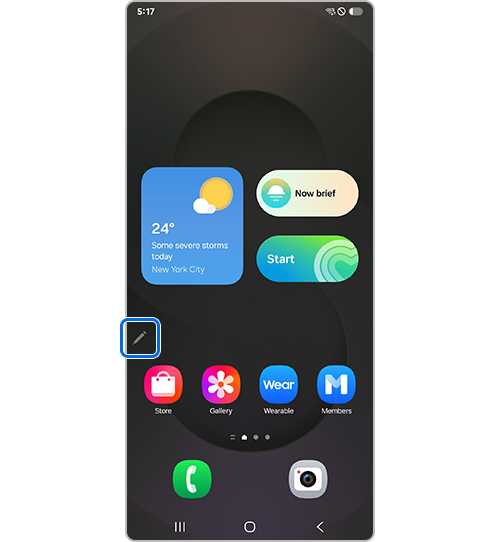
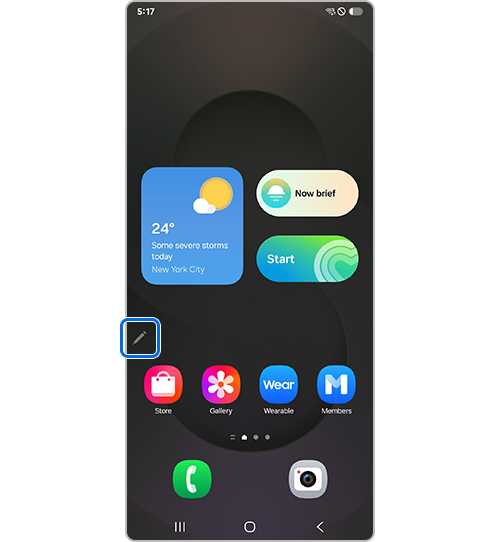
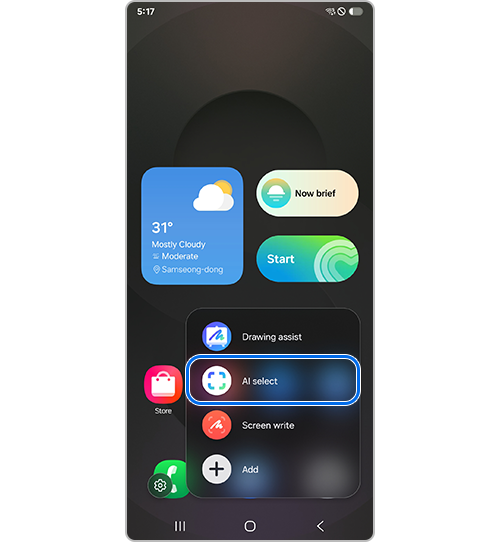
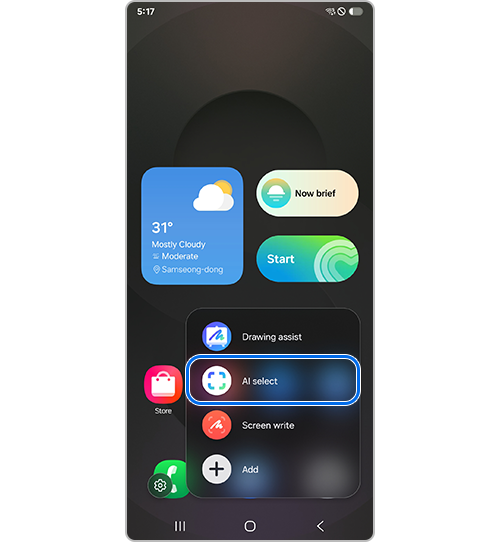
Note: If Air command doesn’t appear, enable it under Settings > Advanced features > S Pen > Air command.
From Screenshots toolbar
- Take a screenshot.
- Tap AI select from the toolbar at the bottom.
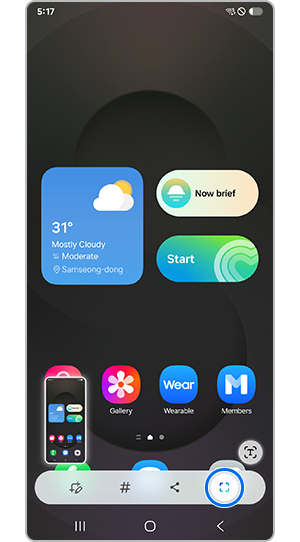
Note: If the toolbar isn’t visible, go to Settings > Advanced features > Screenshots and screen recordings > Show toolbar after capturing.
Edit or generate images
Remove or replace objects:
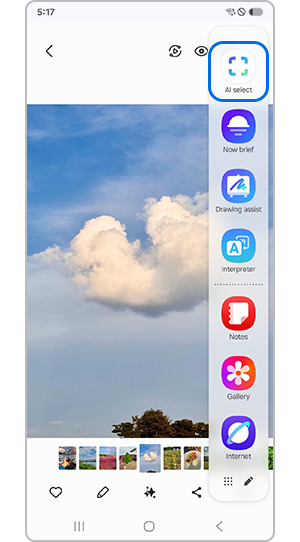
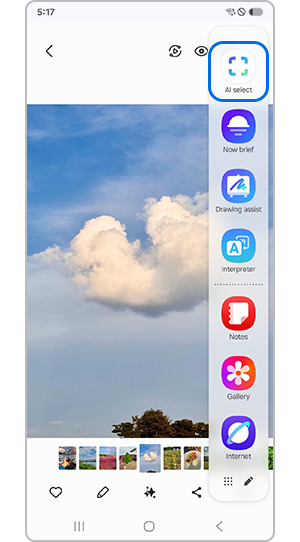
Step 1. Open an image in Gallery, select AI select, then tap Generative edit.
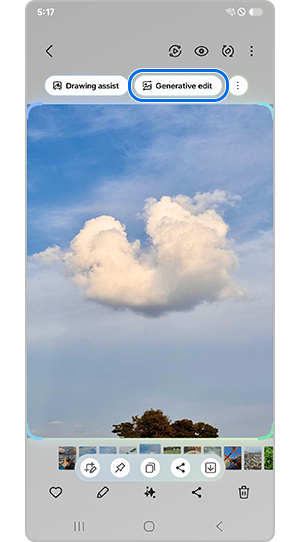
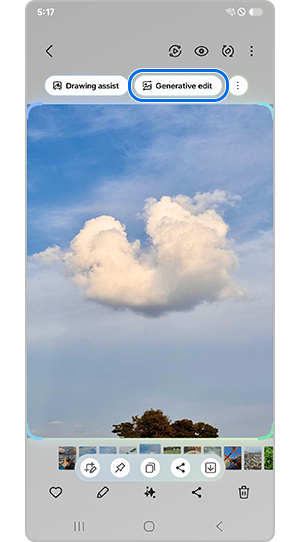
Step 2. Tap Generative edit.
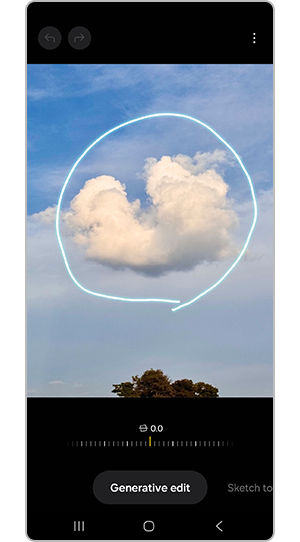
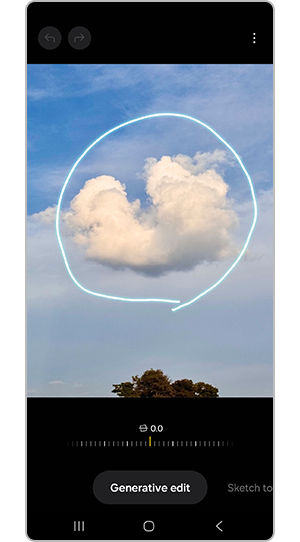
Step 3. Choose the area to replace.
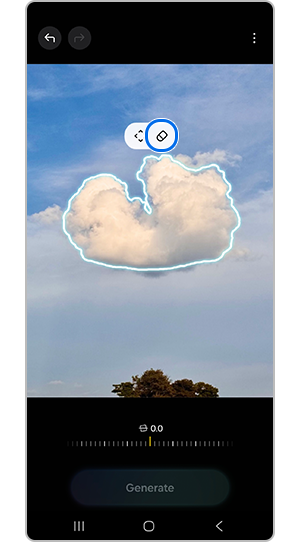
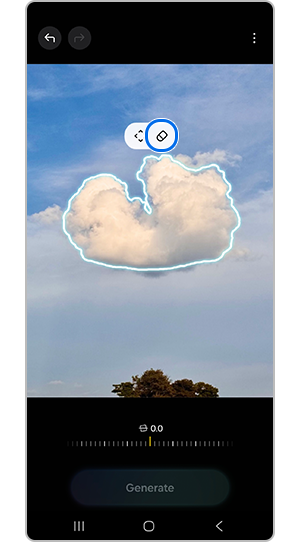
Step 4. Tap the Eraser icon to regenerate the selected area.
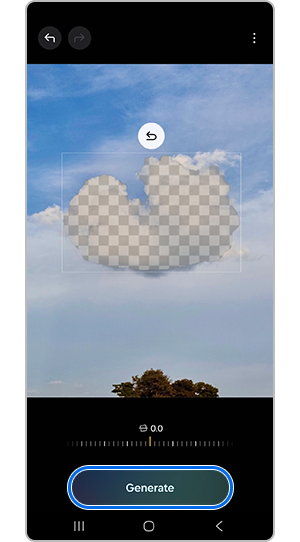
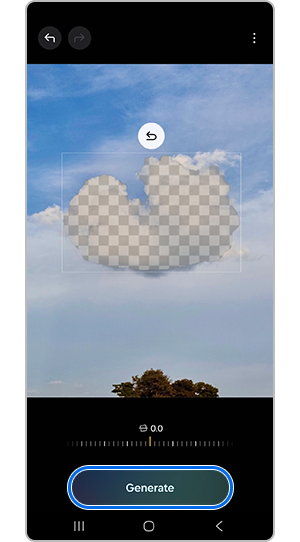
Step 5. Tap Generate .
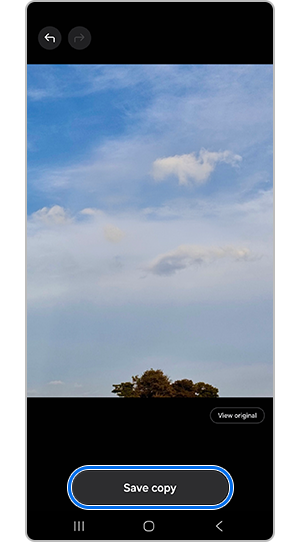
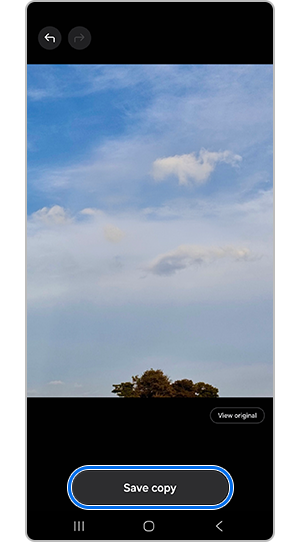
Step 6. Tap Save copy.
Transform images with Drawing Assist:
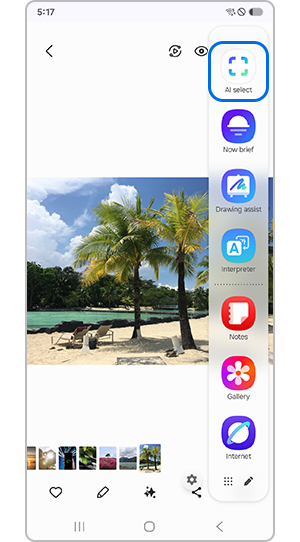
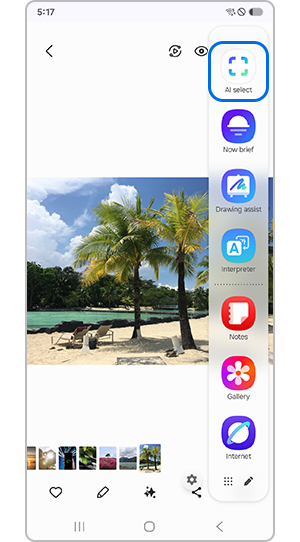
Step 1.Open the image in Gallery, select AI select, then tap Drawing assist.
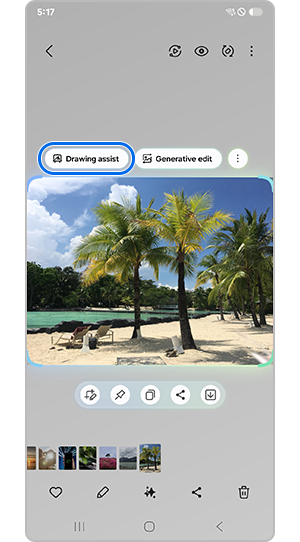
Step 2. Tap Drawing assist.
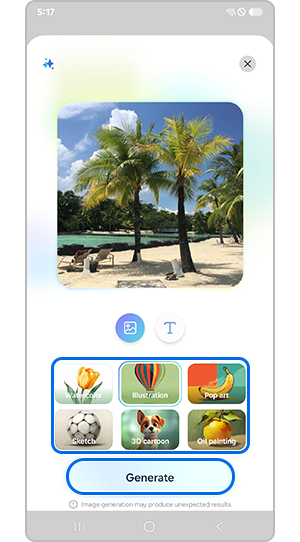
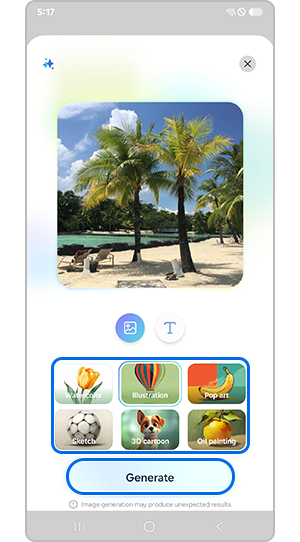
Step 3. Choose a concept or effect, then tap Generate.
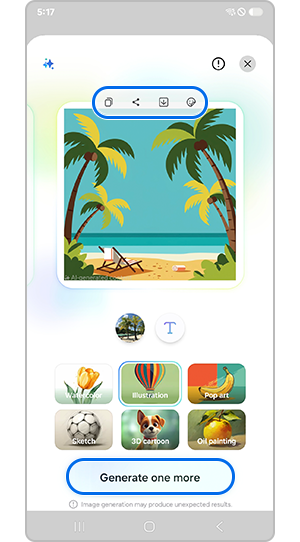
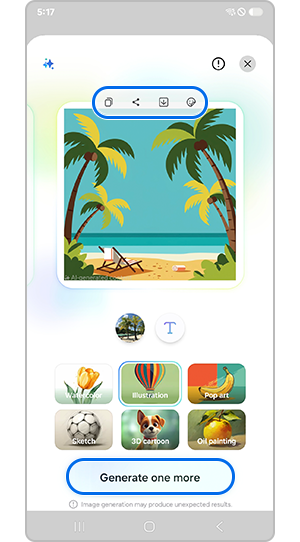
Step 4. Tap Copy, Share, Save, or Sticker icon, or Generate one more for a different effect.
Set a selected area as wallpaper
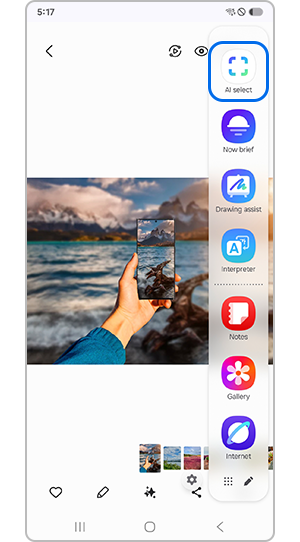
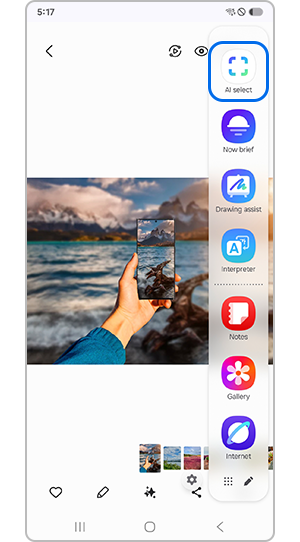
Step 1. Open the image in Gallery or web, select AI select.
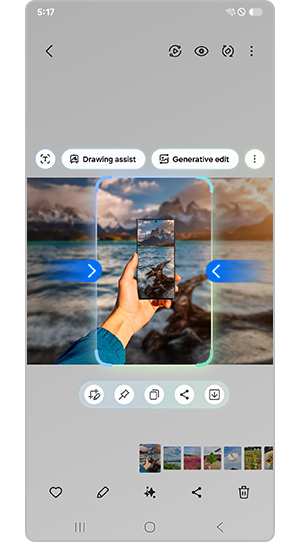
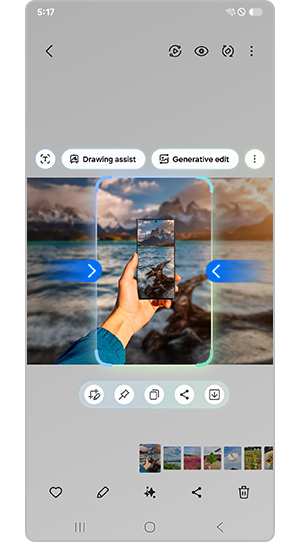
Step 2. Select the portion to use.
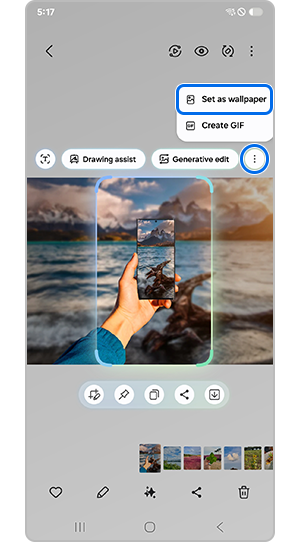
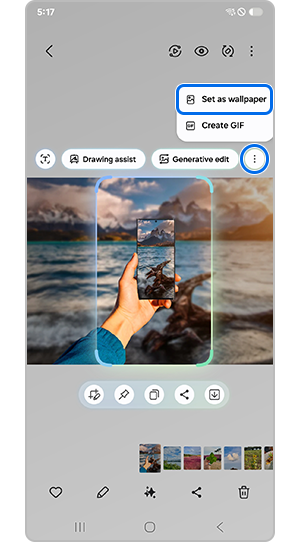
Step 3. Tap More options (three dots) > Set as wallpaper.
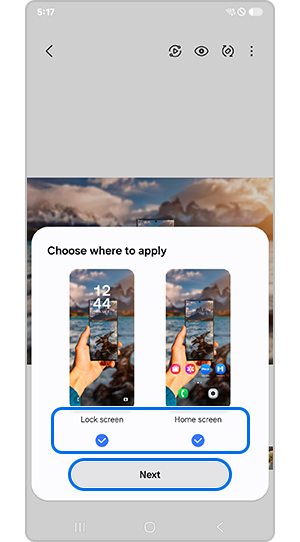
Step 4. Choose Home screen, Lock screen, or both, then tap Next.
Create GIFs
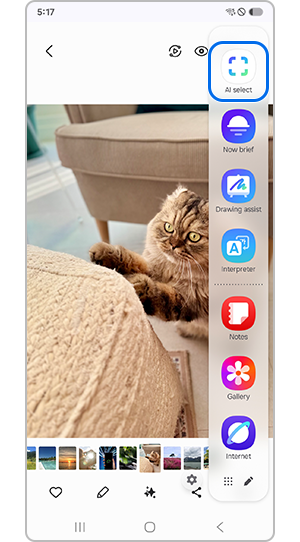
Step 1. Play a video and select AI select.
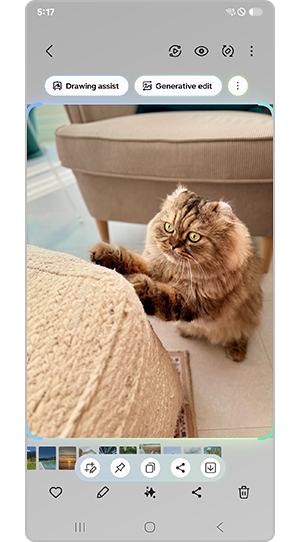
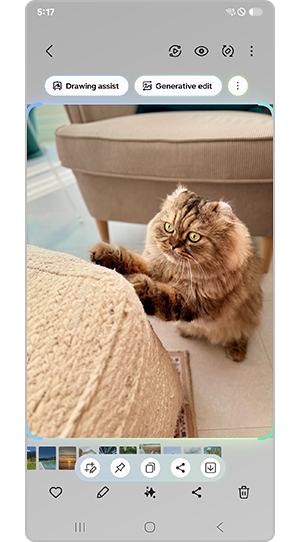
Step 2. Draw around the moving portion to capture.
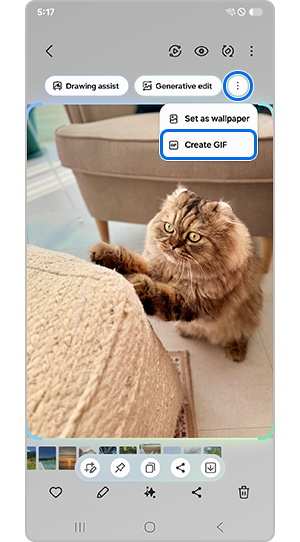
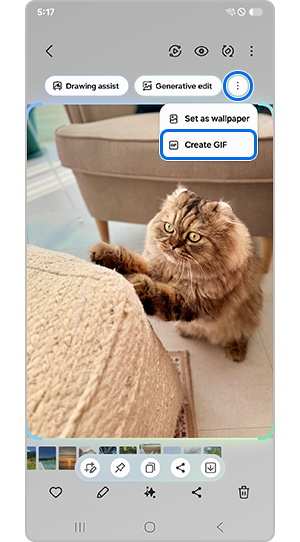
Step 3. Tap Create GIF > More options > Create GIF.
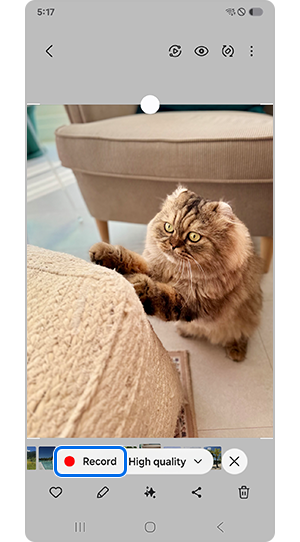
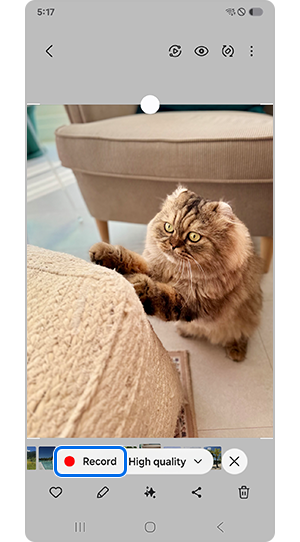
Step 4. Tap the Record button to start recording.
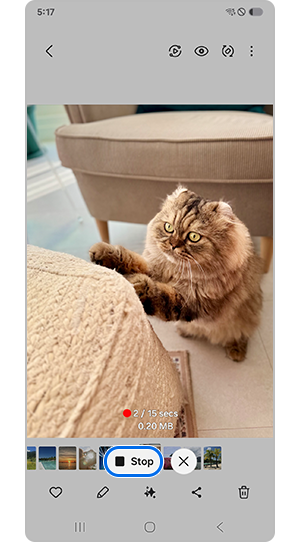
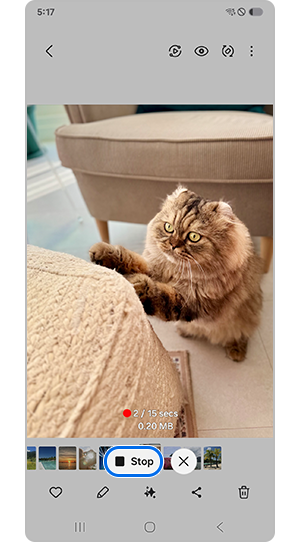
Step 5. Tap the Stop button whenever you want to stop.
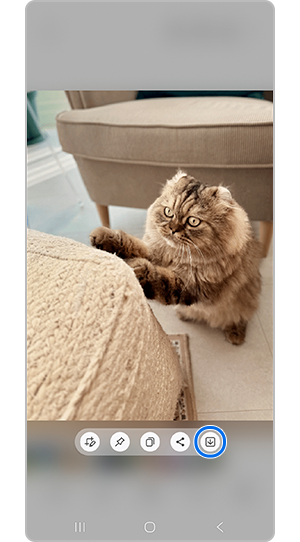
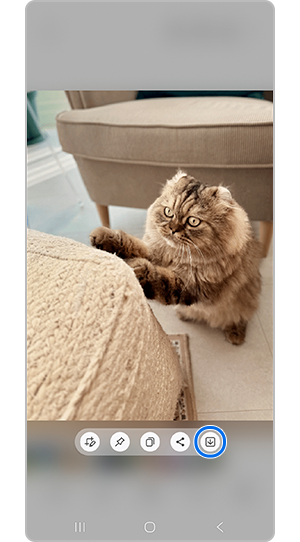
Step 6. Tap the Save icon.
Notes:
- GIFs can be generated from clips up to 30 seconds.
- Resolution options are available when creating GIFs.
Extract text for translation or writing
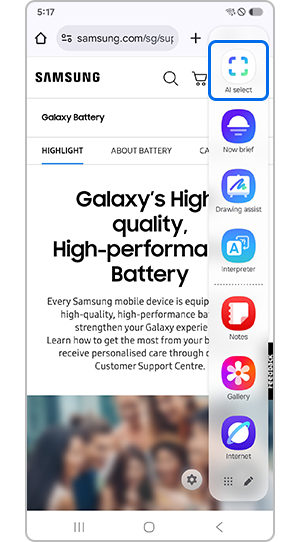
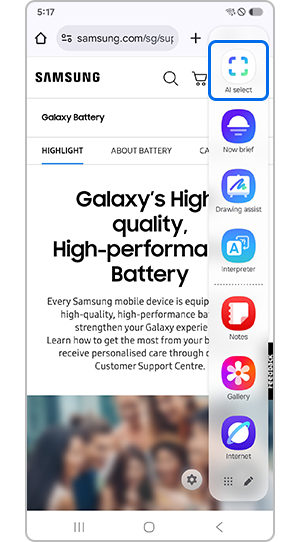
Step 1. Open an image or webpage with text, select AI select.
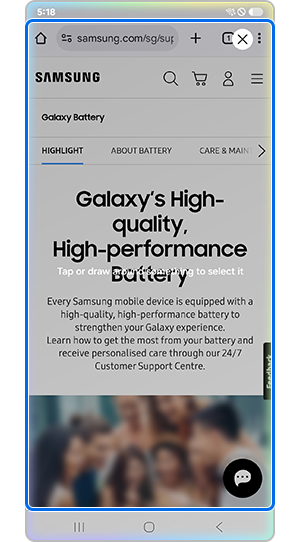
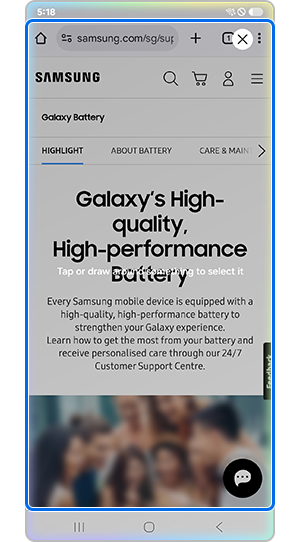
Step 2. Highlight the text.
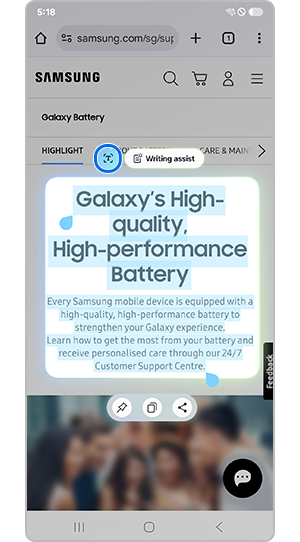
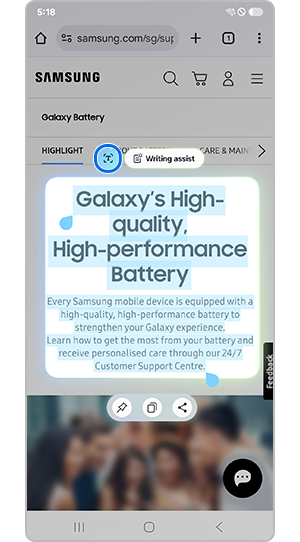
Step 3. Tap the Text icon to extract editable text.
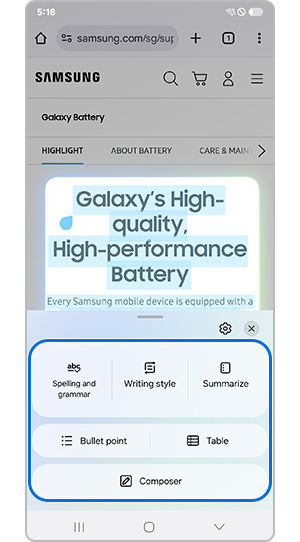
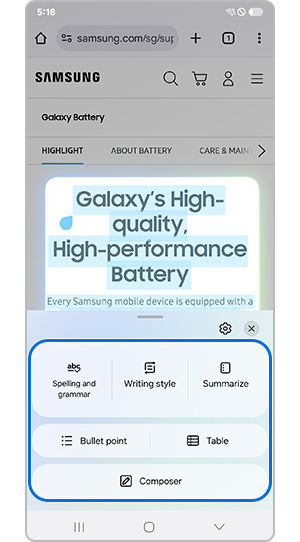
Step 4. Choose actions like Translate, Writing assist, Copy, or Share.
Note: If the Text icon is disabled, content will be treated as an image.
Note:
- Requires internet connection for some features.
- Feature availability varies by region, OS/One UI version, device model, or carrier.
- Samsung account login may be required.
- Actual UI may differ from examples.
- AI features may be limited for minors in certain regions.
- Galaxy AI features are free until the end of 2025 on supported devices.
- Third-party AI features may have different terms.
Thank you for your feedback!
Please answer all questions.