How to fix “No SIM Card Detected” on Samsung Galaxy devices
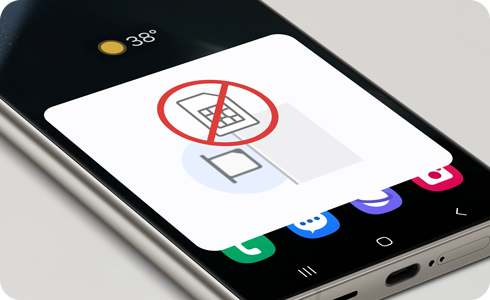
Why is my Samsung Galaxy showing "No SIM Card Detected"?
If your Samsung Galaxy displays "No SIM Card Detected" despite having a SIM inserted, the issue is often due to a loose or dirty SIM card, incorrect insertion, or network configuration problems. Follow these steps to resolve the issue quickly and restore connectivity.
1. Restart Your Samsung Galaxy Device
Restarting your device can resolve temporary software glitches that cause the SIM card to go undetected.
- Press and hold the Power button until the power menu appears.
- Tap Power off and wait for the device to shut down completely.
- Press the Power button again to turn the device back on.
- Check if the SIM card is now detected.
2. Inspect and Reinsert the SIM Card
Physical issues such as dirt, damage, or improper insertion can prevent the SIM card from being recognized.
- Turn off your Samsung Galaxy device.
- Remove the SIM card tray using the provided eject tool or a paperclip.
- Carefully inspect the SIM card and tray for dirt, scratches, or damage.
- Clean the SIM card and tray gently with a soft, dry cloth.
- Reinsert the SIM card into the tray, ensuring it fits snugly and aligns correctly.
- Insert the tray back into the device and turn it on.
- Verify if the SIM card is now detected.
3. Reset Mobile Network Settings
Resetting network settings can resolve issues caused by incorrect configurations or software updates.
- Go to Settings > General Management > Reset.
- Select Reset Network Settings.
- Confirm the action by tapping Reset Settings.
- Restart your device and check if the SIM card is now detected.
Note: Resetting network settings will erase saved Wi-Fi networks, Bluetooth pairings, and mobile configurations.
4. Test Your SIM Card
If the issue persists, test your SIM card in another device to confirm its functionality.
- Insert your SIM card into another compatible phone.
- Check if the SIM card is detected and functions properly.
- If the SIM card is not detected, contact your carrier for replacement or troubleshooting assistance.
Additional Things to Check
- Ensure the SIM card is compatible with your Samsung Galaxy device. Some older SIM cards may require upgrading to a nano-SIM or eSIM.
- Verify that the SIM tray is fully inserted. A partially inserted tray can cause detection issues.
- Check for software updates under Settings > Software Update. Outdated firmware can sometimes cause hardware detection problems.
Supported Samsung Galaxy Devices
This guide applies to most Samsung Galaxy devices, including the Galaxy S24, Galaxy S25, Galaxy Z Fold, Galaxy Z Flip, and Galaxy A series. Compatibility may vary depending on the device model and region.
Why the Issue Happens
- Loose or improperly inserted SIM card.
- Dirt or debris on the SIM card or tray.
- Software glitches or outdated firmware.
- Incorrect network settings or carrier configuration.
Related Samsung Support Topics
Thank you for your feedback!
Please answer all questions.