
Voice
Products provide voice guidance through the device speaker, offering operation/status updates and information related to their use, such as weather and energy usage.
- * How to set on Smart Screen : Setting > General > Sounds (Choose from Voice or Tone)
Voice Guide
The Voice Guide feature assists users with visual impairments. It provides spoken feedback that helps users understand the contents on the screen. This allows users to use the device without looking at the screen.
- * How to set on Smart Screen : Setting > General > Accessibility > Voice Guide
- * How to set on Family Hub™ 9" : Setting > General > Accessibility > Voice Guide
- * How to set on Family Hub™ 32", 21.5": Setting > Accessibility > Voice Guide
- * Applicable to products with Smart Screen or Family Hub™ screens only
High contrast
Light-coloured text on a dark background allows users with colour blindness or low vision to see screen content more clearly. You can change the background colour of the main screen to black and the text colour to white or yellow to enhance visibility and reduce eye strain.
- * How to set on Smart Screen : Setting > General > Accessibility > Visibility enhancements > High contrast
- * How to set on Family Hub™ 9" : Setting > General > Accessibility > Visibility enhancements > High contrast
- * Applicable to products with Smart Screen only
Grayscale / Colour inversion
Invert screen colours or switch to grayscale to improve visibility.
If you have difficulty distinguishing colours or experience eye strain, you can use grayscale to display the screen in black and white. If you are sensitive to light or have low vision, you can invert the screen so the background is black and the text is white. Colour Inversion may help enhance visual recognition, reduce glare, and ease eye strain.
If you have difficulty distinguishing colours or experience eye strain, you can use grayscale to display the screen in black and white. If you are sensitive to light or have low vision, you can invert the screen so the background is black and the text is white. Colour Inversion may help enhance visual recognition, reduce glare, and ease eye strain.
- * How to set on Smart Screen : Setting > Accessibility > Visibility enhancements > Grayscale/Color inversion
- * How to set on Family Hub™ 9" : Setting > Accessibility > Visibility enhancements > Grayscale/Color inversion
- * How to set on Family Hub™ 32", 21.5": Setting > Accessibility > Grayscale/Color inversion
- * Applicable to products with Smart Screen or Family Hub™ screens only
Font size
You can change the font size to improve text legibility and visibility on your screen.
- * How to set on Smart Screen : Setting > General > Accessibility > Visibility enhancements > Font size
- * How to set on Family Hub™ 9" : Setting > General > Accessibility > Visibility enhancements > Font size
- * How to set on Family Hub™ 32", 21.5" : Setting > Accessibility > Font size
- * Applicable to products with Smart Screen or Family Hub™ screens only
Magnification
Zoom in and out on the screen just like a smartphone for better visibility. Users can easily adjust the zoom level with a pinch gesture and move the screen using two fingers for scrolling.
- * Available on Smart Screen or Family Hub™ models released from 2025 onward
- * How to set on Smart Screen : Setting > Accessibility > Visibility enhancements > Magnification
- * How to set on Family Hub™ 9" : Setting > Accessibility > Visibility enhancements > Magnification
Accessibility sync.
A feature that enhances accessibility convenience by allowing the same settings to be shared across devices. This eliminates the need to configure each device individually.
When a home appliance is registered in SmartThings from a smartphone or tablet with accessibility settings enabled, a pop-up will appear to confirm whether the same settings should be applied to the appliance.
When a home appliance is registered in SmartThings from a smartphone or tablet with accessibility settings enabled, a pop-up will appear to confirm whether the same settings should be applied to the appliance.
- * Must download the SmartThings app available on Android devices. A Wi-Fi connection and a Samsung account are required. Devices must be connected to the same Samsung account
- * This feature is not available on iOS devices
- * Available on Smart Screen or Family Hub™ refrigerators
Initial setup for users with visual impairments
A voice guide feature available during the initial setup that enables users with visual impairments to independently set up their AI Home Screen appliances.
- * Available on Smart Screen and Family Hub™ refrigerators released from 2024 onward
- * Applicable to products with Smart Screen or Family Hub™ screens only
Adjusting volume
The volume of voice/sound can be adjusted, or turned on/off to match your preference.
- * How to set on Smart Screen : Setting > General > Sounds
- * How to set on Family Hub™ 9" : Setting > General > Sounds
- * How to set on Family Hub™ 32", 21.5" : Setting > Sounds
- * Applicable to products with Smart Screen or Family Hub™ screens only
Wide Touch Screen with improved visibility
Users can easily operate a wide range of features through intuitive controls. The screen remains bright and clear even in dark environments. Screen brightness, text size adjustments, and high-contrast mode settings are also available.
- * Applicable to products with Smart Screen or Family Hub™ screens only
Appliances equipped with Bixby
Bixby enables simple voice control for device settings and operations, along with Q&A based on user manuals. For devices equipped with accessibility features such as Smart Screen and Family Hub™, it also supports voice commands for configuring accessibility settings.
- * Available on Bixby-supported models
SmartThings TalkBack for home appliances and services
Users can control home appliances with SmartThings TalkBack screen reader. It is a feature that assists users with visual impairments. TalkBack provides voice feedback to help users understand the contents on the screen and reads the focused items aloud. The focus can be controlled by tapping or swiping on the screen. The feature has been verified as useful for users with visual impairments.
- Hear what's on the screen
- Run the focused item
- Move focus to another item
- Scroll up or down the list
- Move the focus box to the first or last item on the screen
- * How to set on Mobile : Setting > Accessibility > TalkBack
- * Must download the SmartThings app available on Android and iOS devices. A Wi-Fi connection and a Samsung account are required. Devices must be connected to the same Samsung account
- * Voice assistant features will continue to be provided through Google TalkBack from One UI 3.0 onward via SmartThings
Accessible sound UX
Accessible sounds with varying scales and syllable breaks help users with visual impairments understand product operations without needing to look at the screen. For example, when a user increases the desired temperature of an appliance, the pitch of the sound rises.
Control panel with improved visibility
Our products can be used even in dark environments with a bright LCD screen. Instead of relying on marks and indicators on the control panel, an LCD display with enlarged text is used to ensure clear visibility even in dark environments.
- * This feature is applied to devices with LCD
Vision
Tactile points
Tactile points are applied to key buttons, making them easy to find for users with visual impairments. Braille stickers are also available free of charge upon request and are designed to fit perfectly with Samsung appliances.
- * Currently, Braille stickers are available upon request for washer and dryer models released from 2019 onward
- * Available upon request by contacting Samsung Support
Mobility
Auto Open Door
The Auto Open Door automatically opens at the end of the cycle or when you say, “Hi Bixby, open the door” to the appliance. This feature helps users with limited muscle strength or when their hands are full, such as while carrying laundry.
- * How to set on Smart Screen : Setting > Auto open door
- * Bixby service availability may vary by country and model
Automatic cleaning system
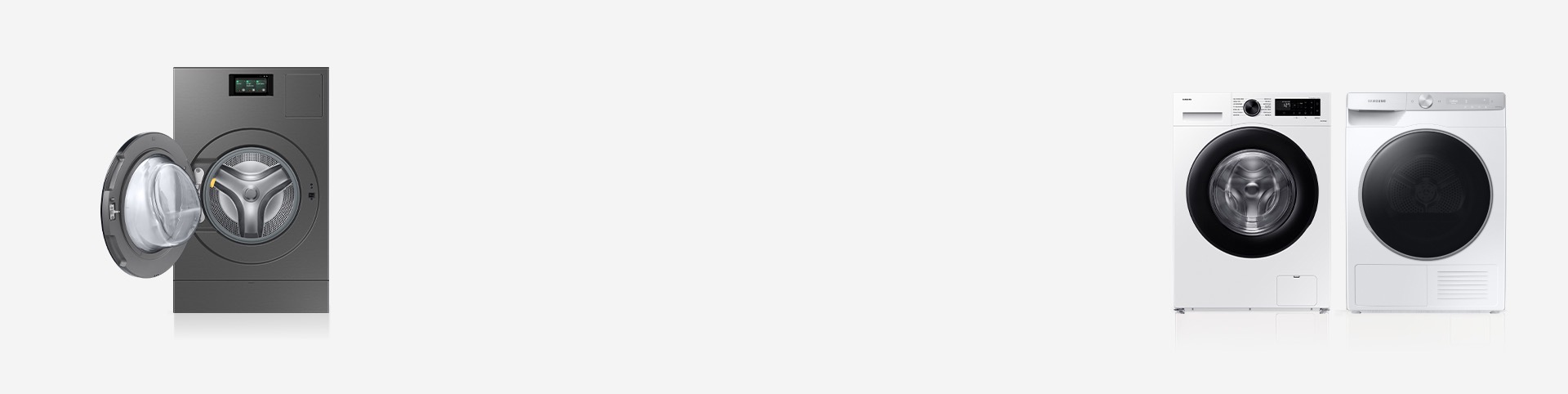
The Auto cleaning system cleans drum, tub or condenser without detergent, ensuring maintenance-free usage.
Auto dispense
Once you fill the detergent and softener compartments, the machine detects the weight of the laundry and automatically dispenses the right amount for each wash.
- * How to set on Smart Screen : Setting > Washer > Auto dispensers
Cognition
AI Wash™ & Dry
AI Wash™ & Dry detects certain fabric types and a soil level to adjust temperature, power, time, detergent settings, and drying level, delivering a wash and dry cycle suitable for each fabric and soil condition.
- * Fabric sensing uses an AI algorithm to sense 3 to 5 fabric types for loads up to 8lb. A turbidity sensor operates for all weights. Mixed fabrics may reduce detection accuracy. Actual results may vary depending on individual use. To prevent wear, wash like fabrics together
Auto Cycle Link
With the Samsung washer and compatible Samsung dryer, Auto Cycle Link recommends a drying cycle based on the selected wash cycle.
- * How to set : SmartThings > Dryer Settings > Best dry cycle to use automatically
- * Must download the SmartThings app available on Android and iOS devices. A Wi-Fi connection and a Samsung account are required. Must activate Auto Cycle Link on the SmartThings app
Remembering frequently used course
No need to search for the washer and dryer cycles you use the most. Instead, your washer and dryer learn the cycles you use the most and automatically sets them to appear first in the cycle list. Let your washer and dryer save your time and effort.
- * This feature is applied to washer and dryer models with LCD

Vision
Tactile points
Tactile points are applied to the buttons to enable users with low vision to locate them with ease.
Hearing
Door open alarm
When the refrigerator door is opened, the interior light blinks to signal a door-open alarm, accompanied by a sound alert. The light also blinks when the door is left slightly open. This function is designed with hearing-impaired users in mind.
- * This feature is applied to refrigerator models released from 2019 onwards. The light blinks when the door is left open for 5 to 10 min
Mobility
Auto Open Door
With just a light touch of the door sensor, the refrigerator door will open.
- * How to set on Family Hub™ 9" : Setting > Refrigerator > Auto open door
- * How to set on Family Hub™ 32", 21.5": Fridge manager > Settings > Auto open door
- * This feature is applied to Family Hub™ refrigerators
Side navigation
Users can easily access the main features of the app. The main controls are on the side and the height is adjustable. If the controls are too high or too low, you can adjust them for your convenience.
- * This feature is applied to Family Hub™ 32", 21.5" refrigerator
- * A Wi-Fi connection and a Samsung account are required
Accessible screen
Users can easily access the top of the screen, even if its height makes it difficult to operate. When the Accessible Screen feature is enabled, the screen shifts downward to a more accessible position and remains there for a designated duration, allowing for easier and more convenient interaction.
- * This feature is applied to Family Hub™ 32", 21.5" refrigerators
Beverage center
Provides quick and easy access to refreshingly cold water in two ways.
Cognition
AI Vision Inside
Using an internal camera, AI Vision Inside identifies certain fresh food items when put in or taken out and updates a food list, which you can check on the SmartThings App.
- * A red light will turn on when camera is working. The user’s appearance can be captured, but surroundings other than the food item will be automatically blurred
- * As of March 2025, AI Vision Inside can recognise 37 food items like fresh fruits and veggies. If the food is not recognisable, it may be listed as an unknown item. AI Vision Inside cannot identify or list any food items in the fridge door bins or freezer. It recognises food items based on deep learning models, which may be updated periodically to improve accuracy
- * The user may need to manually check and adjust the list to ensure its accuracy
- * Available on Android and iOS devices. A Wi-Fi connection and a Samsung account are required. Both devices must be signed in with the same Samsung account
Mobility
Self and Steam Clean
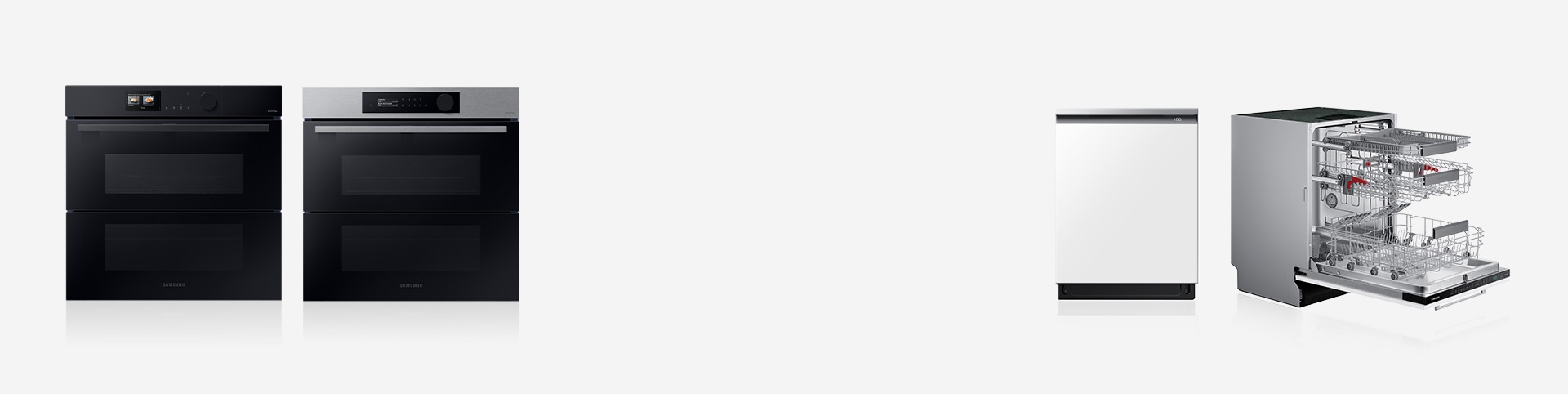
Get rid of light soiling much more easily with Samsung oven. Self/Steam Cleaning needs less time, power and effort to remove drips and splashes. It creates steam that loosens food particles, so any residue can be wiped away without scrubbing, leaving the oven sparkling clean.
Auto Open Door
Even the most hard-to-dry items are cupboard-ready at the end of the cycle with Auto Open Door. Once the dishwashing cycle has finished, the door opens to let the steam to escape for the best drying results.
Cognition
AI Pro Cooking™ Camera
The camera inside the oven sends video to your smartphone so you can easily check on meals as they cook. The camera can recognise ingredients and suggest optimal cooking modes and settings for many recipes.
- * How to set on ovens : Setting > Oven > Camera Vision
- * Must download the SmartThings app available on Android and iOS devices. A Wi-Fi connection and a Samsung account are required
- * A dish should be placed in the center of the oven to achieve the best recognition. The accuracy of the recognition may vary depending on the actual usage conditions, such as the type of ingredients, cleanliness of the cavity and the brightness of the room light. For more detailed information, please refer to the user guide enclosed with the package
Remembering frequently used mode
No need to search for the oven's cooking mode you use the most. Instead, your oven learns the cooking mode you use the most and sets it to appear first in the mode list. Let your oven save your time and effort.
- * This feature is applied to oven models with LCD

Vision
Auto pan detector
When a pot or pan is placed centrally on a cooking zone, it instantly detects if the diameter and size is suitable for that zone. If the pot or pan covers less than 60 percent of the zone, it will alert you with a message to use different cookware.
Mobility
Auto connectivity
The hood and cooktop are wirelessly connected to provide a more convenient cooking environment. With one-touch control on the cooktop, you can easily operate the hood and stay focused on cooking. The power of both products can also be turned on and off simultaneously. This feature is useful for users who cannot reach the hood, such as those using wheelchairs.
- * Both hood and cooktop must be compatible and connected to the SmartThings app with the same Samsung account. Must download the SmartThings app available on Android and iOS devices. A Wi-Fi connection and a Samsung account are required
Cognition
Safety shutoff
Samsung Hob automatically turns off a cooking zone if food has been left unattended for a long time or if there is no change in operation after a certain period. This lets you reduce the risk of costly or dangerous accidents when entertaining friends and family.
Residual heat indicator
With our Control and Function indicators, you'll avoid getting burned by a hot cooking surface. It's simple: the word "Hot" or H-shaped afterheat indicator lets you know when the surface is cool enough to touch, as the mark disappears.
Mobility
All-in-One Clean Station
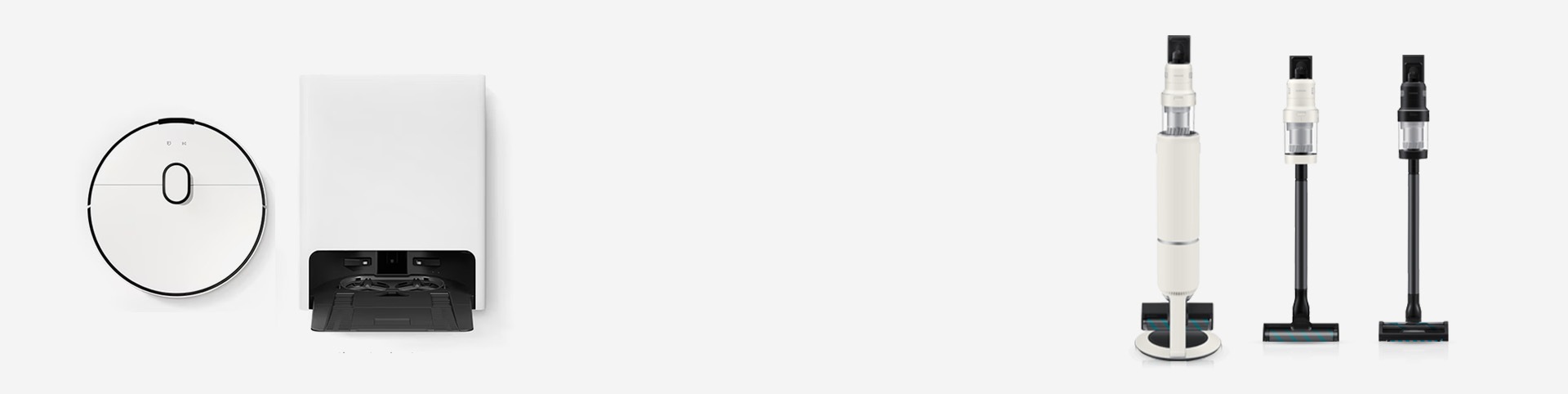
With product management features, the Clean Station in the robot vacuum reduces user maintenance by handling tasks like dust suction and automatic mop washing, keeping the robot ready to clean. The All-in-One Clean Station in the stick vacuum automatically empties and seals the dustbin, so you stay hands-free.
Cognition
Intelligent AI cleaning
The robot maps your home's layout, identifies objects, hard floor, low- and high-pile carpets for optimal cleaning. It automatically re-cleans heavily soiled areas. The AI Cleaning Mode on the stick vacuum recognises floor types and adjusts suction power and runtime for enhanced performance.
- * Set 'Smart' mode on suction power for robot vacuum
- * Activate 'AI Mode' for stick vacuum
- * Only certain spaces can be recognised. Example spaces: kitchen, living room, and ordinary room. A Wi-Fi connection and Samsung account are required
- * Object recognition may be affected by an object’s shape or the environmental conditions. Only certain object types can be recognised. Example items: air conditioner (stand type), refrigerator, BESPOKE (refrigerator/dishwasher), TV, washing machine/dryer, air purifier, AirDresser, sofa, bed, bookshelf, table, pet excrement, electrical cable, towel/sock, cup, glass, bottle, bowl, vase, floor mat, rug, coat rack, shoes, pedestal, scales, power extension, furniture with a crossbar, furniture legs, wheeled chair, pet fur ball, smartphone cable, stain and liquid spills, door step, and doorway. Stained Area Recognition needs to be activated beforehand via the SmartThings App. A Wi-Fi connection and Samsung account are required
- * SmartThings Labs provides early experience of new and useful features designed for consumer convenience. The Stained Area Deep Cleaning’s key functions, such as the contamination recognition range or accuracy, may vary
- * A stained area is defined as a solid, coloured and opaque spot, such as a dried juice, with a size of 4cm x 4cm or larger. Stained area identification may be affected by the size of the stain or the environmental conditions of the floor, such as the floor pattern. Stained Area Recognition needs to be activated beforehand via the SmartThings App. A Wi-Fi connection and Samsung account are required
- * AI Cleaning Mode 1.0 recognises 4 usage conditions, including hard floor, carpet, mat and lifting (moving). AI Cleaning Mode 2.0 also recognises the type of carpet, as well as the 4 usage conditions
Accessibility customer support
We are here to assist and improve your accessibility experience
* Availability of the feature may vary depending on the model specification.
