How to recover Samsung account ID or reset password?
You can recover your Samsung account ID or reset your password using email, phone number, or verification methods to regain access to Samsung services.
Start the recovery process
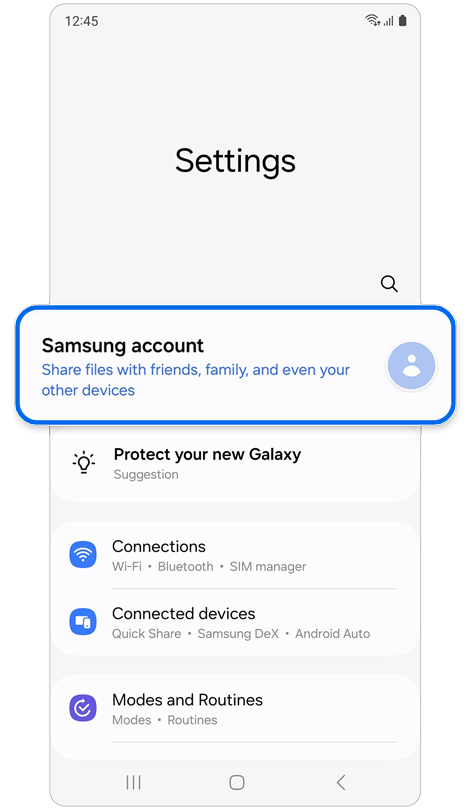
Step 1. Open Settings > Select Samsung account.
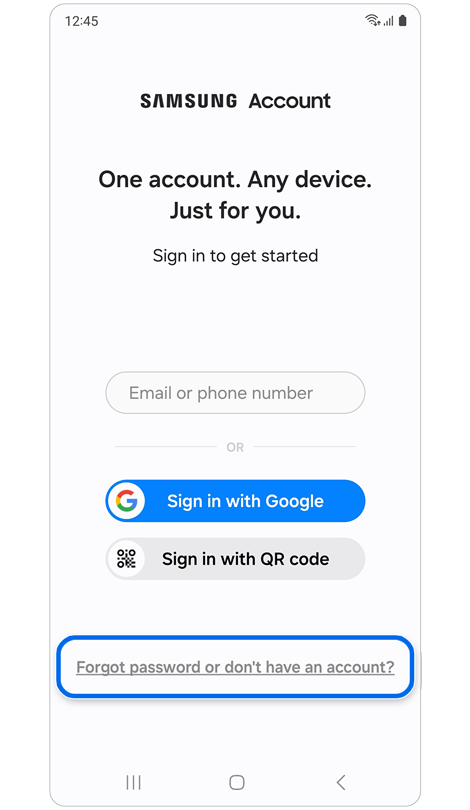
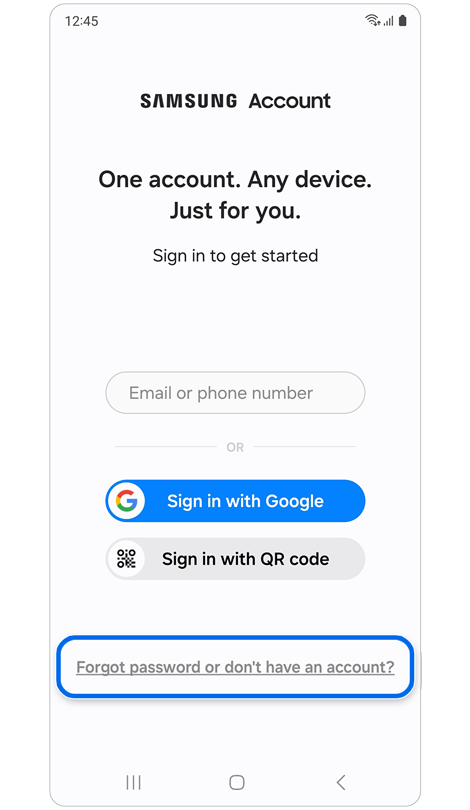
Step 2. Select Forgot password or don’t have an account?
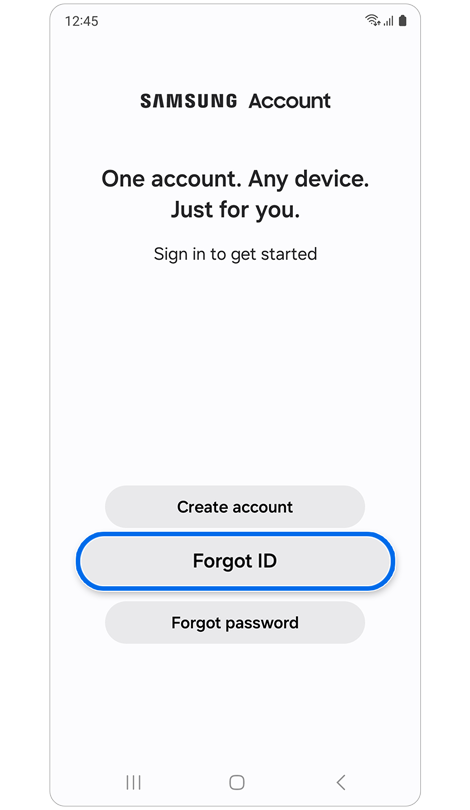
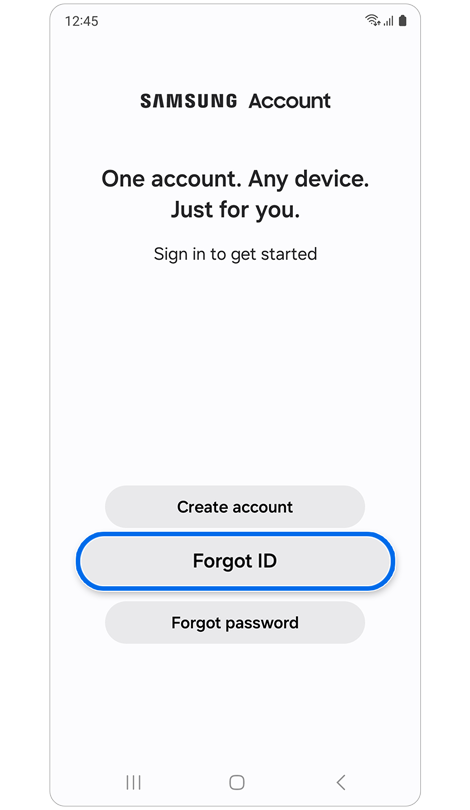
Step 3. Select Forgot ID.
Recover ID using email hint


Step 1. Tap Trouble getting your account ID?
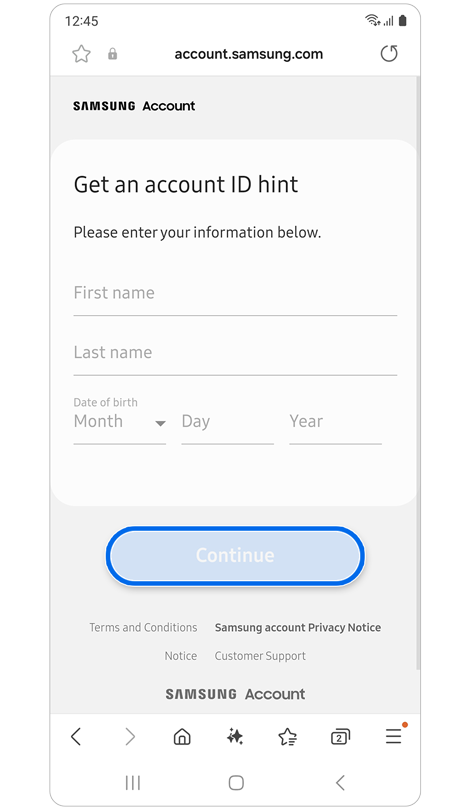
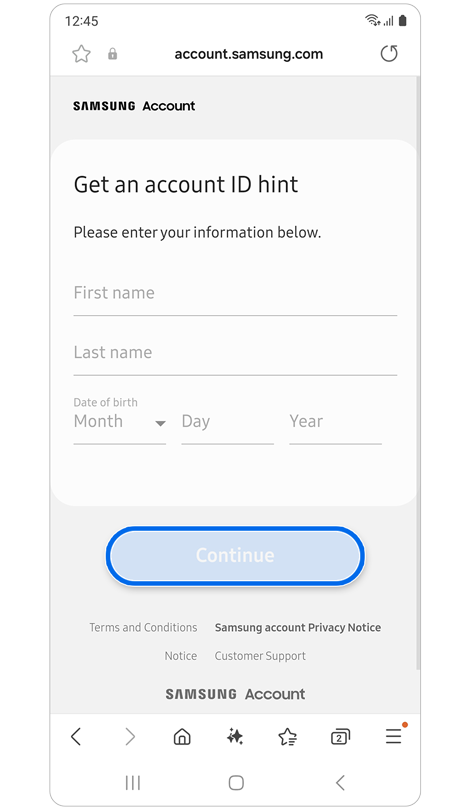
Step 2. Enter the requested information > Tap Continue.
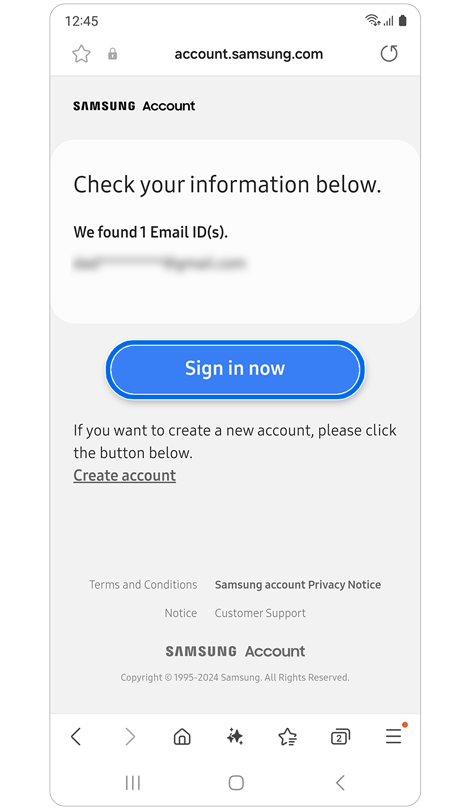
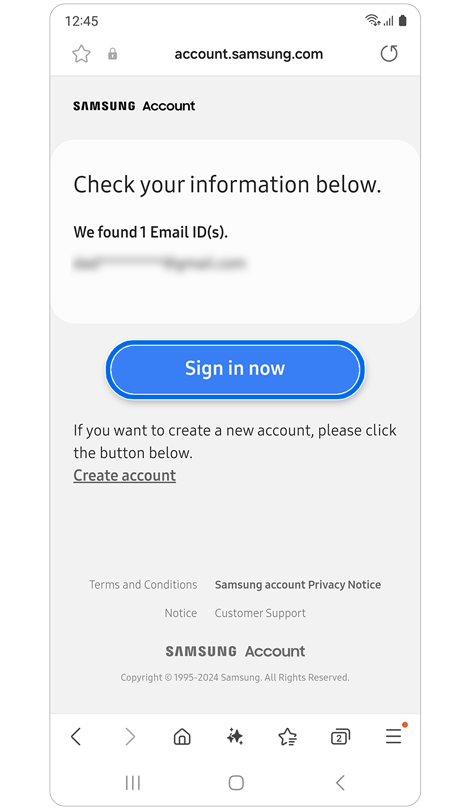
Step 3. Review the Email IDs listed > Tap Sign in now
Recover ID using recovery phone number or email
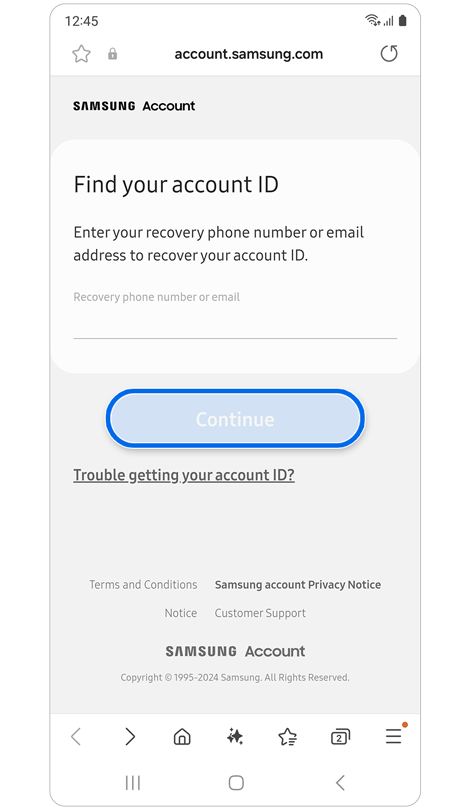
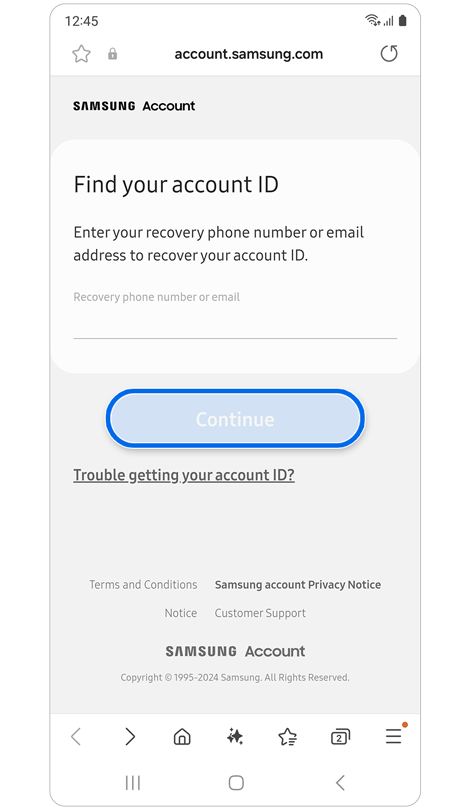
Step 1. Enter your recovery phone number or recovery email, then tap Continue.
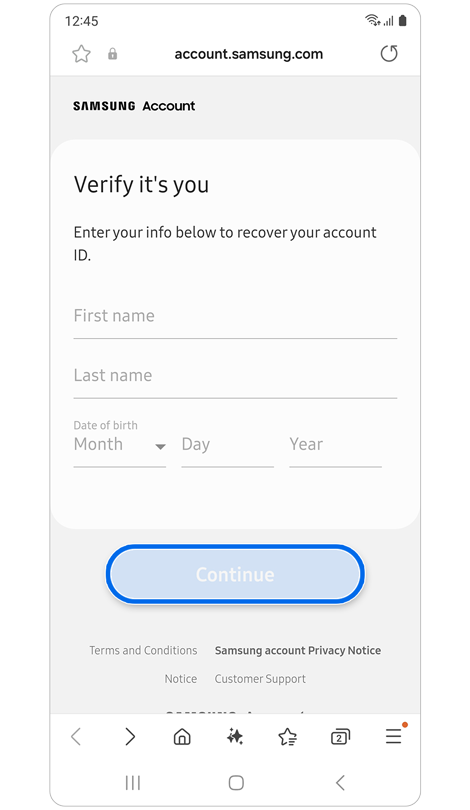
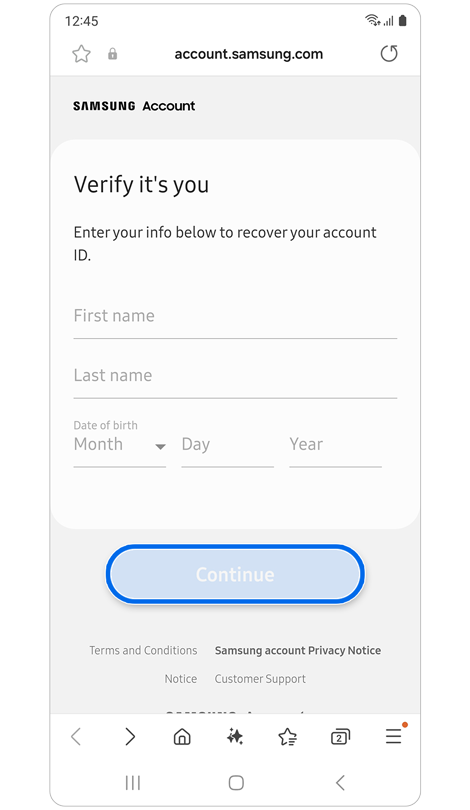
Step 2. Enter the requested information and tap Continue.
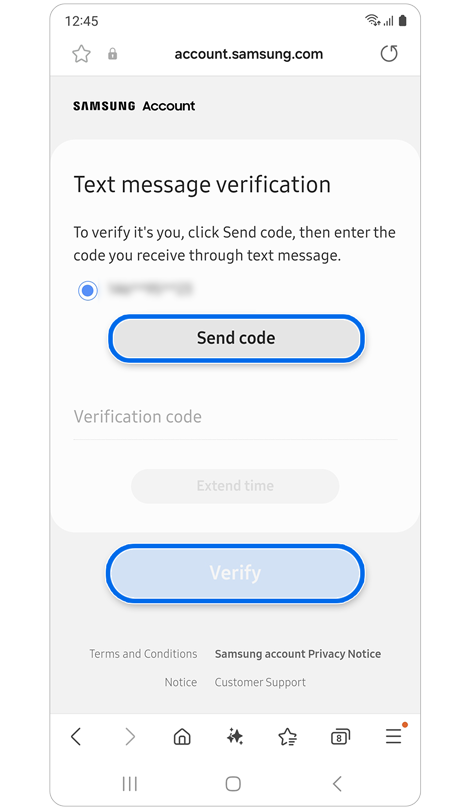
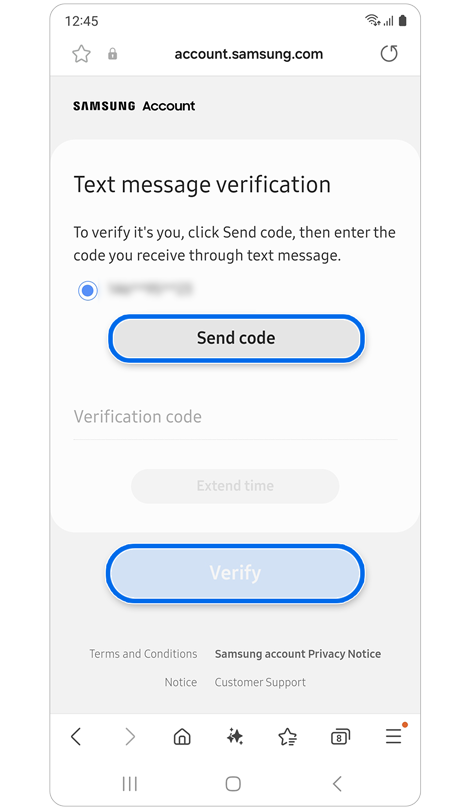
Step 3. Verify your details, tap Send code, then enter the code and tap Verify.
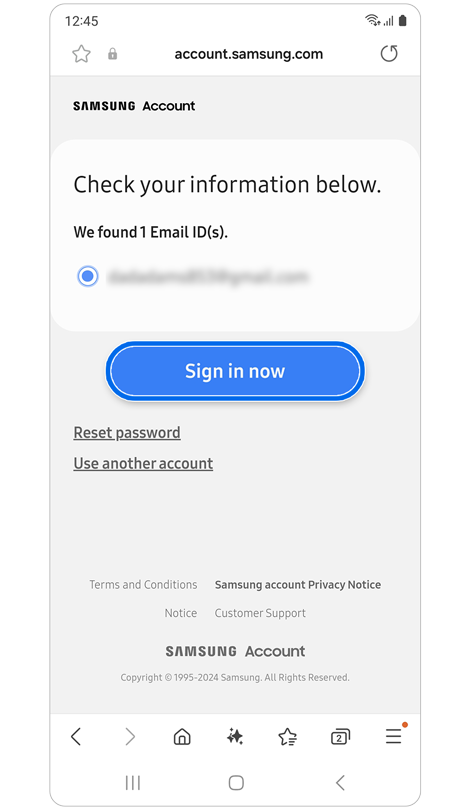
Step 4. Select your account and tap Sign in now.
Start the reset process


Step 1. Open Settings > Select Samsung account.
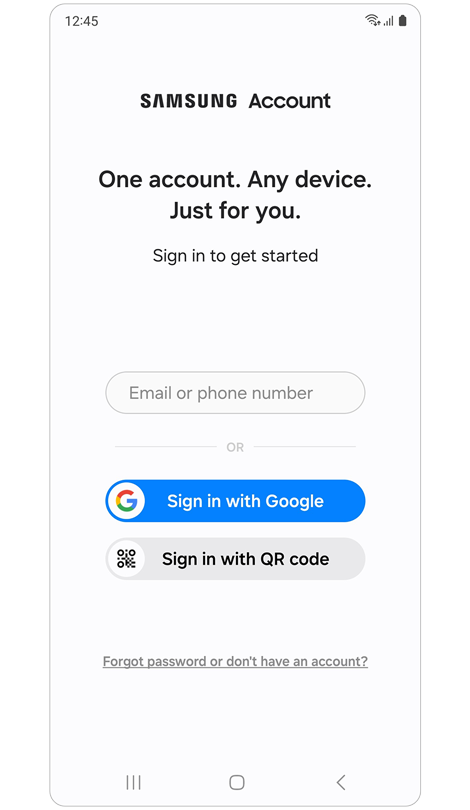
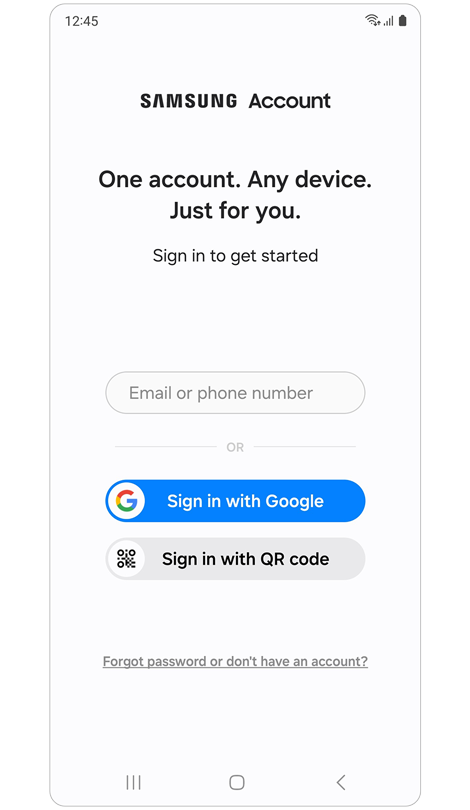
Step 2. Enter your account ID > Tap Next.


Step 3. Select Forgot password?
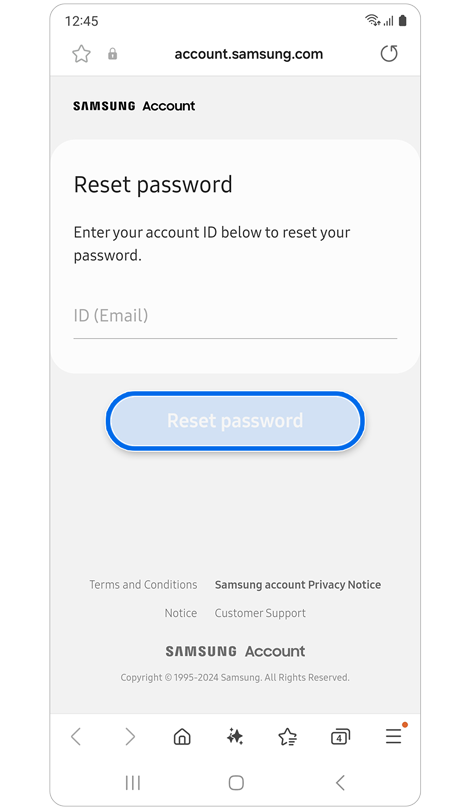
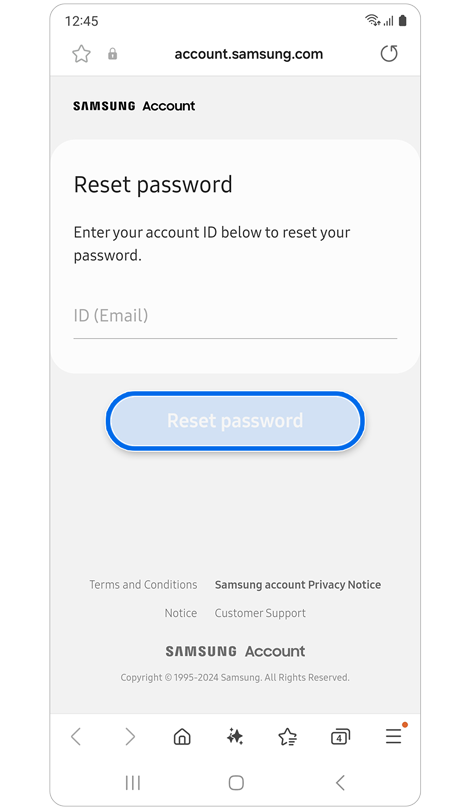
Step 4. Enter your email ID > Tap Reset password.

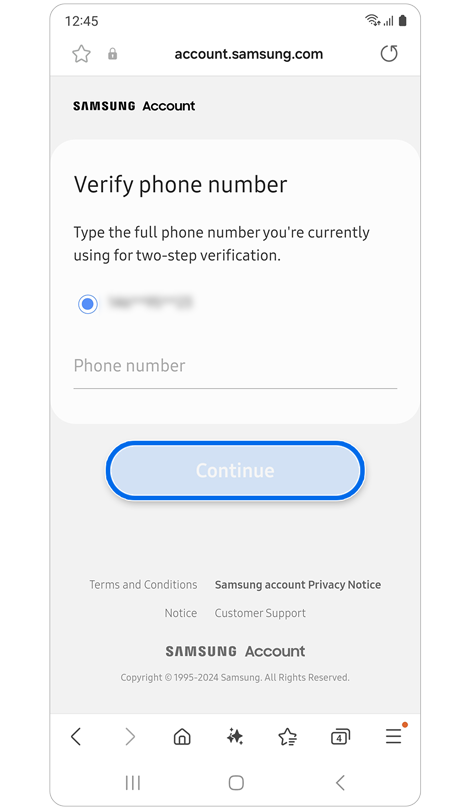
Step 5. Enter your account phone number > Tap Continue.
Reset password using primary email
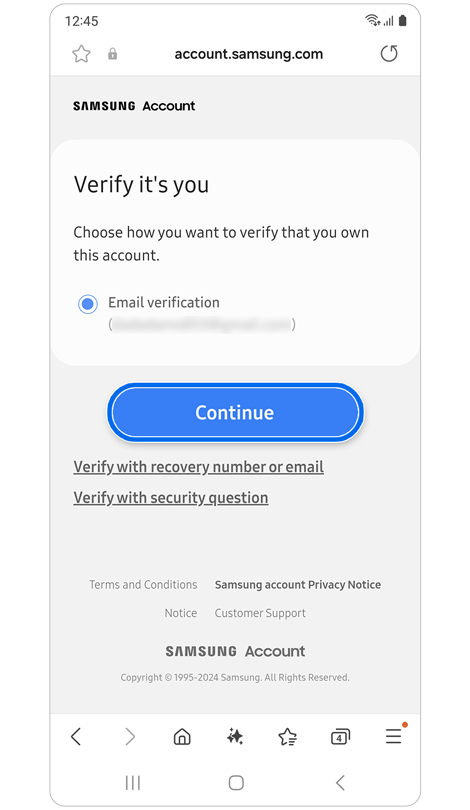
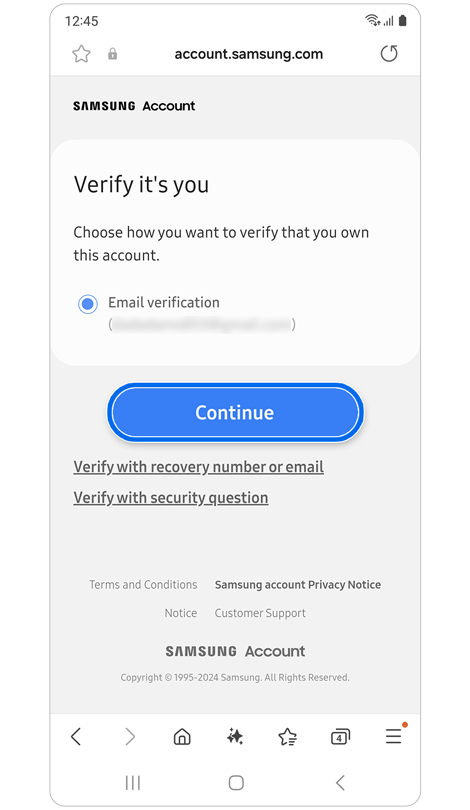
Step 1. Select Email verification > Tap Continue.
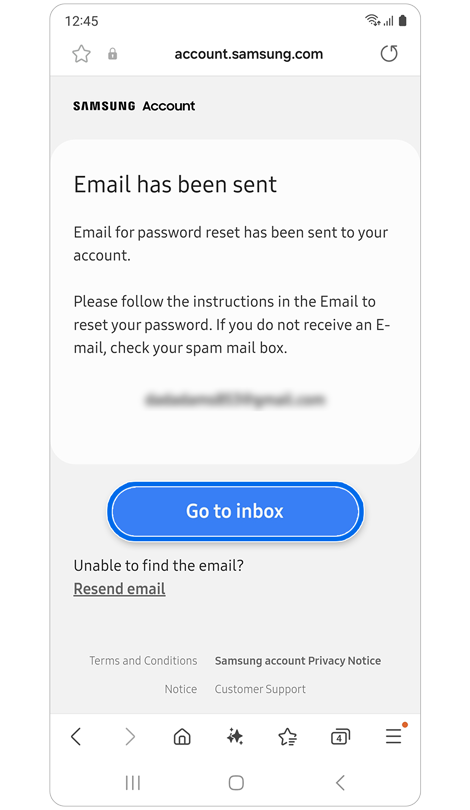
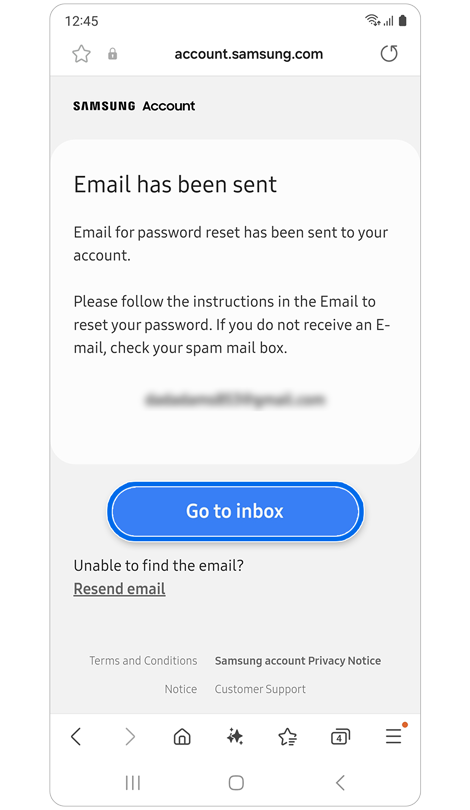
Step 2. Open your inbox and follow the instructions in the email.

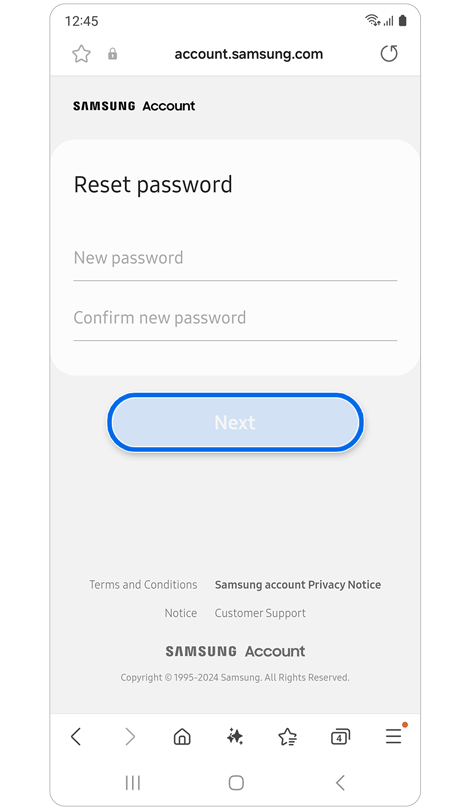
Step 3. Enter a new password > Tap Next.
Reset password by security question
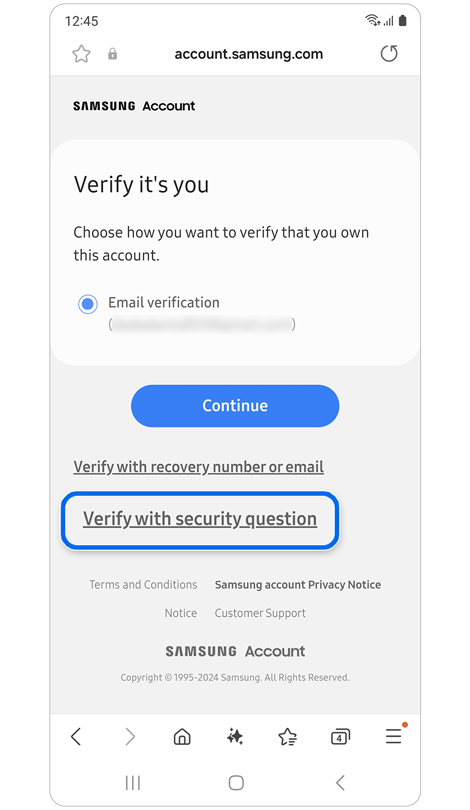
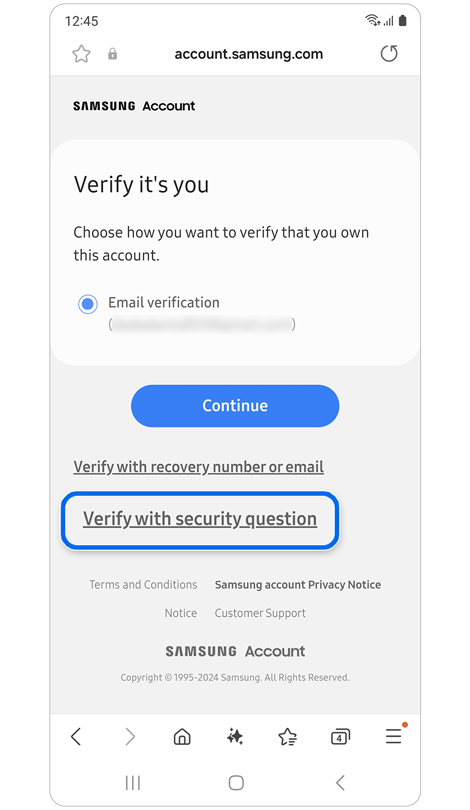
Step 1. Select Verify with security question.
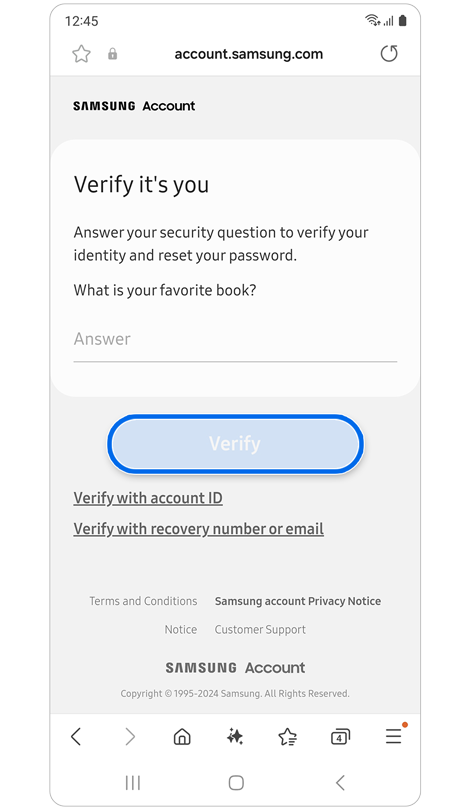
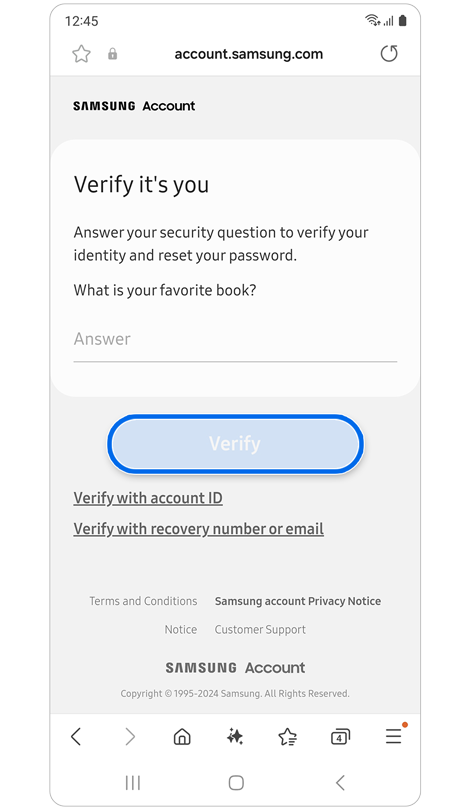
Step 2. Answer your security question > Tap Verify.
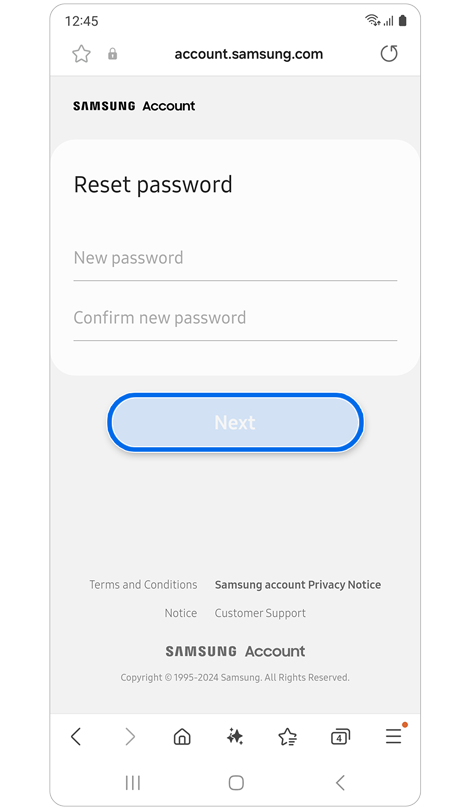
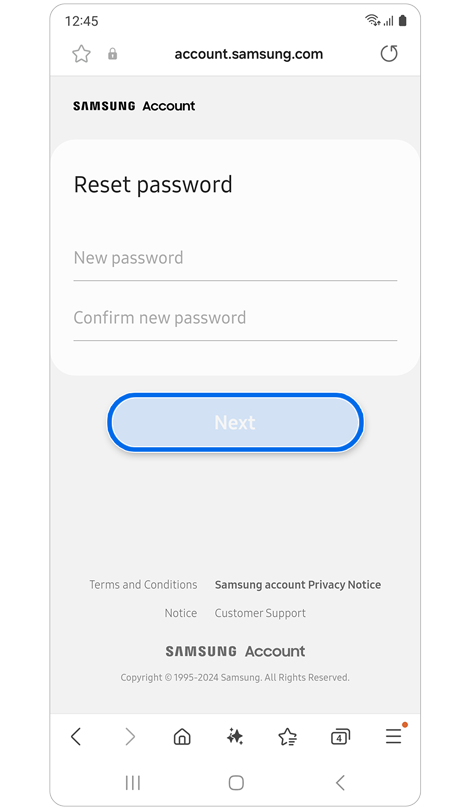
Step 3. Enter a new password > Tap Next.
Reset password by recovery email
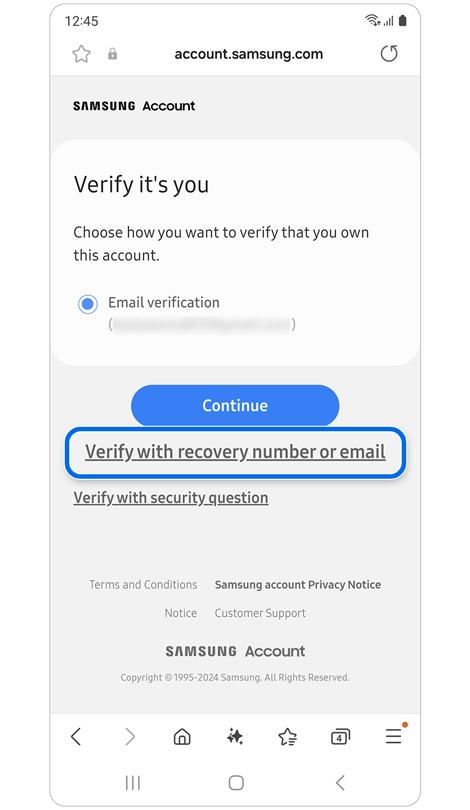
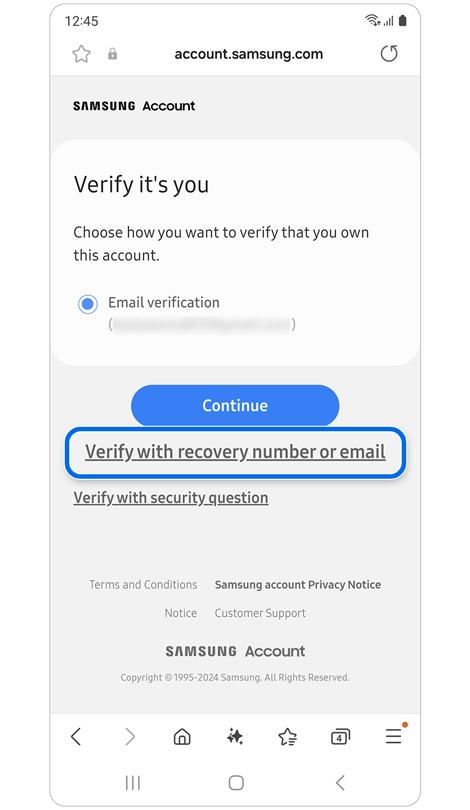
Step 1. Select Verify with recovery number or email.


Step 2. Select Recovery email > Tap Continue > check your inbox
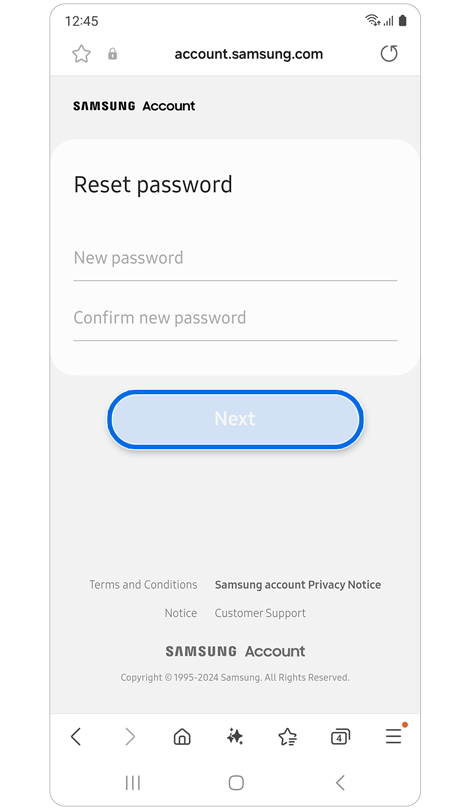
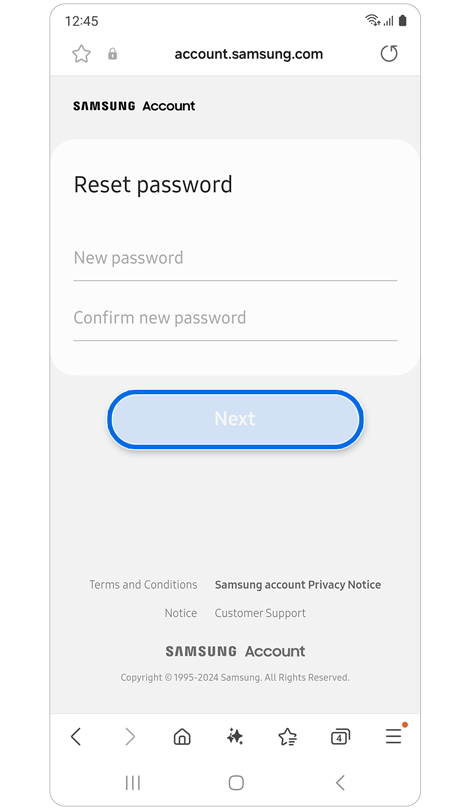
Step 3. Follow the instructions and enter a new password.
Reset password by recovery phone number
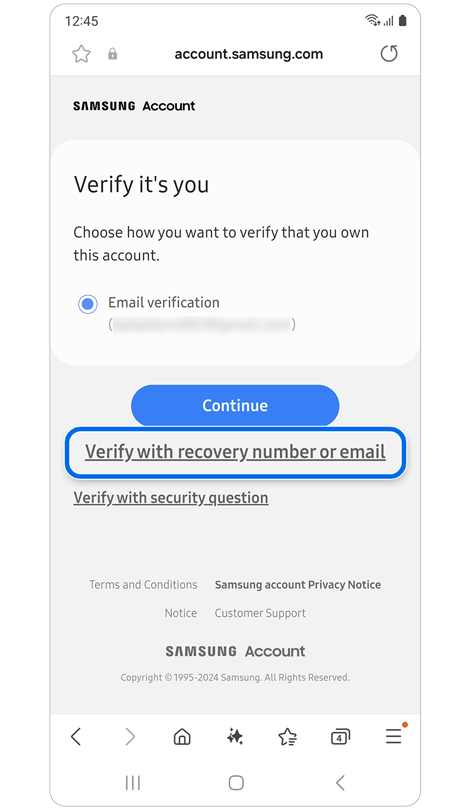
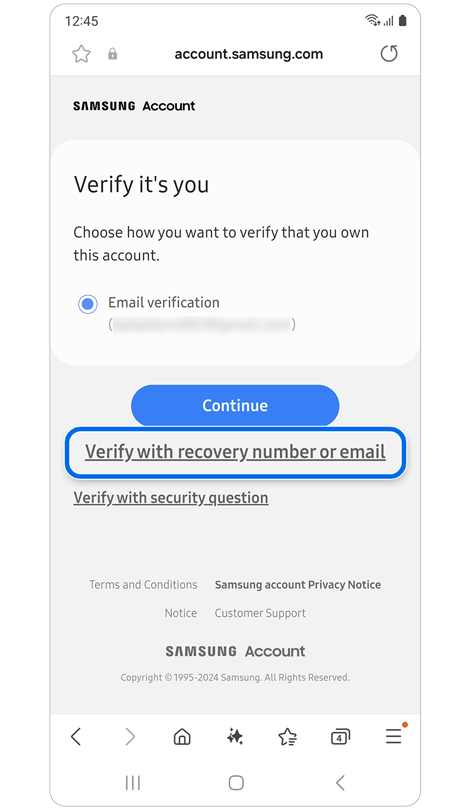
Step 1. Select Verify with recovery number or email.
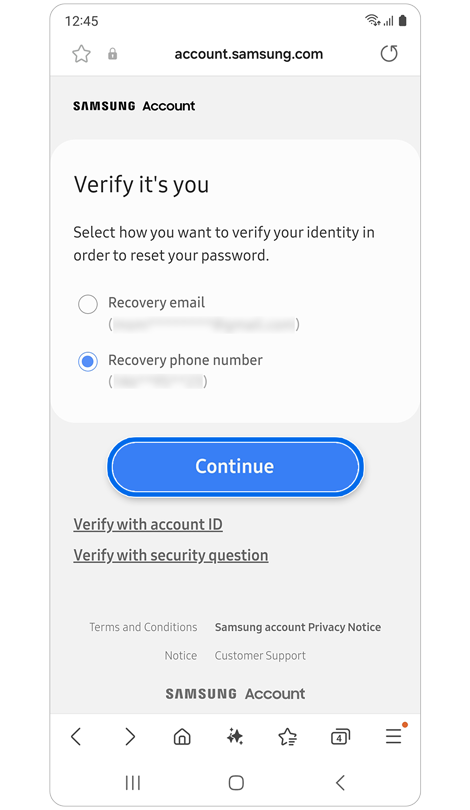
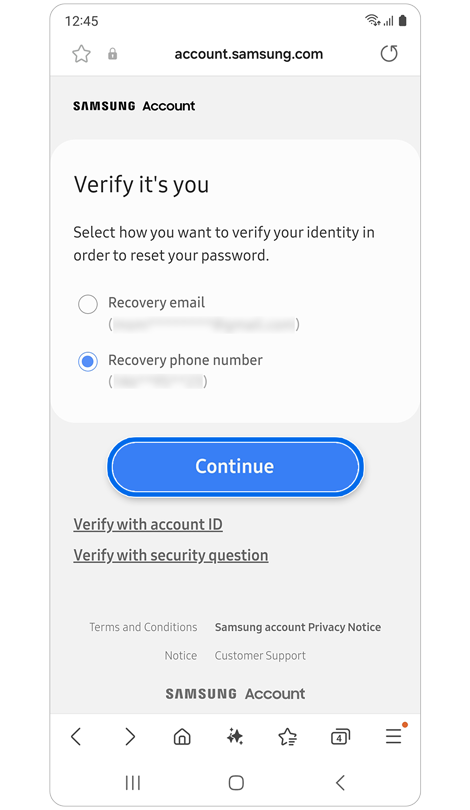
Step 2. Select Recovery phone number > Tap Continue.
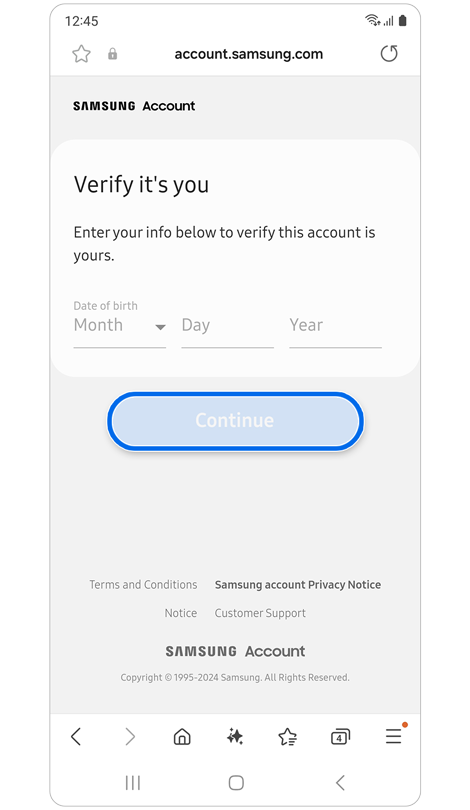
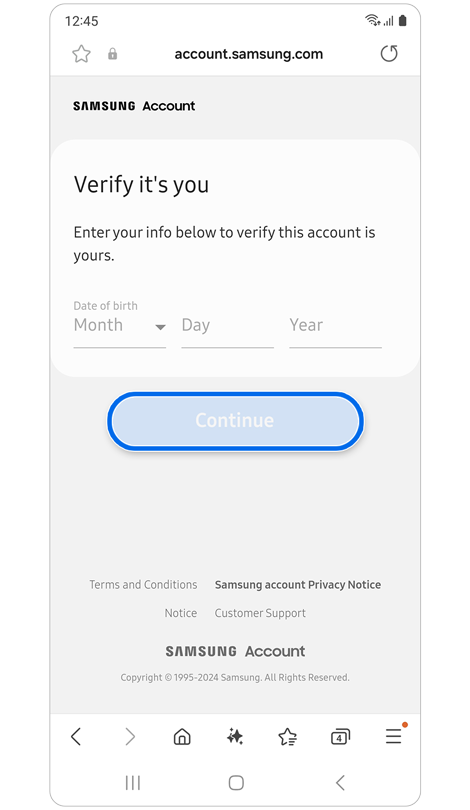
Step 3. Enter your birthdate > Tap Continue.
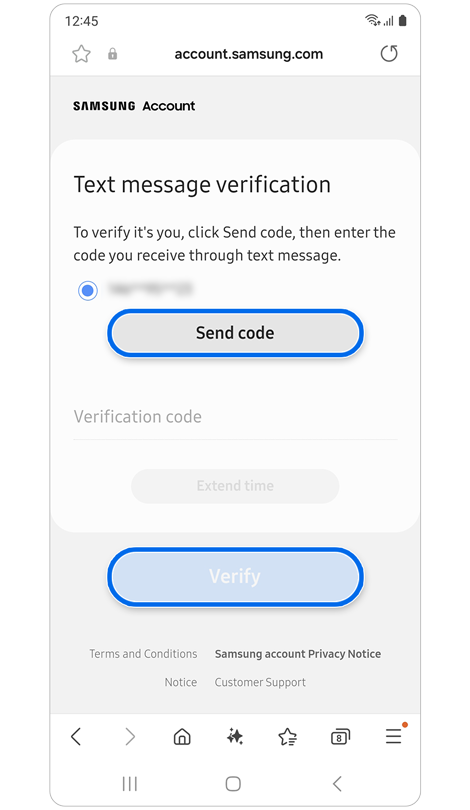
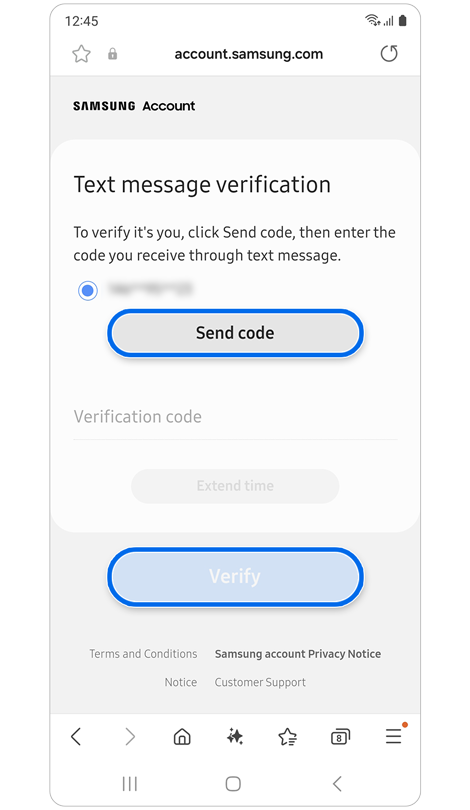
Step 4. Tap Send code, enter the verification code, then tap Verify.
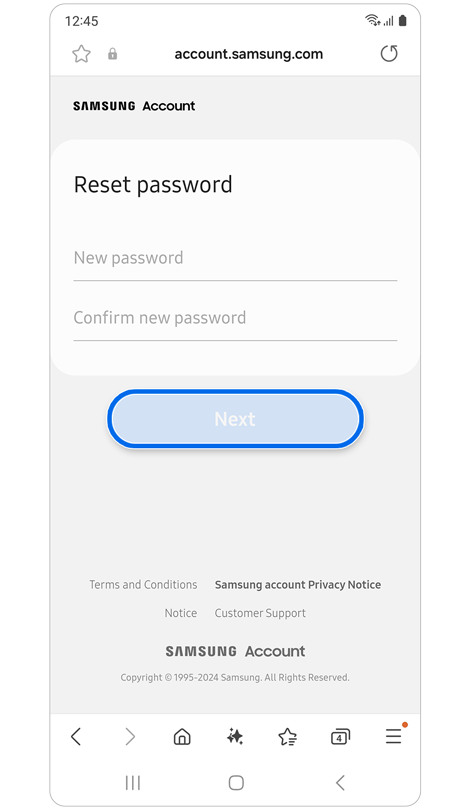
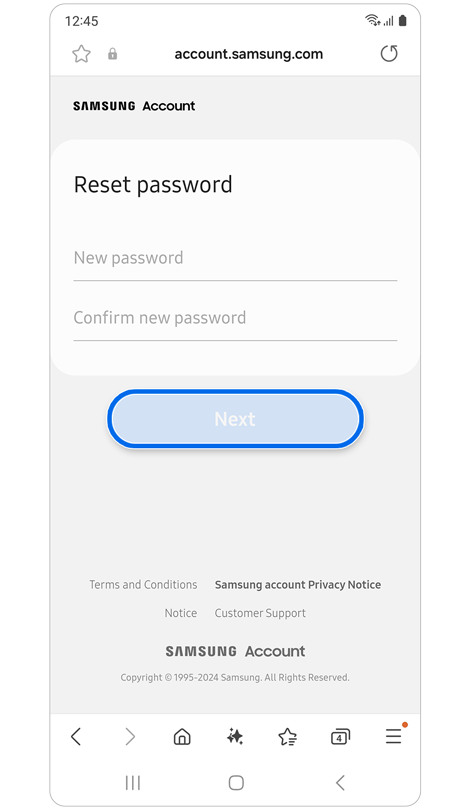
Step 5. Enter a new password > Tap Next.
Notes
- You must have previously set up recovery options (email, phone number, or security question) to use them.
- You can choose to stay signed in or sign out from other devices after resetting your password.
- In some countries, password reset via phone number may be supported.
Thank you for your feedback!
Please answer all questions.