Why are apps not working on my Samsung Smart TV and how can I fix them
App issues on Samsung Smart TVs are usually caused by temporary glitches, outdated software, or corrupted app data. Resetting the TV or reinstalling the app often fixes the problem.
Method 1. Soft reset the TV
Step 1: Press and hold the Power button on the remote until the TV restarts
Step 2: Or unplug the TV for 30 seconds and plug it back in
Notes:
A soft reset clears temporary errors affecting apps.
Method 2. Check for software updates
Step 1: Press the Home button and go to Settings

Step 2. Go to Support, and then select Software Update.

Step 3. Click Update Now to start updating your TV.

Step 1. Press the Home button and navigate to Apps.
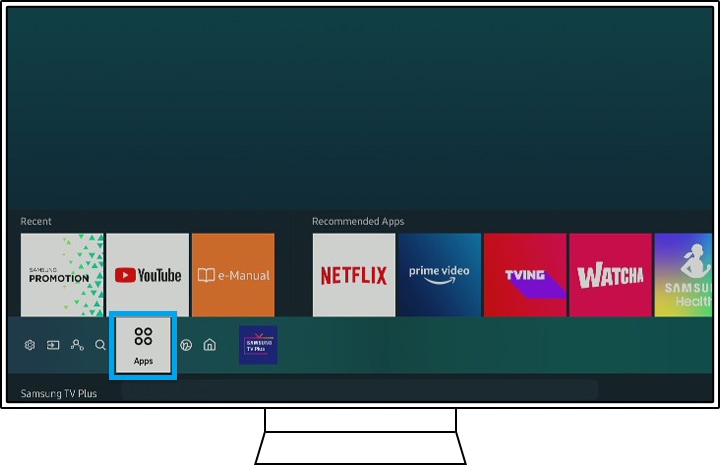
Step 2. Go to Settings.

Step 3. Navigate to the app, and then select Delete.
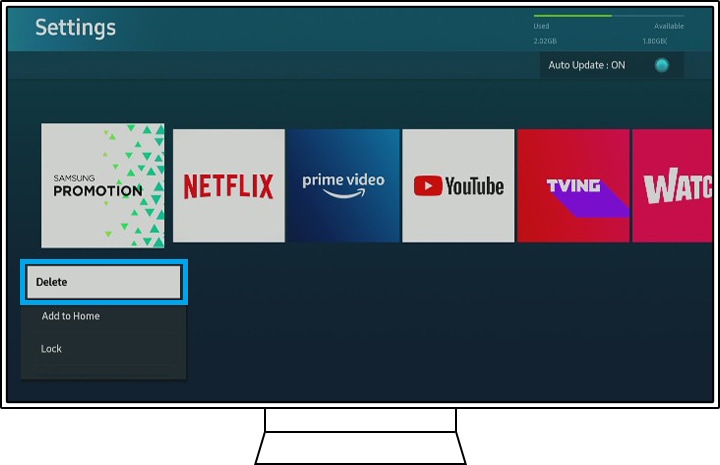
Note: If Delete is grayed out, this is a recommended app. Select Reinstall instead.
Step 4. Press the return button on your remote and select the Search icon.
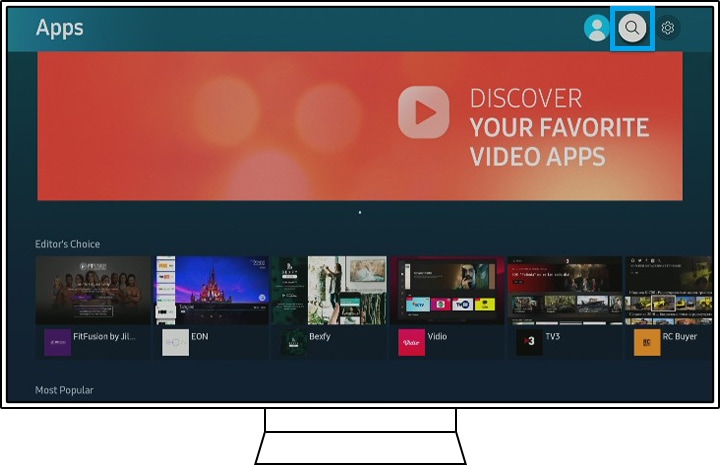
Step 5. Enter the name of the app and install it.
Note: Make sure that you have your login information before deleting or reinstalling an app. These steps will sign you out, and so you will need to sign back in.
Step 1: Go to Settings
Step 2: Select Support
Step 3: Select Self Diagnosis or Service Care
Step 4: Select Reset Smart Hub
Note:
- The default PIN is 0000.
- You may need to download the app again after the reset.
Note: Device screenshots and the menu are only a sample in English - they are also available in the language of your country.
Thank you for your feedback!
Please answer all questions.