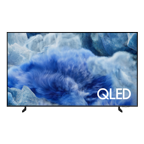


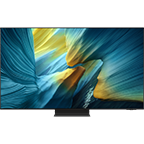

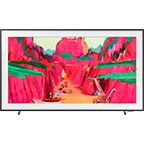
55" QLED 4K Smart TV Q60T
Gallery popup
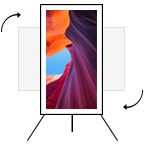
Escaneá el código QR con tu dispositivo móvil y colocá la imagen del producto en el lugar deseado.
Destacados
Características
El siguiente nivel en calidad de imagen
Mil millones de tonos de colores nítidos
Volumen de color al 100 % con Quantum Dot
La tecnología de punto cuántico brinda la mejor imagen nunca antes vista. Con un volumen de color al 100 %, los puntos cuánticos toman la luz y la transforman en un color deslumbrante que se mantiene consistente en cualquier nivel de brillo.
* Volumen de color al 100 % medido según el estándar DCI-P3, certificado por VDE.
Experimentá una gama completa de detalles
Quantum HDR
Quantum HDR resalta el brillo y contraste para que puedas experimentar el poder en su totalidad en cada imagen. La asignación de tono dinámico de HDR10+ va más allá de los últimos estándares y crea negros más profundos, una imagen más vibrante y detalles que siempre sobresalen.
* La gama de Quantum HDR afirma que la iluminación se basa en las normas de pruebas internas y está sujeta a cambios según el entorno de visualización o las condiciones específicas.
Potente calidad de imagen
Procesador Quantum Lite
Esta calidad de imagen increíble es posible gracias a un solo chip que prepara el color, optimiza una alta relación de contraste y domina el contenido HDR.
Acceso remoto
Ideal para el trabajo desde casa. El acceso remoto te permite duplicar la pantalla de la computadora en la pantalla del televisor de forma inalámbrica. También podés acceder a la PC para trabajar con archivos o documentos con Microsoft Office 365, todo desde la comodidad de tu hogar.
* La disponibilidad de las funciones puede variar según el modelo y la región.
* El televisor y la computadora deben estar conectados a una red.
* El uso compartido de pantalla (duplicación) solo es compatible con Windows 10.
* La conexión remota a una PC con Windows solo es compatible con Windows 7 o luego. Y el sistema operativo debe ser una edición Professional o superior.
* La conexión remota a una PC con Mac solo es compatible con Mac OS X 10.5 o posterior.
* Los accesorios para PC, como el mouse y el teclado, se venden por separado.
* Este servicio requiere configuración para permitir conexiones remotas dentro de una PC.
Disfrutá tu contenido sin límites
Marcos ultradelgados
Diseño elegante que te permite disfrutar las imágenes en su forma más pura. Fabricado con un estilo minimalista impecable en cada uno de sus ángulos y un diseño de marcos ultradelgados que establece estándares nuevos en diseño. Disfrutá nuestra experiencia cinematográfica más inmersiva de todos los tiempos.
Decorá los espacios con tus fotos favoritas
Modo Ambiente
Cuando proyectás tus fotos favoritas en la pantalla del televisor, este se integra a la elegante decoración del ambiente. Podés añadir varias fotos en un colorido collage o en una presentación de diapositivas para ver las fotos de forma novedosa y en el momento justo.
* La precisión de la característica de fondo puede variar en función de la ubicación del televisor, según los diseños de las paredes, los patrones o los colores.
Compartí contenido del celular a tu QLED
Screen Mirroring
Proyectar música o películas en tu televisor desde el celular es tan fácil como solo dar un click. Al vincular tu celular con tu TV, este automáticamente recibirá la acción y reflejará el contenido en la pantalla, de tal forma que podés disfrutar tu contenido favorito sin perderte ningún detalle.
* Solo dispositivos compatibles.
* Este servicio funciona únicamente cuando la televisión y el teléfono móvil están encendidos.
* Es posible que el servicio no se pueda lanzar al mismo tiempo que la referencia de Televisor.
* Solo dispositivos compatibles.
* Este servicio funciona únicamente cuando la televisión y el teléfono móvil están encendidos.
* Es posible que el servicio no se pueda lanzar al mismo tiempo que la referencia de Televisor.
Disfrutá múltiples contenidos al mismo tiempo
Multi View
Multi View divide la pantalla de tu televisor en dos, colocando en un lado el contenido que estás viendo y reflejando la pantalla de tu smartphone en el otro. Así, no te perderás ni un detalle.
* La disponibilidad de funciones puede variar según el dispositivo móvil.
Especificaciones
-
Serie
6
-
Resolución
3,840 x 2,160
-
HDMI
3
-
USB
2
-
QLED
-
6
-
Tamaño de pantalla
55"
-
Resolución
3,840 x 2,160
-
Motor de imágenes
Quantum Processor Lite
-
Velocidad de movimiento
100+
-
PQI (Picture Quality Index)
3100
-
HDR (Alto Rango Dinámico)
Quantum HDR
-
HDR 10+
Yes
-
HLG (Registro híbrido Gamma)
Yes
-
Contraste
Mega Contrast
-
Color
100% Color Volume with Quantum Dot
-
Dual LED
Yes
-
Microatenuación
Supreme UHD Dimming
-
Potenciador de Contraste
Yes
-
Auto Motion Plus
Yes
-
Modo Film
Yes
-
Soporte de modo natural
Yes
-
Modo Cineasta (FMM)
Yes
-
Detección de brillo y color
Brightness Detection
-
Dolby Digital Plus
Yes
-
Dialog Enhancement
Yes
-
Salida de sonido (RMS)
20W
-
Tipo de altavoz
2CH
-
Enlace Multiroom
Yes
-
Audio Blutooth
Yes
-
Sonido adaptativo
Adaptive Sound
-
Samsung SMART TV
Smart
-
Sistema operativo
Tizen™
-
Bixby
US English, UK English, India English, Korean, French, German, Italian, Spanish (features vary by language)
-
Navegador Web
Yes
-
SmartThings App Support
Yes
-
SmartThings Hub / Matter Hub / IoT-Sensor Functionality / Quick Remote
Yes
-
Galería
Yes
-
Móvil a TV - Espejo, DLNA
Yes
-
Tap View
Yes
-
Multi-View
Yes
-
Remote Access
Yes
-
Bluetooth con baja energía
Yes
-
WiFi Directo
Yes
-
TV de sonido a móvil
Yes
-
Reflejo de sonido
Yes
-
Transmisión digital
ISDB-T
-
Sintonizador analógico
Yes (Trinorma)
-
Data Broadcasting
GINGA
-
Soporte TV Key
Yes
-
Wi-Fi
Yes (WiFi5)
-
Bluetooth
Yes (BT4.2)
-
HDMI
3
-
Anynet+ (HDMI-CEC)
Yes
-
USB
2
-
Compuesto In (AV)
1
-
Ethernet (LAN)
Yes
-
Salida de audio digital (óptica)
1
-
Entrada RF (Entrada terrestre / cable)
1/1(Common Use for Terrestrial)/0
-
HDMI A / Retorno de canal Apoyo
Yes
-
eARC
Yes
-
Conmutador rápido HDMI
Yes
-
Diseño
New Bezel-less
-
Tipo de bisel
3 Bezel-less
-
Tipo delgado
Slim look
-
Color frontal
BLACK
-
Tipo de soporte
SLIM FEET
-
Color del soporte
BLACK
-
Vista digital limpia
Yes
-
Búsqueda automática de canales
Yes
-
Subtítulos
Yes
-
Connect Share™ (HDD)
Yes
-
ConnectShare™ (USB 2.0)
Yes
-
EPG
Yes
-
PVR extendido
Yes
-
Modo de juego
Yes (Auto Game Mode (ALLM), Game Motion Plus)
-
Idioma de OSD
Local Languages
-
BT HID Incorporado
Yes
-
Soporte USB HID
Yes
-
Cambio de hora
Yes
-
Soporte IPv6
Yes
-
Soporte MBR
Yes
-
Accesibilidad - Guía de Voz
US English, Brazilian Portuguese
-
Accesibilidad-Aprende sobre el control remoto del TV/Aprende sobre la pantalla de menú
US English, Brazilian Portuguese
-
Accesibilidad - Otros
Enlgarge / High Contrast / Multi-output Audio / SeeColors / Color Inversion / Grayscale / Sign Language Zoom / Slow Button Repeat / Auto Detection for Sign Language Zoom Area
-
Suministro de energía
AC220-240V 50/60Hz
-
Consumo de Energía (DPMS)
135 W
-
Sensor ecológico
Yes
-
Apagado automático
Yes
-
Tamaño del paquete (ancho x alto x prof.)
1397 x 846 x 158 mm
-
Tamaño del conjunto con soporte (ancho x alto x prof.)
1230.1 x 783.7 x 243.3 mm
-
Tamaño del conjunto sin soporte (ancho x alto x prof.)
1230.1 x 705.9 x 57.4 mm
-
Soporte (básico) (anch. x prof.)
1015.3 x 243.3 mm
-
Peso del paquete
22.7 kg
-
Tamaño del conjunto con soporte
17.4 kg
-
Tamaño del conjunto sin soporte
17.2 kg
-
Modelo de control remoto
TM2050A
-
Samsung Smart Control (incluido)
Yes
-
Compatible con Stand Support (Y20 Studio)
Yes
-
Compatible con Mini Wall Mount Support
Yes
-
Compatible con Vesa Wall Mount Support
Soportado
-
Manual del usuario
Yes
-
Manual electrónico
Yes
-
Cable de alimentación
Yes
Reseñas
55" QLED 4K Smart TV Q60T
- Muchos clientes reportan fallos de pantalla prematuros—líneas horizontales, apagones, parpadeos—poco después del vencimiento de garantía.
- Algunos elogian la calidad de imagen QLED, colores vibrantes, contraste profundo y la interfaz intuitiva con control por voz.
- Varios mencionan que la empresa no responde a solicitudes de reparación ni reconoce defectos de fabricación conocidos.
- Algunos clientes notan problemas secundarios: diseño incómodo del control remoto y limitaciones en formatos de archivo compatibles.
- En general, los fallos de hardware y la falta de respuesta superan ampliamente los aspectos positivos del producto.
Filtros
El orden por relevancia coloca las mejores reseñas en la parte superior. Consideramos aspectos como los votos útiles, la reseña más reciente, imágenes y otros rasgos que los lectores buscan en sus reseñas.
Filtros
1,423 Reseñas
2024-12-16
2024-05-17
Ypsilanti
2025-10-24
Samsung Specialist
JG50505, Thank you for sharing your experience with Wi-Fi connectivity on your TV. You might want to go through these steps to check your network connection: 1. Check the distance between the TV and your modem or access point. The distance should not exceed 50 ft. 2. Minimize interference by not using or turning off wireless devices. Also, verify that there are no obstacles between the TV and the modem or access point. (Wi-Fi strength can be decreased by appliances, cordless phones, stone walls/fireplaces, etc.) 3. Unplug both your TV and router. Remove both power cables, wait at least 30 seconds and plug them both back in. 4. Check the connection between your router and TV. Please review the points below: • Is your router connected to the TV using an ethernet cable? If not, we strongly recommend using an ethernet cable connection on your TV. This will ensure your TV maintains a consistent connection to the internet. • If you’re already connected using an ethernet cable, make sure that the ethernet cable is working and is not damaged. You can test the cable by connecting it to other devices, such as a laptop, to make sure that your ethernet cable is not damaged. • If connecting to your TV using an ethernet cable is not possible, please move your router as close to the TV as possible. There should not be any obstructions between your TV and router, such as walls, other electronic devices, etc. 5. Perform a network test to check if there is a network problem: Settings > Support > Device Care > Self Diagnosis> Smart Hub Connection Test 6. If you’re still experiencing issues, a factory reset may be needed. Keep in mind that this will restore all TV settings to factory defaults. Go to: Settings > All Settings > General & Privacy > Reset. I hope the above helps. Should your issue persist, please reach Samsung Support at 1-800-SAMSUNG, 8AM - 12AM EST, 7 days a week. Or visit us on the Samsung website and click on the ‘Support’ link for: • LiveChat with an agent • Manuals, Software, & Warranty Info • Creating a Service ticket ~ Samsung Specialist
2025-03-06
2024-11-30
Texas
Samsung Specialist
Hi, Thank you for sharing your experience. To assist you in learning the various features, functions, and settings of your TV and remote, you can download the Q60D TV's User Manual, e-Manual, Remote Control Leaflet, and Quick Setup Guide on Samsung's website under ‘Support’ (top right corner) > Manuals & Software > TVs & Home Theater. From there, you can search for and select the Q60D TV to download the guides you would like. The e-Manual and Remote Guide are both also embedded into your TV itself under Menu > Settings > Support If you need more help, Samsung is here for you. Please call us at 1-800-SAMSUNG, 8AM - 12AM EST, 7 days a week. Our LiveChat agents are also available by clicking on the ‘Support’ link on our website. ~ Samsung Specialist
2024-06-25
2025-05-05
Dallas, TX
2025-03-11
Samsung Specialist
Hi Beverly, We appreciate you taking the time to let us know about your experience with your TV. So that we can better troubleshoot these issues and provide steps towards a solution, please contact Samsung Support at 1-800-SAMSUNG, 8AM - 12AM EST, 7 days a week. Our LiveChat agents are also available by clicking on the ‘Support’ link on our website. ~ Samsung Specialist
2025-02-08
2025-05-05
Johnsburg, IL
2025-04-01
Dublin, Ohio
2021-10-14
Junin
2024-12-15
2024-07-27
2024-10-07
2025-05-25
Scottsdale, AZ
Samsung Specialist
ValleyofSun, We appreciate your thoughts on the picture quality of Samsung’s Q60D TV. If the image you’re seeing isn’t to your liking, there are several picture settings you may want to adjust. Go to Home > left direction button > Settings > All Settings > Picture > Picture Mode ...and select the mode that best fits your usage: 1. Standard: Is the default mode suitable for general viewing environments 2. Dynamic: Makes the picture brighter and clearer in bright viewing environments 3. Eco: Provided to save energy 4. Movie: Suitable for watching TV or movies in a dark room 5. Filmmaker Mode: Provides source content just as the creators intended. If the image is defined as Filmmaker Mode, it’ll automatically switch to Filmmaker Mode while watching. You can also fine-tune your picture with expert settings such as brightness, contrast, sharpness and more (All Settings > Picture > Expert Settings). For further assistance with settings adjustments, please contact Samsung Customer Support at 1-800-SAMSUNG, 8AM - 12AM EST, 7 days a week. Our LiveChat agents are also available by clicking on the ‘Support’ link on our website. ~ Samsung Specialist
2025-02-28
2025-04-19
New Jersey
2025-01-31
Nashville, TN
Samsung Specialist
Chap1021, Thank you for your review. Watching TV for an extended period of time causes the panel to generate heat. The heat from the panel is dissipated through internal vents running along the top of the TV. The bottom, however, may feel hot to the touch after extended use. This heat, however, is not a defect and does not affect the TV's functionality. Your Q60D is designed with Dual LED technology which allows the TV to balance color and brightness more accurately than conventional Edge Lighting arrangements. Samsung TVs with Dual LED also produce a wider viewing angle, making it better for everybody watching. Starting with our 55” Q80D, our models feature a Wide Viewing Angle designed to let you see the full picture with brilliant color — no matter where you're sitting. From our QN90D Neo QLED Series on up, our models feature Ultra Viewing Angle allowing you to see every detail at any angle. Ultra Viewing Angle gives you the consistent detailed picture, even when sitting off to the side. To assist in learning the various functions, please know you can download your TV's User Manual, e-Manual, Remote Control Leaflet, and Quick Setup Guide on Samsung's website under Support > Manuals & Software > TVs & Home Theater. You can search for and select the Q60D TV to download the guides you would like. The e-Manual is also embedded into the TV itself under Menu > Settings > Support > Open e-Manual. If we can help with anything else, please call us at 1-800-SAMSUNG, 8AM - 12AM EST, 7 days a week. LiveChat with an agent as well as manuals, software, and warranty info can be found at the ‘Support’ link on our Samsung website. ~ Samsung Specialist
2024-12-11
2021-09-24
Rosario
2024-05-22
Houston
Samsung Specialist
fabriplast, I’m happy to hear you’re enjoying the picture quality of your new Q60D QLED 4K TV -- brought to you by Quantum Dot Technology. Quantum Dots power over a billion brilliant shades of vivid and lifelike colors that stay true without fading, regardless of the scene's brightness. If there’s anything we can ever help with such as optimizing settings, please reach Samsung Support at 1-800-SAMSUNG, 8AM - 12AM EST, 7 days a week. Or visit us on the Samsung website and click on the ‘Support’ link for: • LiveChat with an agent • Manuals, Software, & Warranty Info • Product Registration: For easy access to support, promos and offers, and more ~ Samsung Specialist
2025-02-05
2025-02-11
NJ
Samsung Specialist
Prof Sam, We appreciate your thoughts on the picture quality of Samsung’s Q60D TV. If the image you’re seeing isn’t to your liking, there are several picture settings you may want to adjust. Go to Home > left direction button > Settings > All Settings > Picture > Picture Mode ...and select the mode that best fits your usage: 1. Standard: Is the default mode suitable for general viewing environments 2. Dynamic: Makes the picture brighter and clearer in bright viewing environments 3. Eco: Provided to save energy 4. Movie: Suitable for watching TV or movies in a dark room 5. Filmmaker Mode: Provides source content just as the creators intended. If the image is defined as Filmmaker Mode, it’ll automatically switch to Filmmaker Mode while watching. You can also fine-tune your picture with expert settings such as brightness, contrast, sharpness and more (All Settings > Picture > Expert Settings). There are also several sound settings you can adjust to suit your personal preferences. • Sound Modes may better meet your personal preferences. Go to: Menu > Settings > All Settings > Sound > Sound Mode, or Expert Settings to fine-tune and customize your sound. • Adaptive Sound will also further optimize sound quality by analyzing the viewing space and the acoustic components of the content. Go to: Menu > Settings > All Settings > General & Privacy > Intelligent Mode Settings. Should you choose to add a Samsung Soundbar to your TV, please know that our Q-Series Soundbars (such as the HW-Q600C) feature Q-Symphony which will synchronize with the speakers of your TV for an immersive 3D sound experience. To assist you with possible sound settings adjustments for a better audio experience or choosing a Samsung Soundbar to complement your viewing enjoyment, please reach out to us at 1-800-SAMSUNG, 8 AM - 12 AM EST, seven days a week. ~ Samsung Specialist
2025-05-20
Palmetto, GA
2025-11-10
2024-07-26
2024-10-06
2024-11-03
2025-03-03
Samsung Specialist
Frankie, Thank you for sharing your thoughts on the picture quality of your Q60D TV. To ensure you’ve got the latest image quality updates, please confirm that your TV is up to date with the latest firmware version. You can check by going to: Home > Menu > Settings > Support > Software Update. If the picture you’re seeing is still not to your liking after updating firmware, there are several picture settings you may want to try adjusting. Go to Home > left direction button > Settings > All Settings > Picture > Picture Mode ...and select the mode that best fits your usage: 1. Standard: Is the default mode suitable for general viewing environments 2. Dynamic: Makes the picture brighter and clearer in bright viewing environments 3. Eco: Provided to save energy 4. Movie: Suitable for watching TV or movies in a dark room 5. Filmmaker Mode: Provides source content just as the creators intended. If the image is defined as Filmmaker Mode, it’ll automatically switch to Filmmaker Mode while watching. You can also fine-tune your picture with expert settings such as brightness, contrast, sharpness and more (All Settings > Picture > Expert Settings). For further assistance with settings adjustments, please contact Samsung Customer Support at 1-800-SAMSUNG, 8AM - 12AM EST, 7 days a week. Or visit us on the Samsung website and click on the ‘Support’ link for: • LiveChat • Manuals, Software, & Warranty Info ~ Samsung Specialist
2024-08-12
2024-08-29
2024-10-15
2024-11-16
2025-05-21
Salina, KS
2024-12-07
2024-07-30
Bogotá, COLOMBIA
Social Media.
Hola, William.👋Permítenos conocer más de tu caso, por favor, escríbenos a nuestro correo 👉 smedia.col@samsung.com, 📩 allí te asesoraremos. Saludos.
2024-12-27
2024-10-31
2025-04-19
Illinois
2025-02-26
2025-05-06
Samsung Brand Ambassador
MovieFan, Samsung remotes are designed to be convenient and useful, but we understand if you’d prefer to use a third-party remote, whether it’s a universal remote, a game controller, or something else! Whether you are replacing a lost remote or using an alternative remote to help reduce clutter, a third-party remote is a great option to use to control your Samsung TV. Should you ever have questions or need help, Samsung is here for you. Just give us a call at 1-800-SAMSUNG, 8AM - 12AM EST, 7 days a week. Our LiveChat agents are also available by clicking on the ‘Support’ link on our website. ~ Samsung Pro
2024-09-09
2024-05-28
2025-04-05
2025-02-22
Los Angeles, CA
Samsung Specialist
Ron T, We appreciate your feedback on the response time, and for optimal performance, we ask that you please ensure you've got the latest firmware version installed on your Q60D TV. You can check this by going to: Home > Menu > Settings > Support > Software Update. You may also want to further optimize performance with the self-diagnostic tool, which checks memory, frees up unused cached memory, and closes background apps. Go to: Home > Menu > Settings > Support > Device Care > Start Device Care I hope these tips help. You can always contact us for further help at 1-800-SAMSUNG, 8AM - 12AM EST, 7 days a week. Our LiveChat agents are also available by clicking on the ‘Support’ link on our website. ~ Samsung Specialist
2024-12-23
Samsung Specialist
Hi there, Thank you for sharing your thoughts on Samsung's Q60D TV. You will need a Samsung Account to access Smart Hub, our network-based smart service that includes apps (e.g., streaming service apps) and our other smart features available through your device. You may need to use a separate device (laptop, desktop, or mobile phone) to create or log in to a Samsung Account. If you choose not to log in to a Samsung Account, you’ll only be able to connect to external devices (such as HDMI and terrestrial over-the-air TV with the use of antenna tuners). Furthermore, your TV will not be able to use Smart Hub apps. This includes apps such as Netflix and YouTube, as well as Samsung services such as Samsung Health. To resolve this issue, you must log in to your Samsung Account and agree to the Terms and Conditions on your Smart TV. If you’d like assistance setting up a Samsung Account, we’re here to help. You can reach Samsung Support at 1-800-SAMSUNG, 8AM - 12AM EST, 7 days a week. Our LiveChat agents are also available by clicking on the ‘Support’ link on our website. ~ Samsung Specialist
2025-04-19
2025-05-05
Northridge California
2023-10-23
Peru
2025-02-05
Atlanta GA
2024-05-24
2025-06-05
St.louis Missouri
2024-12-19
2024-10-25
Samsung Specialist
Marcyful1, Thank you for sharing your user experience. To assist you in learning the various features, functions, and settings of your Q60DB TV and remote, you can download your TV's User Manual, e-Manual, Remote Control Leaflet, and Quick Setup Guide on Samsung's website under ‘Support’ (top right corner) > Manuals & Software > TVs & Home Theater. From there, you can search for and select the Q60DB TV to download the guides you would like. The e-Manual and Remote Guide are both also embedded into your TV itself under Menu > Settings > Support To ensure you’ve got the latest sound quality updates, please confirm that your TV is up to date with the latest firmware version. You can check by going to: Home > Menu > Settings > Support > Software Update. If the sound is still not to your liking after updating firmware, there are several sound settings you can adjust to suit your personal preferences. • Sound Modes may better meet your personal preferences. Go to: Menu > Settings > All Settings > Sound > Sound Mode, or Expert Settings to fine-tune and customize your sound. • Adaptive Sound will also further optimize sound quality by analyzing the viewing space and the acoustic components of the content. Go to: Menu > Settings > All Settings > General & Privacy > Intelligent Mode Settings. Should you choose to add a Samsung Soundbar to your TV, please know that our Q-Series Soundbars (such as the HW-Q600C) feature Q-Symphony which will synchronize with the speakers of your TV for an immersive 3D sound experience. To assist you with possible sound settings adjustments for a better audio experience or choosing a Samsung Soundbar to complement your viewing enjoyment, please reach out to us at 1-800-SAMSUNG, 8 AM - 12 AM EST, seven days a week. ~ Samsung Specialist
2023-01-17
Lima
2024-10-27
2025-04-26
Cranston, Rhode Island
2025-04-28
Virginia
Samsung Specialist
NormM, We appreciate your feedback on the response time, and for optimal performance, we ask that you please ensure you've got the latest firmware version installed on your TV. You can check this by going to: Home > Menu > Settings > Support > Software Update. You may also want to further optimize performance with the self-diagnostic tool, which checks memory, frees up unused cached memory, and closes background apps. Go to: Home > Menu > Settings > Support > Device Care > Start Device Care If the image you’re seeing isn’t to your liking, there are several picture settings you may want to adjust. Go to Home > left direction button > Settings > All Settings > Picture > Picture Mode ...and select the mode that best fits your usage: 1. Standard: Is the default mode suitable for general viewing environments 2. Dynamic: Makes the picture brighter and clearer in bright viewing environments 3. Eco: Provided to save energy 4. Movie: Suitable for watching TV or movies in a dark room 5. Filmmaker Mode: Provides source content just as the creators intended. If the image is defined as Filmmaker Mode, it’ll automatically switch to Filmmaker Mode while watching. You can also fine-tune your picture with expert settings such as brightness, contrast, sharpness and more (All Settings > Picture > Expert Settings). I hope these tips help. You can always contact us for further help at 1-800-SAMSUNG, 8AM - 12AM EST, 7 days a week. Our LiveChat agents are also available by clicking on the ‘Support’ link on our website. ~ Samsung Specialist
2025-05-18
Battle Creek, MI
2024-11-18
2024-11-18
2023-12-10
Social Media.
Hola, Carlos. En caso de que presentes anomalías con tu producto, comunícate a través de smedia.col@samsung.com
2024-12-27
2025-02-05
Murray, Kentucky
Samsung Specialist
Terrytrophy1, We appreciate you sharing the issues you’re experiencing with your TV, and that initial service was unable to resolve this. Please do reach out to us again so we can provide further troubleshooting assistance or begin warranty service. At your earliest convenience, please call Samsung Support at 1-800-SAMSUNG, 8AM - 12AM EST, 7 days a week. Our LiveChat agents are also available by clicking on the ‘Support’ link on our website. ~ Samsung Specialist
2024-11-17
2024-08-19
2024-05-03
Hyde Park
Samsung Specialist
Francis2020, Thanks for your review! Great to hear you’re enjoying the 100% Color Volume on your new Q60D TV. Powered by Quantum Dots, you’ll experience a billion shades of unwavering color and enjoy vivid, lifelike color at any brightness level as Quantum Dot technology works to create every shade you see on screen. If there’s anything we can ever help with such as optimizing settings, please reach Samsung Support at 1-800-SAMSUNG, 8AM - 12AM EST, 7 days a week. Or visit us on the Samsung website and click on the ‘Support’ link for: • LiveChat with an agent • Manuals, Software, & Warranty Info • Product Registration: For easy access to support, promos and offers, and more ~ Samsung Specialist
2024-09-11
2022-10-28
Lima
2025-06-05
Samsung Specialist
Ramesh, Thank you for purchasing Samsung's QE1D TV and for your feedback on the sound. To ensure you’ve got the latest sound quality updates, please confirm that your TV is up to date with the latest firmware version. You can check by going to: Home > Menu > Settings > Support > Software Update. If the sound is still not to your liking after updating firmware, there are several sound settings you can adjust to suit your personal preferences. • Sound Modes may better meet your personal preferences. Go to: Menu > Settings > All Settings > Sound > Sound Mode, or Expert Settings to fine-tune and customize your sound. • Adaptive Sound will also further optimize sound quality by analyzing the viewing space and the acoustic components of the content. Go to: Menu > Settings > All Settings > General & Privacy > Intelligent Mode Settings. Should you choose to add a Samsung Soundbar to your TV, please know that our Q-Series Soundbars (such as the HW-Q600C) feature Q-Symphony which will synchronize with the speakers of your TV for an immersive 3D sound experience. To assist you with possible sound settings adjustments for a better audio experience or choosing a Samsung Soundbar to complement your viewing enjoyment, please reach out to us at 1-800-SAMSUNG, 8 AM - 12 AM EST, seven days a week. ~ Samsung Specialist
2024-06-17
Thornton, CO
Samsung Specialist
insparks, I'm sorry to hear of the misunderstanding regarding the SolarCell Remote. Please know you can control the volume, change channels, and power your TV on/off with the included remote. * To power on/off: Press the red Power key in the upper left corner * To adjust volume: Below the Back button and above the Netflix hotkey, you'll see a thin rocker button with (+) on the top and (-) below; simply push up on this button to increase, and down to decrease volume. * To change channels: Below the Play/Pause button and above the Prime Video hotkey, you'll see a thin rocker button with (^) on the top and (v) below; simply push up on this button to go up one channel, and down to go to the next channel. If your remote is not working as expected, please try these steps which may help resolve this: 1. Press and hold Return and Microphone buttons (diagonally up and to the right of Return). This will reset the remote. 2. Stand within 1 foot of the TV and press and hold Return and Play/Pause simultaneously for at least 5 seconds or until a message appears on your TV indicating that the remote is now connected If you’re still experiencing issues with the remote, please also try the following: - Unplug the TV for 30 seconds, and plug it back in. - Try moving closer to the TV and re-pairing. - Check to see if your remote is charged: Settings > All Settings > General & Privacy > Power and Energy Saving > Available Remote Battery - Check for available firmware updates on your TV: Settings > Support > Software Update > Update Now If you need more help, Samsung is here for you. Please call us at 1-800-SAMSUNG, 8AM - 12AM EST, 7 days a week. Our LiveChat agents are also available by clicking on the ‘Support’ link on our website. ~ Samsung Specialist
2025-03-06
El Mirage,AZ
2026-06-15
Colombia, Valle del Cauca
2024-09-24
2025-02-22
2025-04-19
2025-05-18
Samsung Specialist
Gendawg, We appreciate you taking the time to let us know about your experience with your TV. So that we can better troubleshoot this issue and provide steps towards a solution, please contact Samsung Support at 1-800-SAMSUNG, 8AM - 12AM EST, 7 days a week. Or visit us on the Samsung website and click on the ‘Support’ link for: • LiveChat • Manuals, Software, & Warranty Info ~ Samsung Specialist
2025-02-05
Samsung Specialist
Hi there, We appreciate your feedback on the lip sync issues you’re experiencing with your TV. This could possibly be a source issue, but if you’re hearing an audio delay across all sources/channels and you have a receiver, soundbar, or other speakers connected to your TV, you can access the Audio Delay settings to increase the audio delay. Go to: Menu > Settings > All Settings > Sound > Expert Settings > Digital Output Audio Delay Our TVs have an audio Pass-Through feature, which allows the audio signal to be sent out unprocessed to an external soundbar or receiver connected to the TV. The external device then processes the audio, thereby eliminating the added step of processing by the TV, which adds delay. On your TV, go to: Menu > Settings > All Settings > Sound > Expert Settings > Digital Audio Output Format > Pass-Through Please also be sure you’re running the latest firmware. You can check to see what software version your TV is using and if there is an available update through the settings on your TV. Go to: Menu > Settings > Support > Software Update. If you’ve tried these steps and your issue persists, please contact us for troubleshooting and a Support agent will gladly assist. You can reach us at 1-800-SAMSUNG, 8AM - 12AM EST, 7 days a week. Or visit us on the Samsung website and click on the ‘Support’ link for: • LiveChat • Manuals, Software, & Warranty Info ~ Samsung Specialist
2024-10-04
2024-11-11
2025-03-02
2022-03-31
Buenos Aires
2025-04-12
2024-07-28
2025-02-20
Knoxville, TN
2026-05-20
2024-11-22
2024-08-29
Samsung Specialist
tech, I’m sorry to hear you’re not fully satisfied with Samsung’s 2024 Q60D TV. So we can understand the issues you’re experiencing and provide you with troubleshooting assistance, please reach out to Samsung Customer Support at 1-800-SAMSUNG, 8AM - 12AM EST, 7 days a week. Our LiveChat agents are also available by clicking on the ‘Support’ link on our website. ~ Samsung Specialist
2024-09-27
2025-04-21
2024-12-25
2021-10-05
Cali, Colombia
2025-02-06
Medellín
Social Media.
Hola, Michelle.👋 Estamos comprometidos en ofrecer experiencias excepcionales a nuestros usuarios.💙
2025-02-05
2025-03-10
2021-09-29
2025-08-10
GA
Samsung Brand Ambassador
JJjj, We appreciate you taking the time to let us know about your experience with your TV. So that we can better troubleshoot these issues and provide steps towards a solution, please contact Samsung Support at 1-800-SAMSUNG, 8AM - 12AM EST, 7 days a week. Or visit us on the Samsung website and click on the ‘Support’ link for: • LiveChat • Manuals, Software, & Warranty Info ~ Samsung Pro
2025-02-05
dallas texas
2024-07-25
These reviews are managed by Bazaarvoice and comply with the Bazaarvoice Authenticity Policy, which is supported by anti-fraud technology and human analysis. Details at
https://www.bazaarvoice.com/ar/trustmark/* Una característica principal puede diferir de aquella descrita en las especificaciones técnicas