How to use Samsung DeX on Galaxy devices?
Last Update date : Apr 26. 2026
Samsung DeX allows you to use your Galaxy device on a larger screen or PC with a desktop-like interface. You can connect using a cable or wirelessly depending on your setup.
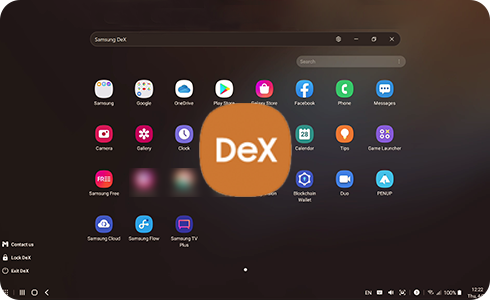
This guide follows Samsung support instructions to help you set up and use Samsung DeX on a TV, monitor, tablet, or PC.
Use Samsung DeX on a tablet.
- Open the Notifications panel and tap the DeX icon to start DeX mode on the tablet screen.
- Connect your tablet to a TV or monitor using a compatible cable to use DeX on a larger display.
- Open the Notifications panel, long press the DeX icon, and select a wireless display to connect.
Wirelessly connect Samsung DeX to a TV or monitor.
- Open the quick settings panel and tap the DeX button to turn it on.
- Select DeX on TV or monitor.
- Choose the TV or monitor from the available devices and tap Start now.
- Accept the connection request on the TV or monitor.
- Follow the on-screen instructions until the DeX screen appears.
Wirelessly connect Samsung DeX to a PC
- Open the Notifications panel and tap the DeX button.
- Select DeX on PC.
- Choose the PC from the list and tap Start now.
- Accept the connection request on the PC.
- Follow the on-screen instructions until the DeX screen appears.
Notes
- You can connect Samsung DeX using a cable with supported accessories such as DeX Station, DeX Pad, or compatible HDMI adapters.
- Wireless performance may vary depending on your network, distance, and device compatibility.
- For best performance, connect both devices to the same 5 GHz Wi-Fi network.
- Your PC must meet minimum system requirements and have Samsung DeX installed to use the feature.
Thank you for your feedback!
Please answer all questions.