What to do if SmartThings fails to add your Samsung TV
Last Update date : Apr 28. 2026
If SmartThings cannot add your Samsung TV, it is usually due to network issues, account mismatch, or unsupported models. Follow these steps to fix the problem.
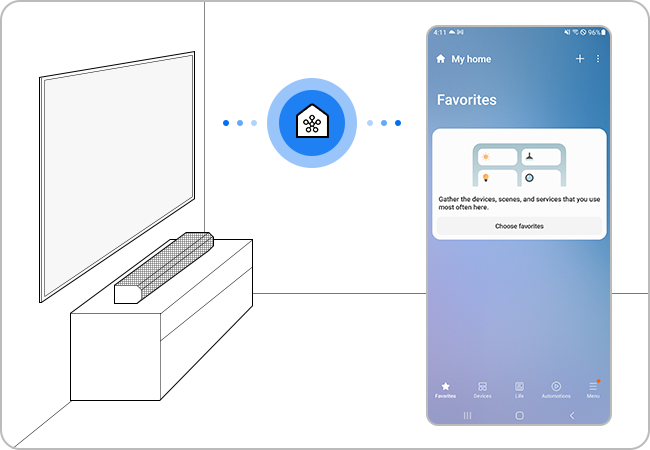
Check the wireless network status
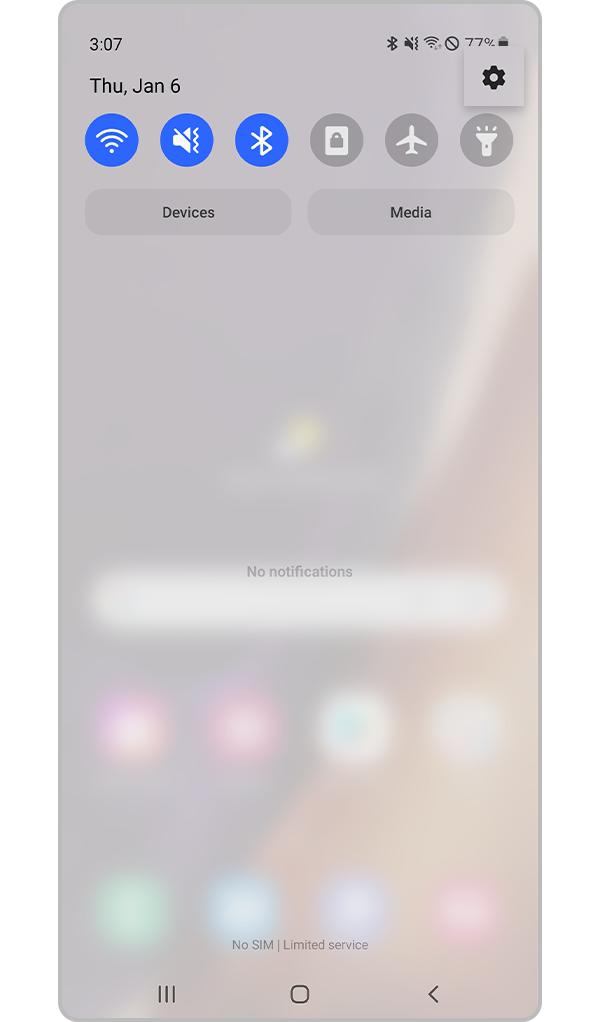
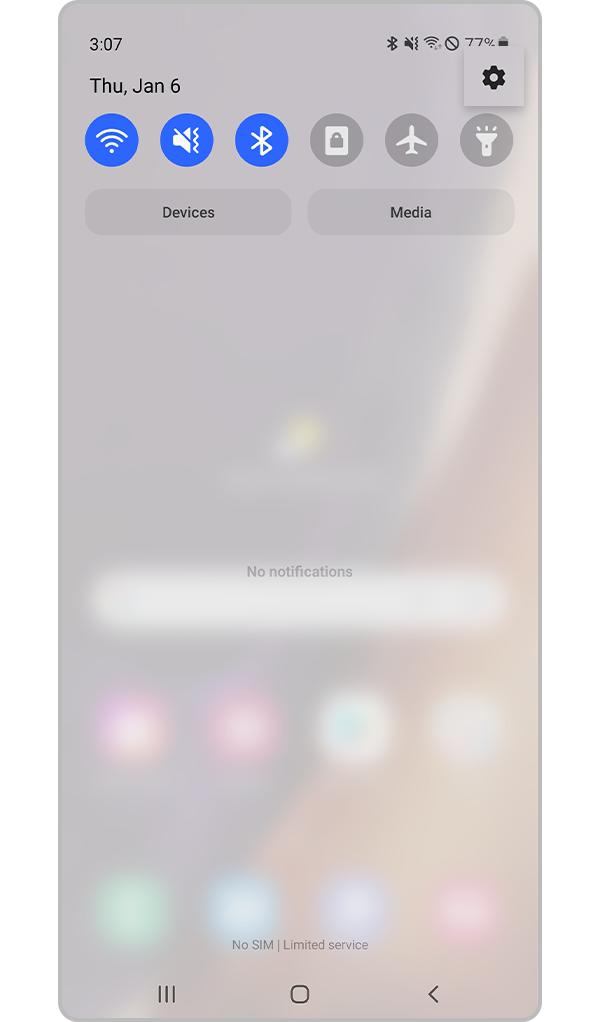
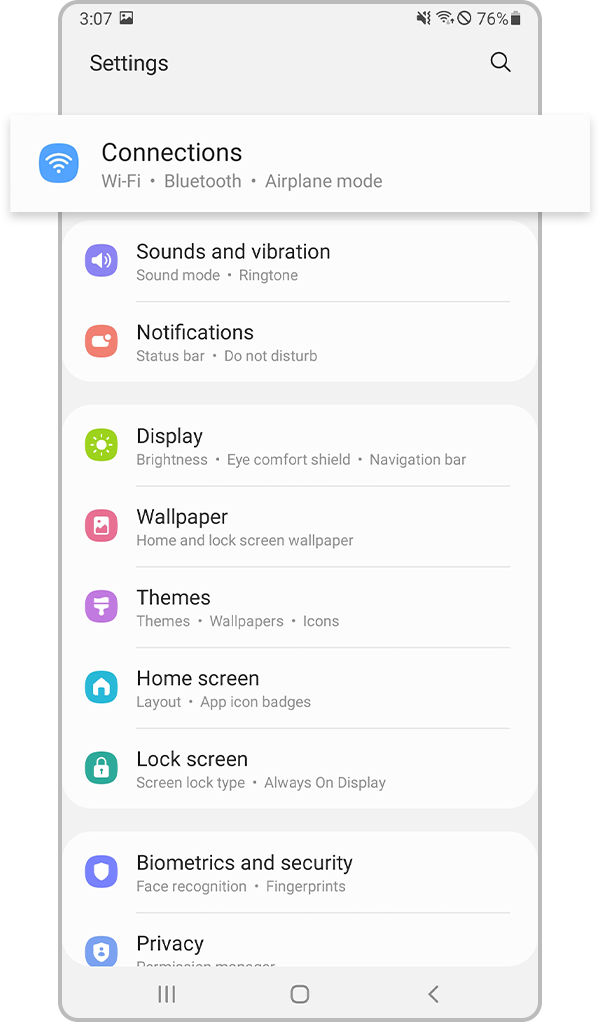
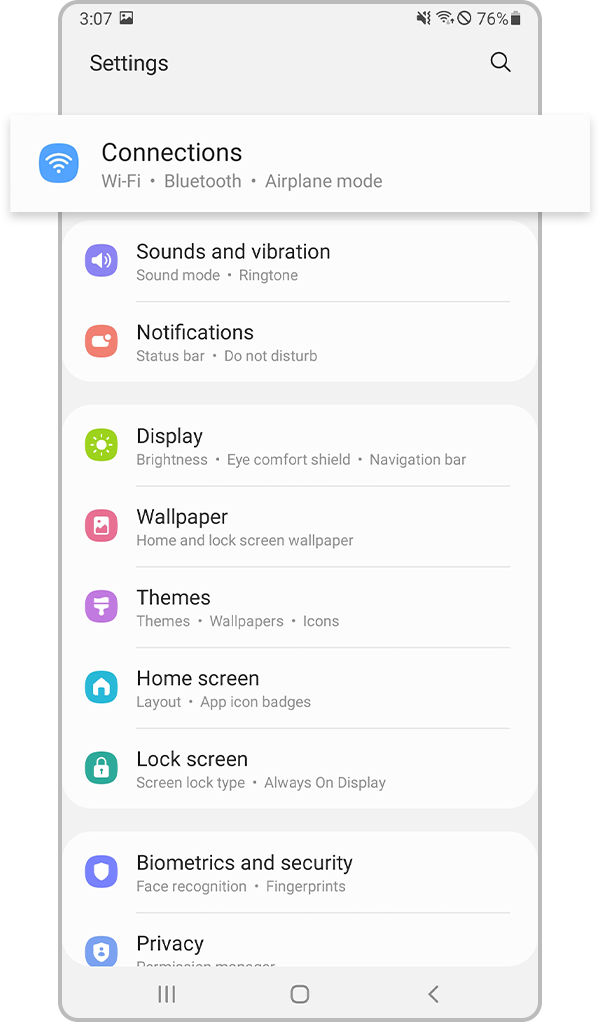
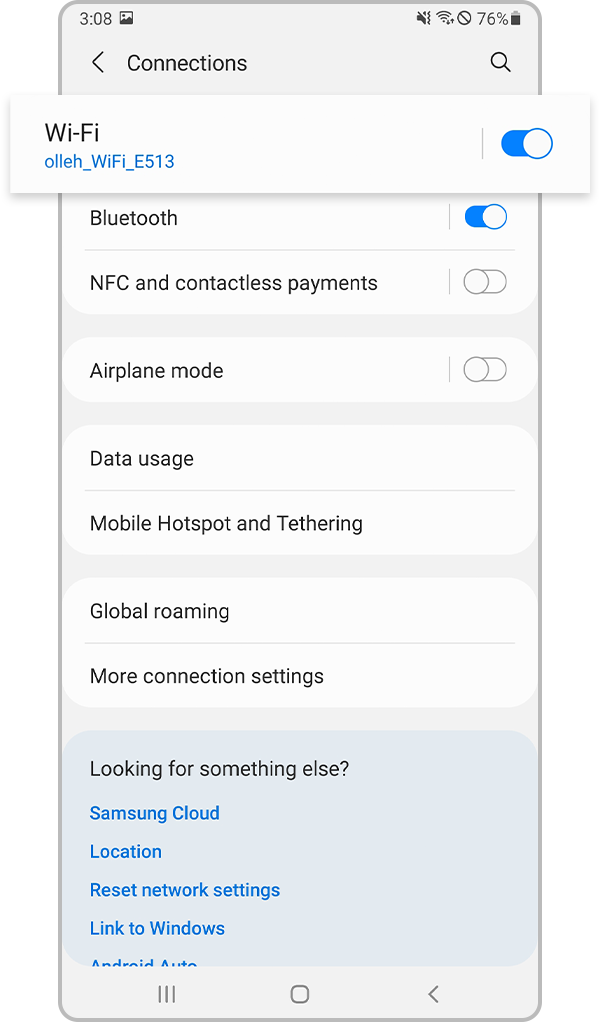
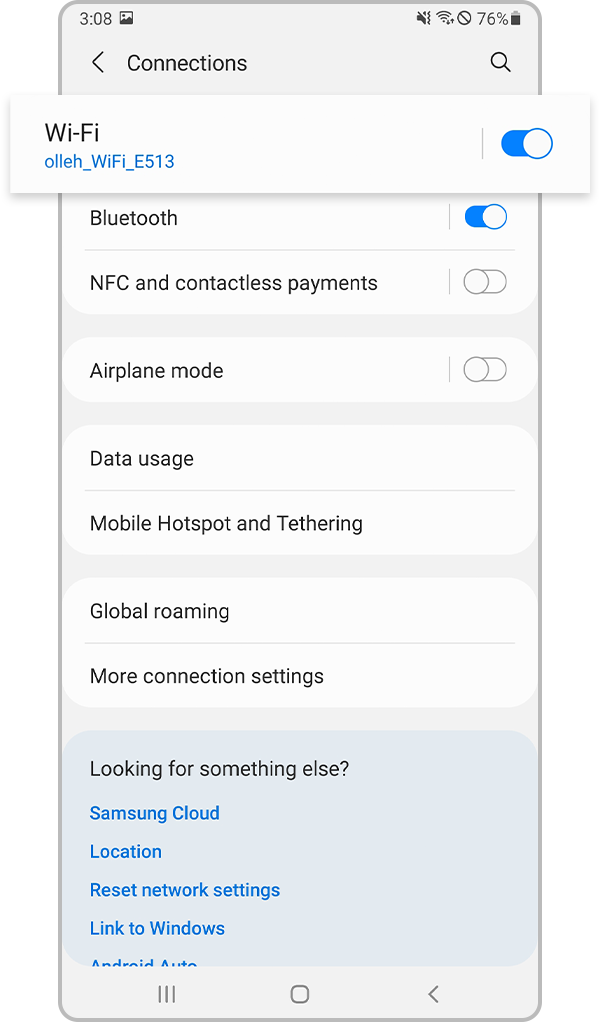
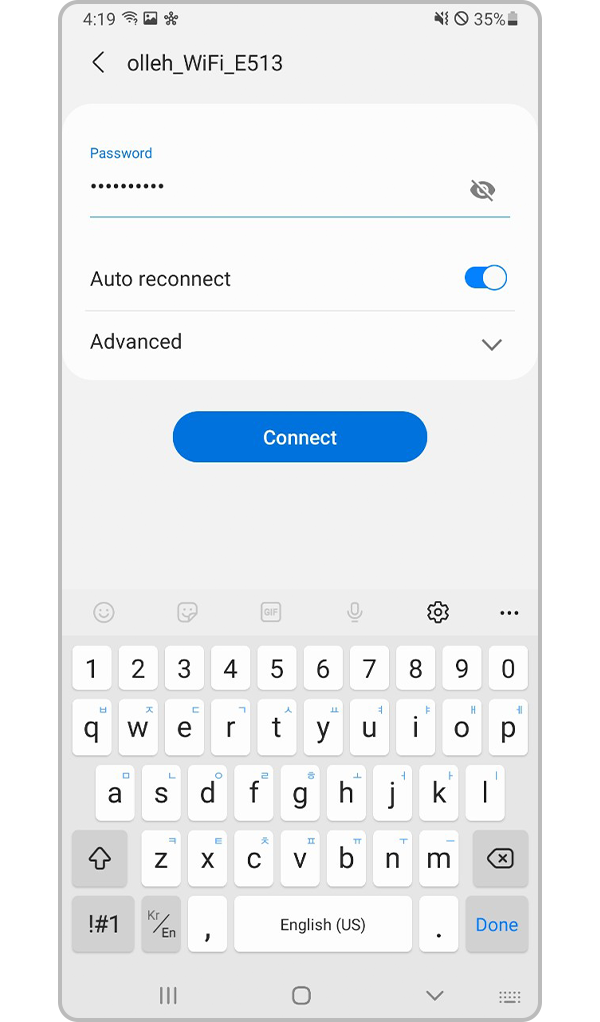
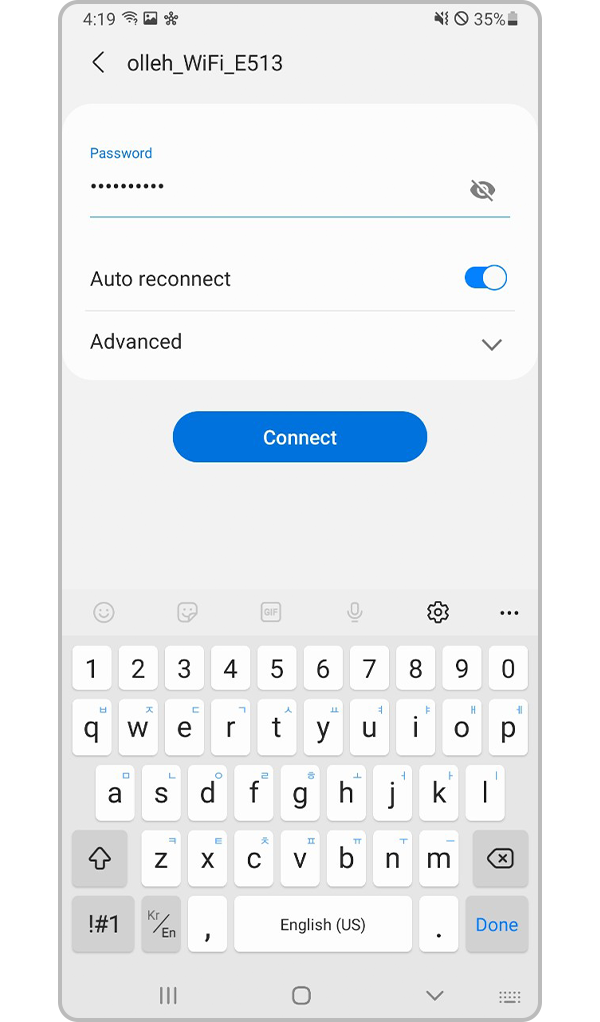
Note:
- If more than 10 devices are connected to the router, the registration may fail.
- If the router and the TV are far apart, the communication may not be smooth and registration may fail.
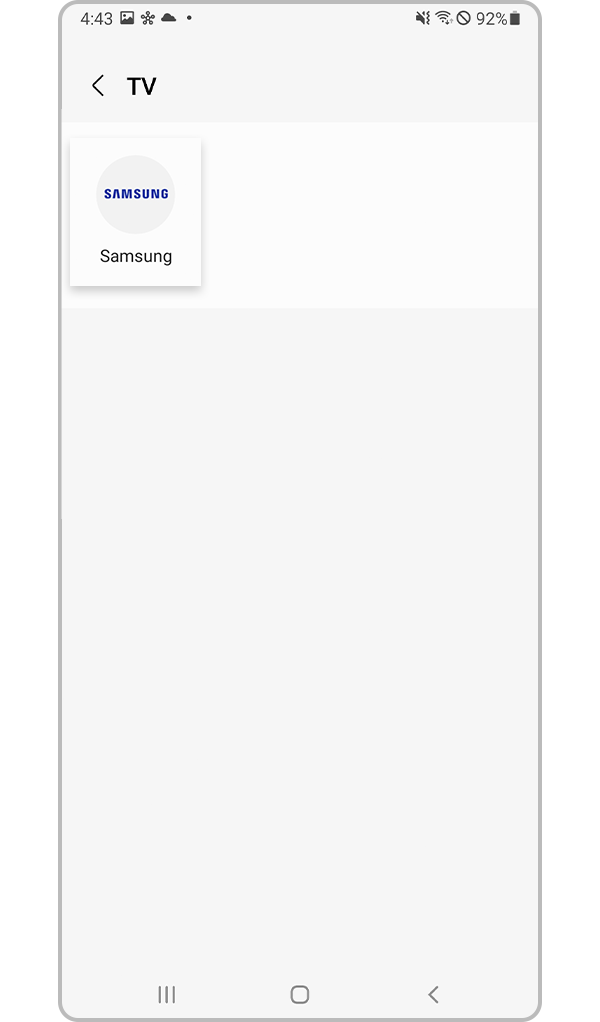
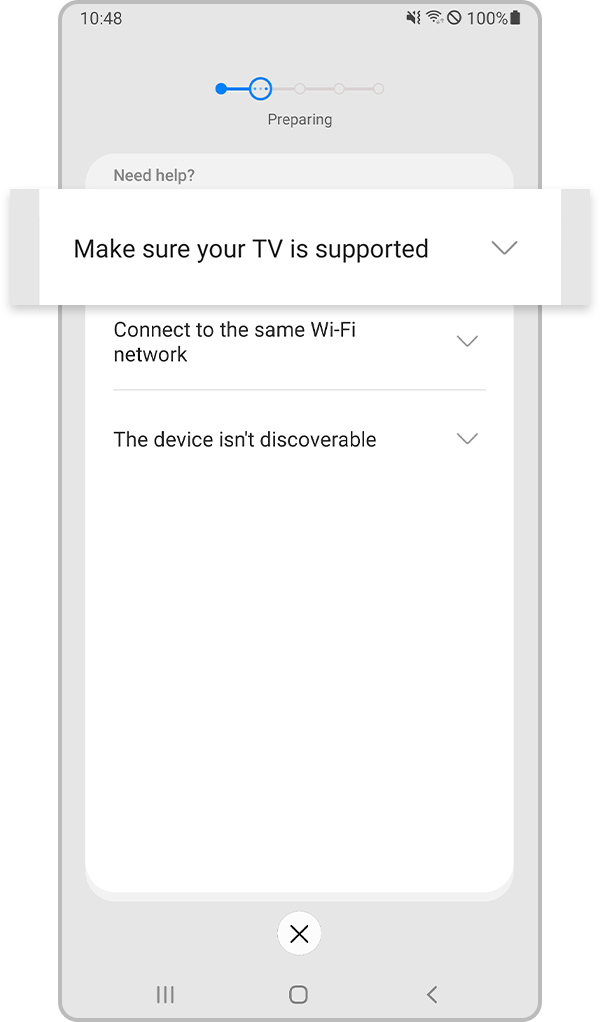
Method 1. Check the registration steps
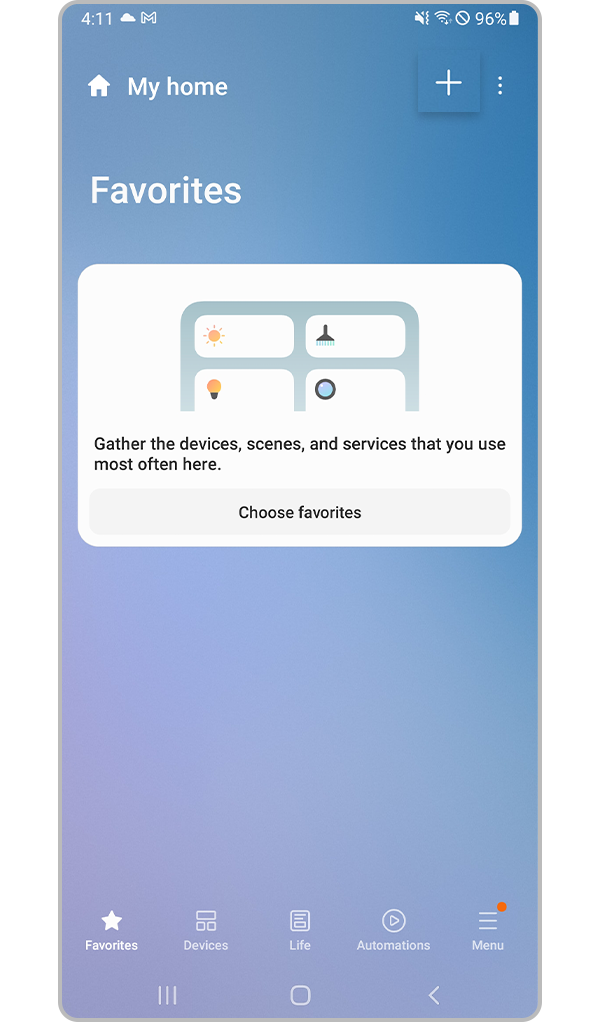
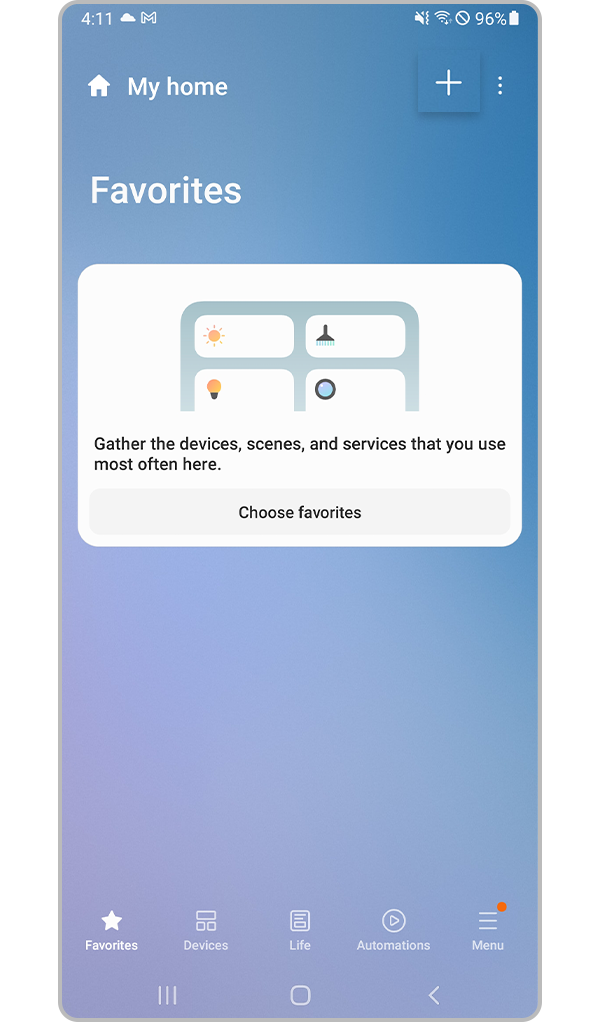
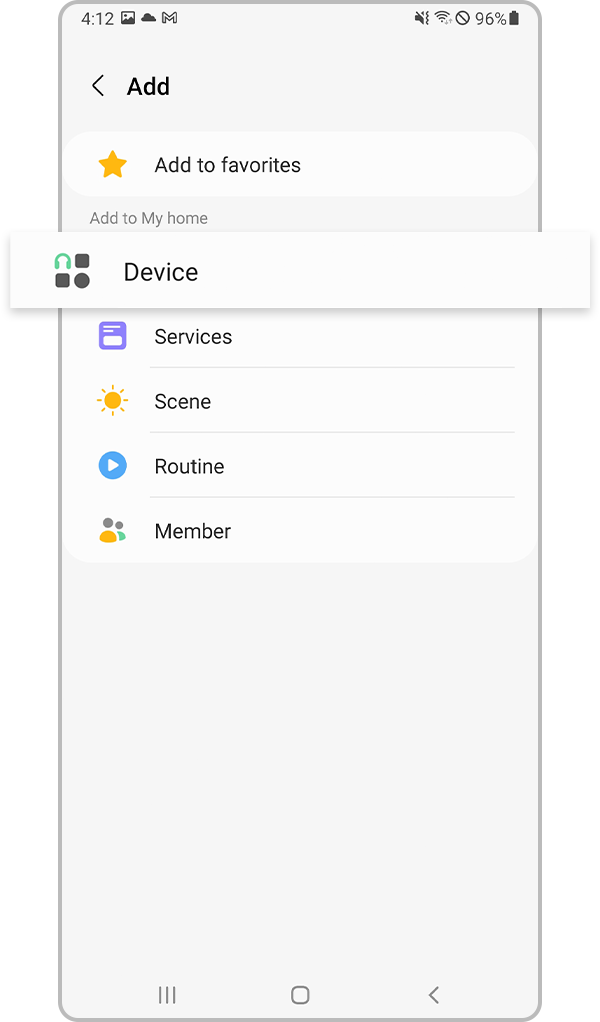
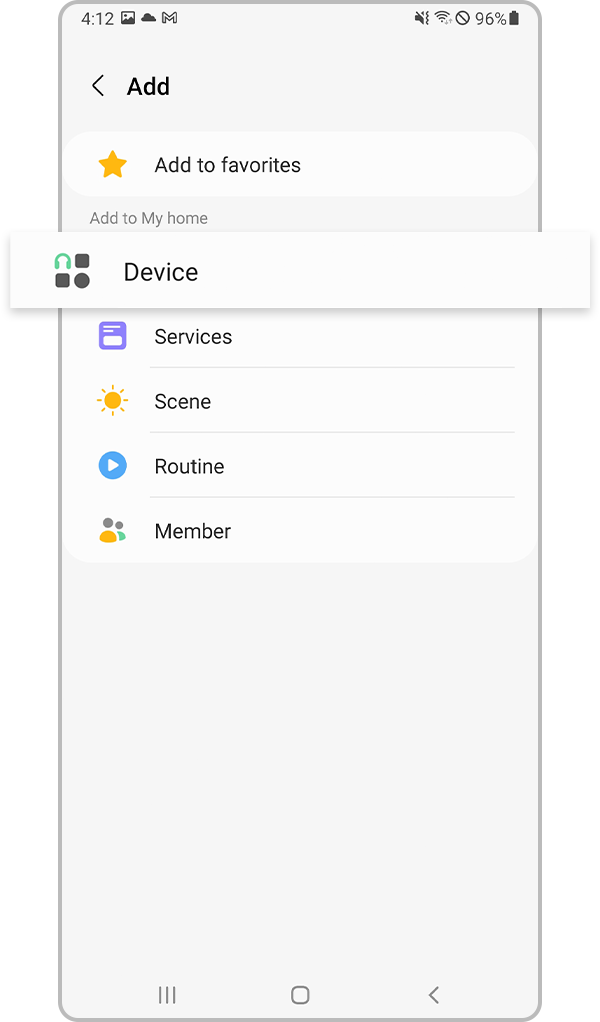
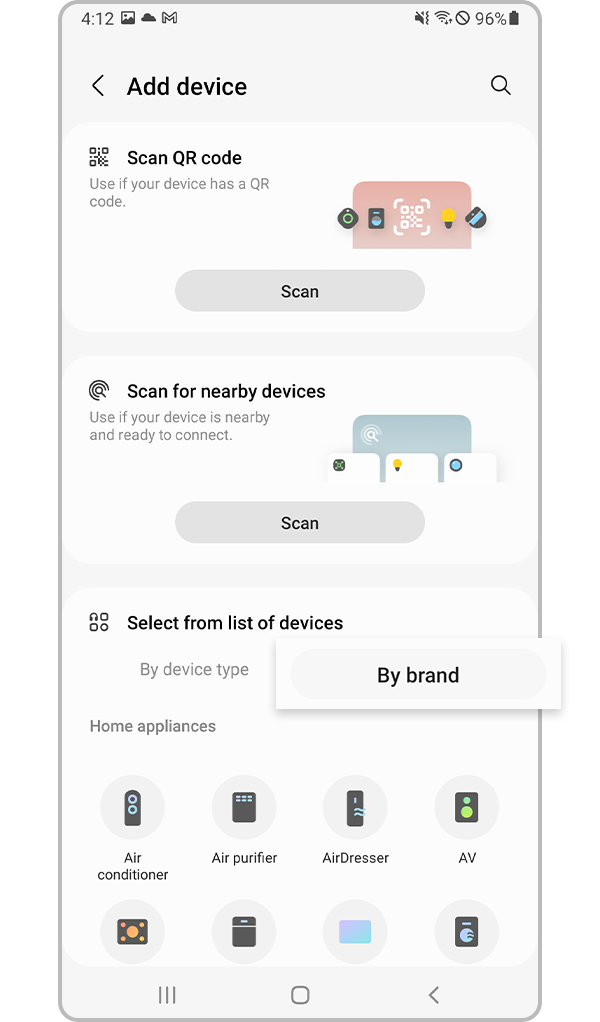
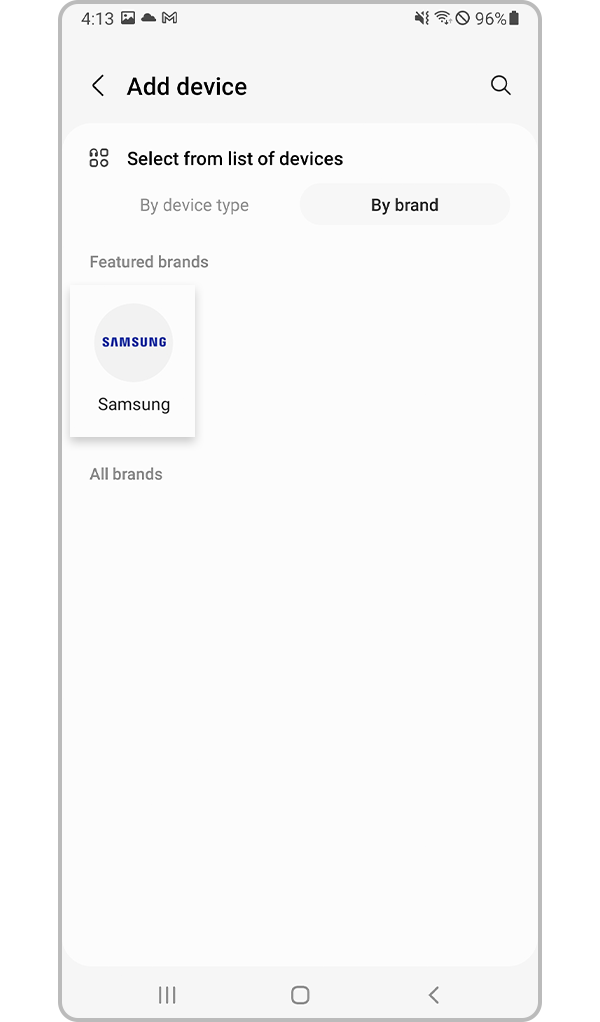
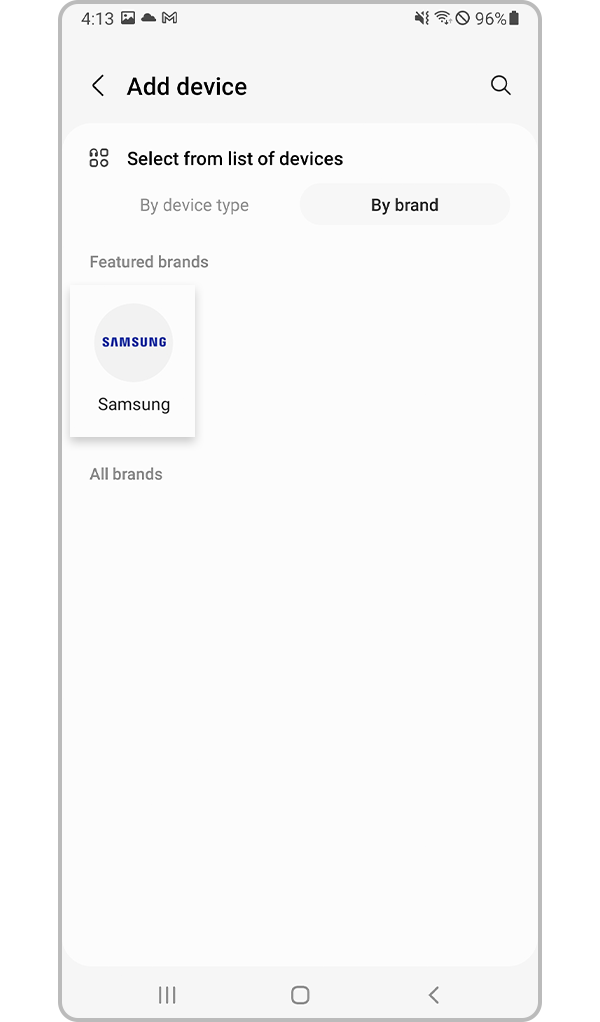
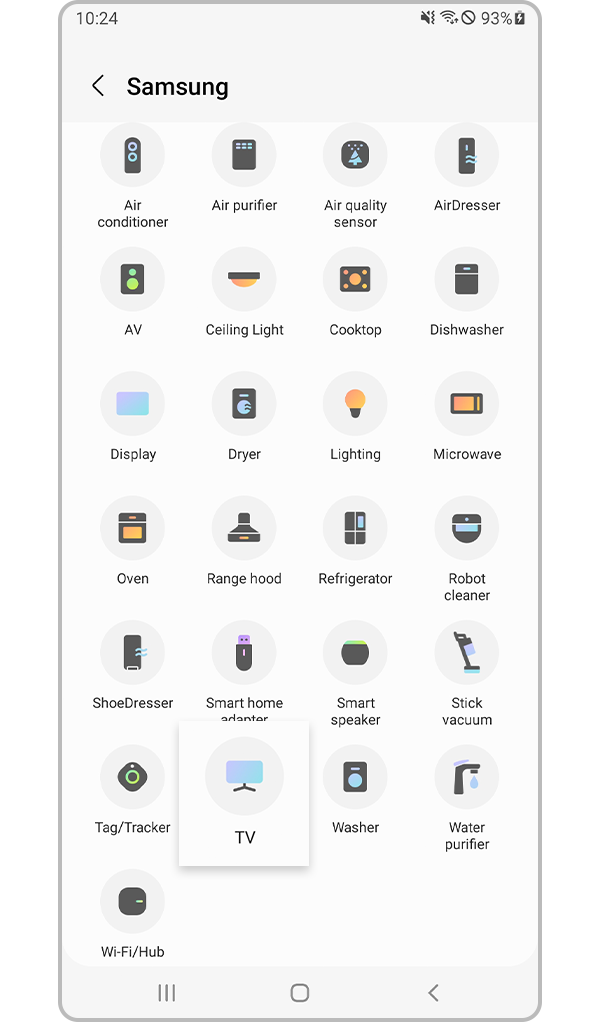
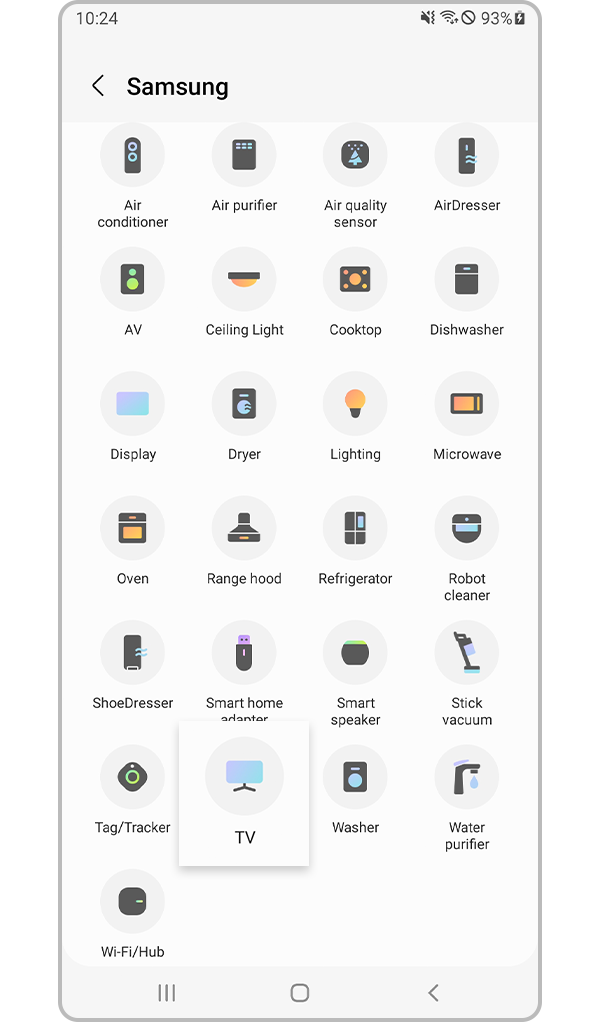
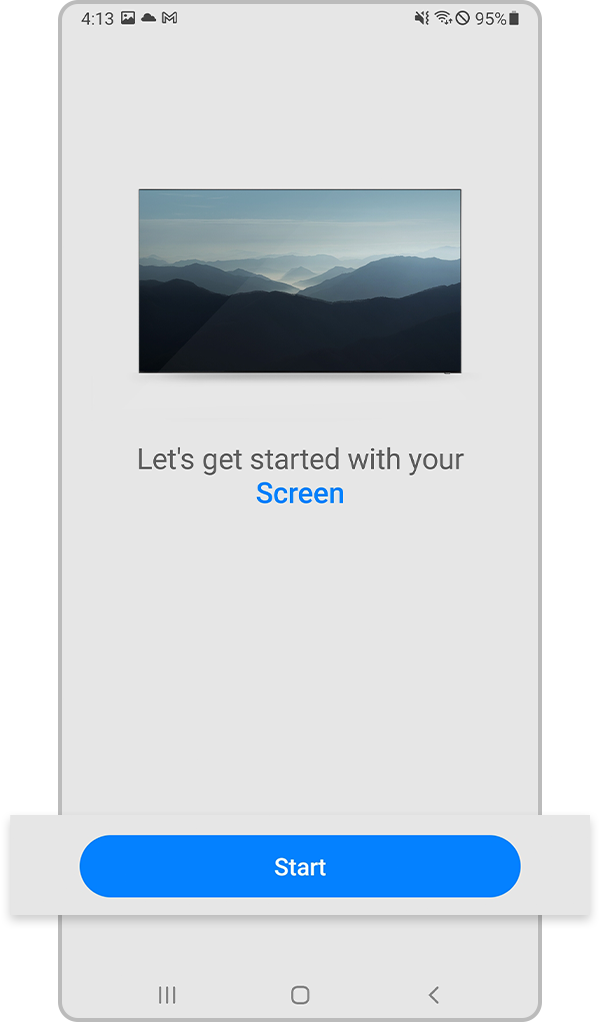
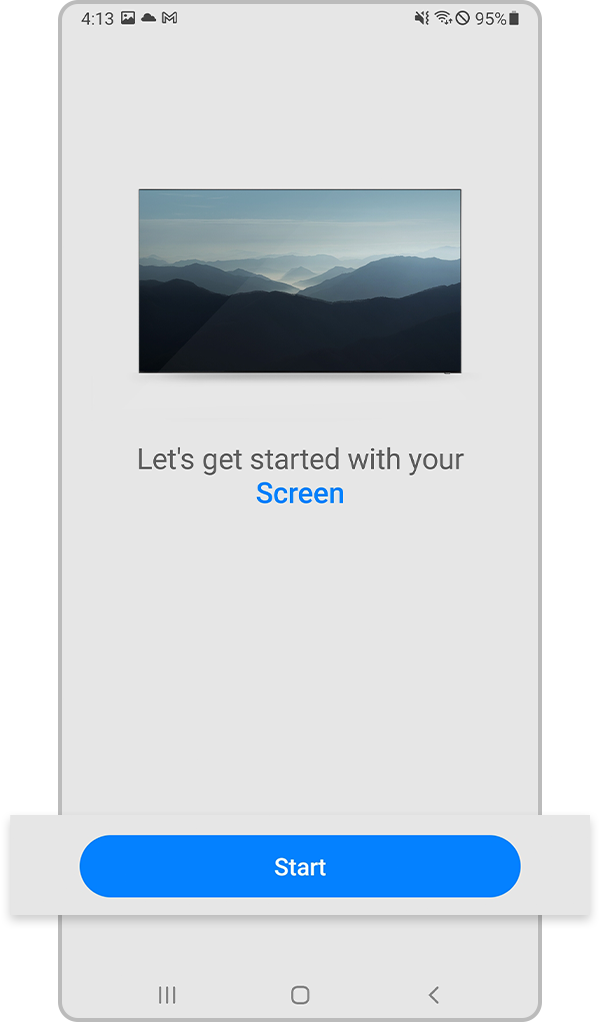
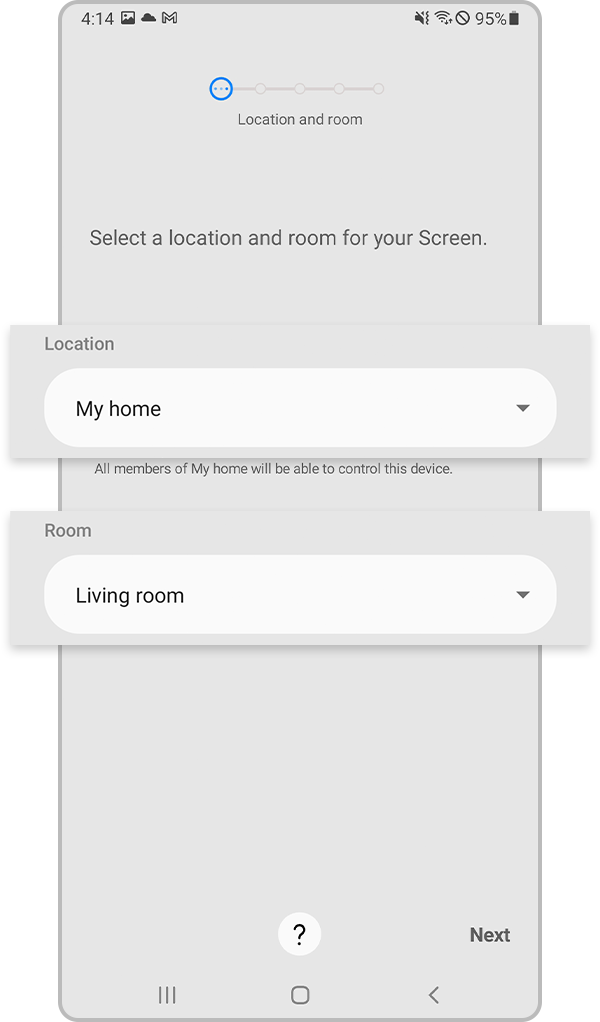
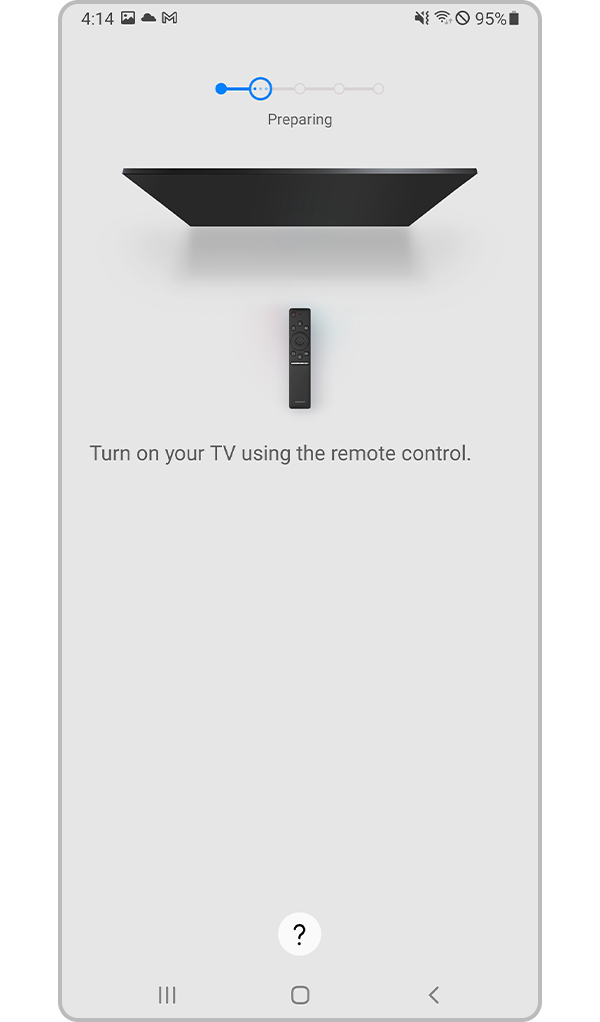
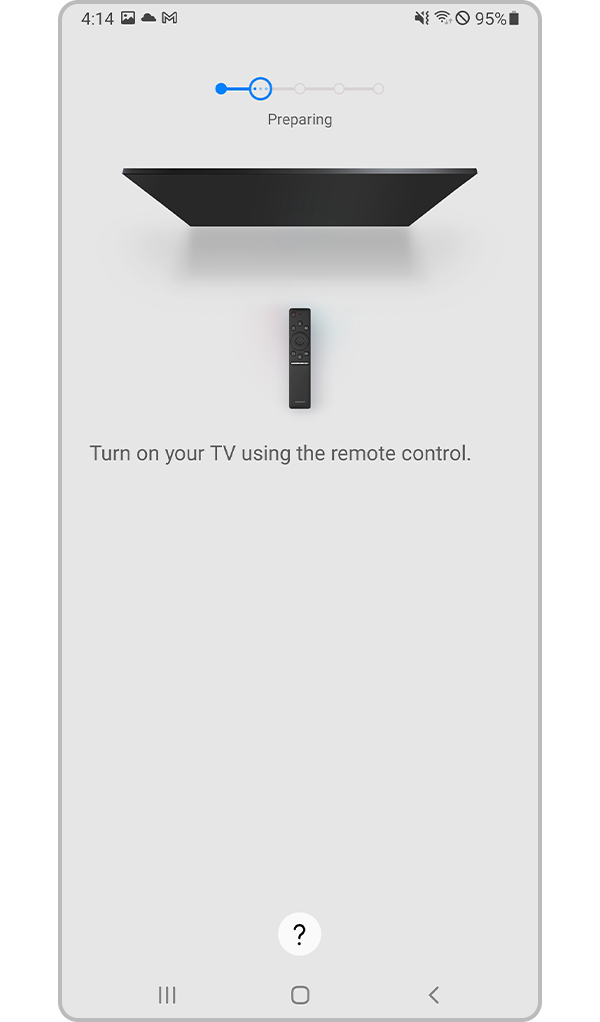
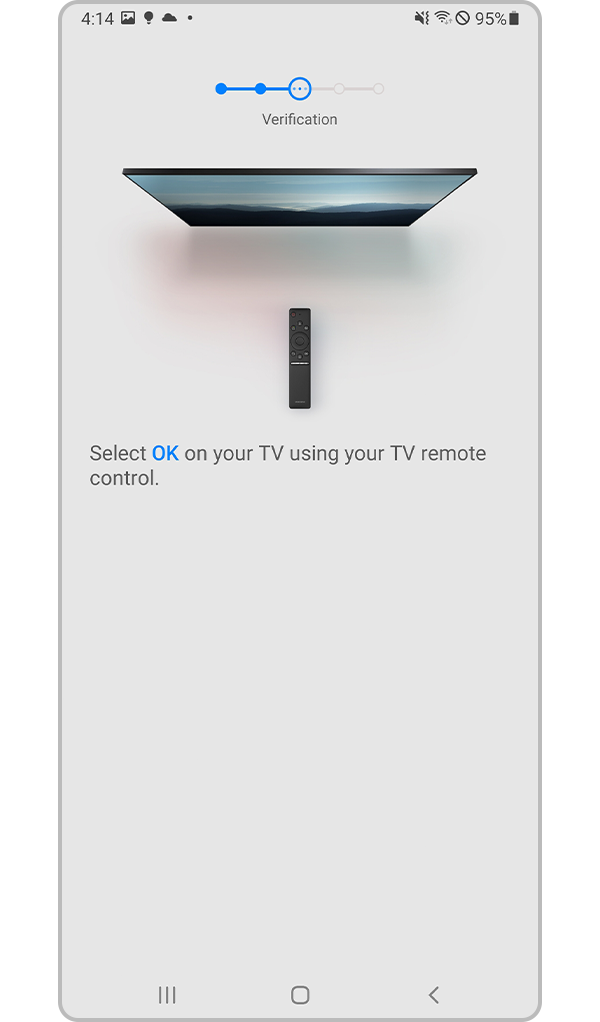
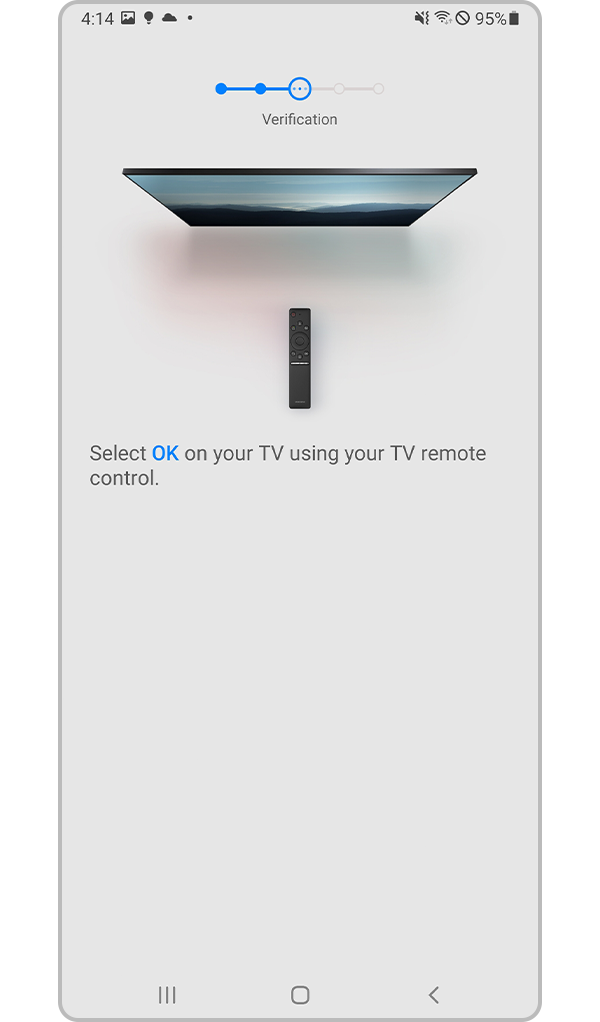
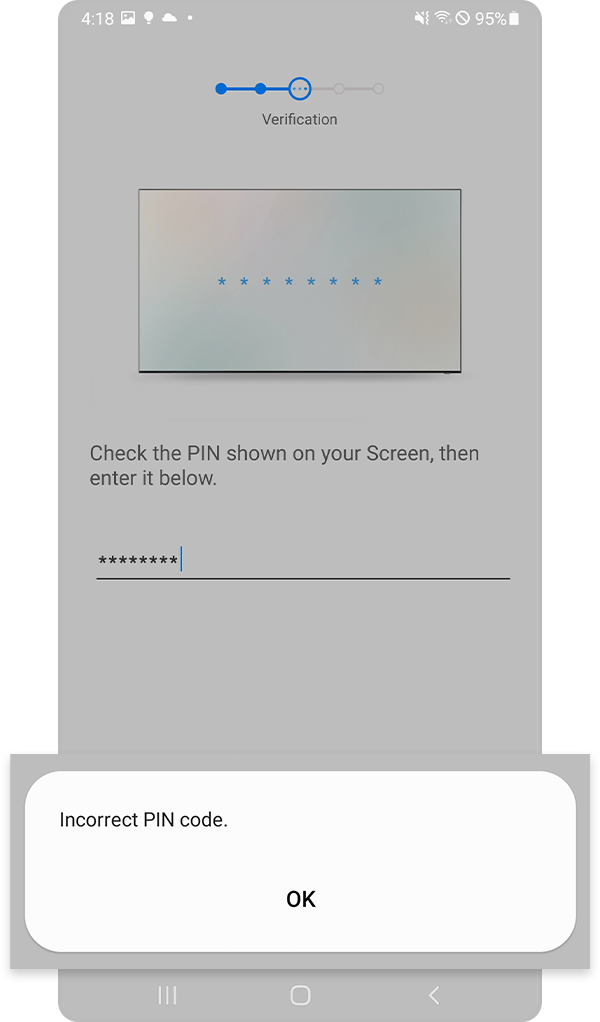
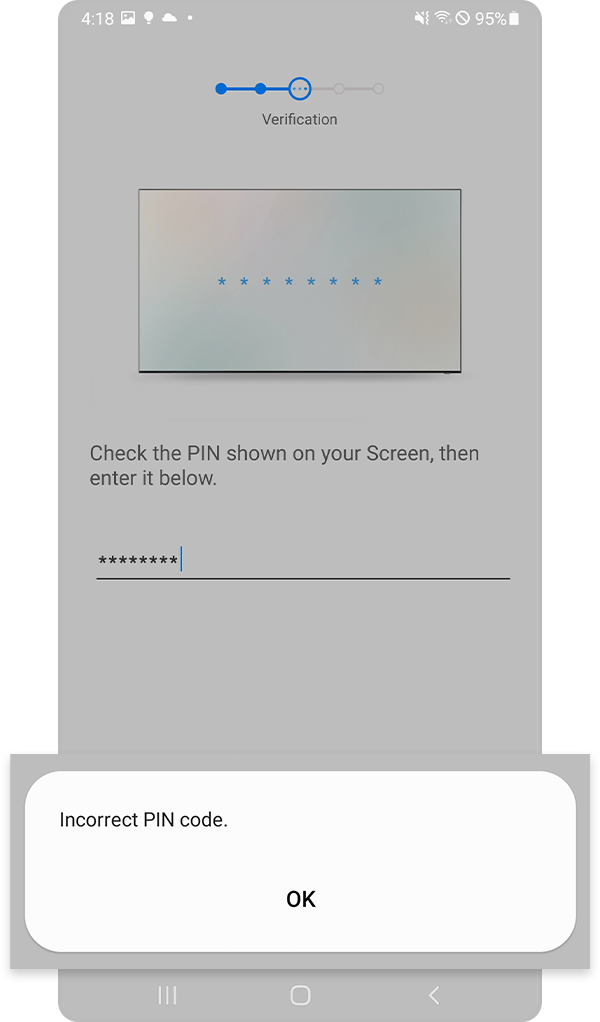
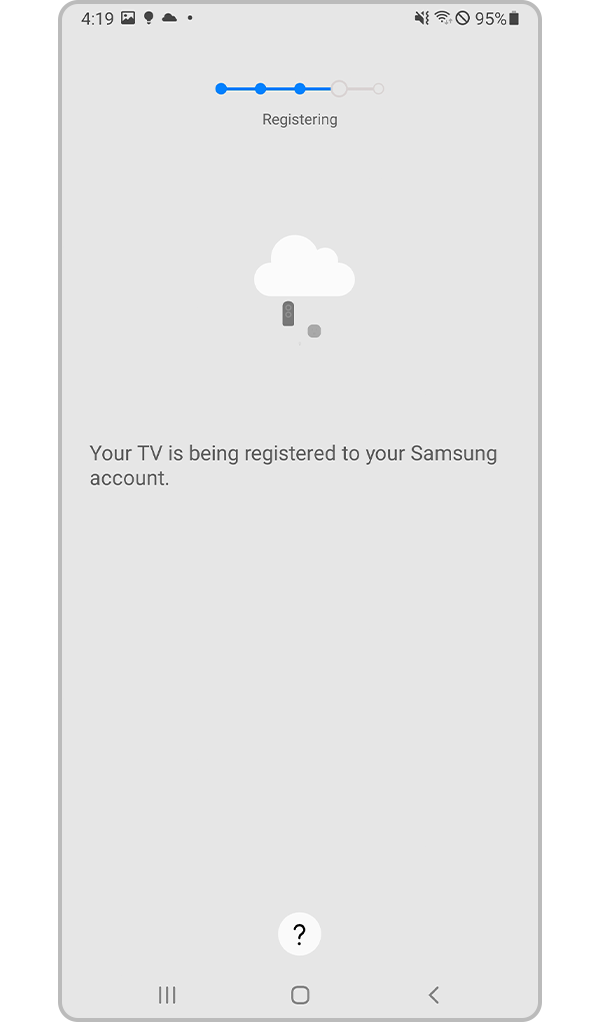
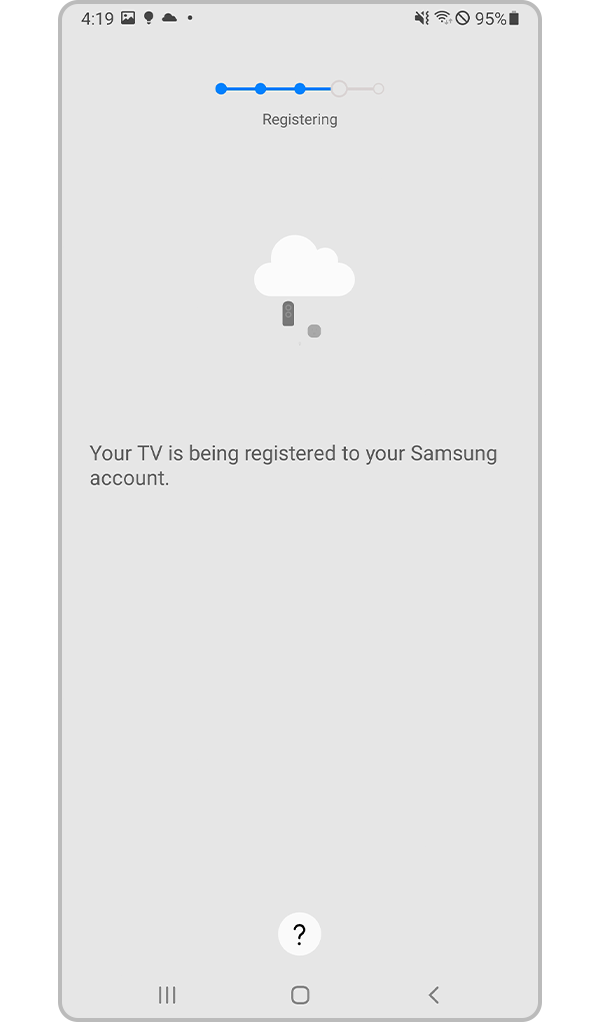
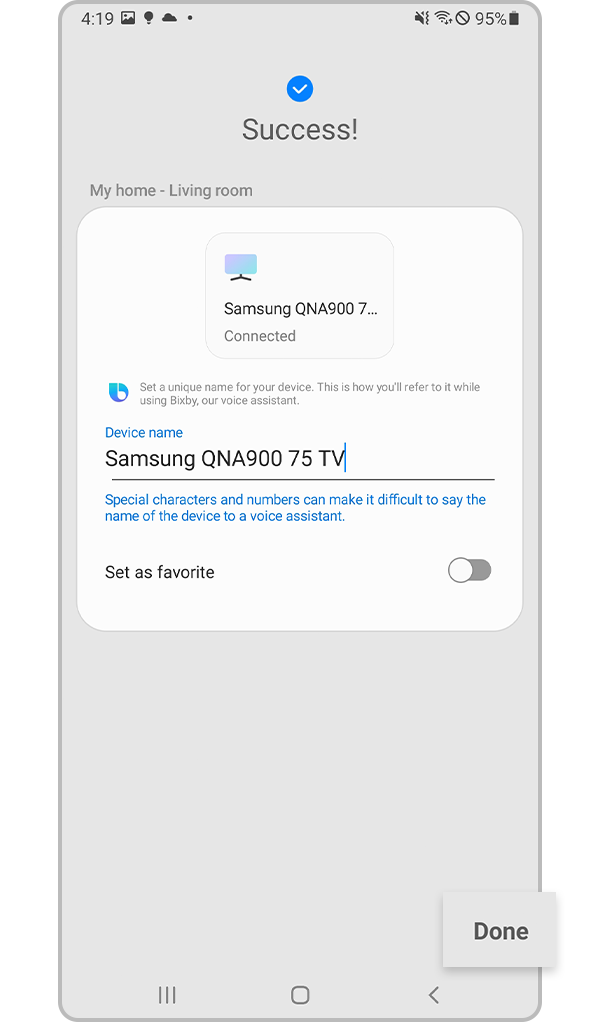
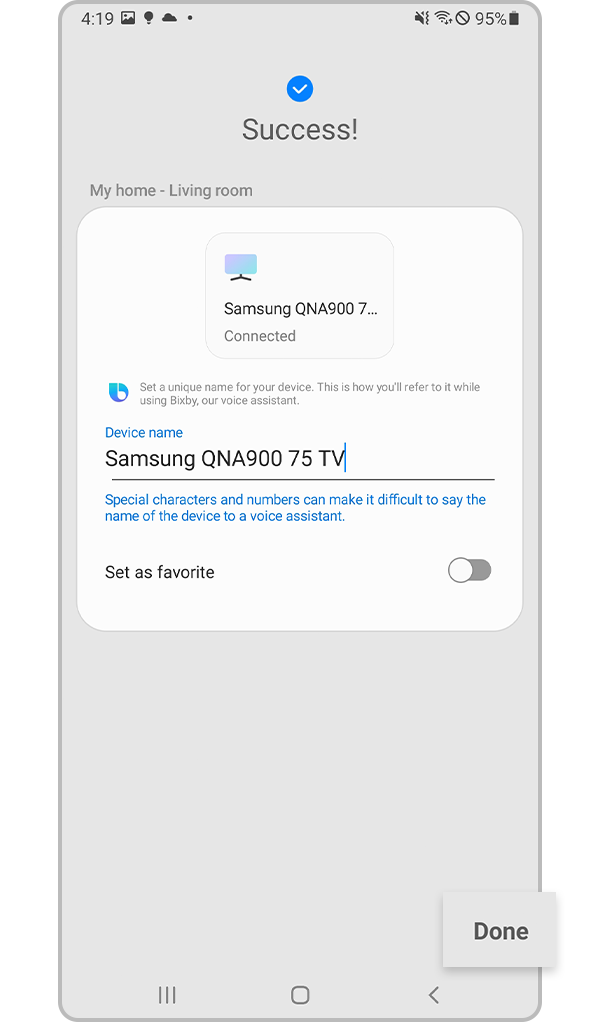
Note:
- Depending on the smartphone model, this name may be different.
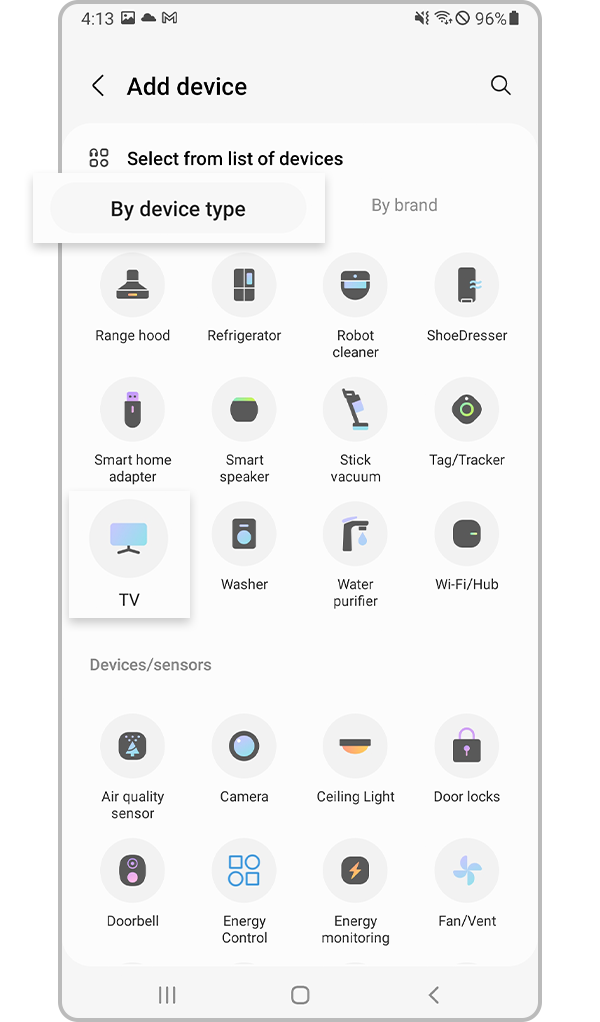
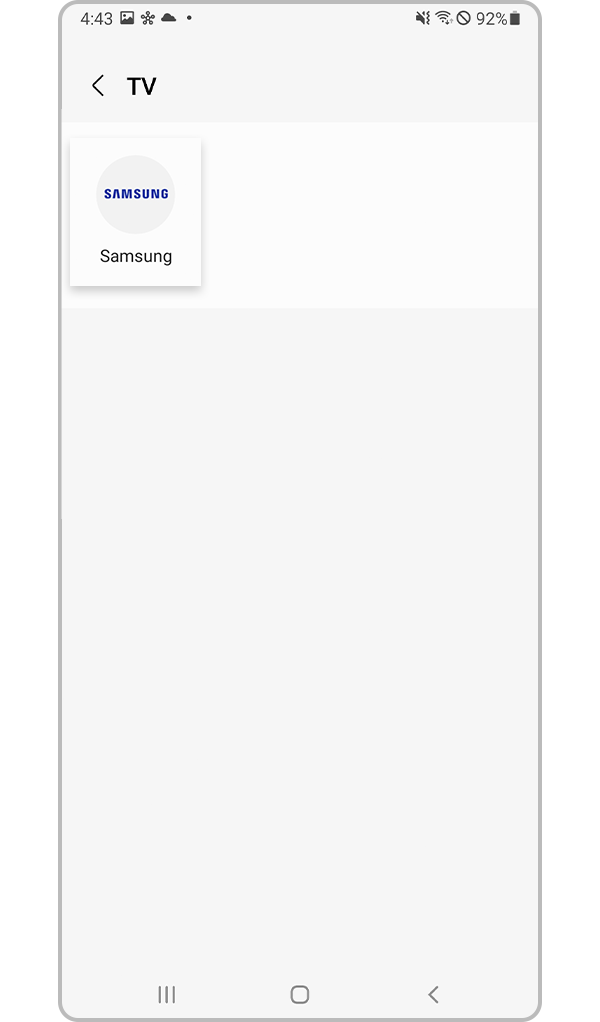
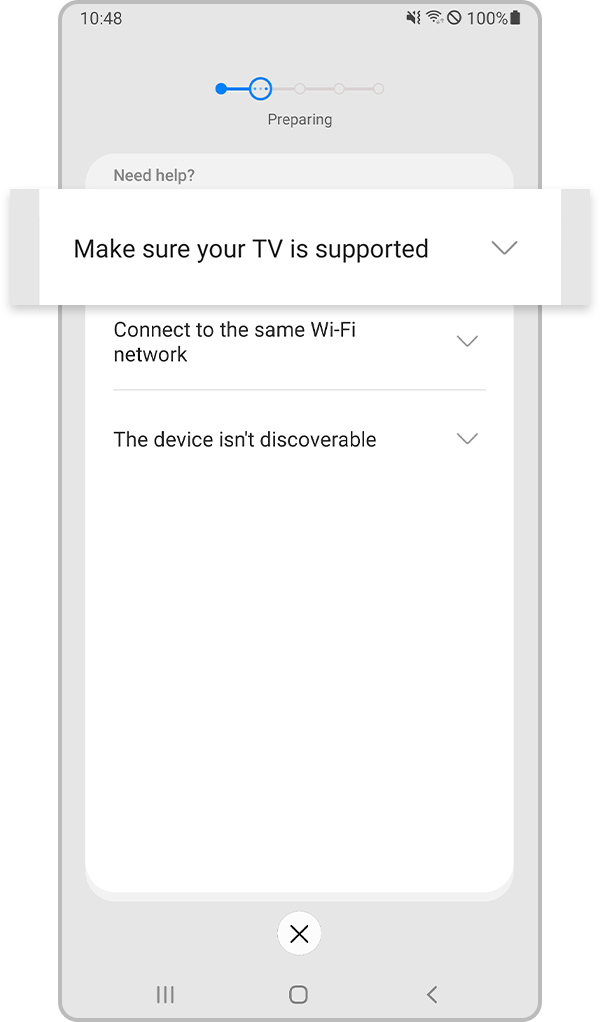
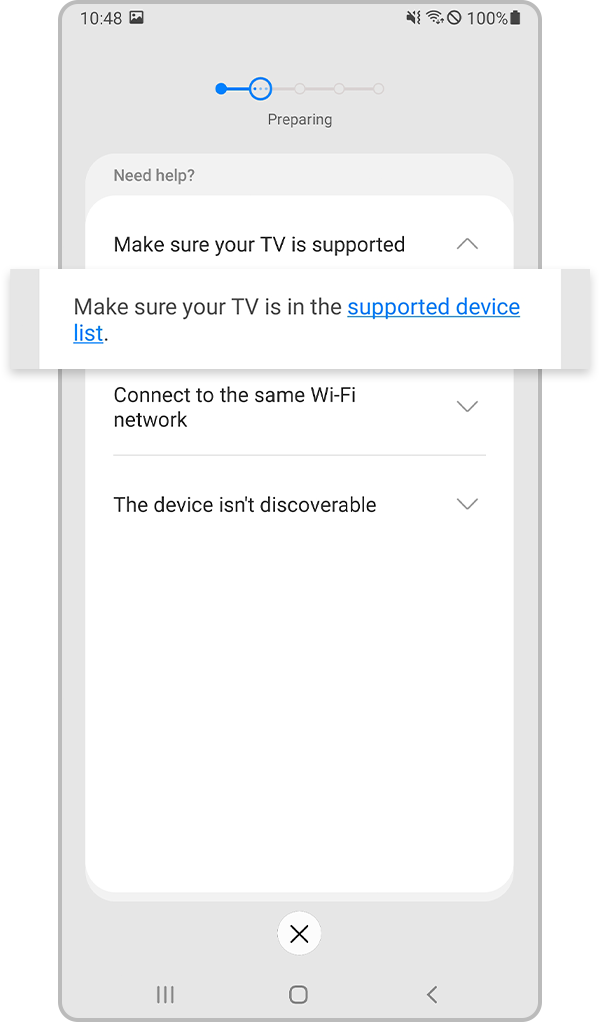
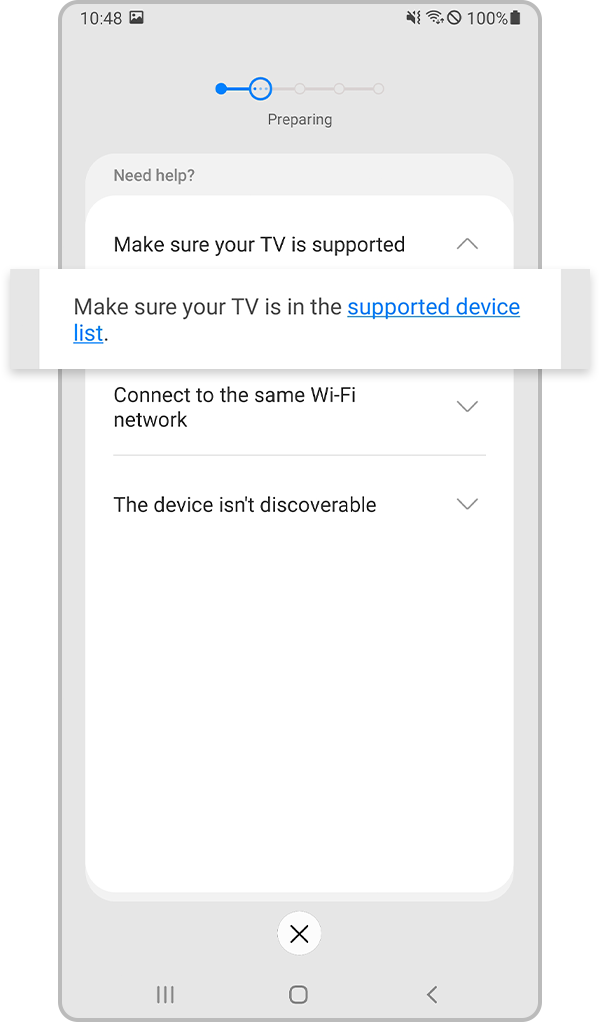
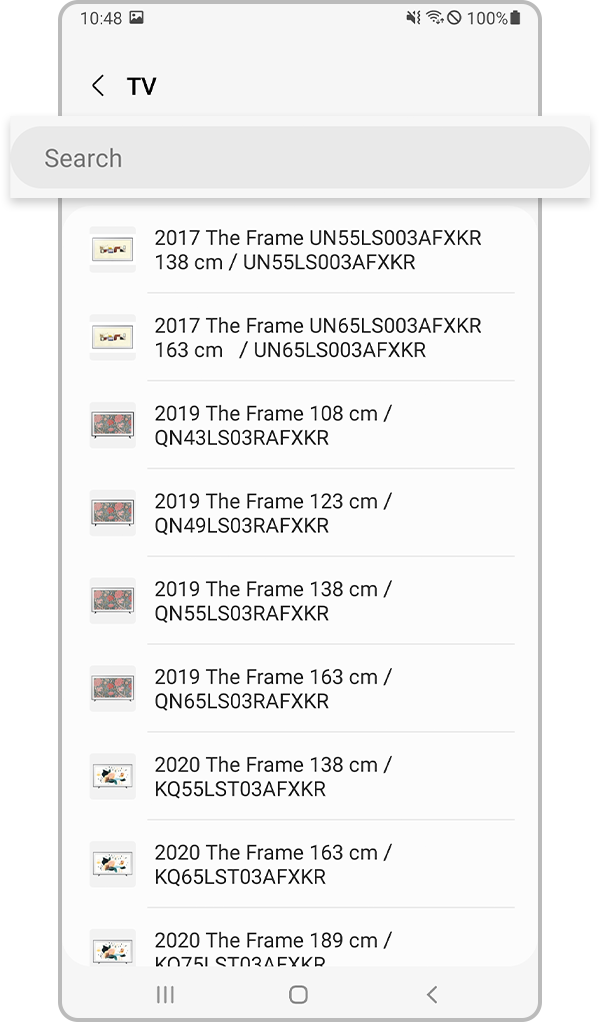
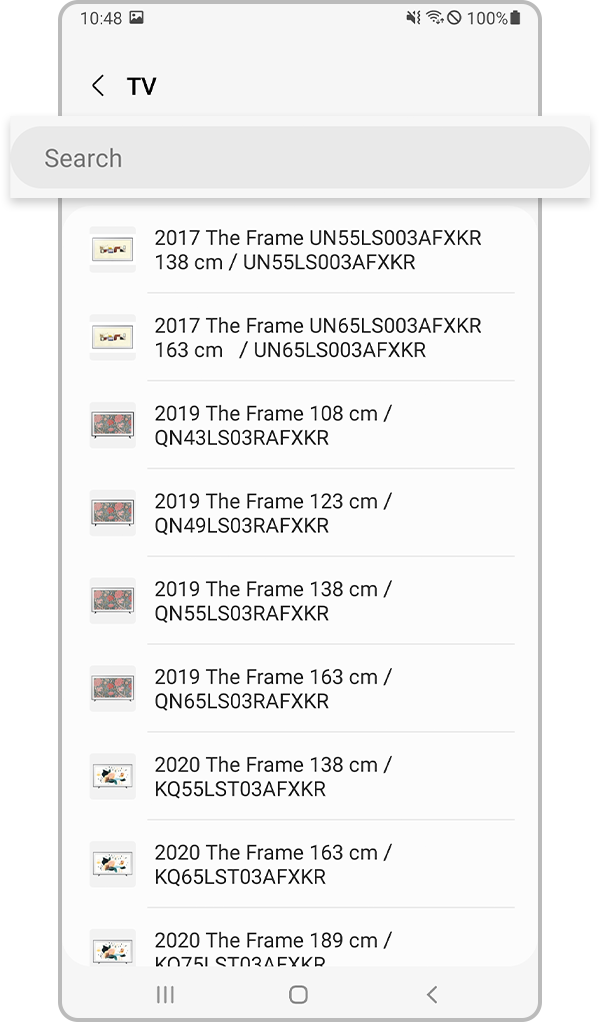
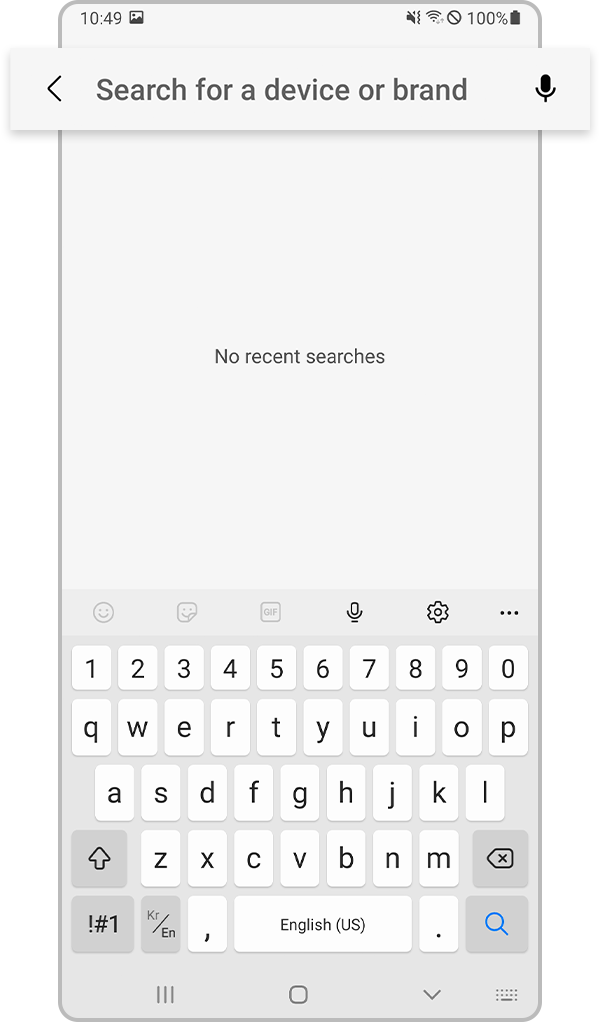
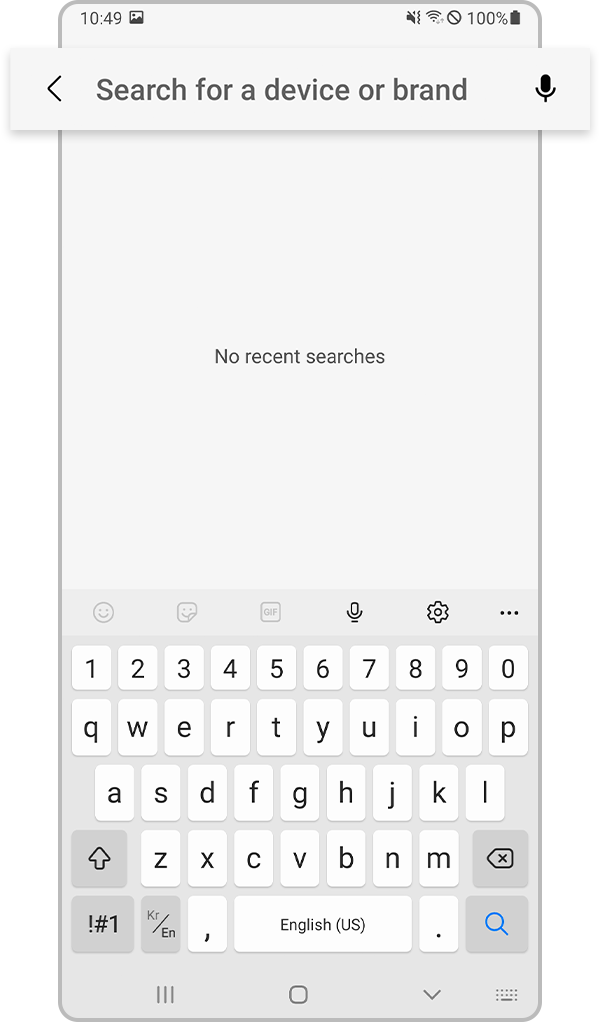
Method 2. Check the supported device list
Make sure that your TV is supported and then try to register the device on the SmartThings app again.
Check for software updates
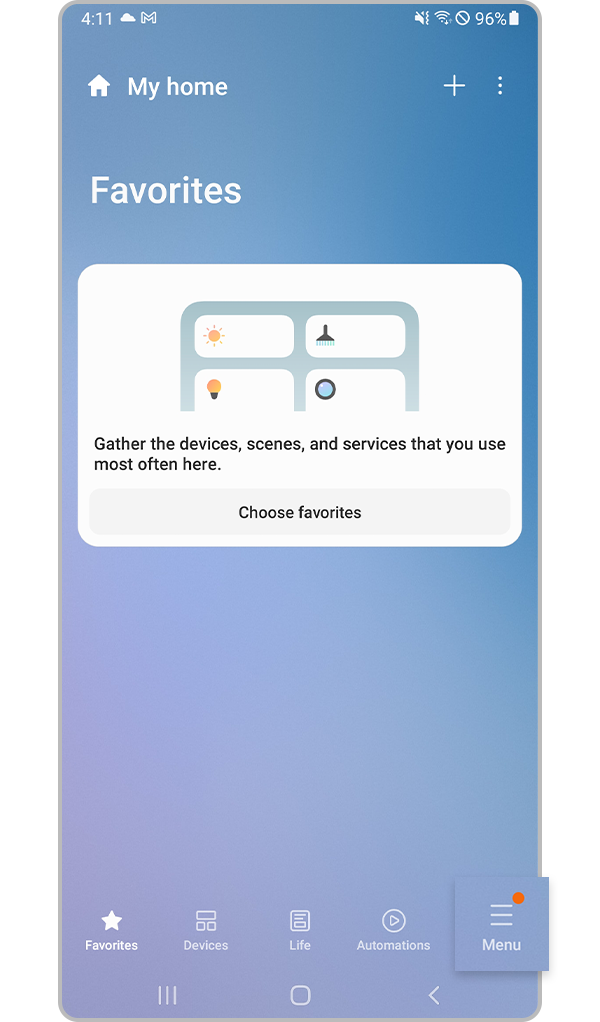
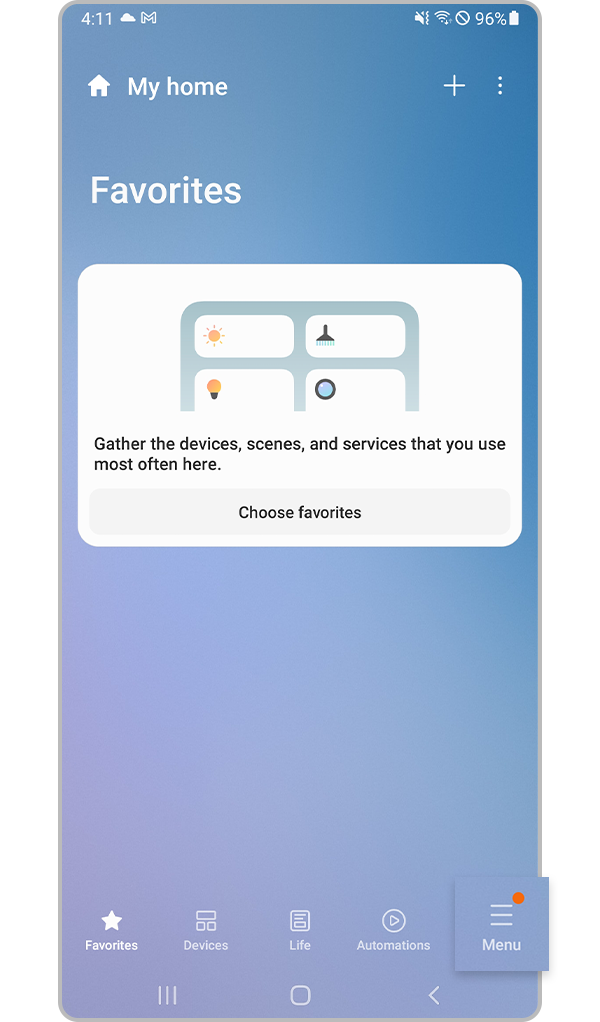
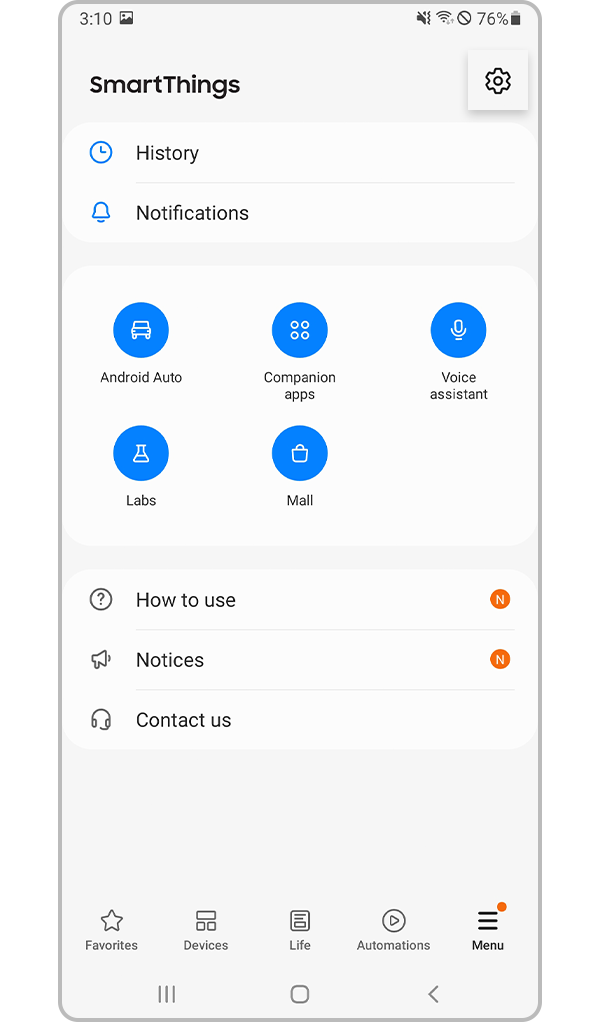
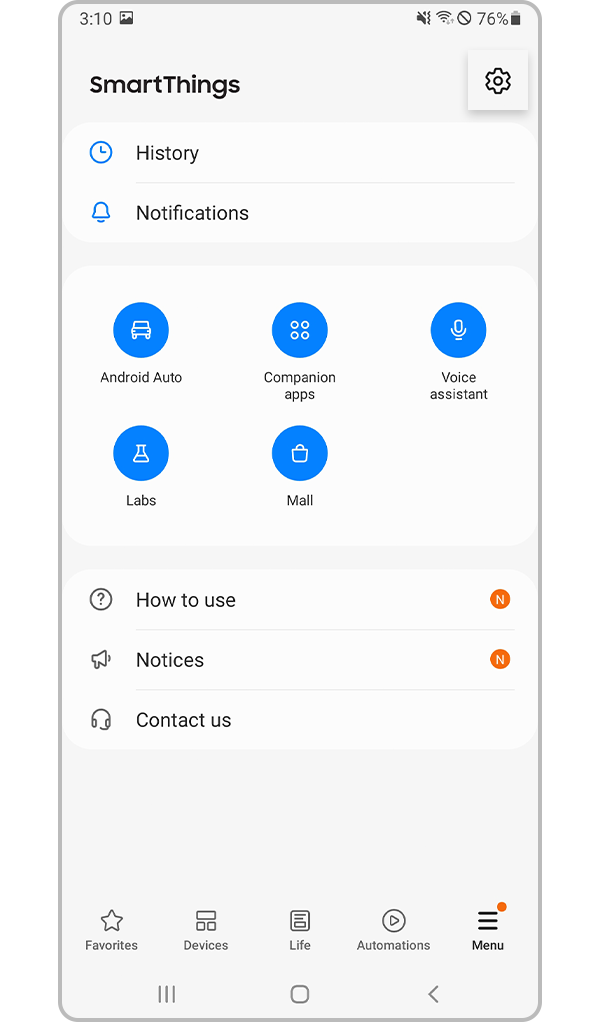
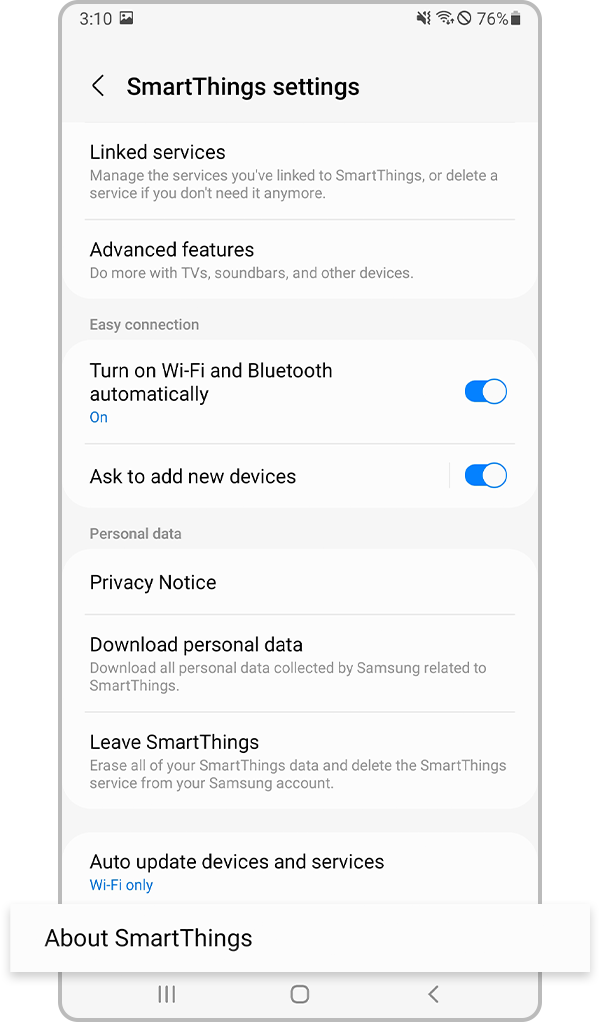
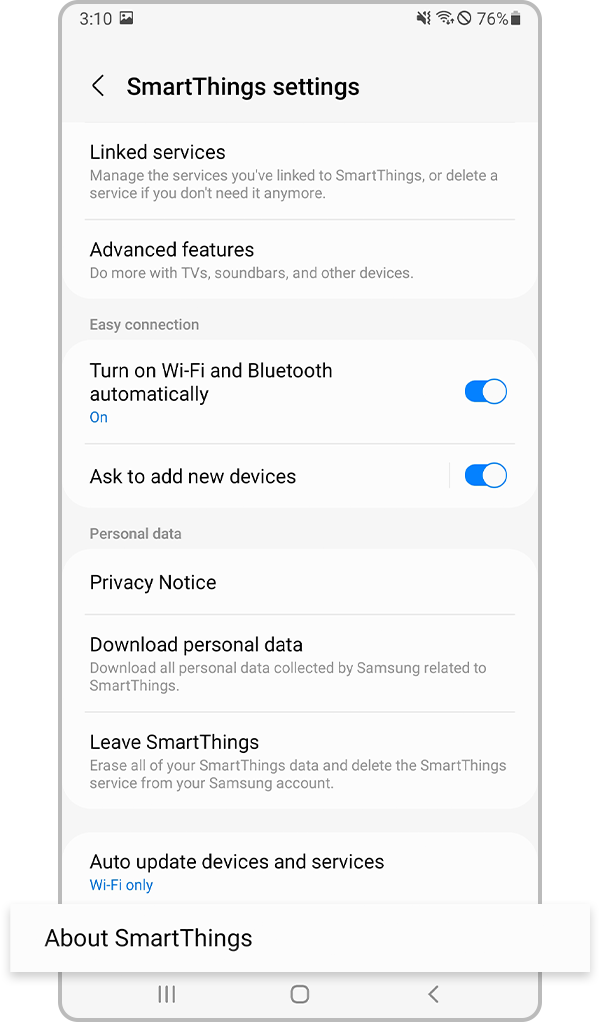
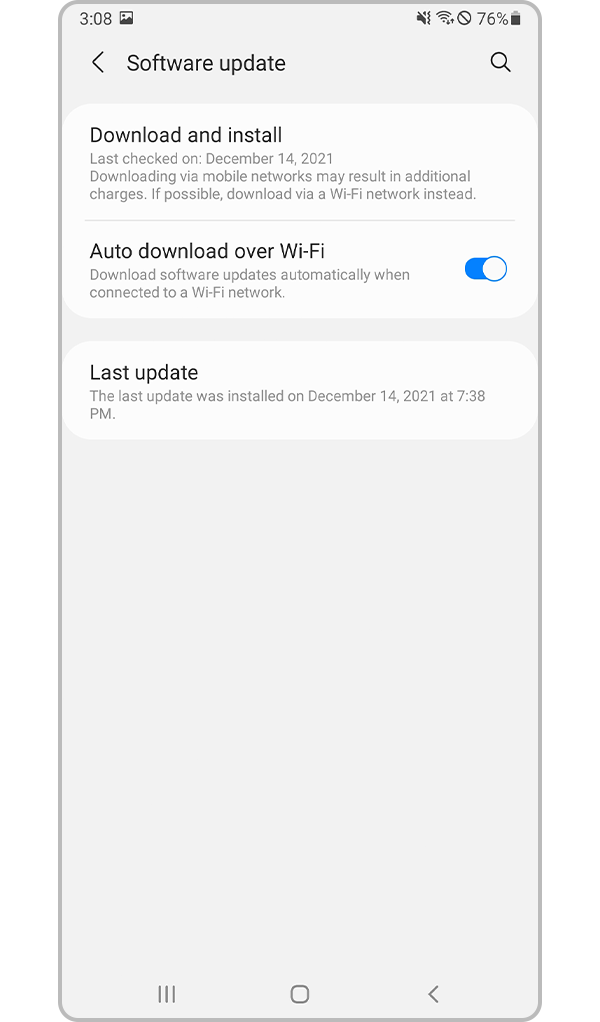
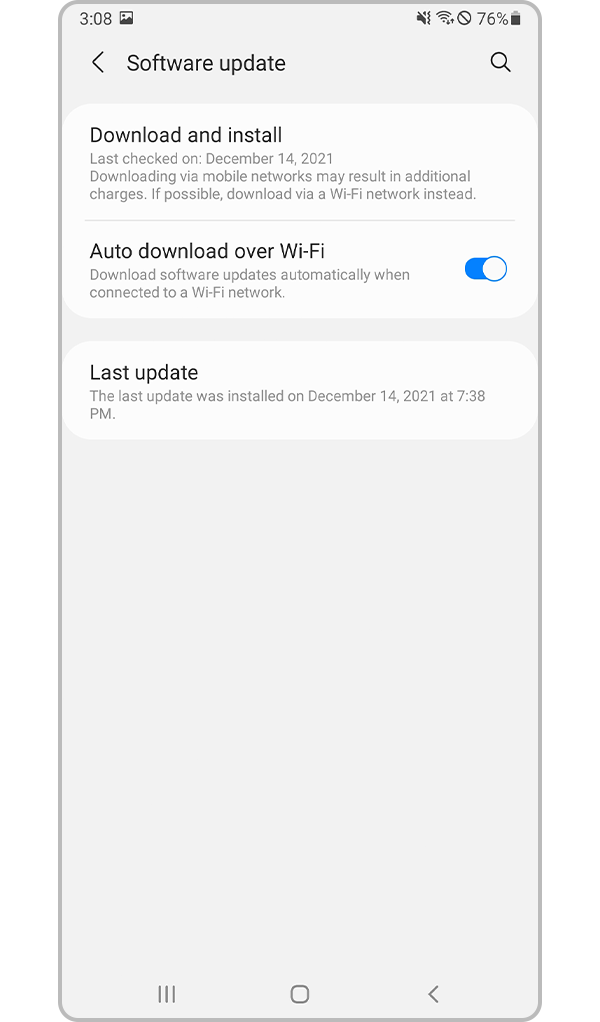
Make sure the software on your smartphone and SmartThings app is up to date, and if necessary, update the firmware of your TV as well.
Note: The SmartThings app is compatible with phones running Android 8.0 or higher as well as iOS 12.0 or higher.
How to update the TV firmware
![tv settings screen]()
![tv software update]()
![tv software update now]()
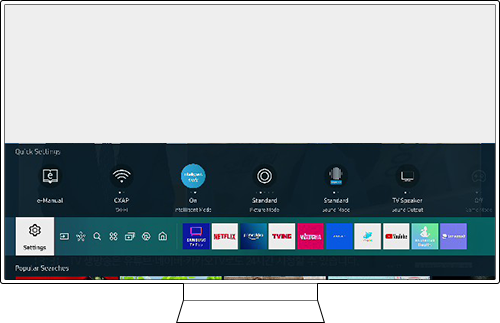
Step 1. Press the Home button on the remote and navigate to Settings.
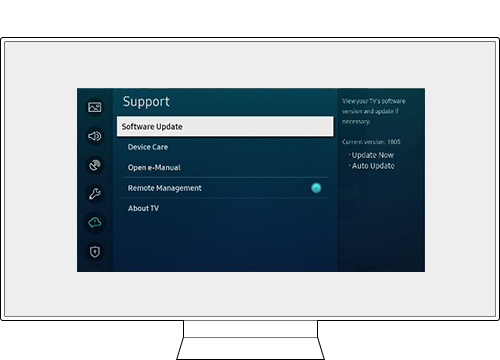
Step 2. Select Support > Software Update.
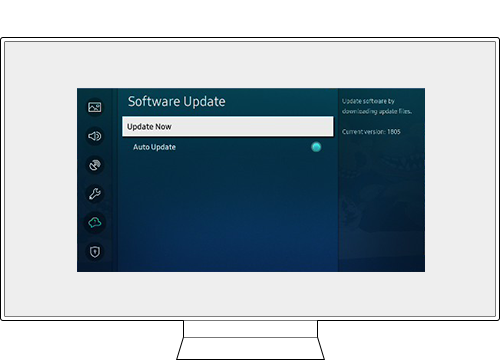
Step 3. Select Update Now.
Note:
- If you are having trouble with your Samsung Smart TV, you should always check to see if there are any software updates available. Downloading the latest update may fix for your problem.
- Device screenshots and menus may vary depending on the device model and software version.
Thank you for your feedback!
Please answer all questions.