How to make the most out of Edge panels
Last Update date : Apr 27. 2026
Edge panels is a useful feature on Galaxy devices that gives you quick access to your favorite apps, tools, and shortcuts. You can customize it to match your usage and improve your daily navigation experience.
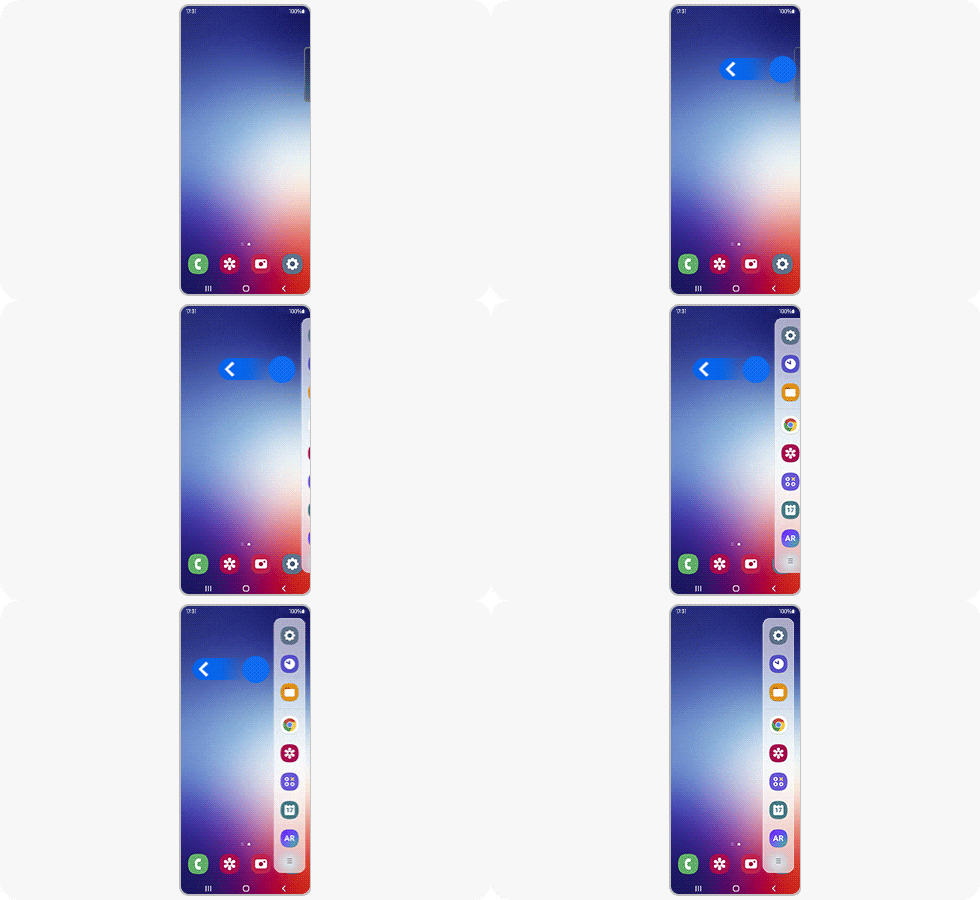
How to activate Edge panels
- Open Settings on your device.
- Tap Display.
- Turn on the Edge panels toggle.
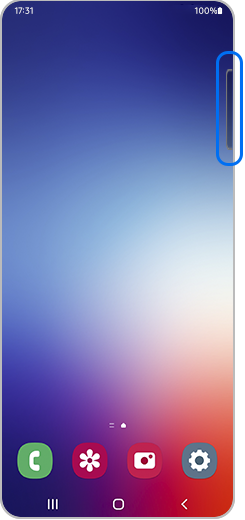
- Swipe from the edge of the screen to open the panel.
How to change the displayed panels
![Step 1. Go to device settings and tap the “Display” option from the list.]()
![Step 1. Go to device settings and tap the “Display” option from the list.]()
![Step 2. Select the "Edge panels" option at the top of the screen.]()
![Step 2. Select the "Edge panels" option at the top of the screen.]()
![Step 3. Tap the "Panels" option from the list.]()
![Step 3. Tap the "Panels" option from the list.]()
![Step 4. Select the tab panel you want to use at the top of the screen.]()
![Step 4. Select the tab panel you want to use at the top of the screen.]()
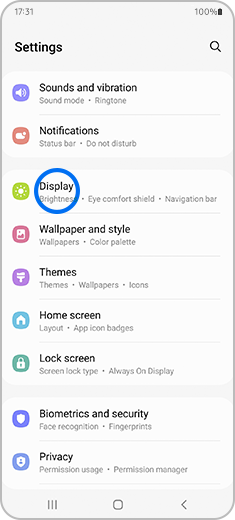
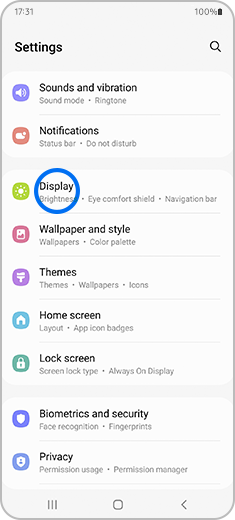
Step 1. Go to device settings and tap “Display”.
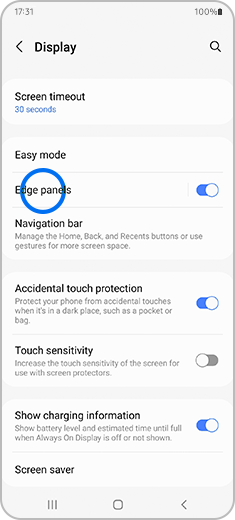
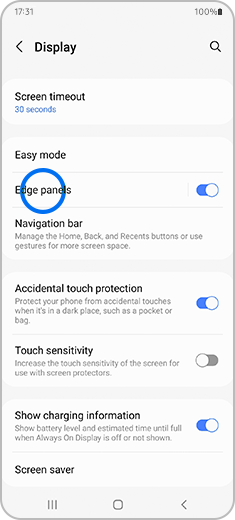
Step 2. Select “Edge panels”.
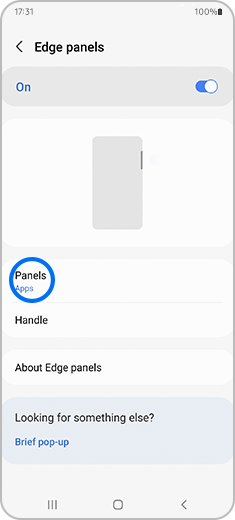
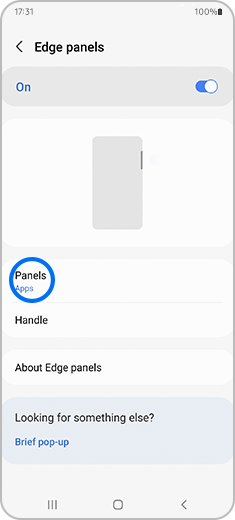
Step 3. Tap the “Panels” option.
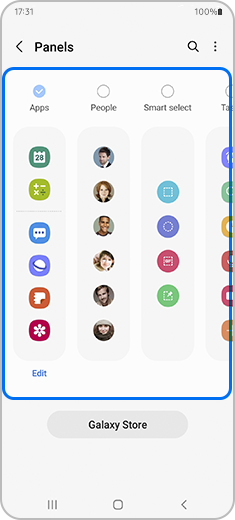
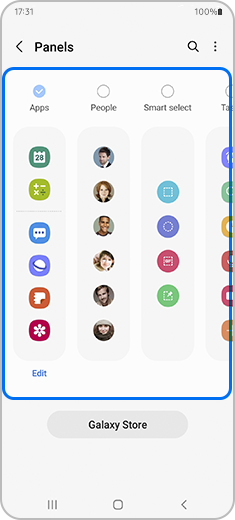
Step 4. Choose the panel you want to use.
Note: You can tap Edit to customize the selected panel.
How to customize the Edge panel handle
- Go to Settings.
- Tap Display.
- Select Edge panels.
- Tap Handle.
You can customize the following:
- Position: Move the handle to the left or right side.
- Lock handle position: Keep the handle fixed in one place.
- Style: Change the handle color.
- Transparency: Adjust how visible the handle is.
- Size: Make the handle smaller or larger.
- Width: Adjust thickness.
- Vibration: Enable vibration when touching the handle.
How to download new Edge panels
- Open Settings.
- Tap Display.
- Select Edge panels.
- Tap Panels.
- Tap Galaxy Store.
- Browse and download new panels.
Note: Some panels may require payment.
How to check the latest Edge panels version
- Open Settings.
- Tap Display.
- Select Edge panels.
- Tap About Edge panels.
Thank you for your feedback!
Please answer all questions.