Why is my Samsung phone not detecting the SD card
Last Update date : Apr 27. 2026
If your Samsung phone does not detect the SD card, it is usually caused by improper insertion, app conflicts, or a damaged card. Follow these steps to fix the issue.
Inspect the SD card


Even if your SD card does not have any visible damage, you may still experience issues. If you have other devices nearby, test the SD card to ensure that it works.
Force restart your device


Note:
- Your data and files will be preserved even if you force restart your device.
Try accessing the SD card in Safe mode
![Hold Volume down and Side key to Power off]()
![Hold Volume down and Side key to Power off]()
![Press and hold Volume down and Side key]()
![Press and hold Volume down and Side key]()
![Release Side key while holding Volume down key]()
![Release Side key while holding Volume down key]()
![Switch from Safe mode to normal mode]()




Follow the steps below to delete an app in Safe mode.


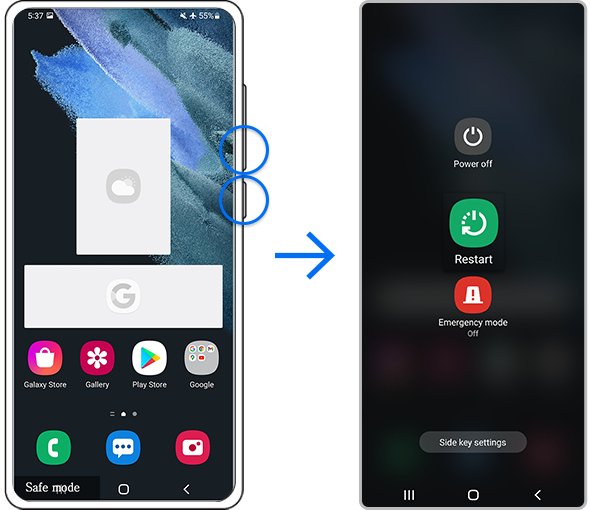
From Safe mode, switch to normal mode by following the steps below.
Step 1. Press and hold the Volume down key and Side key simultaneously.
Step 2. Select Restart.
Format SD card
Note:
- Formatting will erase any existing content on the SD card and can not be restored.


Note:
- Volume and Side key locations may vary depending on the device model.
- Not all phone models support the use of SD cards.
- If you followed the steps listed above but the issue persists, your device may be physically damaged. Please check the Support Center for relevant information.
- Device screenshots and menus may vary depending on the device model and software version.

Thank you for your feedback!
Please answer all questions.