How to use Scroll Capture on a Galaxy smartphone
Scroll Capture allows you to take a long screenshot of content such as web pages or articles and save it as a single image. Follow the steps below to enable and use this feature on your Galaxy smartphone.
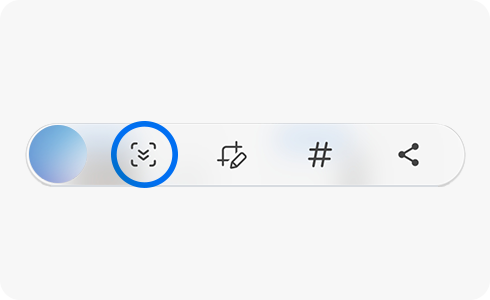
Activate the Screen Capture toolbar
Before using Scroll Capture, make sure the toolbar is enabled.


1. Open Settings
Go to Settings from the app tray.


2. Go to Advanced features
Scroll down and tap Advanced features.


3. Open Screenshots and screen recorder
Tap Screenshots and screen recorder.


4. Enable the toolbar
Turn on Show toolbar after capturing.
Note: If your device does not support screen recording, select Screen capture instead.
Once enabled, you can capture long screenshots.
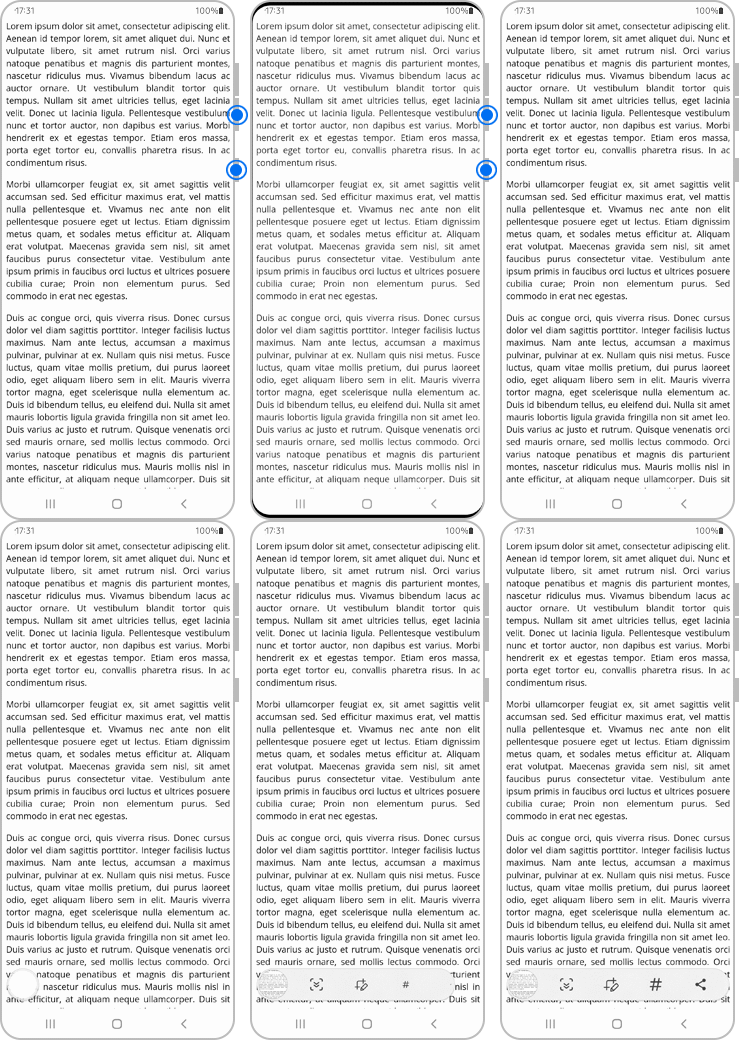
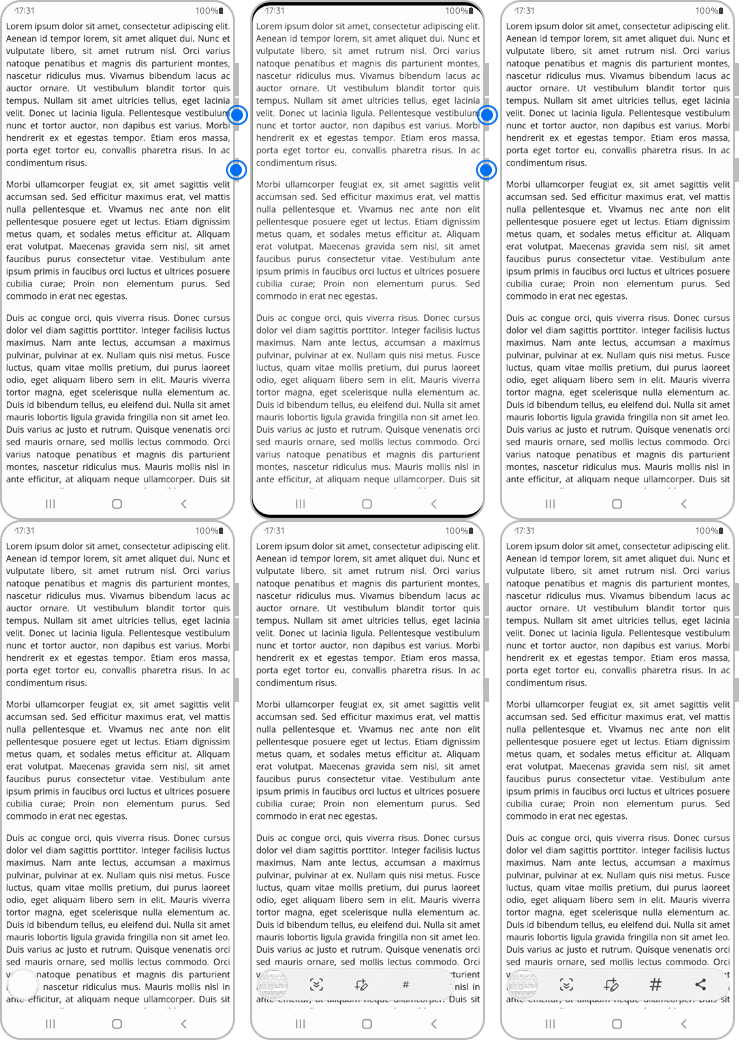
1. Take a screenshot
Open a scrollable page, then press the Power button and Volume Down button together.
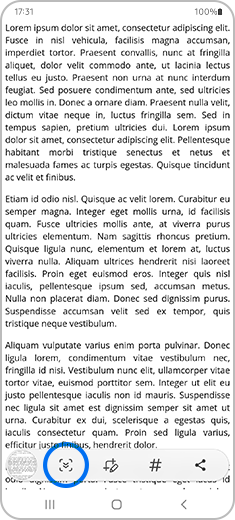
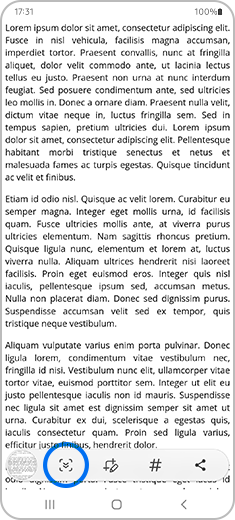
2. Tap Scroll Capture
When the toolbar appears, tap the Scroll Capture icon.
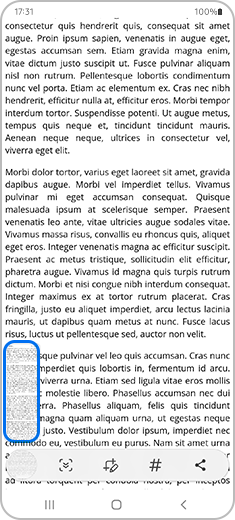
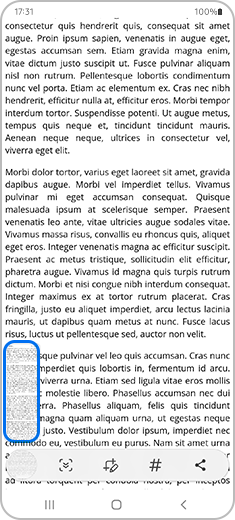
3. Capture more content
The screen will automatically scroll down and continue capturing.
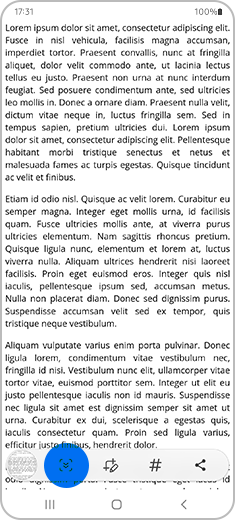
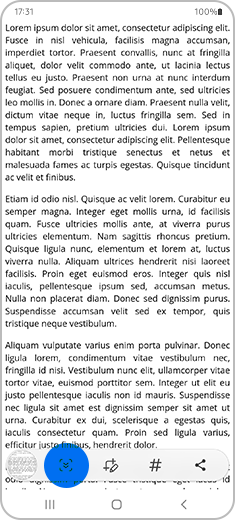
4. Capture the full page
Press and hold the Scroll Capture icon to keep scrolling further.
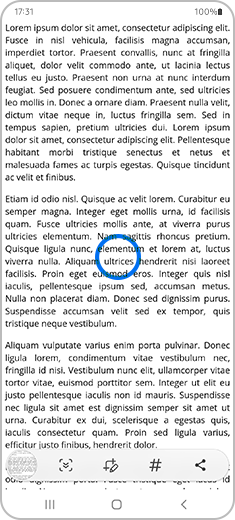
5. Finish the capture
Tap anywhere outside the toolbar to save the screenshot.
Note: The captured image is automatically resized and saved to your Gallery. The scroll length may vary depending on the content being captured.
Thank you for your feedback!
Please answer all questions.