How do I reset my Samsung Smart TV
Last Update date : Apr 26. 2026
You can reset your Samsung Smart TV to fix issues like freezing or not turning on. A soft reset keeps your data, while a factory reset erases all settings and apps.
Soft reset your TV
- Turn off your TV
- Unplug the TV from the power outlet
- Wait about 1 minute
- Plug the TV back in
- Turn on the TV
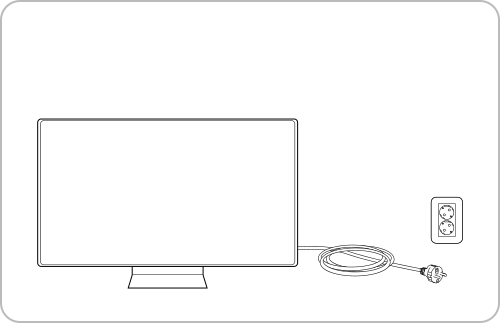
Note:
This method does not delete your data and can fix minor issues.
Reset your TV
- Turn on your TV and press the Home button on the remote
- Navigate to Settings
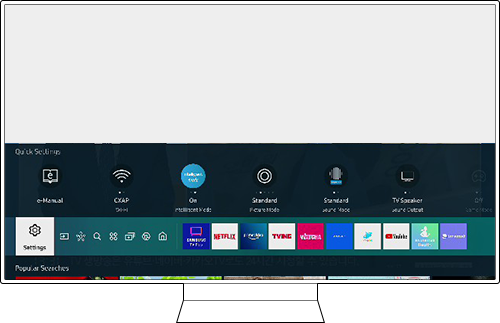
- Select General then Reset
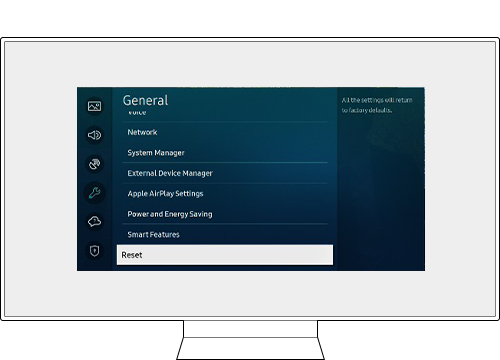
- Enter your TV PIN (default is 0000 if not changed)
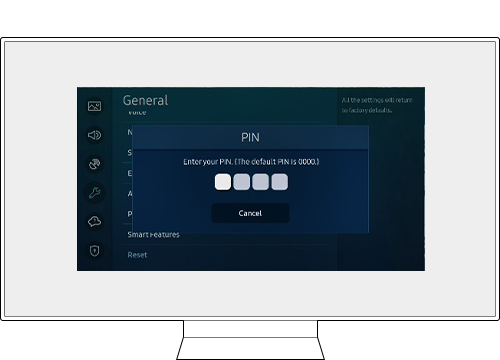
- Select Yes when the reset confirmation appears
- Wait for the TV to restart
- Turn on the TV and complete the setup
Note: This reset will delete all apps, accounts, and settings.
Request remote support
Step 1. Press the Home button on the remote, navigate to Settings.
Step 2. Select Support > Remote Management.
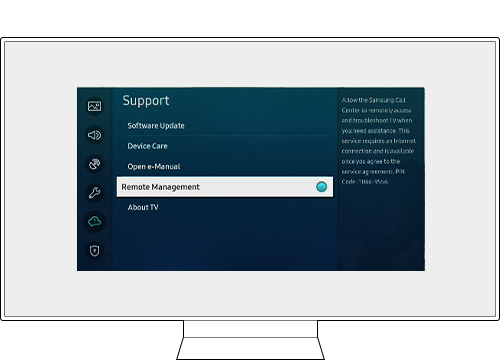
Step 3. Please follow the instructions on the screen.
Note: Your TV needs to be connected to the Internet to use this feature.
Notes:
- Your TV must be connected to the internet to use remote support.
- If the issue continues, check for software updates or contact Samsung support for further assistance.
Thank you for your feedback!
Please answer all questions.