Why does my Samsung TV turn on by itself

If your Samsung TV turns on by itself unexpectedly, it could be due to remote control interference, connected devices, or specific settings like HDMI-CEC. Reviewing the Event Logs in your TV's support menu can help identify the exact cause.
1. Why does my Samsung TV turn on automatically?
Samsung TVs can power on automatically due to several reasons, including remote control signals, connected devices, or specific settings like HDMI-CEC. Here's how to troubleshoot:
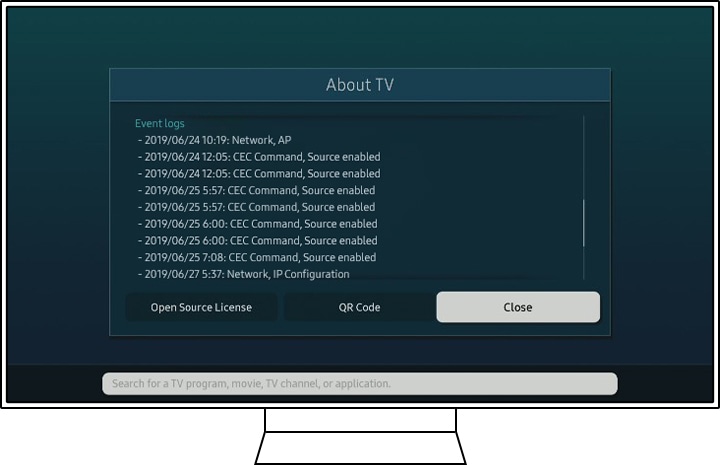
2. How to check the Event Logs on your Samsung TV
- Go to the Menu and select Support.
- Click About TV and check the Event Logs.
Note: The About TV option is available only on products manufactured in 2019 or later. Ensure your TV firmware is updated to the latest version.
3. What does the "Power-on reason" indicate in the Event Logs?
If "Power-on Reason" appears in the Event Log, it indicates why your TV turned on. Here are common triggers:
- Mobile Apps: Apps like YouTube or SmartThings connected to the same network might trigger the TV to turn on.
- Sensor: The brightness sensor in Ambient Mode may detect changes and activate the TV.
- WOL: The TV may turn on via the Wake-on-LAN (Magic Packet) function.
- BLE: Bluetooth devices with Wake-up functionality can trigger the TV to power on.
To resolve this, disconnect or deactivate the connected devices causing the issue.
4. What does the "CEC command" indicate in the Event Logs?
The CEC (Consumer Electronics Control) feature allows you to control HDMI-connected devices with a single remote. If an HDMI device activates, it may cause the TV to turn on. To disable this feature:
- Go to Home > Settings > General > External Device Manager.
- Turn off Anynet+ (HDMI-CEC).
5. What does the "One Invisible connection" indicate in the Event Logs?
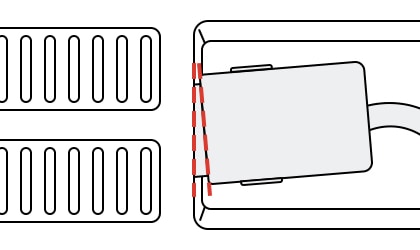
If "One Invisible connection" appears, it suggests a poor connection (AOC Tilt). Check all cable connections between the TV and external devices thoroughly.
6. How to reset your Samsung TV to its original settings
If the above methods don't resolve the issue, perform a factory reset to revert the TV to its original settings:
- Go to Home > Settings > General.
- Select Reset.
Note: Device screenshots and menus are provided in English but are also available in your local language.
7. Supported Samsung TV models
This troubleshooting guide applies to most Samsung TV models, including QLED, Neo QLED, and MicroLED series manufactured from 2019 onwards.
8. Related Samsung support topics


Thank you for your feedback!
Please answer all questions.