How to protect your Galaxy phone from malware
How to protect your Samsung Galaxy phone from malware?
Your Samsung Galaxy phone is equipped with robust security features to protect against malware, but staying vigilant is essential. Malware can infiltrate your device through malicious ads, phishing emails, or untrusted apps. Follow these steps to enhance your device's security and minimize risks.
1. Why is malware a concern for Samsung Galaxy phones?
While Samsung Galaxy devices have built-in malware scanning for apps downloaded from the Play Store, threats can still arise from external sources such as malicious ads, email attachments, or third-party app stores. Regularly updating your software and managing app permissions can significantly reduce these risks.
2. How to update your Samsung Galaxy software for better security
Keeping your device's software up to date ensures you have the latest security patches. Follow these steps:
- Go to Settings.
- Tap on Software Update.
- Select Download and Install.
- Follow the on-screen instructions to complete the update.
3. How to manage app permissions to prevent malware risks
Malicious apps may request unnecessary permissions that could compromise your data. To manage app permissions:
- Go to Settings.
- Tap on Apps.
- Select the app you want to review.
- Tap on Permissions and adjust access as needed.
Remember, unused apps will automatically lose permissions over time, reducing potential risks.
4. How to enable Device Protection for added security
Device Protection is a built-in feature that helps safeguard your Samsung Galaxy phone from malware. To enable it:
- Go to Settings.
- Tap on Biometrics and Security.
- Select Device Protection and toggle it on.
5. How to block harmful ads to prevent malware infections
Harmful ads can expose your device to malware. Use the ad-blocking feature in the Samsung Internet app:
- Open the Samsung Internet app.
- Tap on the three-dot menu in the top-right corner.
- Select Settings.
- Go to Site Settings and enable Pop-ups and Ads blocking.
For third-party browsers, adjust their security settings accordingly.
6. How to identify and remove potentially malicious apps
If you suspect your phone has a malicious app, follow these steps:
- Restart your phone in Safe Mode to disable third-party apps.
- Check for any suspicious apps and uninstall them.
- Restart your phone normally to exit Safe Mode.
For detailed instructions on enabling Safe Mode, refer to How to start your Galaxy Phone in Safe Mode.
7. Additional things to check
- Ensure your Google account is linked to your device for accessing security features.
- Review app reviews and descriptions before downloading third-party ad-blocking tools.
- Regularly monitor your device for unusual behavior, such as unexpected battery drain or data usage.
8. Supported Samsung Galaxy devices
These steps are compatible with most Samsung Galaxy devices, including the Galaxy S24, Galaxy S25, Galaxy S26, Galaxy Z Fold, Galaxy Z Flip, and Galaxy A series.
Related Samsung support topics
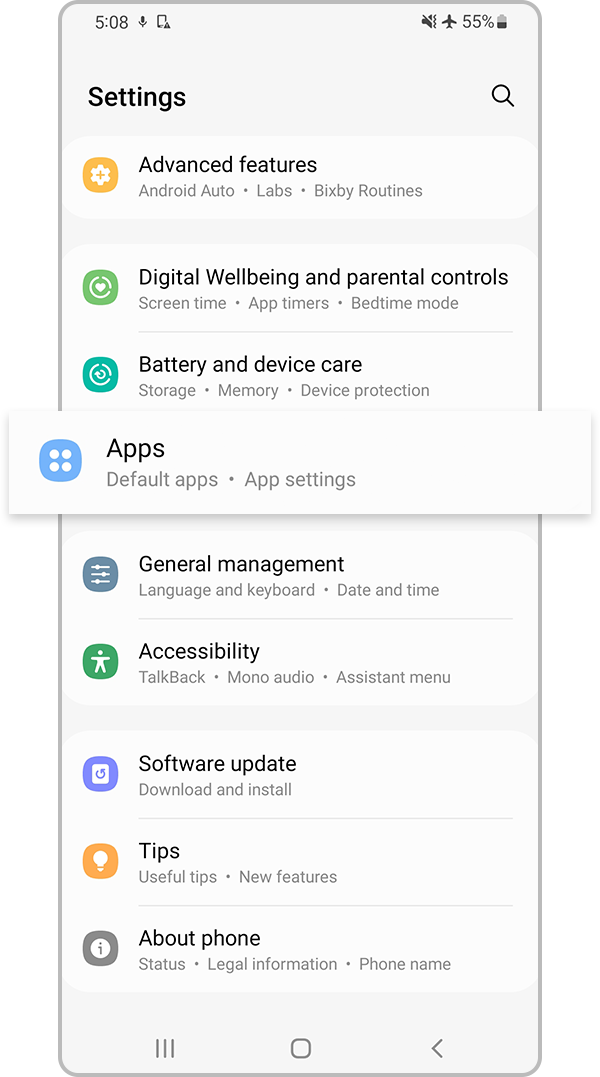
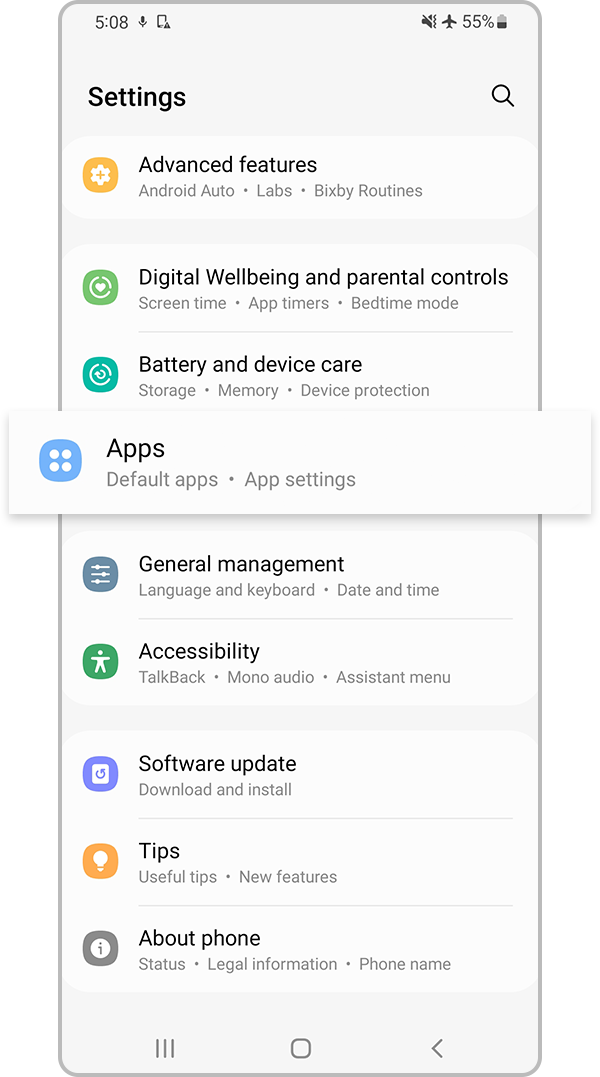
Step 1. Go to Settings and select Apps.
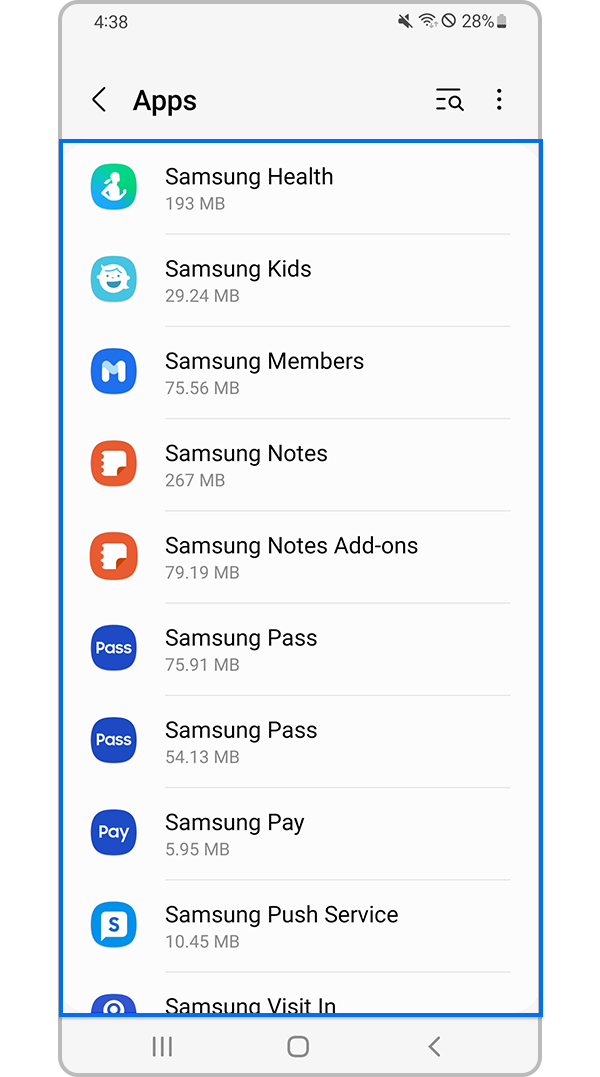
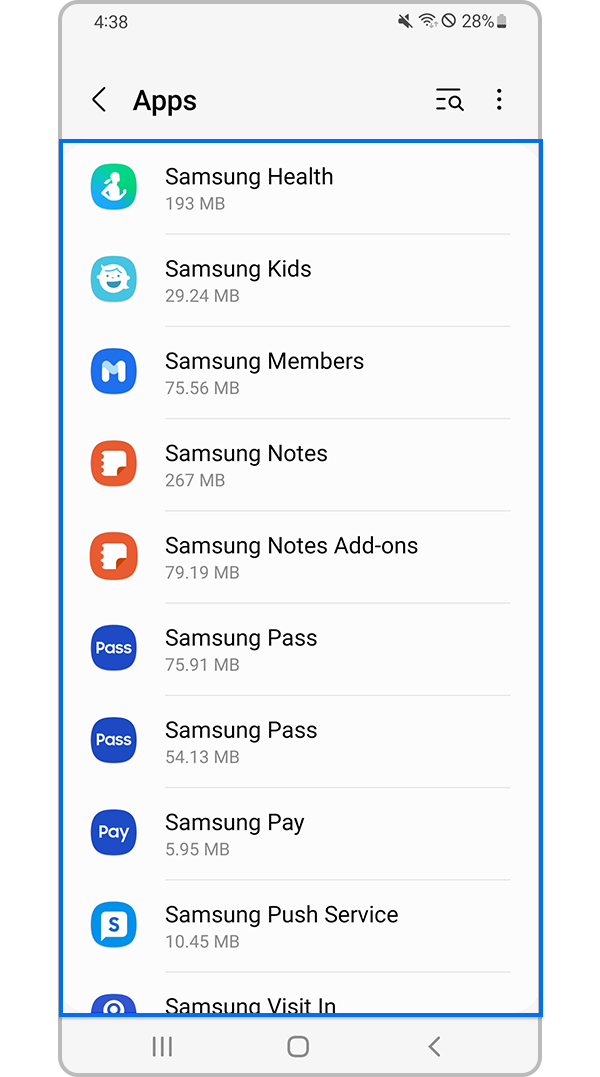
Step 2. Choose an app to change permissions of.
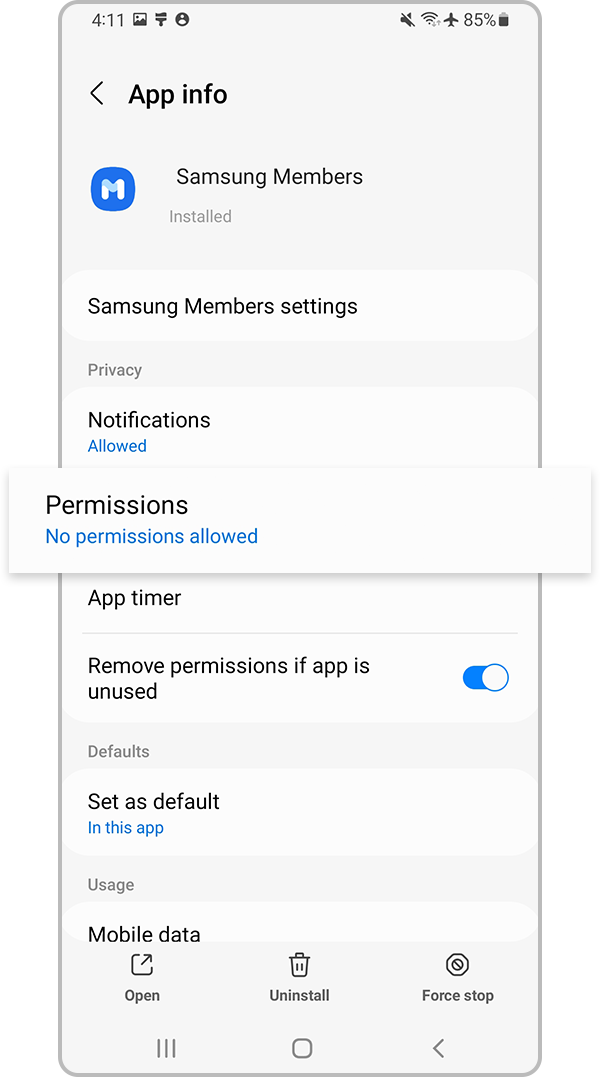
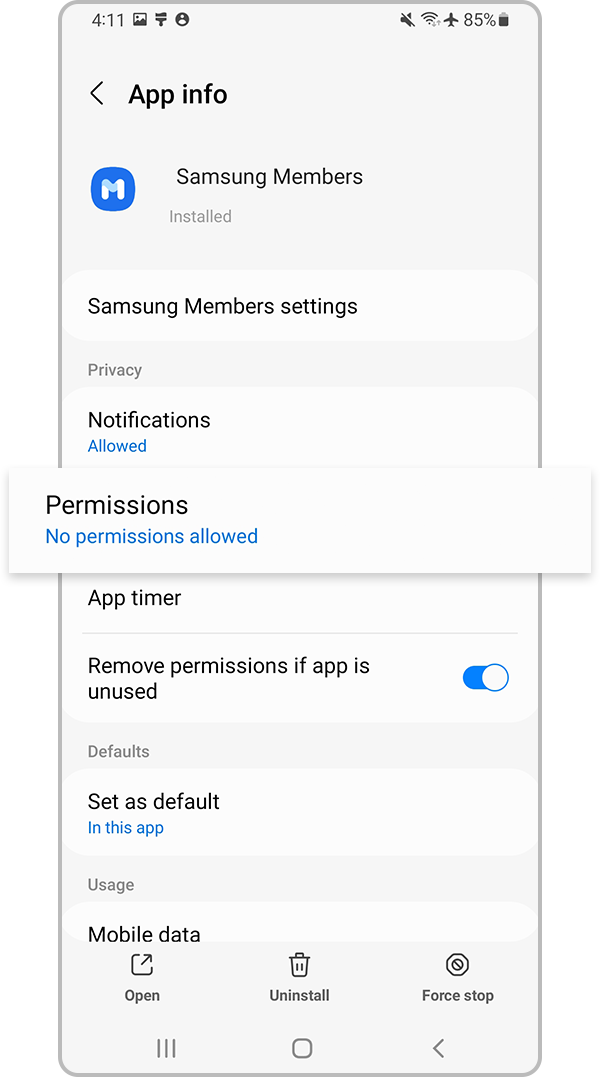
Step 3. Select Permissions.


Step 4. Select an option to allow access.
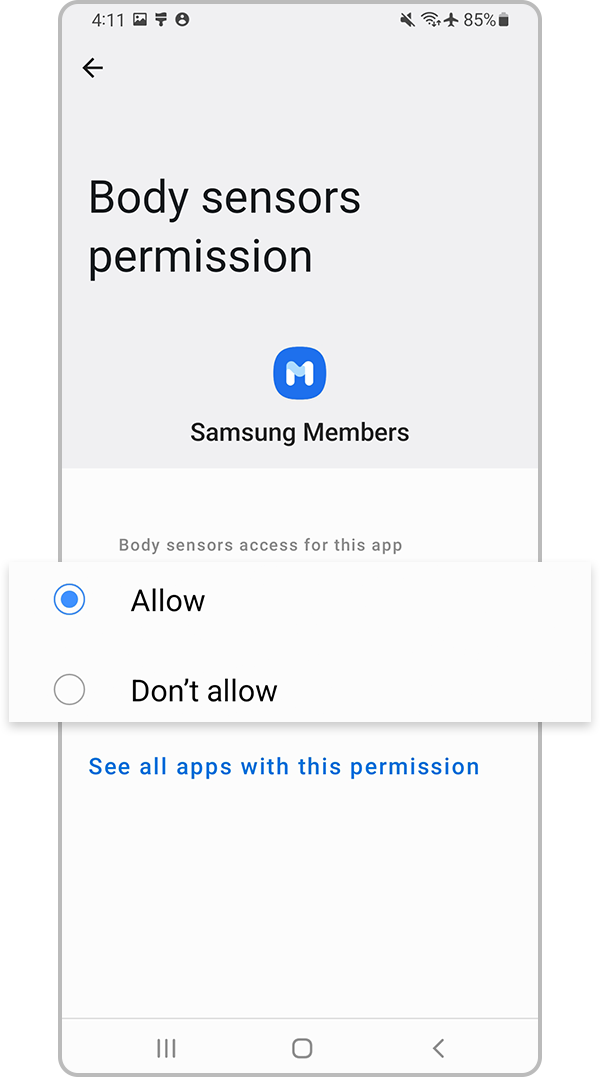
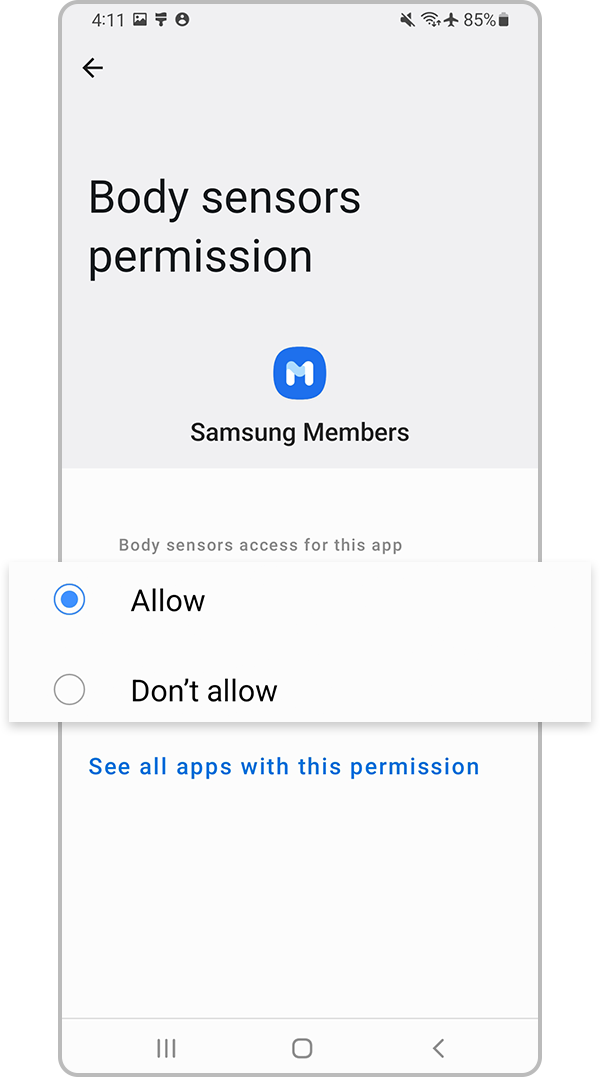
Step 5. Select Allow or Don’t allow.
Thank you for your feedback!
Please answer all questions.