How to use Online Pre-booking Service
Enjoy prioritized service with Online Pre-booking Service, effectively saving your waiting time.
Through a simple reservation process, you can easily book various services such as product repairs and data transfers. For home repair services related to TV & AV and home appliances or any other enquiries, please click here to contact the customer service hotline or online chat support to make an appointment.
You may click the buttons below to go to the tutorial section for corresponding services:
1. Repair Service
Step 1. Click Repair Service

Step 2. Choose your reservation method

Continue following steps according to your chosen reservation method:
If you have not registered for your Samsung products, you have to finish registration in order to continue the booking process:
You can register your Samsung products at My Page for easier management.
Step 1. Click Register under "My Products".
Step 2. Click Enter your Serial Number or IMEI and enter relevant information to register the product.

After registration, you can manage all your Samsung products under "My Products". You can check the status of your devices, Serial / IMEI Number etc.

It’s easy to find your IMEI number or serial number:
Method 1 (phones only)
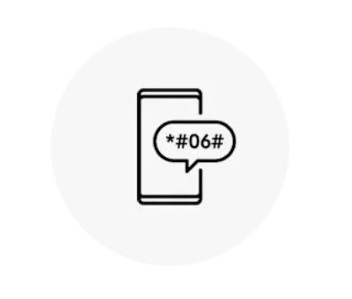
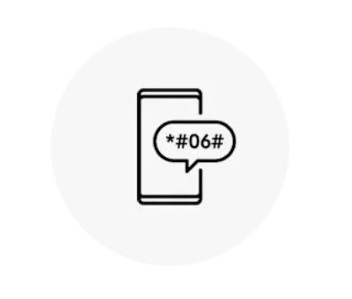
Dial *#06# from your phone. Your IMEI number will appear on your screen.
Method 2


On your phone / tablet (LTE version), go to Settings and then tap About phone / About tablet. Look for your IMEI number on the screen.
Method 3
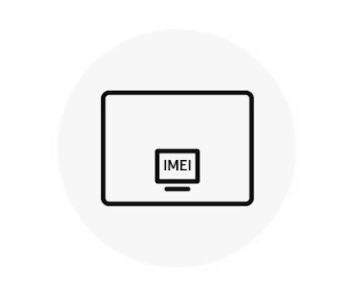
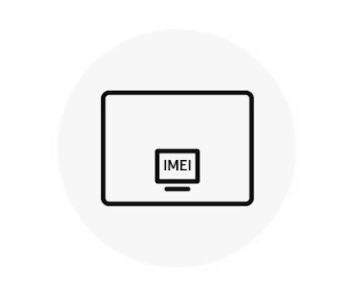
Your IMEI and model number may be printed on the back of your tablet or Galaxy Book.
Notes:
- You can get your registered TV info from Samsung Account when you log in on your Smart TV
- IMEI number or serial number may be found in the Setting Menu on Smart TV or Watches
- For Home Appliances, serial number may be found on packaging, printed on your device or on the back of your device
Step 1. Click the Get Support button on the right side of the product

Step 2. Click the Support Option button below

Step 3. Click the Select button under "Book an appointment"

Under "My Repair", you can find a summary of all your requests using "Track my repair", such as Date of Request, Product, Model Number, Ticket Number, Status and Ticket Type.
Step 1. Choose your Repair Product Category

Step 2. Choose your designated service location, then click Continue


Step 2.1
Choose your designated location


Step 2.2
Click Continue
Step 3. Choose your designated date on the calendar, then select a timeslot as you wish. After deciding your reservation time, click Continue to go to the next step


Step 3.1
Choose a date


Step 3.2
Choose a timeslot


Step 3.3
Click Continue
Notes:Only the upcoming 30 days will be provided for selection
Step 4. You may check your reservation details on the upper panel

Notes:If you need to change your reservation details, you may click the Back button at the bottom right corner
Step 5. To verify your reservation, please enter your phone number in the "Please enter your phone number" field on the lower panel, then click Send code

Step 6. Enter the Verification Code you received on your phone in the "6-digit code" field, then click the Verify button on the right side

- If the verification succeeds, you will see the "Phone number verified" notification underneath
- If the verification fails, you may try to click the Send code button after 120 seconds, then enter the new Verification Code
Step 7. Check the boxes below, then click Confirm to confirm your reservation

2. Collection Service
Step 1. Click Collection Service

Step 2. Choose your designated service location, then click Continue
Step 2.1
Choose your designated location
Step 2.2
Click Continue
Step 3. Choose your designated date on the calendar, then select a timeslot as you wish. After deciding your reservation time, click Continue to go to the next step
Step 3.1
Choose a date
Step 3.2
Choose a timeslot


Step 3.3
Click Continue
Notes:Only the upcoming 30 days will be provided for selection
Step 4. You may check your reservation details on the upper panel

Notes:If you need to change your reservation details, you may click the Back button at the bottom right corner
Step 5. To verify your reservation, please enter your phone number in the "Please enter your phone number" field on the lower panel, then click Send code
Step 6. Enter the Verification Code you received on your phone in the "6-digit code" field, then click the Verify button on the right side
- If the verification succeeds, you will see the "Phone number verified" notification underneath
- If the verification fails, you may try to click the Send code button after 120 seconds, then enter the new Verification Code
Step 7. Check the boxes below, then click Confirm to confirm your reservation
3. Mobile Information Transfer Service
Step 1. Click Mobile Information Transfer Service

Step 2. Choose your designated service location, then click Continue
Step 2.1
Choose your designated location
Step 2.2
Click Continue
Step 3. Choose your designated date on the calendar, then select a timeslot as you wish. After deciding your reservation time, click Continue to go to the next step


Step 3.1
Choose a date


Step 3.2
Choose a timeslot


Step 3.3
Click Continue
Notes:Only the upcoming 30 days will be provided for selection
Step 4. You may check your reservation details on the upper panel

Notes:If you need to change your reservation details, you may click the Back button at the bottom right corner
Step 5. To verify your reservation, please enter your phone number in the "Please enter your phone number" field on the lower panel, then click Send code
Step 6. Enter the Verification Code you received on your phone in the "6-digit code" field, then click the Verify button on the right side
- If the verification succeeds, you will see the "Phone number verified" notification underneath
- If the verification fails, you may try to click the Send code button after 120 seconds, then enter the new Verification Code
Step 7. Check the boxes below, then click Confirm to confirm your reservation
4. Screen Protector Benefit
Note: This is a premium service for Galaxy Z Fold | Flip customers only
Step 1. Click Screen Protector Benefit

Step 2. Choose your designated service location, then click Continue
Step 2.1
Choose your designated location
Step 2.2
Click Continue
Step 3. Choose your designated date on the calendar, then select a timeslot as you wish. After deciding your reservation time, click Continue to go to the next step
Step 3.1
Choose a date


Step 3.2
Choose a timeslot


Step 3.3
Click Continue
Step 4. You may check your reservation details on the upper panel

Notes:If you need to change your reservation details, you may click the Back button at the bottom right corner
Step 5. To verify your reservation, please enter your phone number in the "Please enter your phone number" field on the lower panel, then click Send code
Step 6. Enter the Verification Code you received on your phone in the "6-digit code" field, then click the Verify button on the right side
- If the verification succeeds, you will see the "Phone number verified" notification underneath
- If the verification fails, you may try to click the Send code button after 120 seconds, then enter the new Verification Code
Step 7. Check the boxes below, then click Confirm to confirm your reservation
5. Review / Change Booking
Step 1. Click Review / Change Booking

Step 2. Choose the corresponding option according to your previous reservation method.

You may check or change your booking details under My Repair tab.

Enter your booking number and mobile number, then click Continue

6. Walk-in and get online ticket
Step 1. Click Walk-in and get online ticket

Step 2. Find your designated location on the list, then click Queue. After that, choose the service you need to get a ticket.

Notes: The Queue button only appears within the opening hours of the service centers
Thank you for your feedback!
Please answer all questions.
RC01_Static Content : This text is only displayed on the editor page