How do I connect the Note9 S Pen via Bluetooth?
Important Note: The information on this page is for Hong Kong products only. Models, sequences or settings will vary depending on location and/or where the product had been purchased. To be redirected to your local support page please click here.
Take full advantage of the Note9 through the use of the remote control S Pen which has a range of up to 10m.
The pen supplied with the Note9 is already connected to the device so there is no need to make a Bluetooth connection manually.
In case of wanting to connect another S Pen to your device, connect it via Bluetooth and enjoy its functionalities to the fullest.
Please note: You can only connect Samsung-approved S Pens that support Bluetooth Low Energy (BLE).
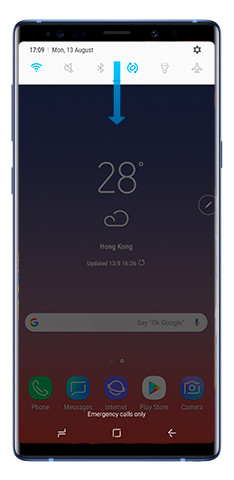
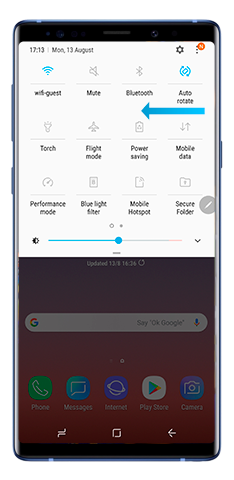
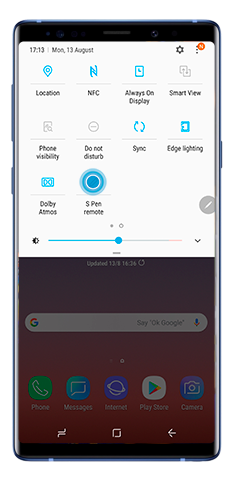
The S Pen icon on the status bar will flicker and might take a few minutes to connect.
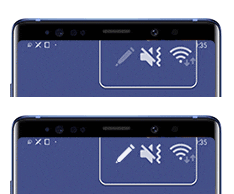
Please Note: Do not detach the S Pen from the device when it is being connected. Doing so will interrupt the process.
When the S Pen is connected, the S Pen icon on the status bar will disappear.
If it fails to connect or you want to use the previous S Pen, reconnect it following the earlier steps.
There are two ways to reset the S Pen connection:
Tap the More options icon.
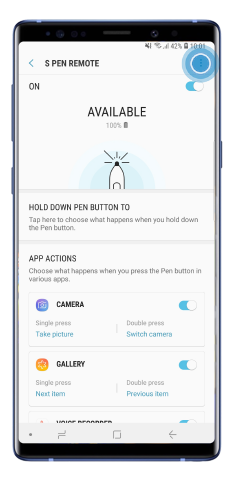
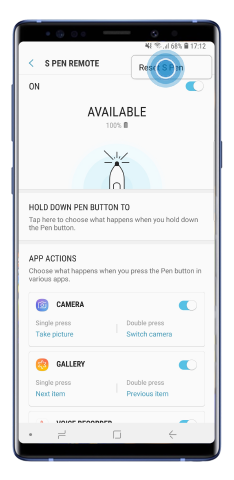
Tap Reset S Pen.
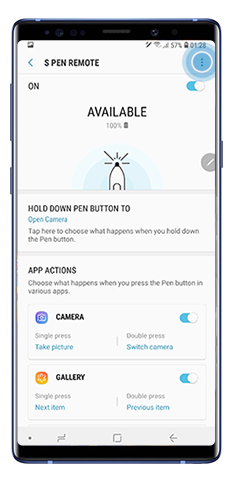
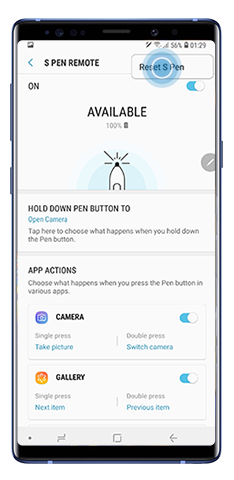
You can also access through Settings:
If the above information does not match what your product is showing, you may check the User Manual for your product. If you are unable to solve the problem, please contact us for further assistance.
Thank you for your feedback!
Please answer all questions.
RC01_Static Content : This text is only displayed on the editor page