How do I add my Samsung Soundbar to the SmartThings app

Last Update date : Apr 27. 2026

You can connect your Samsung Soundbar to the SmartThings app to control it remotely. Make sure your phone and soundbar are on the same Wi-Fi and signed in to the same Samsung account.

connection soundbar to smartthings

Ensure to meet the requirements for connection

  • Make sure your phone is running Android 6.0 or later or iOS 10.0 or later
  • Connect your phone and soundbar to the same Wi-Fi network
  • Install the SmartThings app from the app store
  • Sign in to the same Samsung account on both devices
smartthings home smartthings home

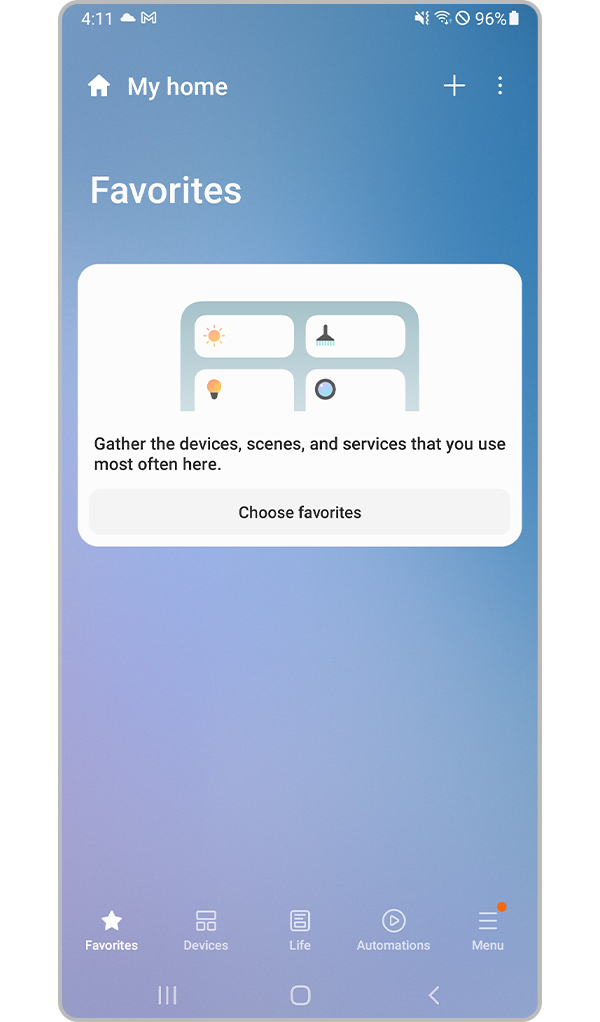
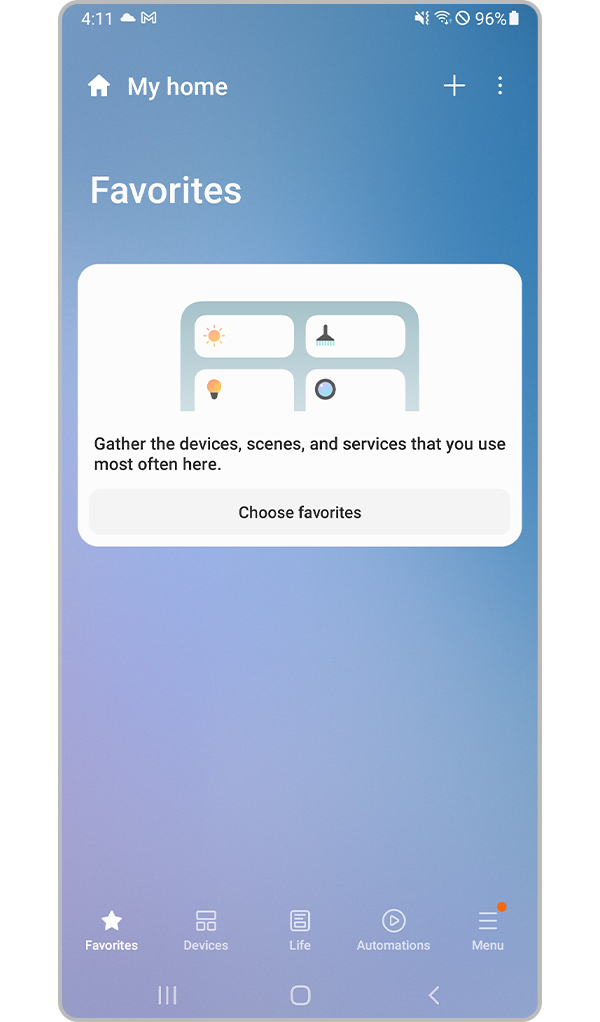
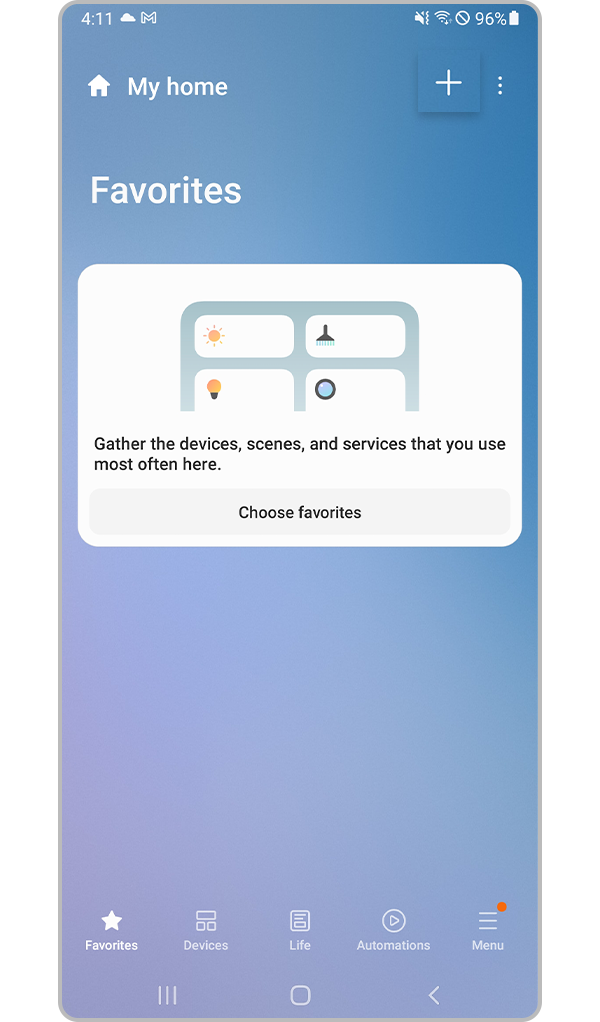
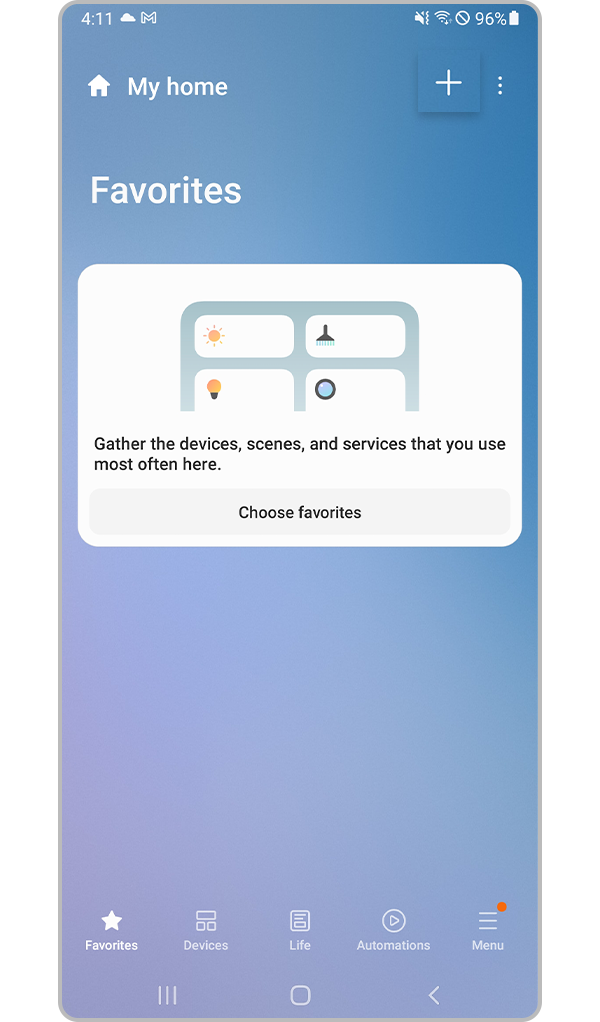
Step 1. Turn on the Samsung Soundbar and launch the SmartThings app.

soundbar smartthings pop up soundbar smartthings pop up

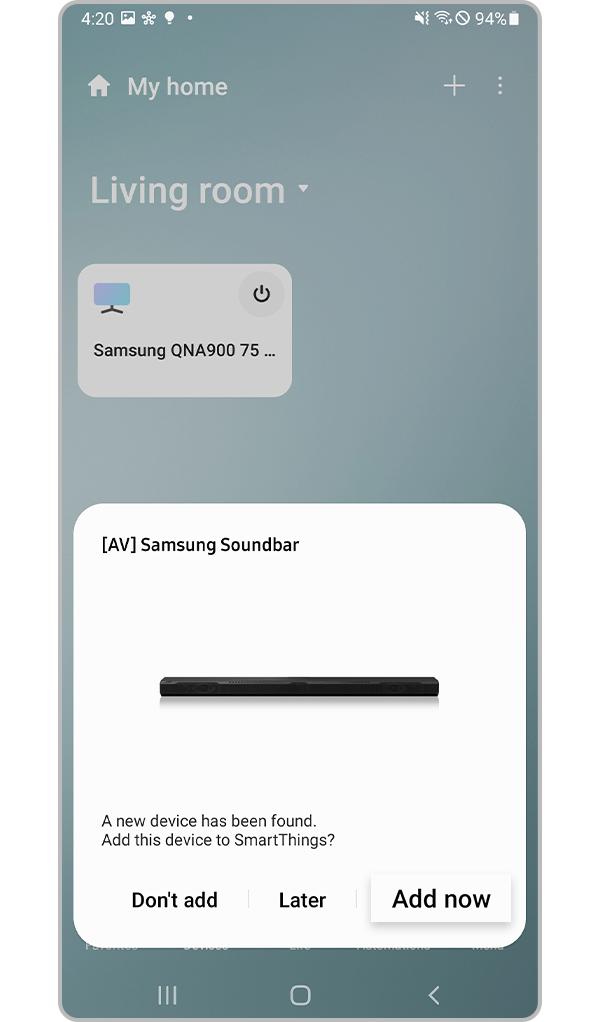
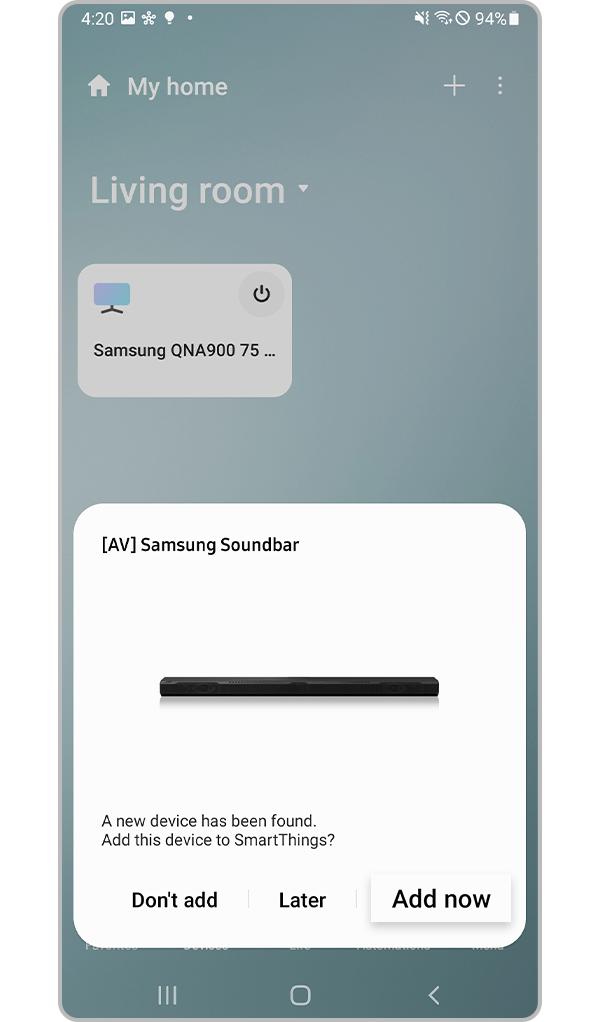
Step 2. When the pop-up appears, tap Add Now.

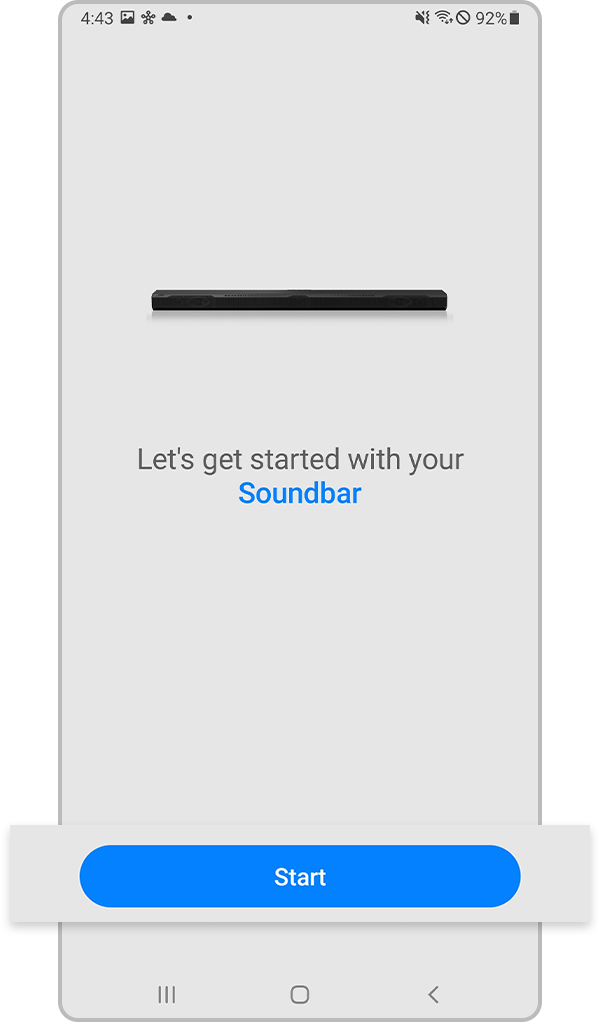
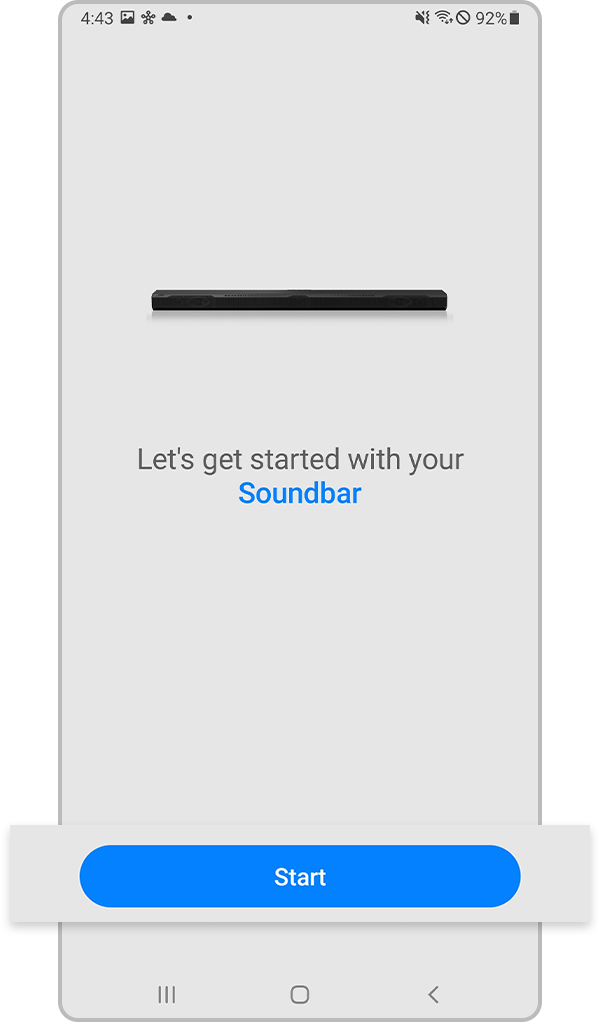
soundbar registration start soundbar registration start

Step 3. Tap Start.

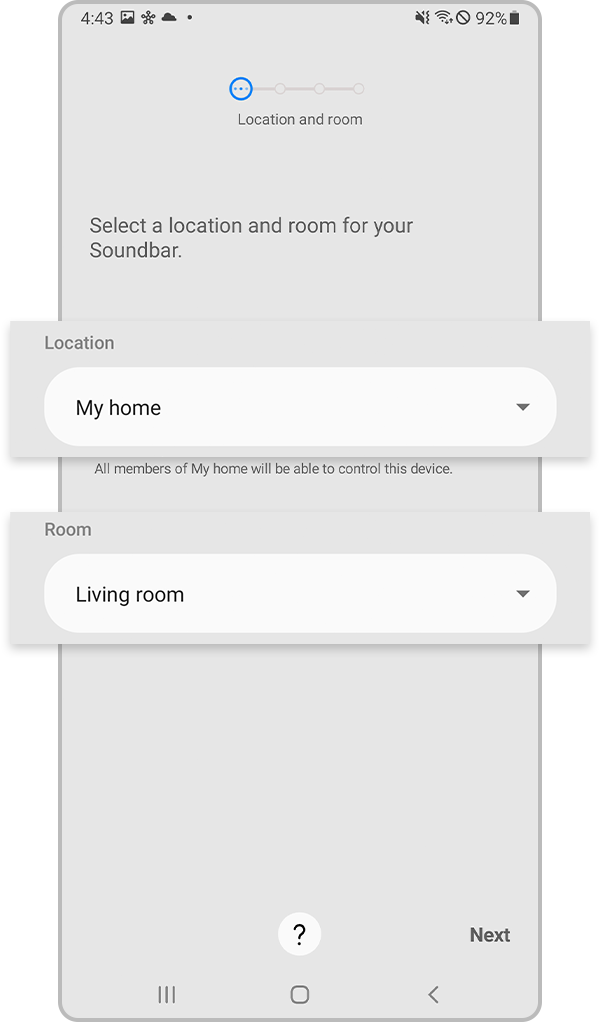
enter your location and room enter your location and room

Step 4. Select Location and Room for your Samsung Soundbar. Wait until the registration process is completed.

Notes:
Your soundbar will be automatically detected if it is nearby and ready to connect.

tap the plus icon tap the plus icon

Step 1. Launch the SmartThings app and tap Add (the plus icon).

tap device tap device

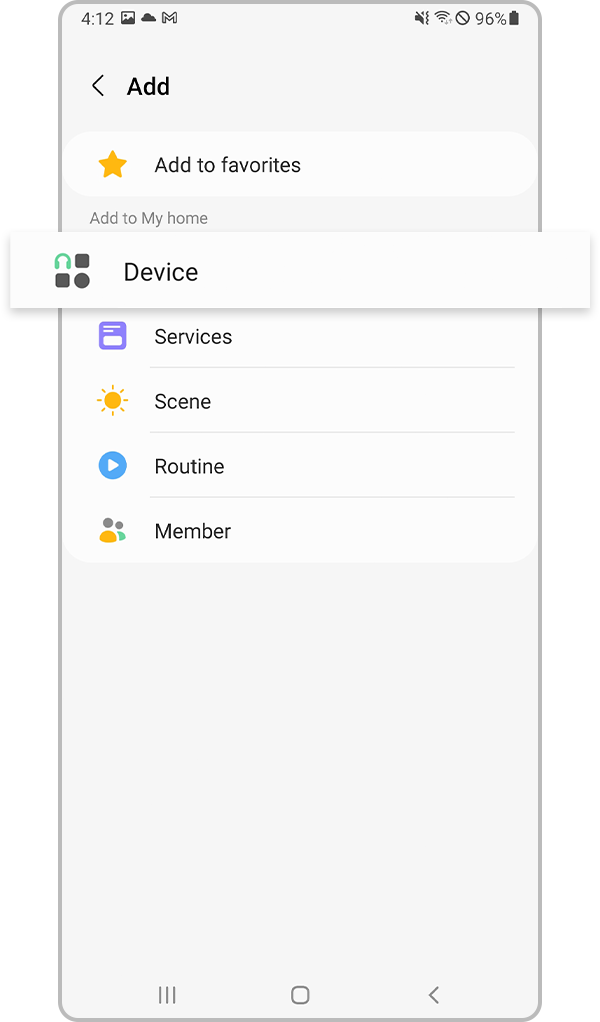
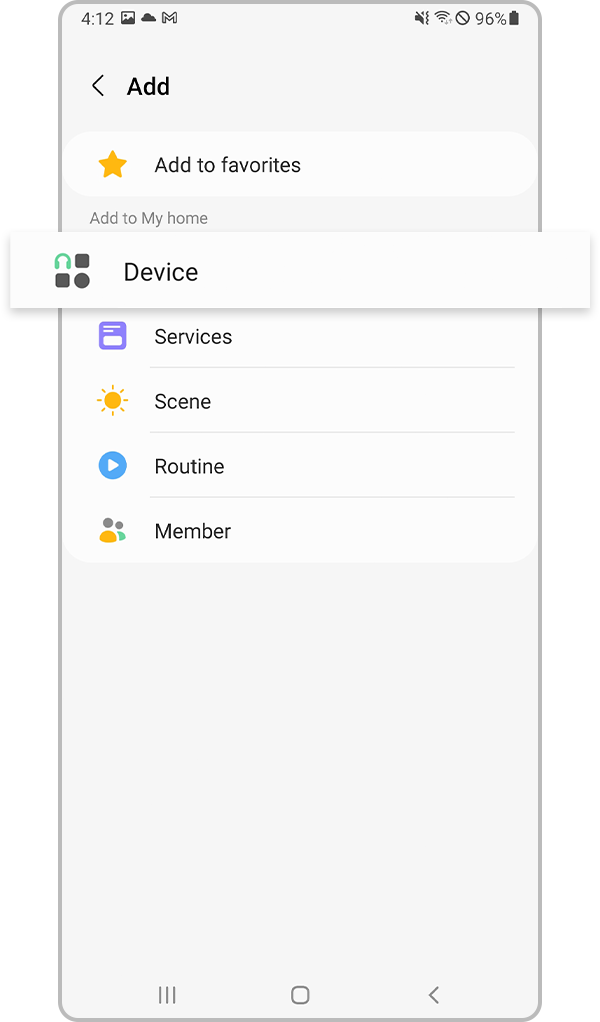
Step 2. Tap Device.

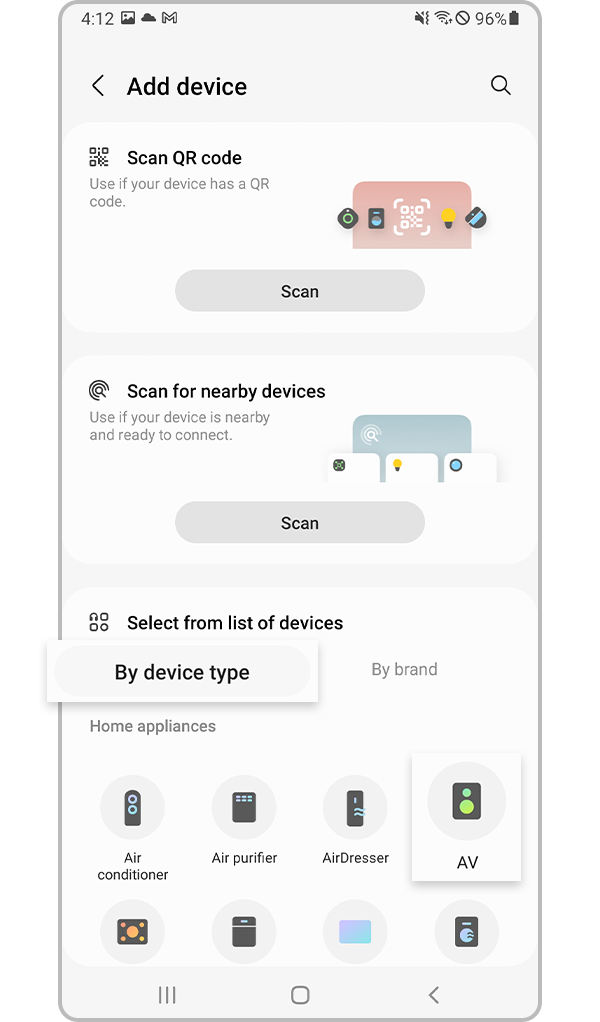
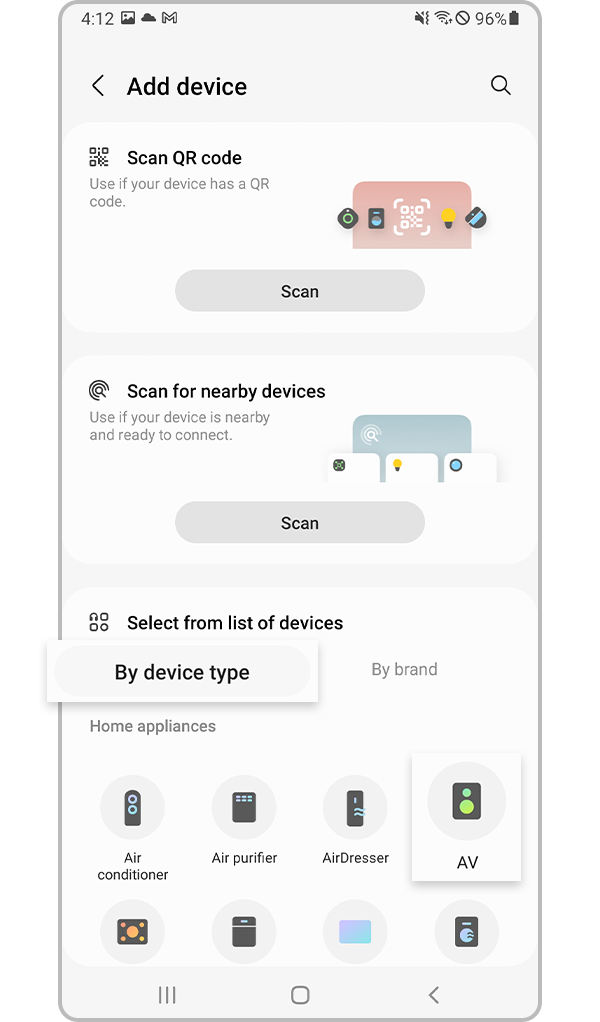
select by device and av icon select by device and av icon

Step 3. Tap By device and select AV.

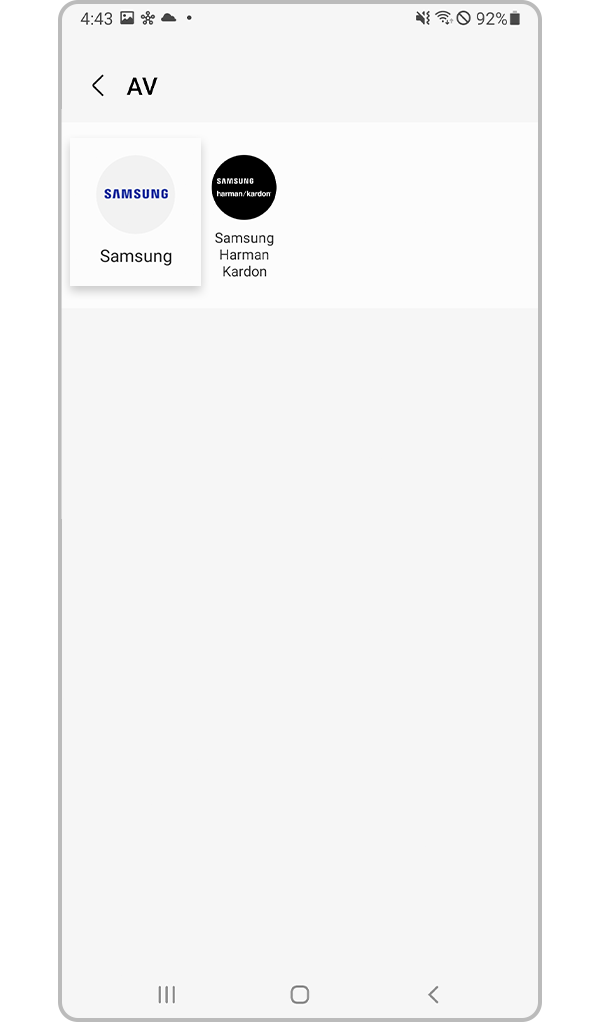
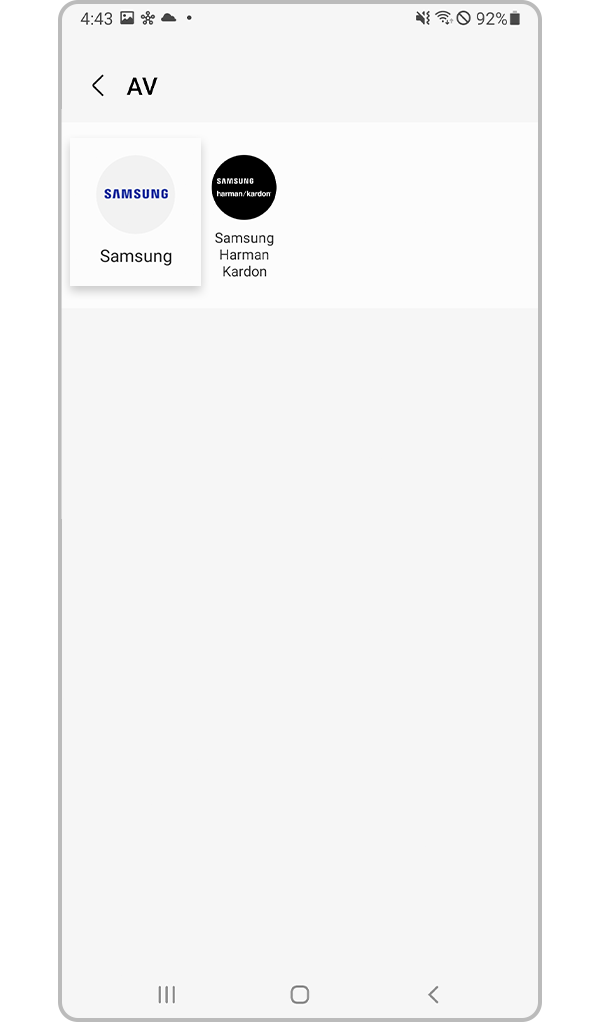
select samsung icon select samsung icon

Step 4. Select Samsung.

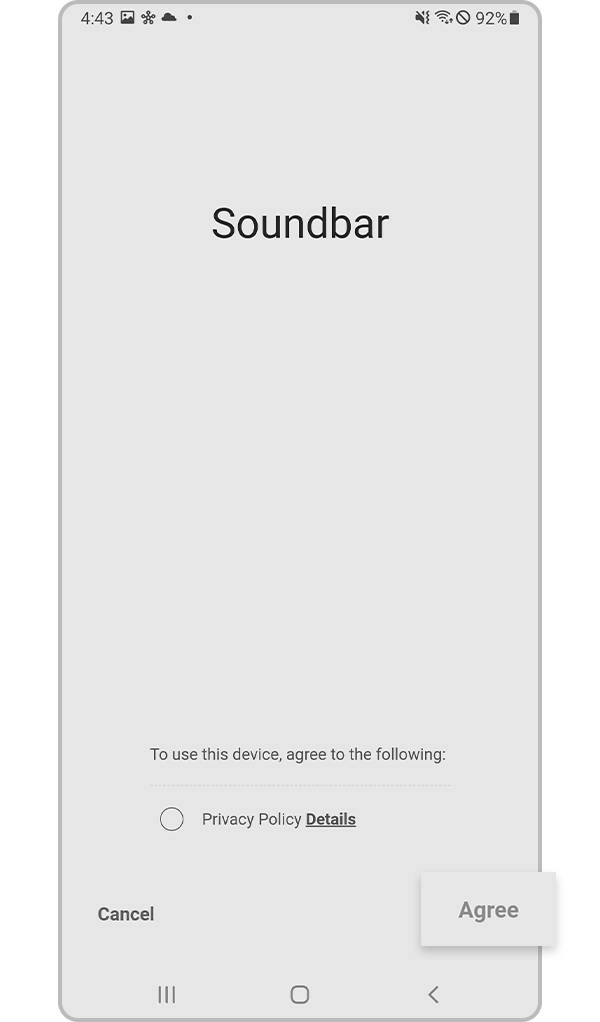
agreement for registration agreement for registration

Step 5. Select Agree.

start to register start to register

Step 6. Tap Start.

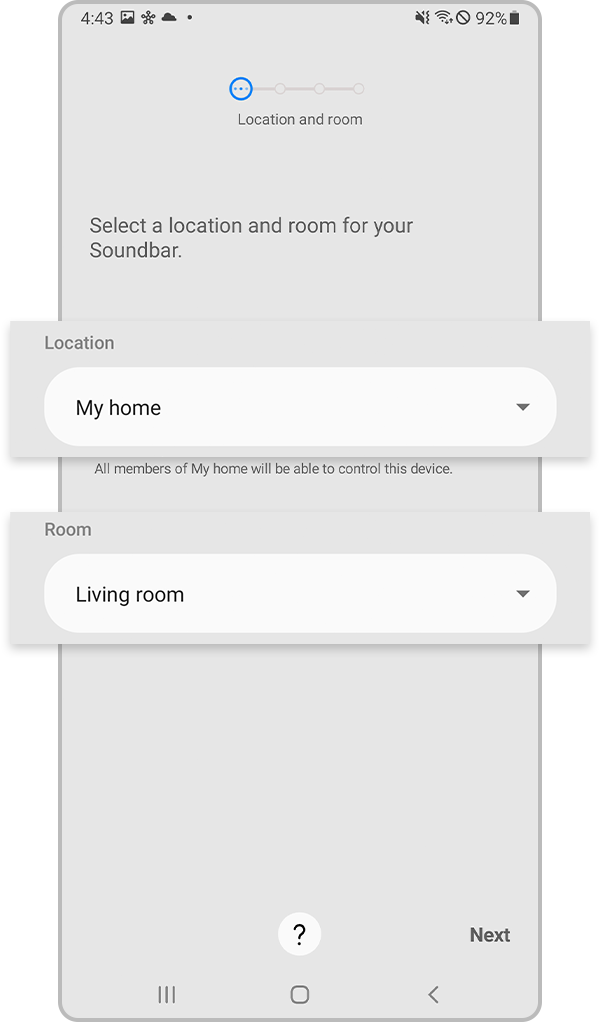
enter your location and room enter your location and room

Step 7. Select Location and Room for your Soundbar.

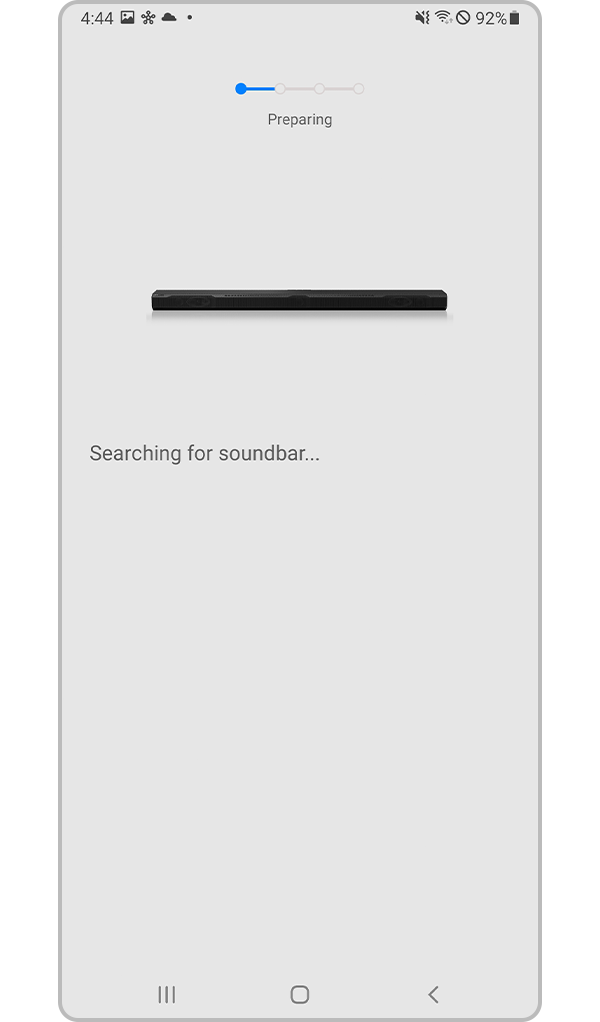
searching for soundbar searching for soundbar

Step 8. Wait until the Samsung Soundbar is registered with your Samsung Account.

Notes:
Manual setup is useful if the device is not detected automatically.

If the soundbar is not connecting, check your Wi-Fi connection and make sure the device software is updated.

Thank you for your feedback!