How to use Galaxy AI features on Samsung devices?
Galaxy AI lets you use translation, writing, notes, and image tools on supported Galaxy devices. Download language packs and access features like Live Translate and Chat Assist.

Notes:
- Galaxy AI features are free until the end of 2025.
- Some functions vary by device. Tab S9 FE does not support AI.
- New languages include Arabic, Indonesian, and Russian.
- Samsung account login may be required.
- This information applies to Samsung customers using Galaxy S23, S22, Z Flip5, Z Fold5, Z Flip4, Z Fold4, Tab S9 series, and Tab S8 series with One UI 6.1 or later.
How to download language packs


Step 1. From Settings, choose General management


Step 2. Choose Language packs


Step 3. select and download your desired Language Packs to use during Live translate.
Real-time, two-way call translation is available directly from within the native Phone app. Making a restaurant reservation or trying to locate a ride-share driver while traveling abroad?
Live Translate provides audio and text translations of phone calls, with support for 13 languages* at launch.
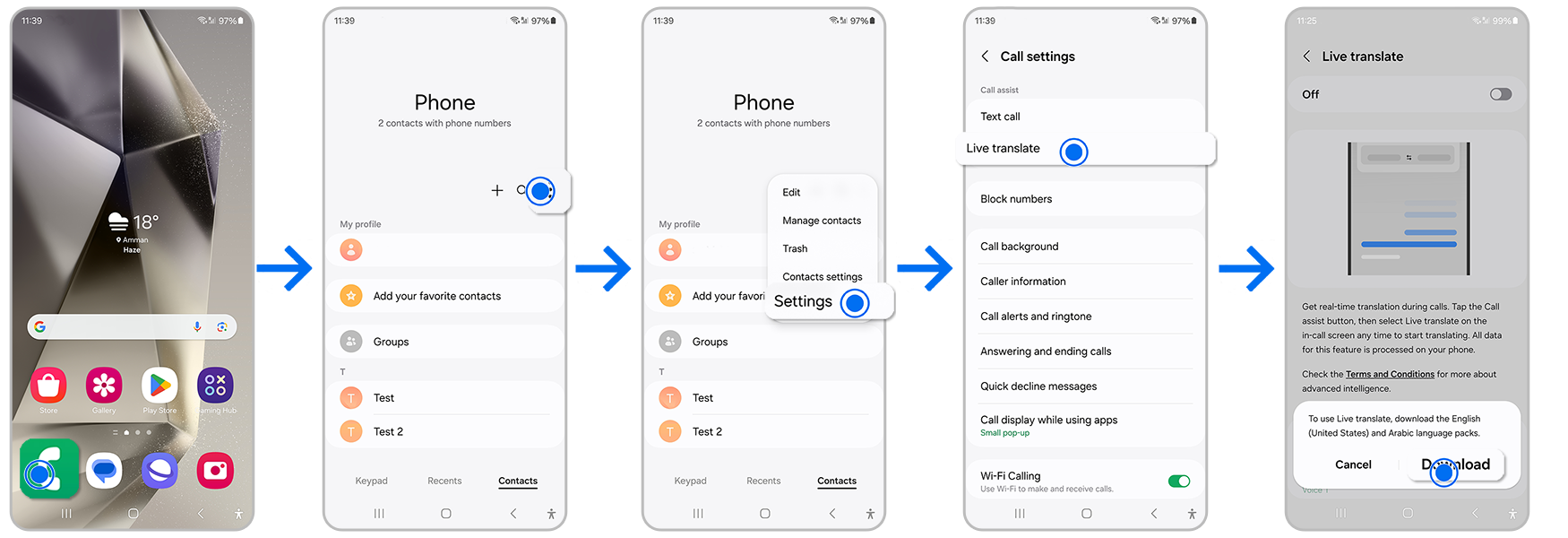
Go to Samsung Phone app >tap >Settings > Live translate > Language,
and select desired Language Packs to use during Live translate.
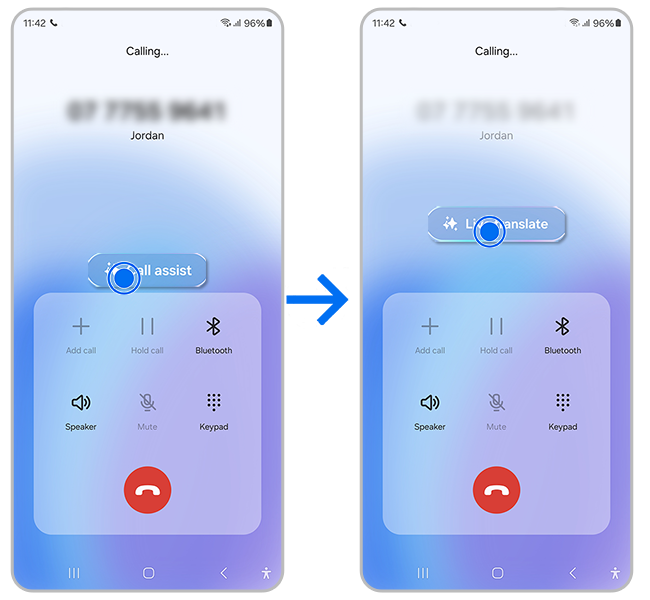
Step 1. Initiate a call in the Phone app
Step 2. Select Call Assist > Live translate
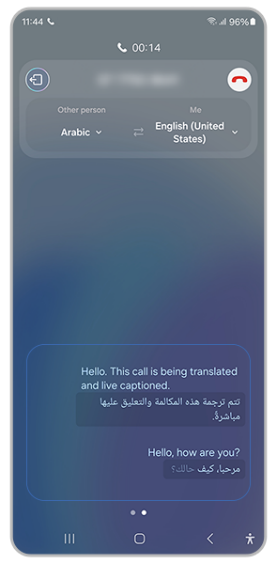
Step 3. At the top, manually select the languages
Step 4. As you converse, Galaxy S24 Series will translate.
You can also read the translations on the screen
Chat Assist can help refine conversational tones in messages, while AI built into Samsung Keyboard can also translate messages in real-time in 13 languages.
Step 1: Write a message in your chosen messaging app
Step 2: Tap the icon that shows stars
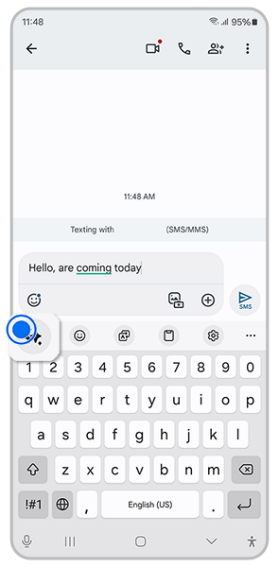
Step3. Select “writing style”,
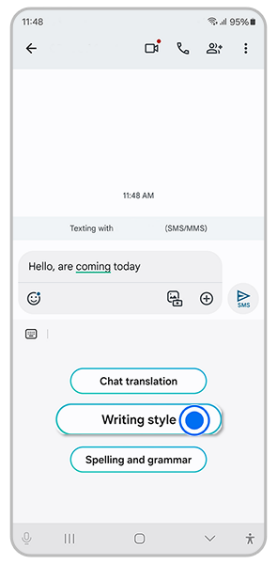
Step 4. Choose a preferred tone, and Galaxy AI will suggest slight tweaks to what you’ve written
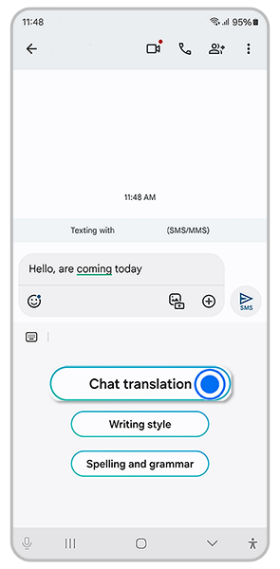
Step 5. To translate a message, click the icon that shows and A with directional arrows around it
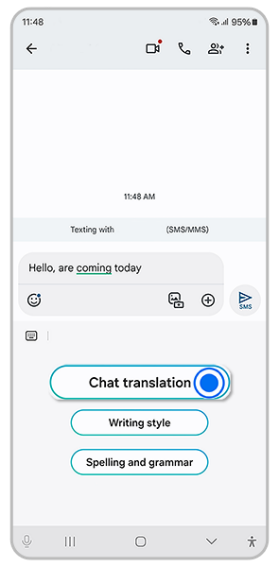
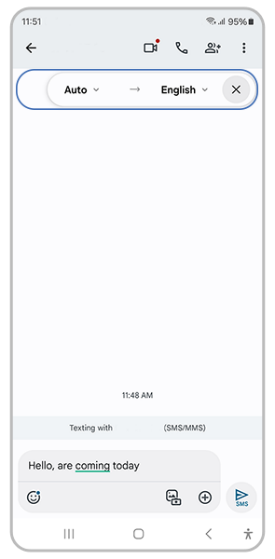
Step 6. Select the language icon and set the input and output language for the message
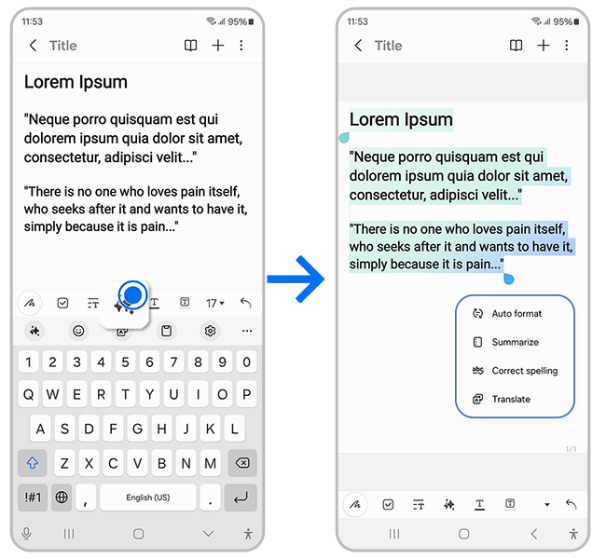
Step 1. Open Samsung Notes

Step 2. In the body of your note, select the Galaxy AI stars icon to Auto format, Summarize, Correct spelling, Translate
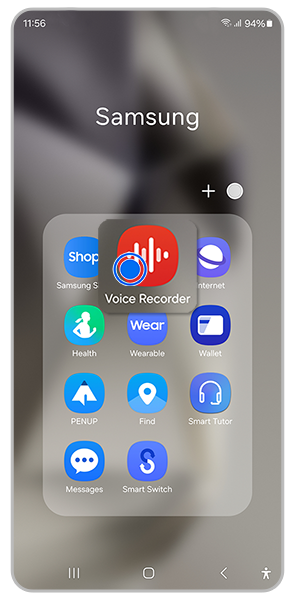
Step 1: Make a recording in the Voice Recorder app
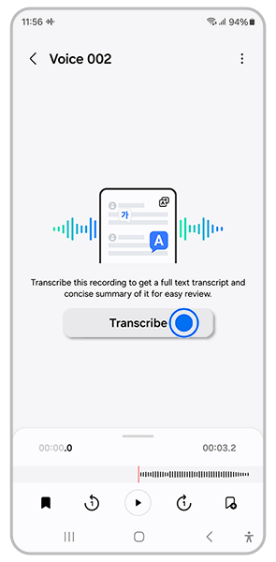
Step 2. Select Transcribe, and choose a language
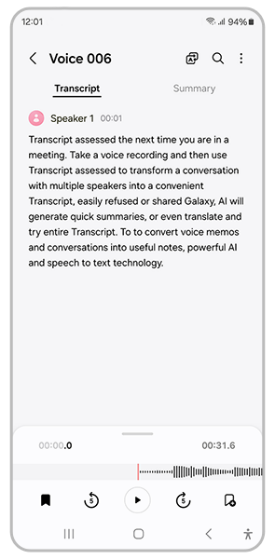
Step 3. The device will provide a full transcript, even distinguishing different speakers
Step 4. Select Summary at the top right of the screen
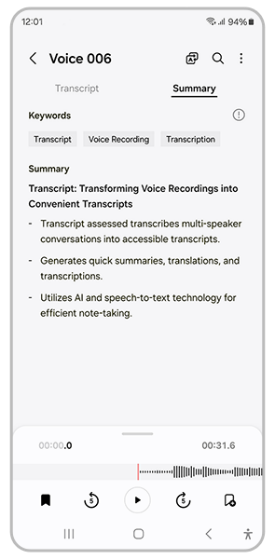
Step 5. Click the three dots at the top right to complete actions like hiding the speaker labels, adding the transcript to Samsung Notes, and more
Step 1. Select ‘Samsung Internet’ & search for content
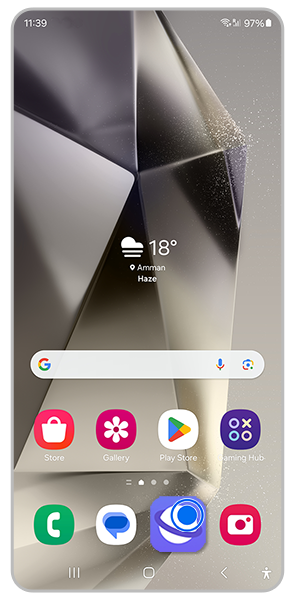
Step 2. Select Galaxy AI stars icon
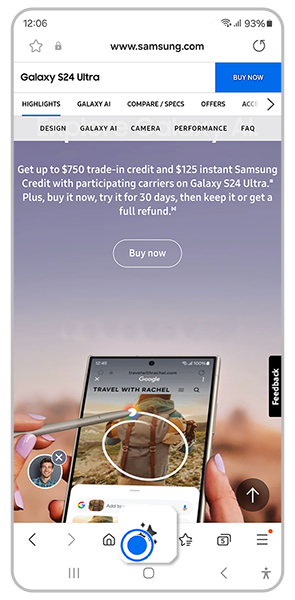
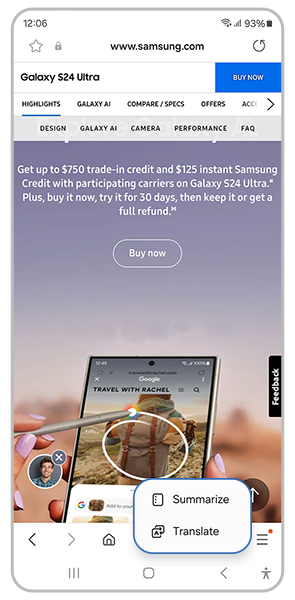
Step 3. Select Summarize To translate the summary, choose Translate on the summarized screen Or, to translate the whole article, or Select Translate, Change language on the upper left corner
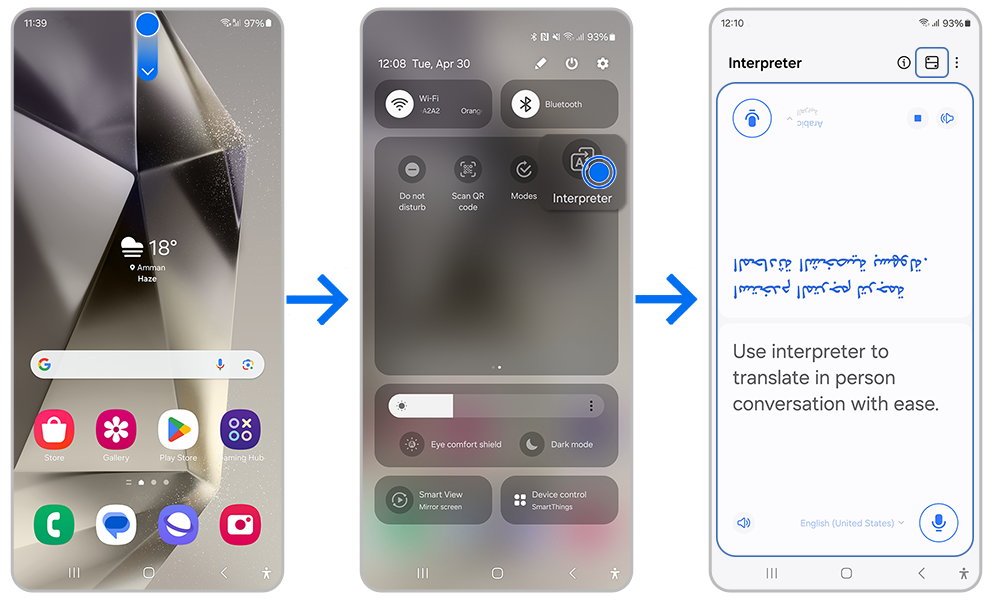
Step 1. Swipe down to access Quick Panel, and select Interpreter
Step 2. Set two languages in the drop-down menus
Step 3. Use split-screen mode and speaker icon for audio/text translations.
Step 4. Press microphone icon to speak; Galaxy AI translates in real-time.
Powered by AI, Edit Suggestion recommends automatic photo enhancements, bringing out the best in every image you capture and guiding you to make the most of every memory.
From re-composing to remastering and more, Galaxy S24 series’ powerful suite of editing tools enables you to create your best content yet.
Step 1. Select a photo from Gallery to edit
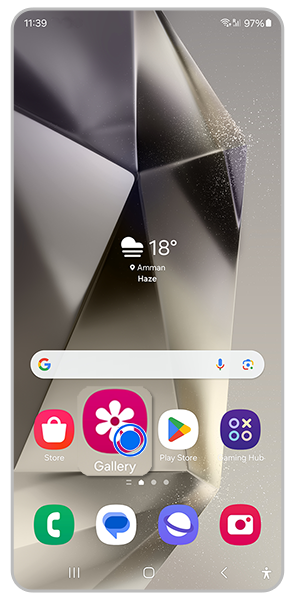
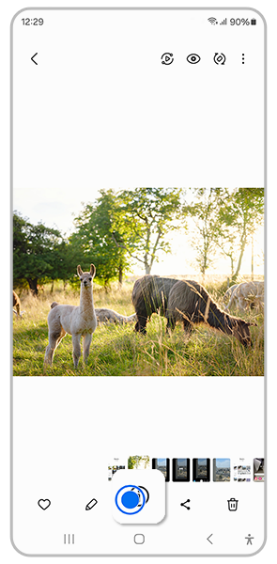
Step 2. Select the "I" circular icon
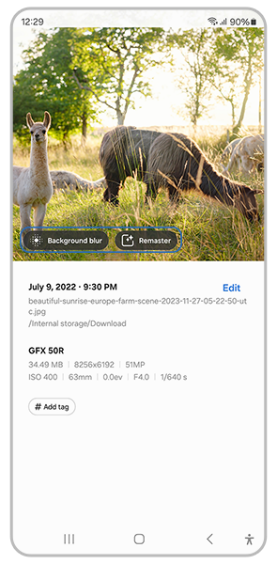
Step 3. On the photo, you'll see suggested edits to make. Select any of them
Step 4. Save the edited image as a copy or as a replacement of the original image
Step 1. Go to Gallery and select an image
Step 2. Tap pen tool > Galaxy AI star icon.

Step 3. Draw around or tap objects to move/delete.
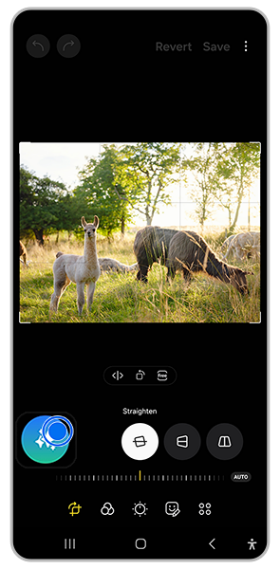
Step 4. Tap Generate to fill missing background.
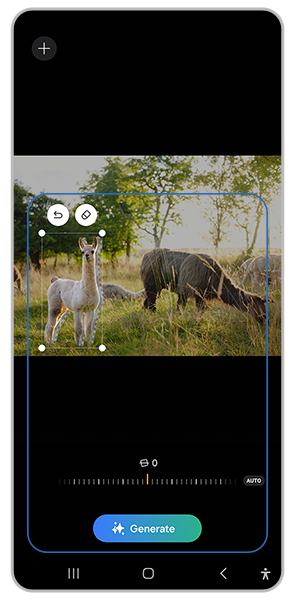
Step 5. Adjust image position for border fill, then tap Generate again.
Thank you for your feedback!
Please answer all questions.