How to remove lock screen Ads
Samsung does not place ads on the lock screen. These ads are usually caused by third-party apps or browser settings. Follow the steps below to remove them.
- Open the Play Store
- Tap your profile icon
- Select Manage apps and device
- Sort apps by Recently updated or Least used
- Uninstall suspicious or recently installed apps one by one until the ads stop

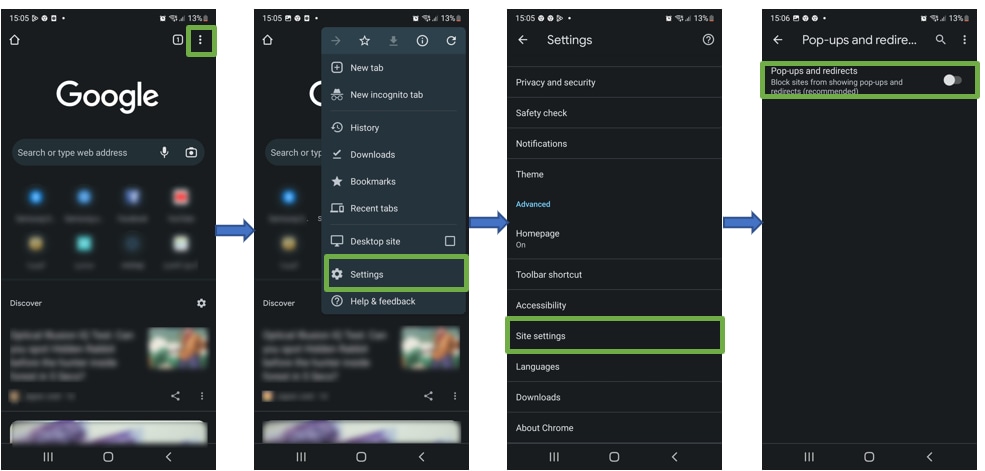
1. Open Chrome
2. go to Settings
3. Tap Site settings
4. Select Pop-ups and redirects and turn it off
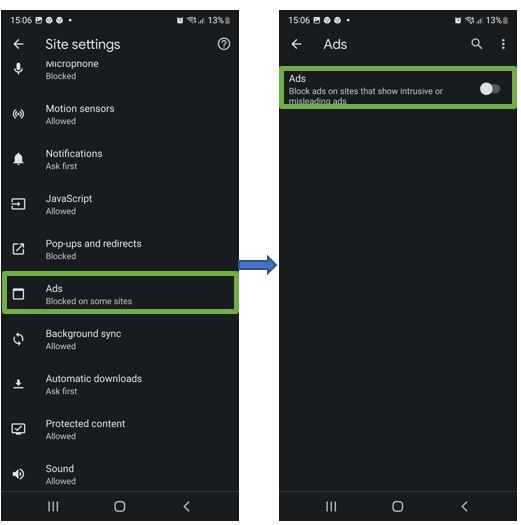
6. Go back and tap Ads
7. Turn this setting off

1. Open Samsung Internet
2. Tap the menu (three lines)
3. Go to Settings
4. Select Sites and downloads
5. Turn on Block pop-ups
6. Go back and tap Ad blockers
7. Download and enable a recommended ad blocker
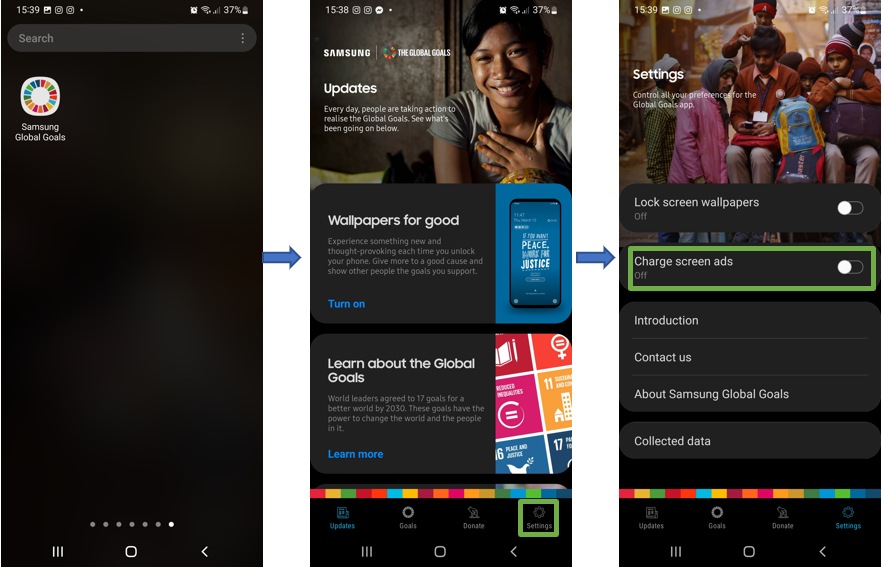
If you have set up Samsung Global Goals you may notice that ads appear on your lock screen whilst charging. To deactivate it follow the below:
Step 1: Launch the Samsung Global Goals app
Step 2: Tap on the Settings icon Settings and toggle off Charge screen ads
1. Go to Settings > Privacy
2. Tap Customisation Service
3. Turn off Customise this phone and Customised ads and direct marketing

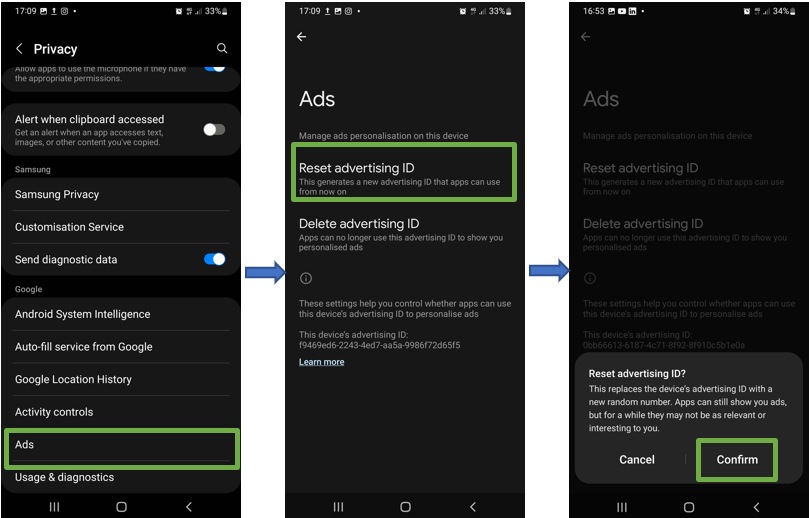
4. Go back and tap Ads
5. Turn on Opt out of Ads Personalization
Thank you for your feedback!
Please answer all questions.