How to remove background noise from Galaxy videos
Last Update date : Apr 19. 2026
You can remove unwanted background noise from videos using Audio eraser in the Gallery app.
It allows you to adjust specific sound types like wind or crowd noise while keeping voices clear.
Audio eraser detects and separates sounds such as voices, music, wind, and background noise, so you can control each one individually.

What Audio eraser can adjust?
- Voices
- Music
- Wind
- Crowd
- Nature sounds
- General noise
How to remove unwanted sound using Audio eraser
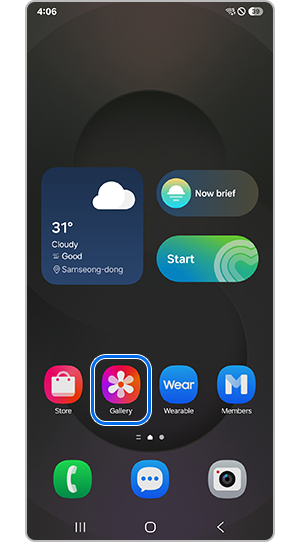
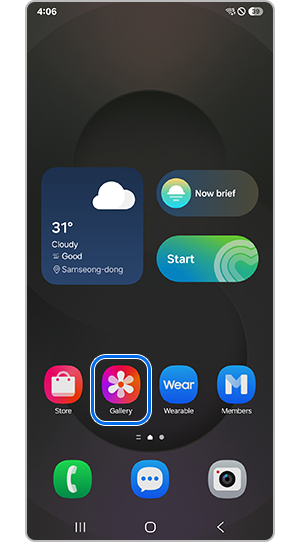
Step 1. Open the Gallery app and select the video you want to edit.
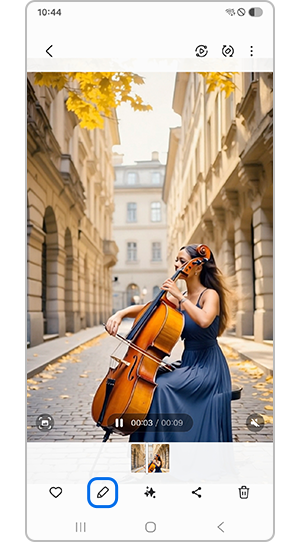
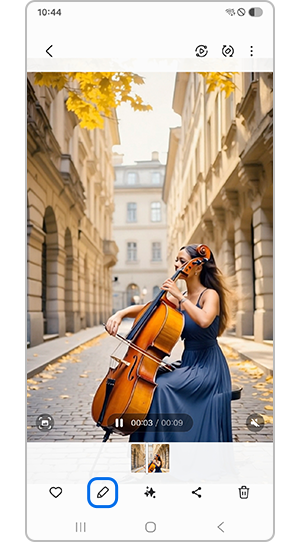
Step 2. Tap the Edit (pencil) icon.
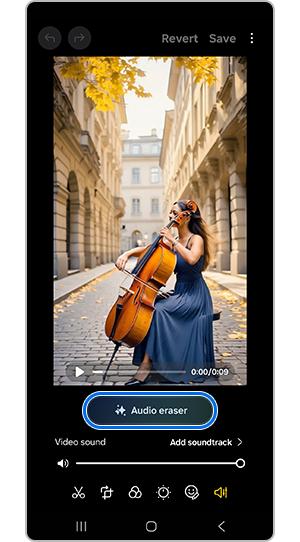
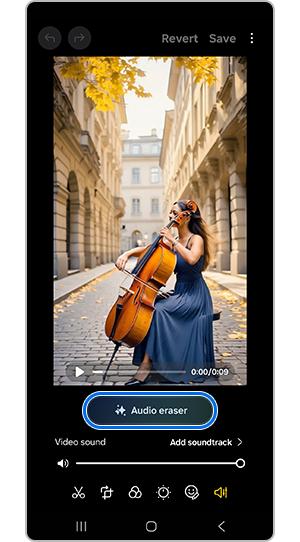
Step 3. Tap the Audio option, then select Audio eraser.
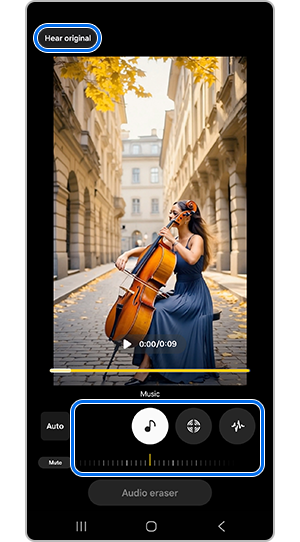
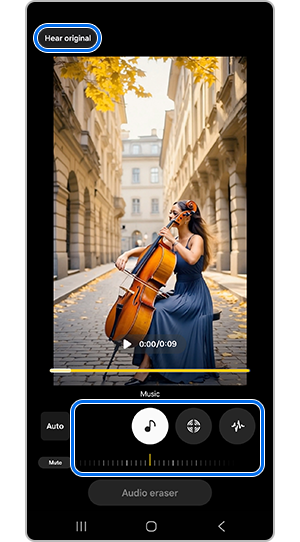
Step 4. Adjust each sound type using the sliders (e.g. reduce noise or wind).
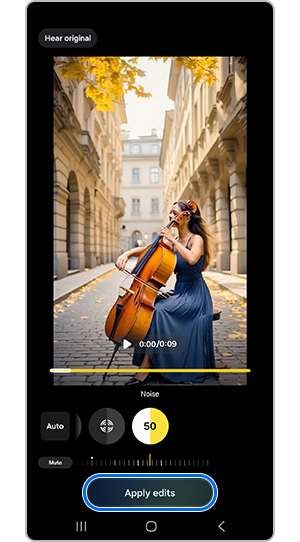
Step 5. Tap Apply edits when finished.


Step 6. Tap Save copy to export the edited video.
- Voices – people speaking
- Wind – air or wind noise
- Music – background music
- Nature – sounds like waves or birds
- Crowd – group noise such as cheering
- Noise – general background sounds
Notes:
- Tap "Hear original" to compare original and edited audio.
- Use "Auto" to let Galaxy AI reduce noise automatically.
- Available on Galaxy S and Z series starting from S24 with One UI 7.0 or later.
- Samsung account login is required.
- Results may vary depending on audio quality and environment.
- Feature availability may vary by region, device, and software version.
Thank you for your feedback!
Please answer all questions.