How to use the Circle to Search feature on Galaxy devices
Last Update date : Apr 13. 2026
Circle to Search lets you quickly search for images, text, or videos directly from your screen using a simple gesture. You can use your finger or S Pen to circle content without switching apps or typing.
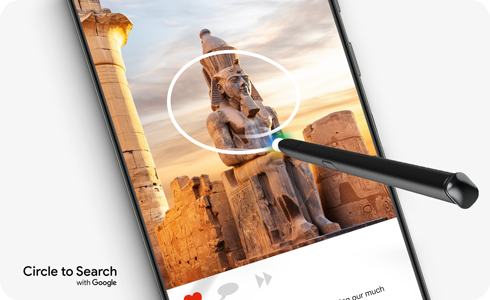
Set up Circle to Search


Step 1. Open Settings > Tap Display.


Step 2. Tap Navigation bar.


Step 3. Turn on Circle to Search.
Use Circle to Search
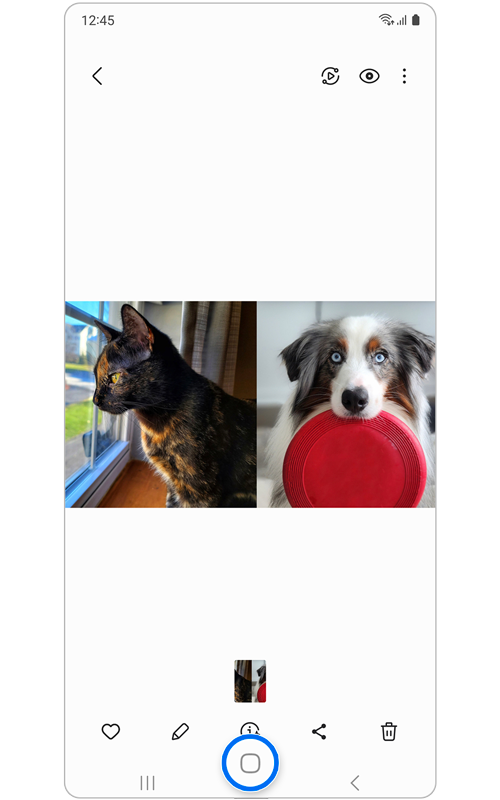
Step 1. Tap and hold the Home button.


Step 2. Circle, highlight, or tap an object using your finger or S Pen.


Step 3. Release your finger or S Pen to start the search.
Search results will appear instantly based on the selected content.
Requirements for Circle to Search
- Internet connection is required.
- Feature works on apps that allow screen capture.
Troubleshooting Circle to Search
If “Screen search isn’t available” appears:
- Open Settings.
- Tap Apps.
- Tap Choose default apps.
- Tap Digital assistant app.
- Enable Analyze on-screen images.
Notes:
Click here to read more about the AI features on supported Samsung Galaxy devices and models.
Thank you for your feedback!
Please answer all questions.